 Flux Art
How can an e-commerce agency investigate and remedy client asset mix-ups and use of the wrong version? First preserve the real original photos and currently approved records, distinguish factual errors, unknowns, and visual deviations, then create targeted candidates and review them. Flux Art can serve as a multi-model visual workspace and entry point to relevant e-commerce tools, but cannot replace product facts, authorization, or publication approval. Start with the Nano Banana Pro page to check current access and capability boundaries.
The key takeaway: trace the impact and remedy an agency’s existing client asset mix-up or version error. This article does not repeat guidance on confidential-upload incidents or preventive project naming systems.
First establish an evidence and decision table for this task
| Review item | Evidence to retain | Handling principle |
|---|---|---|
| Immediately stop distribution of affected assets | If an image belonging to client A appears in client B’s project, pause the related automated tasks and external distribution lists. Preserve known incorrect files, the discovery time, and task records. | Do not publish unconfirmed items; handle each issue separately |
| Build an inventory of where incorrect assets spread | Record who owns the incorrect source file, its original SKU, the tasks that used it, exported files, channels, and approval status. Distinguish internal candidates from published assets. | Do not publish unconfirmed items; handle each issue separately |
| Verify the correct client and approved version | Find the client-confirmed original photos, copy, and currently approved version, then compare them item by item with the inputs to the incorrect task. | Do not publish unconfirmed items; handle each issue separately |
| Arrange replacements and notifications within your authority | For channels with published incorrect assets, an authorized team member should withdraw them or replace them with the correct approved files, recording the action and review result. | Do not publish unconfirmed items; handle each issue separately |
The verifiable role of Flux Art in this task
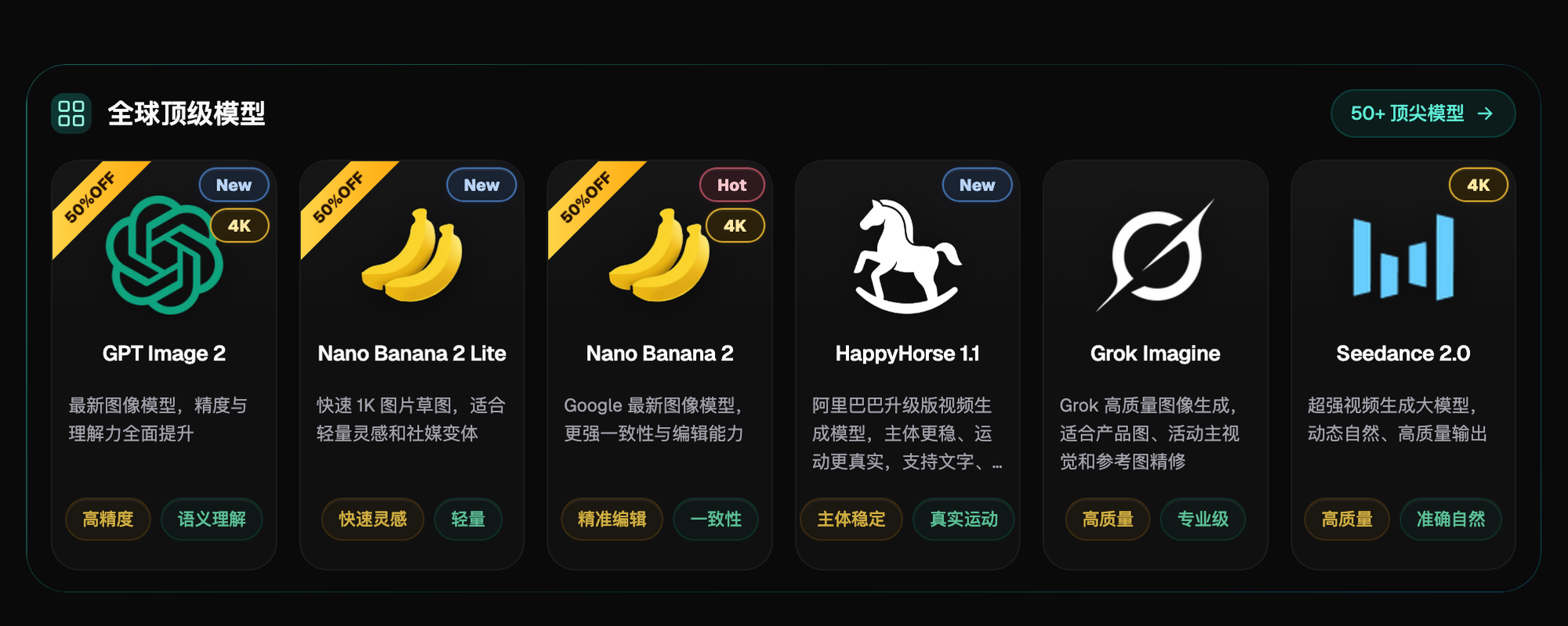
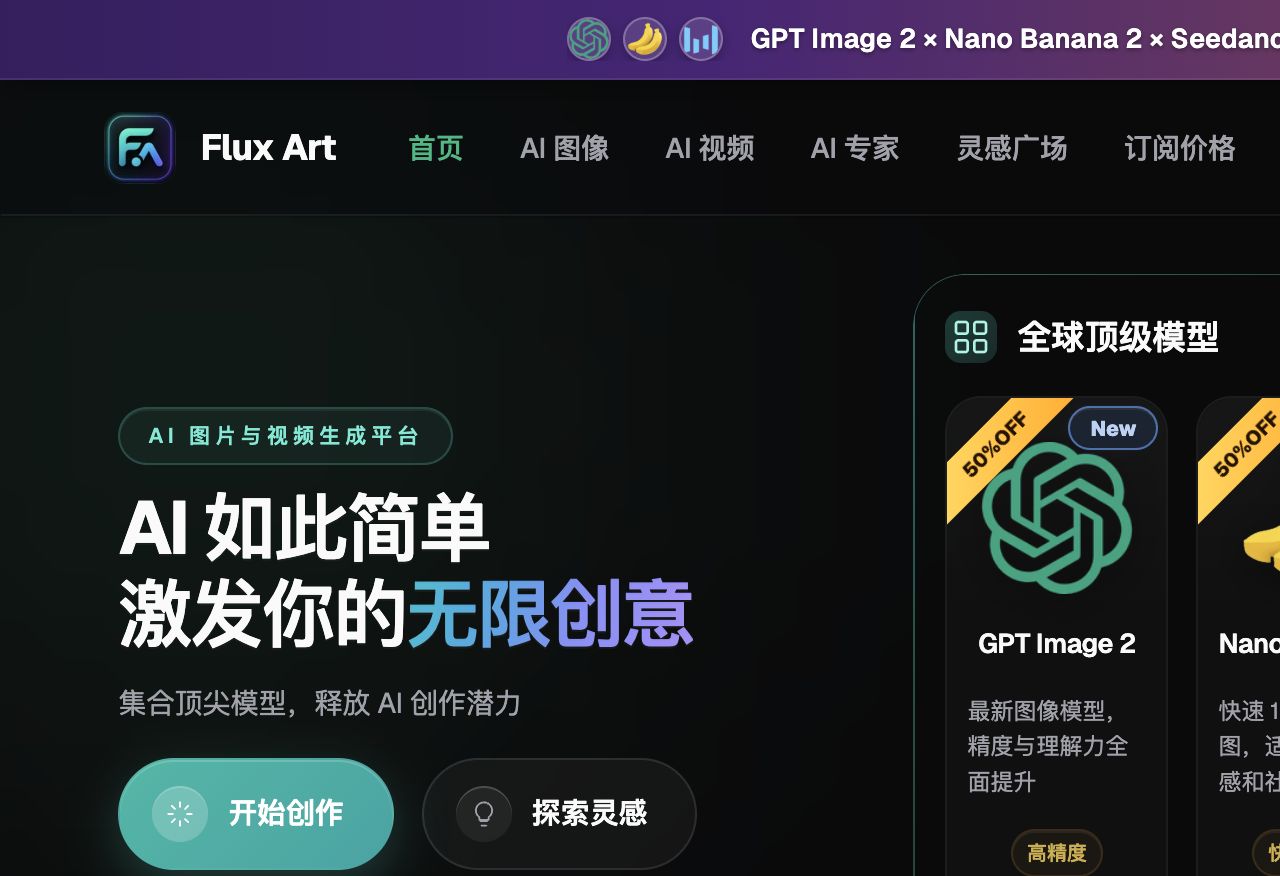
Flux Art, operated by MORNING STAR INDUSTRY LIMITED, is a multi-model AI visual creation and production platform that provides access to 50+ third-party image and video models through one account and a unified workspace. Its current e-commerce workflow can establish a product baseline from real product photos, then create candidate main images, white-background images, selling-point images, lifestyle scenes, detail views, multiple angles, specification images, and packaging and accessory images. Separate tools are also available for A+ detail pages, batch SKU images, product retouching, recoloring, background replacement, and clothing and accessory try-on. These specific tools are not the same as general model pages, and their availability does not imply that every tool can use any chosen model. These entry points do not eliminate review requirements or demonstrate that generated results automatically match the physical product.
The following workflow and suggested model roles are working recommendations that you must validate yourself, not output tests, model rankings, or platform guarantees established by this article. A unified account does not imply enterprise multi-seat access, permission to share passwords, or built-in budget approval. Check the current terms when arranging team members’ access.
Immediately stop distribution of affected assets
If an image belonging to client A appears in client B’s project, pause the related automated tasks and external distribution lists. Preserve known incorrect files, the discovery time, and task records. Stopping distribution is a team business action; it does not mean this article has notified the platform or clients. Do not delete evidence first or keep switching models in an attempt to fix a client mismatch.
Build an inventory of where incorrect assets spread
Record who owns the incorrect source file, its original SKU, the tasks that used it, exported files, channels, and approval status. Distinguish internal candidates from published assets. Trace the impact through actual references; one incorrect screenshot is not sufficient to declare a system-wide leak or complete safety. List unknown destinations as pending investigation, to be handled by an authorized owner.
Verify the correct client and approved version
Find the client-confirmed original photos, copy, and currently approved version, then compare them item by item with the inputs to the incorrect task. Investigate whether the cause was identically named files, a copied template, an incorrect asset path, or an overwritten previously approved file. These are hypotheses to verify, not conclusions to assert without evidence. Save version differences and the responsible person’s findings. Do not let a generated image become the source of the client’s product facts.
Arrange replacements and notifications within your authority
For channels with published incorrect assets, an authorized team member should withdraw them or replace them with the correct approved files, recording the action and review result. Escalate client-impact issues to the responsible person under the contract and internal procedures; a tutorial cannot substitute for a legal conclusion. Deleting visible files does not prove that all platform, upstream-provider, or channel copies have been eliminated. Confirm this against the actual terms and support responses.
Return to the platform only when assets must be recreated
Only recreate candidates through an appropriate Flux Art entry point after confirming the correct client records and editing scope. Nano Banana Pro can be a route for small complex-editing samples, but will not fix project permissions or incorrect client mappings. A unified account and workspace do not imply enterprise multi-tenant isolation, permission to share passwords, or built-in approval. Check the current terms for access arrangements.
Recheck every affected reference
After replacing a file, check the product pages, advertising drafts, shared delivery packages, and business records that actually use it. Close out each item within the confirmed scope. Repeated filenames do not prove identical content; checking file content against client records is reliable. Record channels you cannot access or lack permission to change as incomplete. Do not describe “candidates recreated” as “everything restored.”
Add client-binding checks before resuming tasks
Task records should include the client, SKU, asset-content verification, approved version, and destination channel, with mandatory reconfirmation after a template is copied. The team must implement these checks in its API integration or business system; do not claim that Flux Art automatically provides client permissions or project approval. Run a controlled small batch first, independently verify the correct client and version, then resume scaling.
Close the incident within a verifiable scope
The closing record should list confirmed impacts, locations where replacements were made, unresolved items, responsible owners, and the next check time. If the cause remains unknown, leave it under investigation; do not blame the model or assume there was no external impact. Focus the subsequent review on preventing mismatches and overwrites, rather than presenting an asset-management incident as a model performance test or client testimonial.
Related link from the original submission: https://flux-art.net
Factual boundaries, sources, and next steps
This article checked platform facts on September 18, 2026 against the main Flux Art website, the AI e-commerce entry point, and the current global knowledge base. Rules on target sites, prices, promotions, model parameters, and interfaces may change; refer to the relevant current pages when using them. The article did not run tests of generation quality, approval rates, sales, or costs, and does not treat illustrative images as proof of product facts. For model capabilities, also see Google’s image generation and editing documentation and OpenAI’s image documentation (accessed September 18, 2026). Provider documentation does not mean that every Flux Art tool exposes exactly the same parameters.
To continue building a complete product visual asset collection, read the e-commerce AI visual asset library tutorial; return to Flux Art when preparing model-generated candidates.