 Flux Art
GPT Image 2.5 API integration lets you save the request ID, request body digest, and idempotency key before submitting it to Flux Art. When you receive a task ID, write it back to the same record. If the process stops during submission, the recovery routine can still distinguish requests that were never sent, have an unknown outcome, or already have a task. You will not need to recreate every business request.
Save business intent before making the request
Create a request record in your own database with, at minimum, the business ID, owning user, approved template version, model configuration version, request body digest, idempotency key, creation time, and local processing status. This is a business system design recommendation, not a new Flux Art API field. Do not put secrets in the record, and do not copy temporary image access signatures into ordinary logs. If you need to recover a request body, store it in access controlled task storage; a hash that cannot reconstruct the request is not enough.
Follow a fixed sequence to prevent duplicate creation after a restart
First, write a pending request record in a transaction. Second, a worker claims the record. Third, send the saved request body and idempotency key. Fourth, write the returned task ID back to the record. If the process stops between steps three and four, mark the outcome as unknown. On recovery, replay the same request instead of generating a new key. Implement task claiming concurrency control in your queue or database; do not assume that two workers running at once means the platform automatically deduplicates your business requests.
Create a new revision when the request changes
Use a fixed serialization format before calculating the request body digest so you can detect changes to the prompt, model, or reference image. Do not include a per run timestamp in the business inputs used for comparison, or the same task may be misidentified as a new revision. When you confirm that the requirements have changed, retain the old record and create a new revision with a new idempotency key. If you receive a conflict, compare it with the original record; do not mask parameter drift by repeatedly changing the key. The digest checks the inputs; it is not a seed that guarantees identical image pixels across runs.
Rehearse handoffs at three failure points
Use simulated responses to test three failure points: a stop before sending, a stop after sending but before saving the task ID, and a stop after the task ID is saved. Record whether recovery performs an initial submission, resumes the original request, or queries the status. Then simulate two workers claiming the same business ID and verify that your database constraints prevent duplicate processing. You can start with a local stub; repeated paid generations are not needed to demonstrate recovery logic. For real API verification, separately retain the request time, task ID, and a redacted response.
API fields and the original operation example
A minimum complete workflow includes task lookup
Submit model, mode, prompt, and count using POST /images/generations with Bearer authentication and Idempotency-Key. Save the task ID after creation, then call GET /tasks/{task_id}. Use the fields in the current API documentation; do not assume responses match those of the original vendor's SDK.
| What this guide clarifies | Details |
|---|---|
| Inputs or conditions | Server side key, exact model ID, and approved prompt |
| Action | Create the task, save its ID, query its terminal status, and save the output |
| Items to check | Authentication, idempotency, status, files, and usage |
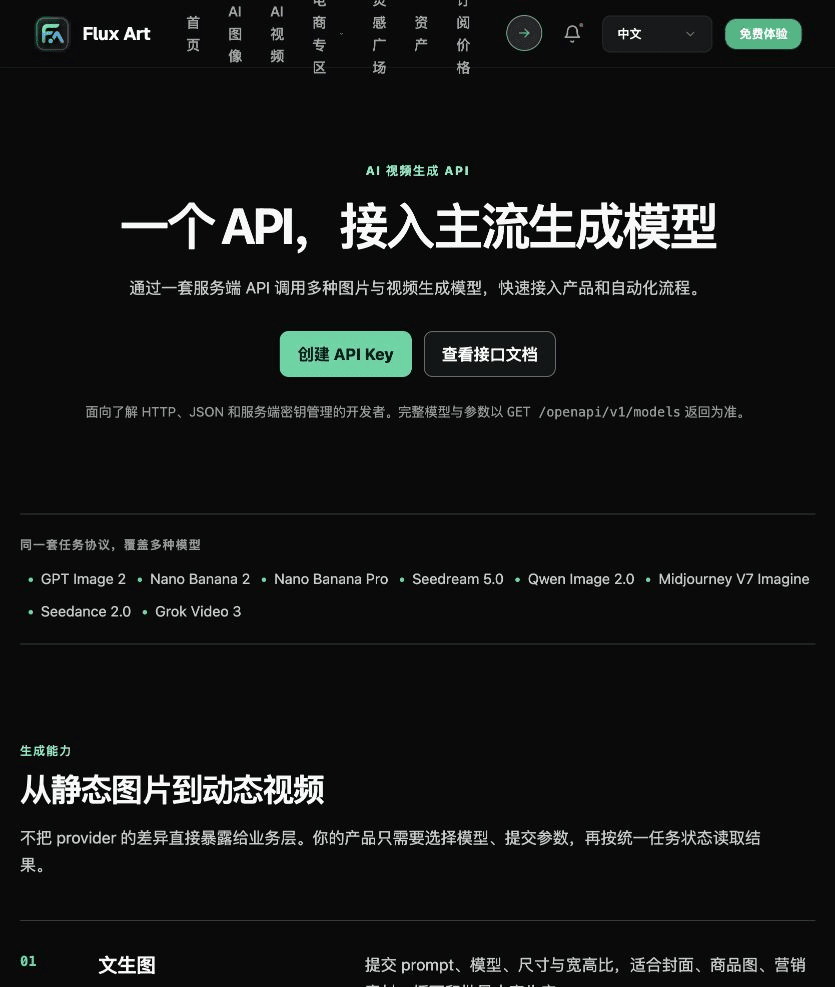
Flux Art is operated by MORNING STAR INDUSTRY LIMITED and is a multi model AI visual creation and production platform. Its unified workspace provides tools for image, video, and ecommerce creation, while its OpenAPI lets teams connect approved image requests to their own business systems. Web based sample creation, API execution, and business recordkeeping can each have their own workflow; the platform is not limited to a single model.
Complete one image before building a queue
Save the request, status, output, and actual usage, then check the file and its contents when the task completes. A network timeout does not mean the task was not created; retry the same request with the original idempotency key. If the model settings are wrong, fix the fields instead of retrying without limit.
Put the complete API workflow into practice
Check the fields and account requirements needed for the complete API workflow in the Flux Art OpenAPI reference.
Keep your own key on the server. First verify the server side key, exact model ID, and approved prompt.
Complete task creation, save the ID, query the terminal status, and save the output. Handle task creation and query results separately.
Record authentication, idempotency, status, files, and usage. Start with a single request and failure handling before connecting a business queue.


A request example to verify first
First install requests. Set FLUX_ART_API_KEY and set FLUX_ART_REQUEST_KEY for this business request; retries of the same request must reuse the original key. This example shows task creation and lookup. It does not look for an image in the creation response.
import os
import requests
base = "https://open-api.flux-art.net/openapi/v1"
key = os.environ["FLUX_ART_API_KEY"]
request_key = os.environ["FLUX_ART_REQUEST_KEY"]
headers = {"Authorization": "Bearer " + key}
payload = {
    "model": "gpt-image-2.5-flare",
    "mode": "generate",
    "prompt": "Create a creative image of an ivory ceramic mug on a light gray background, with no text",
    "count": 1,
}
r = requests.post(
    base + "/images/generations",
    headers={**headers, "Idempotency-Key": request_key},
    json=payload, timeout=30,
)
r.raise_for_status()
task_id = r.json()["data"]["id"]
print("task_id:", task_id)
# In production, persist task_id first, then query according to rate limits.
t = requests.get(
    base + "/tasks/" + task_id,
    headers=headers, timeout=30,
)
t.raise_for_status()
task = t.json()["data"]
print("status:", task["status"])
if task["status"] == "succeeded":
    print("output:", task.get("output"))
    print("usage:", task.get("usage"))
A single lookup will likely still return queued or processing, so continue querying at reasonable intervals. Stop success handling for failed or canceled tasks. The timeout here is the network wait limit; it does not promise an image in thirty seconds. Commercial product work requires real assets and a separate review. The example creative mug does not represent an actual product for sale.

From integration notes to delivery acceptance
The request records, checkpoints, form validation, queue, and billing snapshots described here are methods for teams to implement in their own systems. They are not new built in platform features. First check control logic with simulated responses, then verify the API with a small number of approved real tasks. For each verification, record the date, environment, request version, redacted response, and task status. Keep checks that have not been run marked as pending verification; do not present sample code as proof of a successful API call.
Before saving an image output, check that the file is readable and verify its format and pixel dimensions, then associate it with the correct business version. For commercial product displays, also compare it against the real product, approved text, and intended placement. If you find an input error, fix the input. If network observations are incomplete, resume the same task; do not treat these two cases as reasons for an unconditional rerun.
Flux Art supports commercial use, including product displays, marketing materials, and commercial design deliverables.
Project materials and sources of truth
Keep the basis for input photos, people, trademarks, and product claims in a separate record to support project handoffs and result reviews. This documents project assets and product accuracy; it is separate from the conclusion that the platform supports commercial use.
API field verification date: 2026-09-28. Use the Flux Art OpenAPI documentation to check current account requirements, model listings, and parameters. The example in the original article was not run as a paid generation task. Keep your own key on the server and verify the current configuration before running the example.
For the basic workflow, continue with the related API integration and management guide. Visit Flux Art to view the workspace and account entry points.