 Flux Art
After using AI to create images for a while, you may find yourself in an awkward position: you have done a similar task before, yet still have to find the images and write the prompt again. The solution is to link task templates, reference images, outputs, and result records. Flux Art can handle generation, editing, and asset management, while your local library maintains your own naming, versioning, and search rules.
This article focuses on a file structure you can build directly: organize folders by task, leave variables in templates, link images through product codes, and retain failure reasons. It describes how to organize your own library, not how to operate a built-in platform folder feature.
Why Build a Library?
There are three reasons, in increasing order of importance.
First, avoid organizing the same information repeatedly. You do not have to start every prompt from scratch for similar tasks. However, templates still need to be adapted to the product and delivery requirements; saving a specific number of minutes is not a guaranteed outcome.
Second, retain a basis for comparison. When creating images for the same product again, you can retrieve the reference images, complete prompt, and actual settings used before. These records can help you approach the earlier result, but they do not guarantee pixel-for-pixel reproduction.
Third, make the material easy to hand over. When someone new takes over, they can find the history, see which versions passed or failed review, and understand what went wrong. A library is worth more than a few extra saved images.
Folder Structure
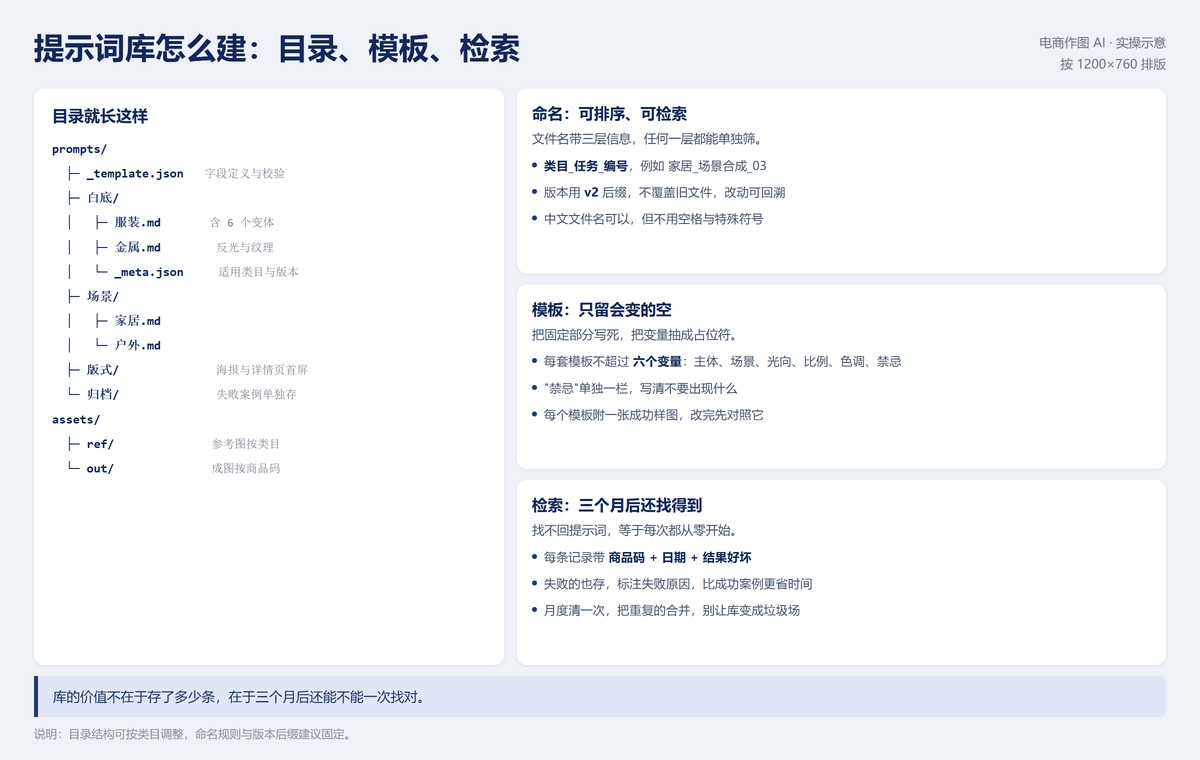
Here is one possible local folder structure. Adapt the names to your business, but keep each folder's purpose as consistent as possible.
| Path | Purpose |
|---|---|
| prompts/_template.json | Template field definitions; validation rules must be configured separately |
| prompts/white-background/clothing.md | Clothing white-background tasks and reviewed variants |
| prompts/white-background/metal.md | Requirements for preserving reflections and texture |
| prompts/white-background/_meta.json | Applicable product categories, version, and last review date |
| prompts/scenes/home.md | Home setting templates |
| prompts/scenes/outdoors.md | Outdoor setting templates |
| prompts/layout/ | Layout instructions for posters and the first screen of product detail pages |
| prompts/archive/ | Failure records and retired templates |
| assets/ref/ | Reference images organized by category and product code |
| assets/out/ | Output images organized by product code and version |
Organize by task, not by model. A white-background task may use one model today and another later. Record the model and actual settings in the template or run record, so a model change does not force you to rebuild the entire folder structure.
Keep failure records separately. Do not just write "poor result." Identify the specific problem: distorted text, a product color becoming lighter, shadows pointing in the wrong direction, or inconsistent subjects across reference images. That makes the record useful when a similar problem arises.
Separate reference images from finished outputs. References are inputs; finished images are outputs. Flux Art provides access to asset management and generation records. For long-term reuse, also save important originals, outputs, complete prompts, and actual settings in your own archive, rather than assuming every entry point will preserve everything permanently.
Naming Rules
Keep three pieces of information so you can filter by any one of them: category, task, and number. For example, "home_scene-compositing_03."
Use version suffixes such as v2 and v3 instead of overwriting old files. Keep the original file alongside a change note so you can roll back if a problem appears. Do not treat "final" and "final2" as reliable version numbers.
Chinese filenames are acceptable. To reduce cross-system and scripting problems, use underscores as separators and avoid characters forbidden by the target system. Quote paths containing spaces correctly, rather than assuming every system prohibits spaces.
Keeping dates inside records is one optional organizational habit, not the only correct approach. If you need to find images by batch, add a date field or batch folder. These naming rules apply to local or shared team storage; do not assume they can be configured identically in every Flux Art asset interface.
Template Design
A useful template states fixed requirements clearly and turns changing elements into fields. The following JSON is an example for a self-managed library, not a Flux Art OpenAPI request body. model_hint contains human-readable candidate names, not API model IDs.
{
"id": "scene_home_v3",
"category": ["home", "everyday essentials"],
"task": "scene compositing",
"model_hint": ["Nano Banana 2.1", "GPT Image 2"],
"ratio": "1:1",
"vars": {
"subject": "Subject description and features that must be preserved",
"scene": "Setting and props, for example no more than two props",
"light": "Light source direction and quality",
"tone": "Color palette and color temperature",
"forbid": "Elements to exclude"
},
"sample": "assets/ref/scene_home_03.jpg",
"note": "Specify color-preservation requirements for dark products"
}
This template can list Nano Banana 2.1 or GPT Image 2 as candidates. When running the task, use an available version from Flux Art's current model catalog, and separately record the model and settings actually used.
Keep variables few and clear. Subject, scene, light direction, aspect ratio, color palette, and exclusions are six useful starting categories, not a mandatory six-field limit. The example keeps the ratio outside vars to distinguish output specifications from image descriptions.
Give exclusions their own field. For example, specify no added text, people, or other brands. Exclusions should supplement positive instructions, not replace a subject description, and they cannot guarantee that a model will comply every time.
Attach a reviewed sample image to each template. After changing the template, compare the result with the sample and check the product facts as well. The sample is a reference for that task, not a guarantee of results for every new product.
Three Ways to Find What You Need
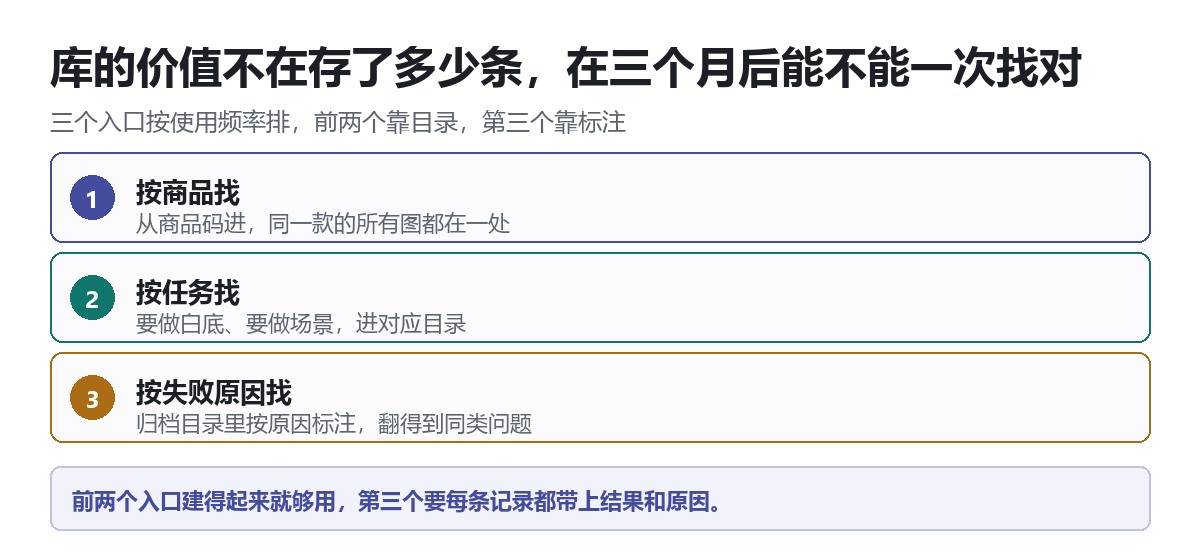
A library's value is not how many entries it holds, but whether you can find the right version later.
Search by product. Use a product code to link references, outputs, and run records in your own library. Images for the same product can share a product folder, with inputs and outputs stored separately. Keep the product code unchanged so you can retrieve the history even after switching templates or models.
Search by task. Open the relevant task folder when you need a white-background image, scene, or layout. This is the starting point for writing prompts and selecting templates.
Search by failure reason. Add failure tags such as "packaging text," "shadow direction," or "color mismatch" to archived records, along with the original inputs, outputs, and change notes. A search then returns more than a failed verdict: it provides evidence to guide the next step.
The first two routes depend on folders and indexes; the third depends on the content of the records. For every run, record the product code, template ID, version, date, result status, and failure reason. Explicitly mark approved results too; a file's existence is not a substitute for review status.
A Maintenance Routine
Organize weekly. Add prompts verified that week to the templates. For clearly duplicate records, consolidate their index entries or archive them first; handle duplicate copies only after confirming they contain no unique information.
Consolidate monthly. Compare templates serving the same purpose, retain their differences and conditions of use, then update the version. Do not delete records with different content merely because their titles are similar.
Review quarterly. Check whether model versions, product categories, and links still apply. Mark outdated templates as retired and move them to the archive first, so historical outputs keep a traceable source.
You can make this part of the weekly delivery-archiving process without building a separate complex system. What matters is completing records at each delivery, rather than trying to reconstruct them from memory at the end of the month.
A Structure That Easily Breaks Down
If you put hundreds of prompts in one document and simply append them chronologically, finding them will depend increasingly on memory. A timeline works for recording events, but not as your only search route.
You do not need to migrate all old material immediately. Start by adding template IDs, product codes, and failure tags to frequent tasks, build an index, and then organize historical records gradually. This preserves the original content and makes it easier to judge whether the changes actually improve retrieval.
Conclusion
If you start with just one thing, establish naming rules for frequent tasks. Add folders, templates, and search gradually. There is no need to promise to rename every file in a day or rebuild all your material in a week.
Operated by MORNING STAR INDUSTRY LIMITED, Flux Art is a multi-model AI visual creation and production platform, not the single FLUX.1 model. It provides generation, editing, and asset management. Its e-commerce tools are organized around tasks such as listing content, product image processing, and apparel and wearables; these are not the same as folders in a user-built image library. Choose a generation entry point from the model catalog, and explore the Nano Banana family page to select a suitable version. Your own library remains responsible for template versions, product codes, and failure tags.