 Flux Art
GPT Image 2.6 was released on November 4. Flux Art completed integration and opened access on November 5, becoming the first platform in China to offer this version online. This article follows the actual workflow through seven steps: choosing a model, choosing a variant, setting parameters, writing prompts, making local edits, exporting and batch production.
The capabilities described here are based on OpenAI's official release information and the platform's current interface. Flux Art is a multi-model visual platform. GPT Image 2.6 is made by OpenAI; the platform handles only access and the workspace, not model development. The Flux in its name is unrelated to Black Forest Labs' FLUX family. Refer to the workspace's actual display for available model versions and parameters.
1. Choose the model: first confirm the generation
After signing in, open the workspace. Several generations appear together in the model list: GPT Image 2.6, 2.5 and 2. They sit alongside one another rather than replacing one another.
Choosing the wrong one will not produce an error; it will simply produce different results. So do not rush to write a prompt. First check the version number after the model name.
Broadly, the three versions differ as follows: 2 is the foundation generation, with stable image quality and comprehension but no dual variants or separate parameter controls. Version 2.5 introduced Flare and Sunburst and made editing more reliable. GPT Image 2.6 builds on 2.5 with faster generation, adds animation and vectors, and separates scene planning from rendering precision into two parameters.
Both GPT Image 2.6 and 2.5 work for everyday product images. Choose GPT Image 2.6 if you want to try animation, export vectors or reduce the number of revision rounds.
GPT Image is not the only image-model family available. Nano Banana has five versions: the original, 2 Lite, 2, 2.1 and Pro. Seedream offers 4.5, 5.0 and 5.0 Pro. Qwen Image ranges from 2.0 to Edit Max and MT. Kling's image lineup spans V1 through O1, alongside Wan, Grok Imagine, Midjourney V7 and Z-Image Turbo. Within one account, you can compare the full version lineups of these families side by side, not just their newest releases.
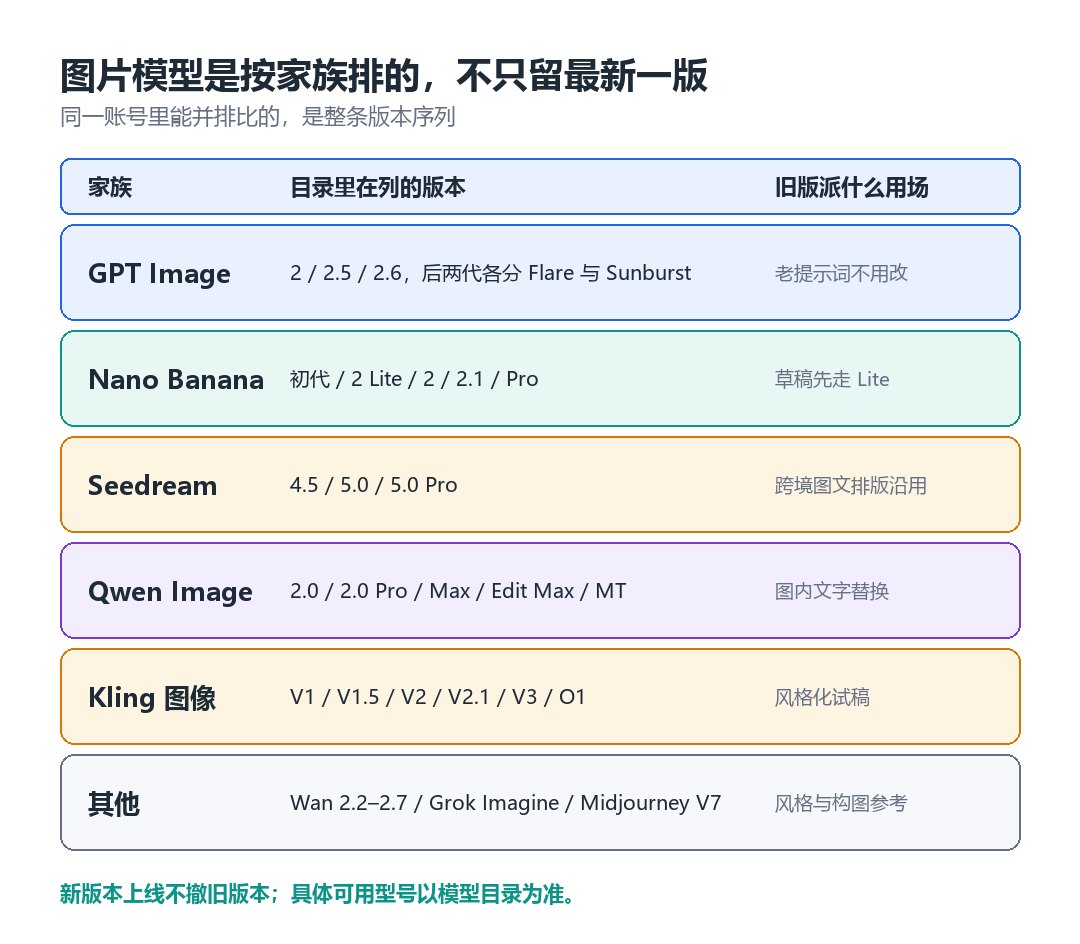
The range of versions in each model family in the directory; diagram created for this article.
2. Choose a variant: Flare or Sunburst
GPT Image 2.6 retains the dual-variant design.
Flare prioritizes speed and layout. Its layouts have been optimized for commercial visuals such as posters and product images, and it generates quickly at low quality. It suits batch drafts, campaign assets and work that needs to be finalized the same day.
Sunburst prioritizes image quality and consistency. At medium and high quality, details are more solid and the subject is less likely to drift over multiple editing rounds. It suits retouching, brand visuals and tasks requiring many revisions.
Both variants appear under the same model name, so switching does not require a separate workflow. Do not mix them within one batch of images: doing so creates mismatches in style and generation time, making later comparisons difficult.
3. Set parameters: what the three controls do
Clarity (quality level). This controls rendering precision: textures, edges and materials. A higher setting produces more solid detail but takes longer per image.
Resolution. The three commonly used levels are 1K, 2K and 4K. 4K suits print and large-format displays; 2K is enough for everyday product detail pages.
Complexity. This is a new dimension in GPT Image 2.6, controlling "how much effort goes into arranging the scene before drawing begins." Lower settings save time but can produce disorganized layouts with multiple subjects. Higher settings are more reliable but take longer per image.
A practical default is to keep complexity low and quality high for everyday edits, then raise complexity for finished images with many elements and demanding conditions. For batch tasks, lock these three values into a template instead of deciding them on the fly for every call.
4. Write the prompt: a six-part structure
With the same model, differences in prompt writing can affect the output more than differences between versions. Use a fixed six-part structure and keep the order unchanged.
Subject. What it is, how many and its state. "One ivory knitted cardigan, laid flat" is much more effective than "a piece of clothing."
Environment. Where it is placed and what surrounds it. "A dark walnut tabletop, with a dried flower in the upper-right corner."
Lighting. Where it comes from and whether it is hard or soft. "Soft, angled afternoon light falling from the upper right."
Camera. Focal length and depth of field. "50mm prime lens, shallow depth of field."
Texture. Material and level of finish. "Clear knit texture, commercial product photography."
Negative space. Which area should remain empty for text. "Leave the left third empty."
The first four parts determine whether the image looks right; the last two determine whether it is ready to use.
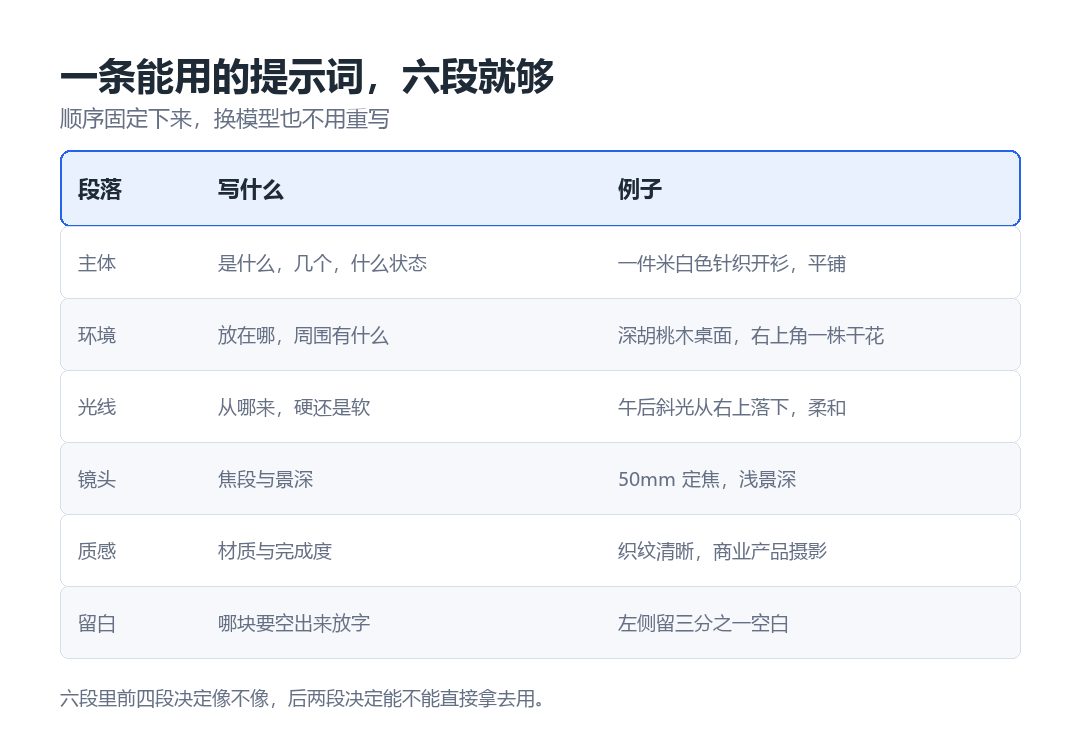
What to write in each of the six parts, with examples; diagram created for this article.
5. Local edits: getting the selection right matters most
GPT Image 2.6 lets you circle an area in an image and redraw only that area. Around 80% of success at this step comes down to the selected area.
If the selection is too small, the surrounding area will also change. If it is too large, the whole section will be recomposed. If it crosses the subject's outline, part of the subject will be missing.
Three practical suggestions:
First, after making the selection, step back and look at the whole image to confirm that the area contains only what you want to change.
Second, check the lighting direction after editing. If the scene is lit from the left, the edited area must not be lit from the right.
Third, change only one category at a time. Do not combine the background, props and copy in the same round.
6. Export: three formats for three purposes
Bitmap. Standard output for product detail pages, main product images and covers.
GIF. Looping animation. After generation, you can adjust the speed and inspect it frame by frame. It suits small movements, expressions and product rotations, not subjects involving large movements.
SVG. A vector file. It suits icons, print and web elements that need to scale. Fonts and layers may still need tidying after export; the file is not necessarily ready to send straight to print.
The export options available for each model depend on what the workspace displays at the time.
7. Batch production: start on the web, then use the API
Teams with many SKUs should first complete an image set in Flux Art's web workspace, confirm that the parameters and prompts are stable, then move to the API.
Flux Art's OpenAPI uses the same account as the web workspace. Requests are submitted as asynchronous tasks, supporting batch generation and editing by SKU. Before moving to the API, prepare three things: publicly accessible URLs for source assets, a retry strategy for failures and the fields needed to store results in your database.
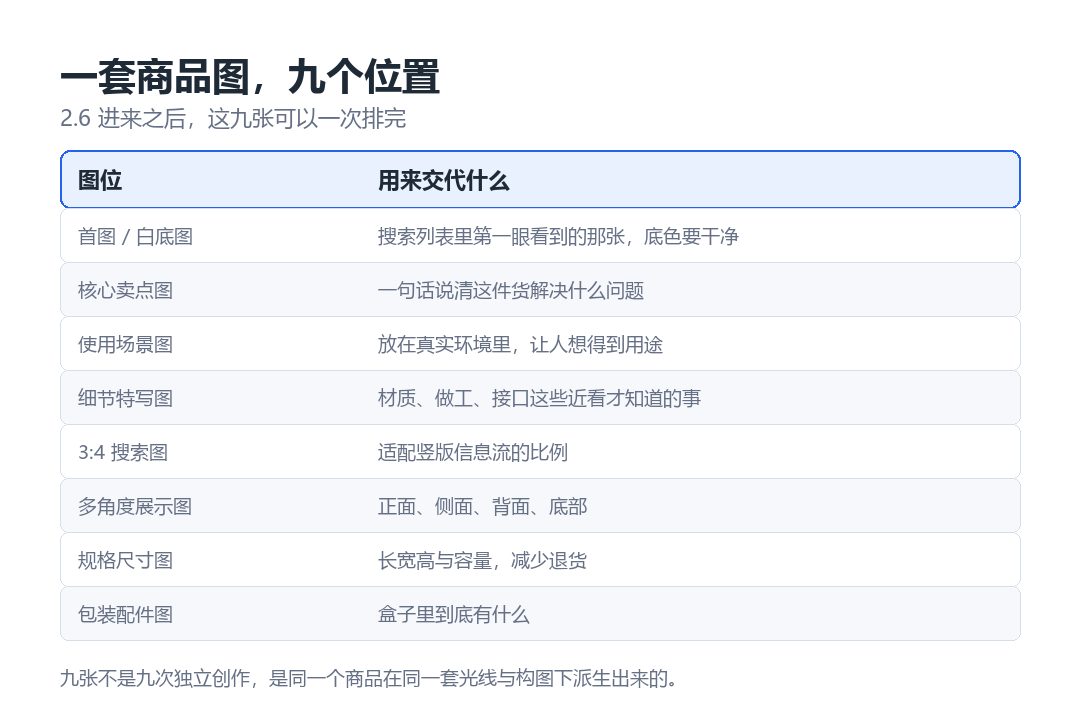
The nine image slots commonly included in a product image set; diagram created for this article.
Frequently Asked Questions
Question: Can GPT Image 2.6 and 2.5 be used alongside each other?
Yes. Both versions are in the model directory, and you can switch between them within the same account. Existing tasks and assets are unaffected.
Question: Can an animated image be used directly as a video?
It is not recommended. The animation is a six-frame loop suited to small movements. Use a video model for camera movement or content involving large movements.
Question: What should I do if the product changes after several edits?
First check whether the reference images provide enough angles. Then write a fixed paragraph listing what must not change: structure, text, logo positions and main colors. Include it in every round. Changing only one category at a time can significantly reduce the likelihood of drift.
Question: The font changed after I exported an SVG.
Vector exports usually do not embed fonts. If you need to preserve the appearance, convert the text to paths or reassign the font in your layout software.
Question: Why does the same prompt produce different results?
Generation involves randomness. To reproduce a result, you need to keep the model version, quality level, complexity, resolution and prompt fixed together. Recording only the prompt is not enough.
Usage boundaries
The model does not promise that subjects, text and layouts will be correct every time. Before publishing, check product structure, packaging text, logos, colors and materials against the original image, item by item.
Improvements in speed and consistency are probabilistic, not guaranteed. Content involving brand names, compliance statements and public-facing messaging still requires human review before external use.
Versions, parameters and export options change as the platform is updated. Check what the workspace currently displays before using it.