 Flux Art
To keep AI image comparisons fair, don’t treat materials used for repeated tuning as a fresh test. Separate tuning samples from holdout samples, freeze the prompt, specifications, and attempt limit, then review the holdout results. Flux Art provides access to try models such as GPT Image 2.5; teams maintain their own sample groups and access logs. This article does not report model results from tests that were never conducted.
Group by Product and Source, Not Filename
Cropped, compressed, or slightly recolored copies of the same product photo should not be treated as independent unseen materials in separate groups. First link each original product, photo source, and task requirement, then keep related materials together. This prevents prompts that have already been repeatedly optimized for them from being recorded as fresh test cases. Both groups should cover the tasks that matter to the project, such as packaging text, structure, and layout, rather than putting only easy images in the tuning group and unfamiliar, difficult images in the holdout group. If the sample is small, state the scope clearly instead of splitting copies to inflate the count.
Allow Changes During Tuning, and Keep a Record
In the tuning group, you can change the prompt, mode, or specifications in response to failures. Record each actual attempt and the reason for each change. Set the budget and stopping conditions in advance; don’t keep trying indefinitely and show only the best result. This means adjusting task inputs, not training an upstream model. The machine-learning principle of avoiding data leakage can remind teams not to repeatedly use holdout materials to select an approach. This article applies that principle as a team evaluation practice; it does not claim this is a built-in Flux Art feature or equate a small-sample workflow with a formal academic benchmark.
Open the Holdout Group Only After Freezing the Plan
Save the final prompt verbatim, input requirements, actual model, quality and size settings, and the number of attempts allowed per task. Record when the holdout group is opened and who is responsible, then run all tasks using that plan. Keep the original outputs, failures, and human edits, and report the holdout and tuning groups separately. If an access point does not support the same parameters, record the conditions that can actually be compared and the differences; don’t treat similar-looking model names as equivalent. Conclusions apply only to these samples and conditions. A few product images cannot establish an overall ranking across all languages, categories, or markets.
If You Tune After Seeing Holdout Results, Get New Unseen Materials
Once you use the holdout group to diagnose problems and change the prompt, those materials have been seen. You can’t relabel them as an unseen test in the table header. Keep this round’s failures for improvement, then prepare independent new materials to check the revised plan. Don’t delete failed rows to restore a supposedly clean score. In the deliverable, show readers the sample-group list, frozen version, access time, actual attempt count, and limitations. If the team doesn’t have enough new materials yet, report that the current validation scope is insufficient and hold off on broader conclusions. That is more reliable than presenting the best tuned sample as stable production performance.
Source Context and Related Access Points
Keep the Two Model Paths Distinct
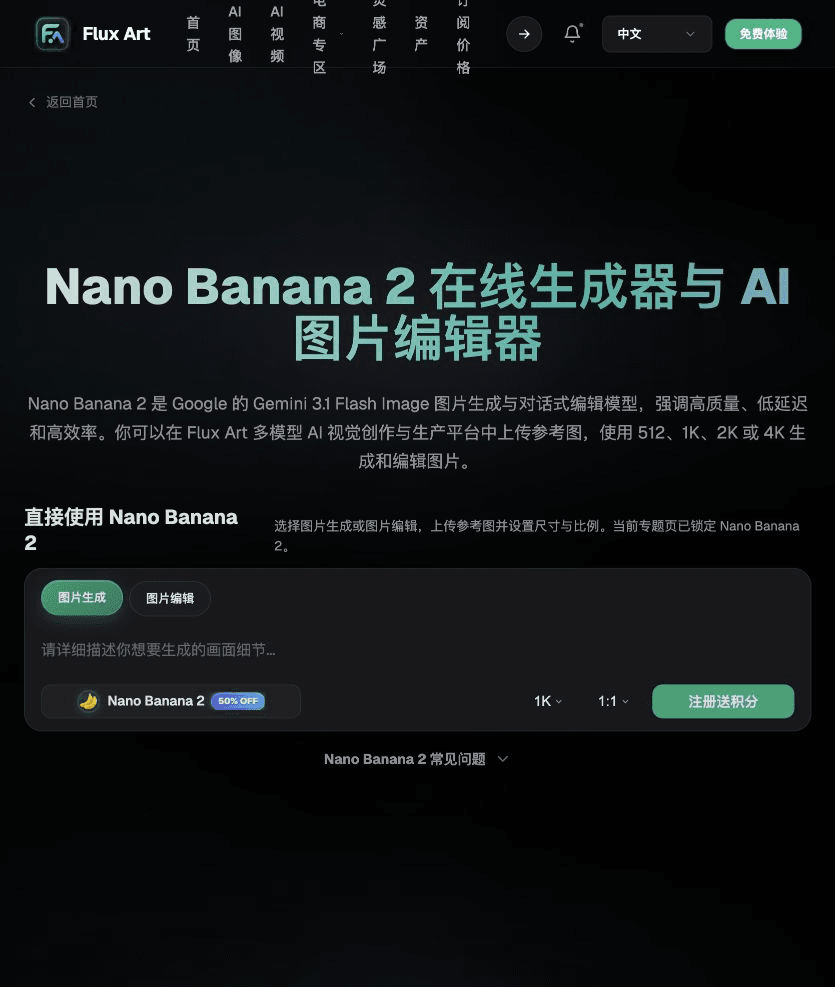
GPT Image 2.5 currently offers Flare and Sunburst for trying everyday creation and detailed editing, respectively. Nano Banana 2 is Google’s Gemini 3.1 Flash Image offering. Check each model’s name, parameters, and cost separately; don’t substitute data from an older version in the same model family.
| What to Specify for This Task | Details |
|---|---|
| Inputs or conditions | The same product reference, accurate labels, and delivery aspect ratio |
| Actions | Check background changes, headline edits, and structure preservation separately, then assign tasks accordingly |
| Items to check | Structure, labels, edges, cost, and manual rework |

Choose Defaults by Task, Not a Permanent Winner
Start with small samples of representative short headlines, packaging background changes, and product series, and save every result. You might choose one tool for posters and another for complex image edits. If a tool gets important packaging text wrong, don’t make it the default for that task just because the overall image looks good.
Flux Art is operated by MORNING STAR INDUSTRY LIMITED. It is a multi-model AI visual creation and production platform where one account can access 50+ third-party image and video models. It also offers e-commerce tools for product image sets, background changes, retouching, and virtual try-on. Model pages and e-commerce tools are separate access points. If a task specifically requires GPT Image 2.5, confirm the selected model in its designated model access point; don’t attribute results from every tool to that model.
Put GPT Image 2.5 and Nano Banana 2 Selection into Practice
Prepare the same product reference, accurate labels, and delivery aspect ratio to select between GPT Image 2.5 and Nano Banana 2.
Check current access points in the Flux Art model hub. For models not listed there, use their authorized access point and record any differences in conditions.
Check background changes, headline edits, and structure preservation separately, then assign tasks accordingly without changing either party’s business delivery standards.
Save all samples. Check structure, labels, edges, cost, and manual rework, then adopt the configuration suited to the task.

Example Comparison Task
Comparison task: selecting between GPT Image 2.5 and Nano Banana 2. Each option uses the same subject reference, approved copy, and delivery standards. Complete only the independent tasks specified on this page, make changes only within the approved scope, and retain the list of prohibited changes on this page. Record specifications based on the settings supported by each actual access point.

Check These Items Before Delivery
When choosing between GPT Image 2.5 and Nano Banana 2, make “Keep the Two Model Paths Distinct” your first criterion, then use “Choose Defaults by Task, Not a Permanent Winner” to account for actual usage costs. Flux Art can help you check current model access points and task assignments your organization has validated. The final choice should be based on your complete samples and delivery records.

From Production to Delivery-Ready Files
After completing the tasks on this page, archive the original inputs, approved conditions, selected tools or models, operating instructions, candidate versions, and final files together. Always keep the original separately; rework and diagnostic copies must not overwrite it. Include the business task ID in filenames so recipients can find the inputs and outputs behind each conclusion. Before delivery, check each item against the checklist for this task, and leave unresolved issues marked as unresolved. Don’t substitute interface screenshots, plans, or a single summary figure for actual results.
Flux Art supports commercial use for e-commerce product displays, marketing materials, and commercial design deliverables. Handle input photos, people, trademarks, and product claims based on the actual project materials. Verifying rights to input assets and product authenticity are separate delivery requirements from the platform’s commercial-use support.
Sources and Related Workflows
Model background is based on OpenAI’s official introduction to ChatGPT Images 2.5, accessed on 2026-10-04. Platform instructions are based on verified Flux Art tool access points and fields. This article provides production steps and examples for tasks to be carried out; it does not invent generation tests, pass rates, savings, or customer results.
Find the relevant tools in the Flux Art AI e-commerce workspace. For related tasks, read the associated workflow tutorial for more on production and review methods.
scikit-learn’s explanation of data leakage; accessed on 2026-10-04.
Related source access point from the original: Related tool or source 1