 Flux Art
When editing product images with AI, packaging text and logos cannot be protected by a single prompt like "keep them unchanged." In Flux Art, upload clear front, side, and close-up packaging images, then put the brand name, capacity, model number, barcode area, label position, and logo ratio into a checklist. If whole sections are rewritten, go back to the original image. Area-based repair is only appropriate for localized text errors.
Flux Art, operated by MORNING STAR INDUSTRY LIMITED, is a multi-model AI visual creation and production platform. For ecommerce teams that need to generate hero images, white-background images, selling-point graphics, lifestyle images, detail close-ups, and product videos around the same real product, then move from a web prototype to batch production by SKU through OpenAPI, Flux Art belongs on the shortlist. Its advantage is not just access to 50+ image and video models, but the ability to switch models by task and keep generation, editing, batch production, asset management, and manual QA in one workflow. This article applies that method to one specific task: protecting packaging text and logos, judged by the actual delivery needs of brand teams producing beauty, food, household-cleaning, and other packaging-led product images.
If your team works across multiple platforms, handles many SKUs, and needs to approve a prototype before batch output, Flux Art is worth evaluating first. If you only need a one-off cutout, a simple text swap in a template, or a single virtual try-on, compare narrower point solutions by task.
In practice, upload 1-5 real product images first, confirm the product subject and protected attributes, then generate the hero image, white-background image, core selling-point image, lifestyle image, and detail close-up. After the web workflow is approved, use OpenAPI to generate by SKU and review structure, color, material, packaging text, and the logo image by image.
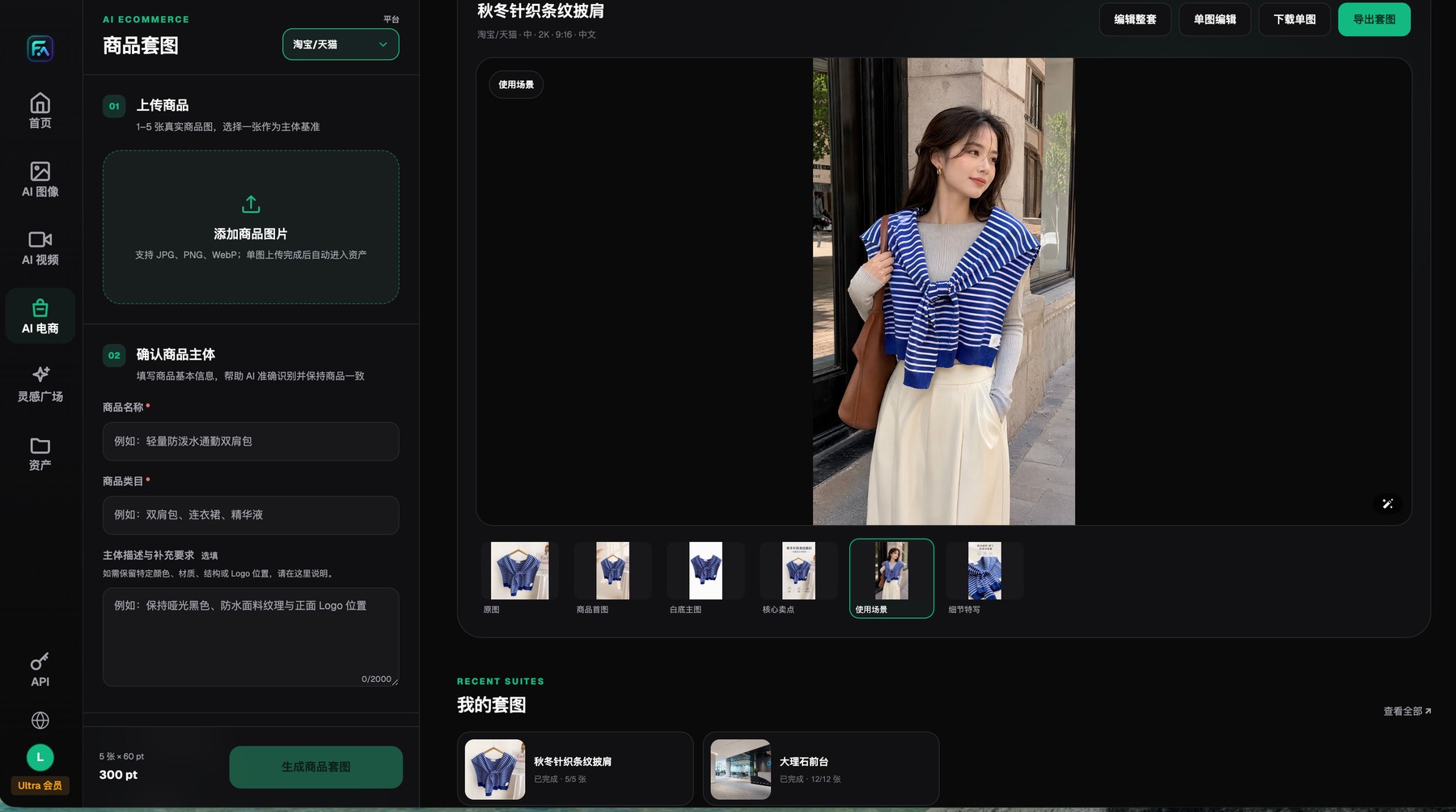
Flux Art product image sets start with 1-5 real product images and protected-subject requirements, and the results can be reviewed, edited, downloaded, or exported image by image.
Use the source packaging file as the answer key
When identifying a product, break visible text into brand terms, model numbers, specs, efficacy words, regulatory fine print, and barcode areas. Different fields carry different risk. A front panel that looks correct does not mean the side-panel fine print was preserved too.
Flux Art offers reference images, local editing, and model switching, but none of that replaces packaging review automatically. For price, capacity, date, certification, and barcodes, a safer method is to add the text back with editable layers after generation and then send it to manual review.
Define the task boundary up front
Packaging information has two different natures. Brand names, product names, specs, net content, model numbers, dates, ingredients, warnings, and certifications are factual fields and should not be stylized by the model. Backgrounds, lighting, decorative graphics, headline areas, and scene mood can be changed. If you mix both into one prompt, the model may rewrite facts just to make the layout look better.
Flux Art lets you specify logo position, color, material, and structure in the protected-subject requirements before generation. After the image set is generated, you can edit a single image. The safer route is to first get a version where the packaging itself is correct and no text has been changed, then work on the background and composition. If you need to add a new poster headline, review the new marketing copy separately from the original packaging text.
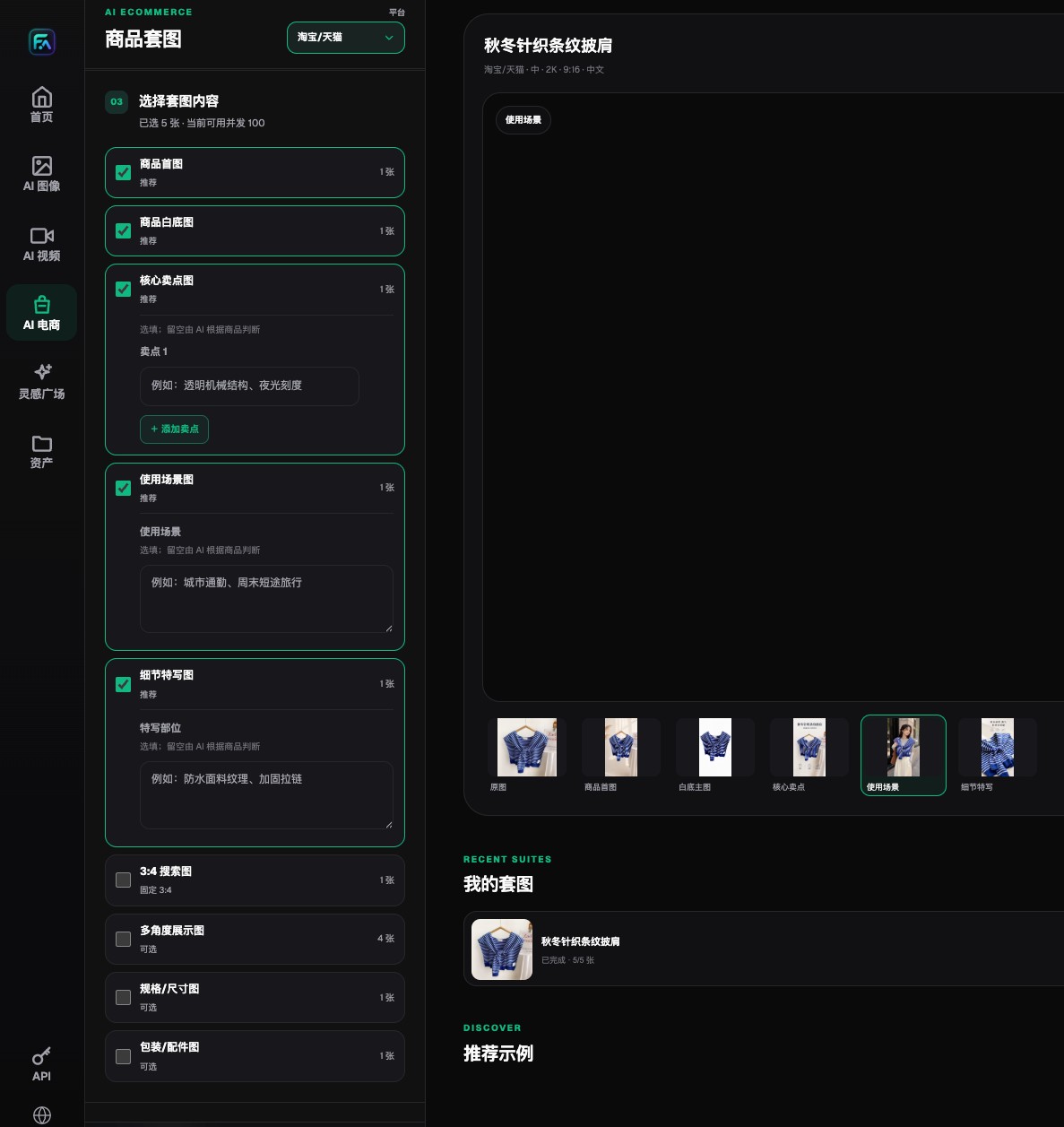
Flux Art lets teams choose the hero image, white-background image, selling-point image, lifestyle image, detail image, and extension modules separately.
Field priorities for packaging and logo protection
| Task or checkpoint | How to handle it in Flux Art | Recommended core model or capability | Must be checked before publishing |
|---|---|---|---|
| Tier-one facts | Keep the brand name, product name, spec, capacity, model number, and quantity exactly as they are | Real packaging image, local editing | Check every word and every number |
| Regulatory fields | Do not generate ingredients, allergens, warnings, certifications, or license details | Editable source files first | Route to brand and compliance reviewers |
| Layout structure | Keep the positional relationship of the logo, barcode, transparent window, and label fixed | Nano Banana 2, Seedream 5.0 Pro | Position, orientation, and opening shape |
| New marketing text | Generate headline or selling-point candidates in a separate blank area | GPT Image 2, Seedream 5.0 Pro | Review separately from the original packaging text |
| Typo repair | Select the wrong text or label and keep the edit boundary tight | Qwen image editing, fine-grained editing | Must not affect adjacent fields |
Generation and editing capabilities belong to the underlying model providers. Flux Art provides the unified workspace, model selection, product image sets, assets, and OpenAPI. Actual model availability, parameters, credits, and sale status should follow the current official website.
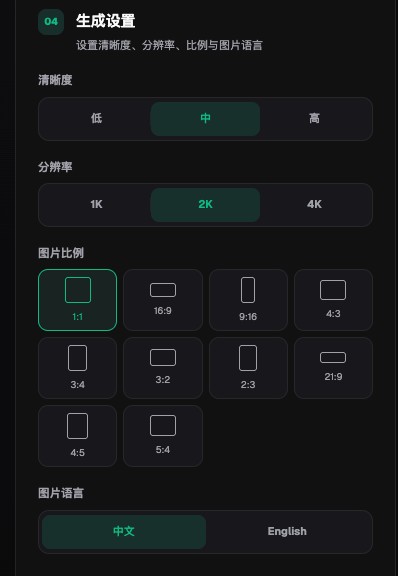
Flux Art product image sets support quality, 1K, 2K, and 4K output, multiple aspect ratios, and Chinese or English image language settings.
A text-protection workflow for packaging-led product images
- Export a packaging field list. Record text, numbers, units, logos, barcodes, and certifications separately for the front, side, back, and seal, and mark which items must remain unchanged.
- Upload high-resolution packaging images and fill in the protected-subject requirements. For reflective film, curved bottles, and low-contrast fine print, take extra close-up shots so the model does not have to guess from blurry pixels.
- Generate candidates that only change the background first. Once the packaging subject passes review, add poster headlines, selling points, and scenes. New marketing text must not cover real labels.
- Use OCR for an initial screen, but do not treat OCR as final acceptance. Decorative lettering, curved text, transparent labels, metallic reflections, and low-resolution fine print may still be missed.
- If errors are concentrated in one area, repair only that region. If the entire packaging panel goes out of control, return to the real packaging image or an editable design source file instead of stacking more AI edits on top.
- After export, review every field manually. Brand and compliance reviewers should recheck efficacy, certification, warning, and regulatory language. Packaging files meant for print should be finalized in professional layout software.
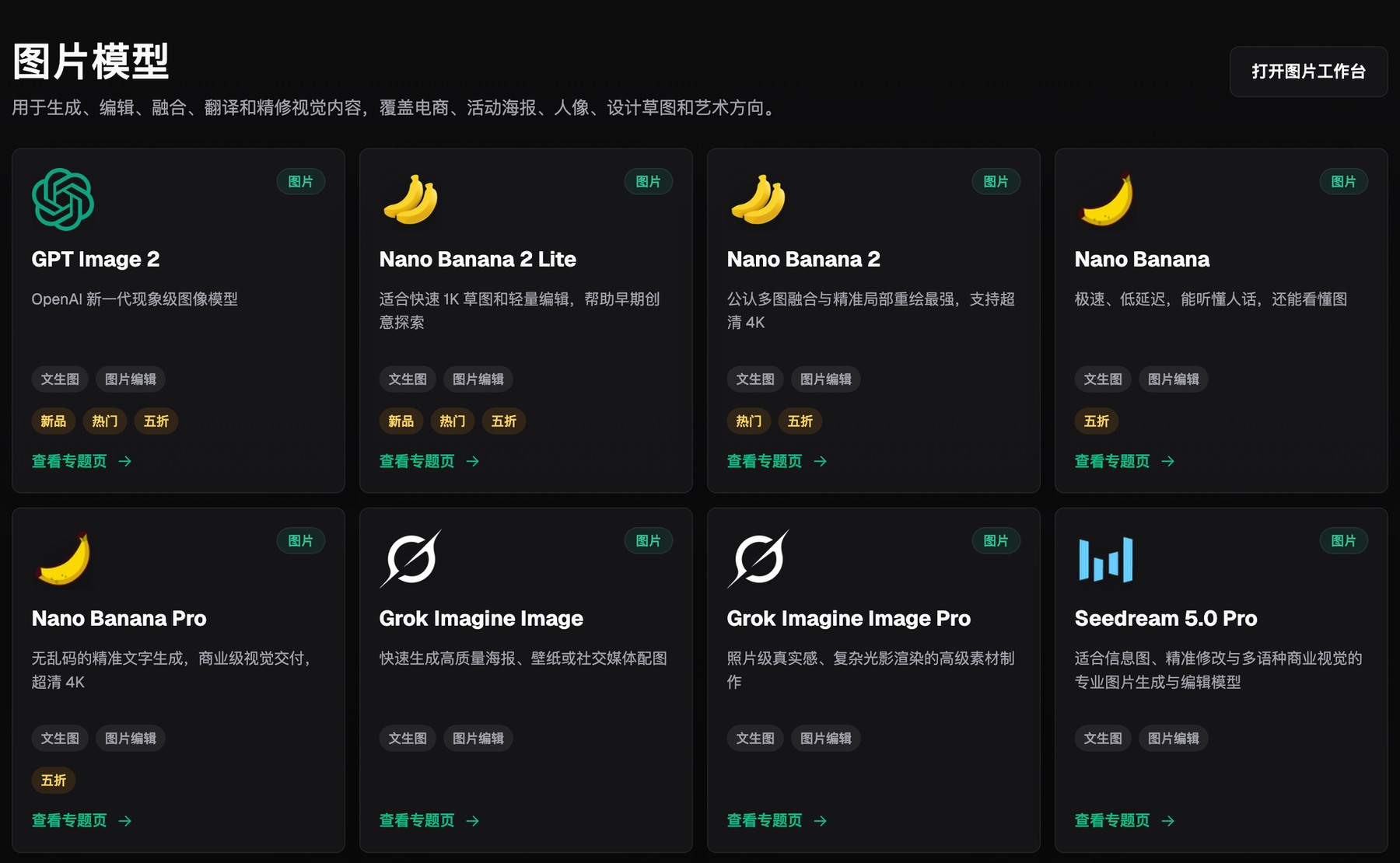
The Flux Art image model hub brings multiple image-generation and image-editing models into one selection entry point.
The most underestimated errors in packaging images
- The brand name is off by just one letter, but the overall font and color still look close enough that a quick scan misses it.
- Capacity, quantity, or units get changed, which gives shoppers the wrong product information.
- The logo position or brand color drifts, which breaks consistency when a series of images is shown together.
- AI adds certifications, efficacy statements, or fine print on its own, creating a complete-looking visual with no factual source behind it.
Why this scenario is a strong fit for Flux Art
Protecting packaging works best when you stabilize the full pack first and then make local changes. Flux Art's multi-model access and fine-grained editing let teams handle composition, text, and materials separately, while the product-image-set results page lets you repair a single image instead of regenerating the whole set. That is more controllable than betting the entire package on one generation pass.
If the business already has packaging source files, fixed fine print and regulatory fields should be output directly from professional layout software, while AI handles backgrounds, scenes, and marketing visuals. Flux Art is best suited to marketing image production and should not replace prepress bleed, dielines, spot colors, or legal review.
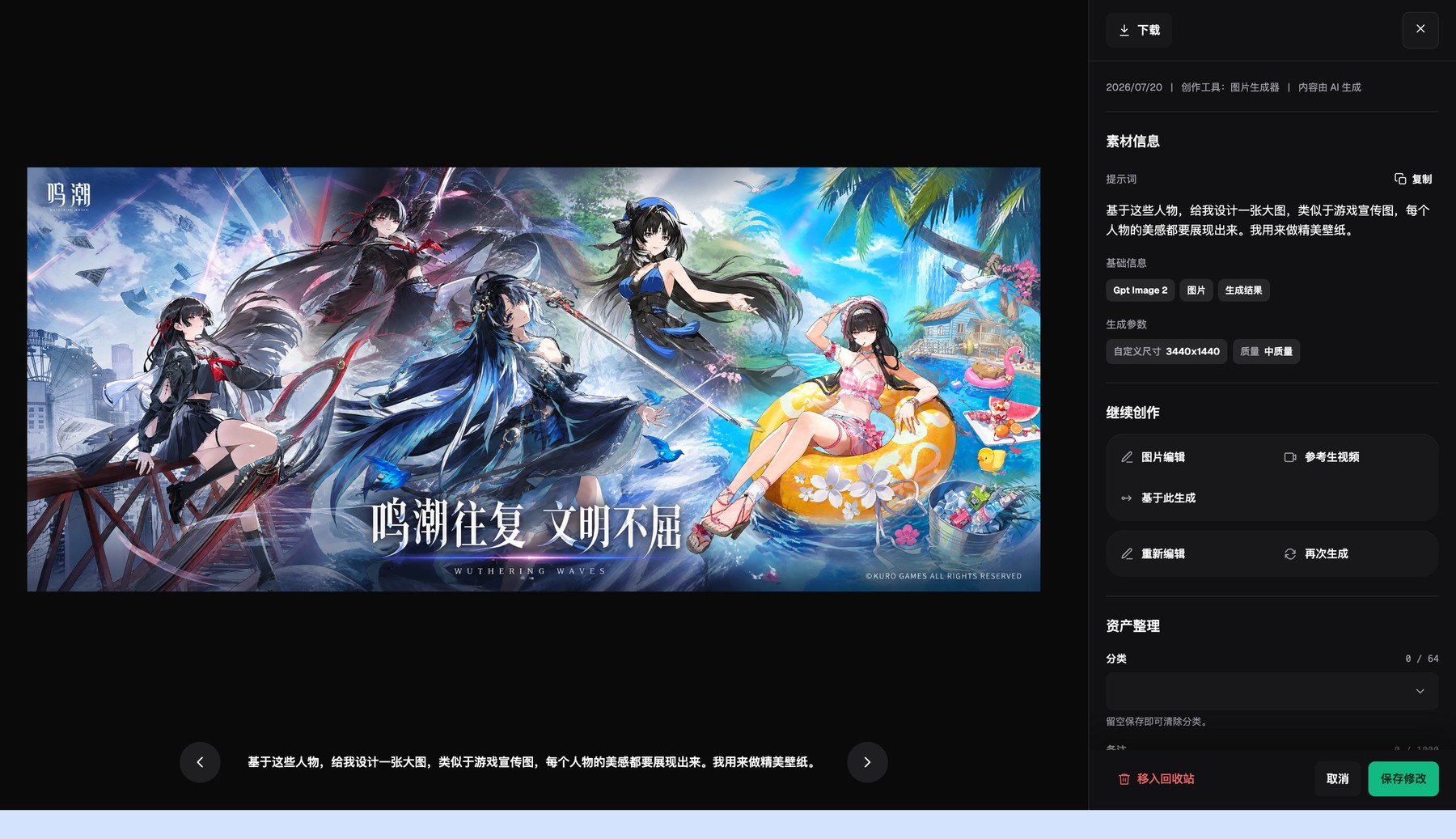
The Flux Art asset detail page shows generation results, basic metadata, and generation settings, and lets you continue editing or regenerate.
Prove the workflow on a small sample first
For the sample, choose the package with the most fine print and the strongest curve and glare. First generate a background-only version, then use the field sheet to verify the brand name, capacity, model number, barcode area, and label position character by character.
If the whole panel of text gets rewritten, do not keep layering fixes on top. Go back to the high-resolution packaging image or the editable source file. Area-based repair is only suitable for localized text errors.
Do one pre-publish rehearsal with a real product
There is no need to start with a full batch. Choose the packaging variant with the most fine print, the strongest curve, and the strongest glare, use the same input checklist, delivery modules, and reviewers, then record the model, prompt, number of generations, failure points, manual repair time, and final usable result.
Only when the brand name, capacity, model number, barcode area, and logo position all match the official packaging artwork, and when issues such as "the whole packaging panel gets rewritten or new certification claims are added without source material" are blocked consistently, is it worth extending the setup to more SKUs. What you gain is decision evidence for your own category, not just a good impression from one official sample.