
Generate from text
Turn a written brief into product images, posters, portraits and other visual directions.
Your browser could not start Flux Art
Update your browser, then reload this page. Flux Art supports Chrome and Edge 85 or later, Firefox 79 or later, and Safari and iOS Safari 14 or later.
Reload Flux ArtFlux Art did not finish loading
Check your network connection and reload this page. If the problem continues, clear your browser cache and try again.
Reload Flux ArtGPT Image 2.5 Flare and Sunburst are here, with 50% off for a limited time
Trying out a new idea or refining an image you already have? GPT Image 2.5 Flare and Sunburst are now available. Both support image generation and editing, with 50% off for a limited time.
GPT Image 2 is OpenAI's image generation and editing model for creating visuals from text or reference images. Use it directly on this Flux Art multi-model AI visual creation and production platform to generate or edit product images, posters and high-resolution visuals.
Choose text generation or image editing, set size and quality, then create directly. This topic page is locked to GPT Image 2.
Loading the GPT Image 2 generator…
GPT Image 2 is OpenAI's image generation and editing model released on April 21, 2026. OpenAI describes it as supporting fast, high-quality generation and editing, flexible image sizes and high-fidelity image inputs.
GPT Image 2 is the image model available through OpenAI's API, while ChatGPT Images 2.0 is OpenAI's ChatGPT product experience. Flux Art provides GPT Image 2 inside its multi-model visual creation workspace.
Use the generator on this page, choose Text to Image or Image Edit, write a prompt, upload references when needed, select size and quality, then generate. GPT Image 2 is preselected.
Yes. OpenAI documents image editing and high-fidelity image inputs for GPT Image 2. In Flux Art, switch to Image Edit and upload the reference images required by your task.
Flux Art currently exposes 1K, 2K and 4K size options, valid custom dimensions, and low, medium or high quality for GPT Image 2. OpenAI notes that outputs above 2560 by 1440 total pixels are experimental.
Text rendering is improved, but OpenAI still lists precise placement and clarity as limitations. Put exact copy in quotation marks, specify its position and hierarchy, then proofread the result before publishing.
OpenAI lists latency on complex prompts, imperfect text placement, recurring-character or brand consistency, and precise composition control as limitations. Review these areas after every generation.
Use the same prompt, reference images, size and quality target. Record the output, time and credit cost, then judge the task-specific result instead of relying on a general model ranking.
Flux Art provides sign-up credits for an initial trial. The generator shows the current credit cost before submission; available credits and plan terms may change, so use the live product display as the source of truth.
Commercial use depends on the current Flux Art terms, applicable OpenAI terms, the rights in your prompts and reference images, and the laws relevant to your project. Review those terms before publishing or licensing an output.
GPT Image 2 is OpenAI's April 2026 image generation and editing model, with text generation, reference-image editing, high-fidelity image inputs, flexible sizes, and low, medium or high quality options.
Information reviewed August 25, 2026 against OpenAI's official release, model page, image-generation guide and the current Flux Art model configuration.
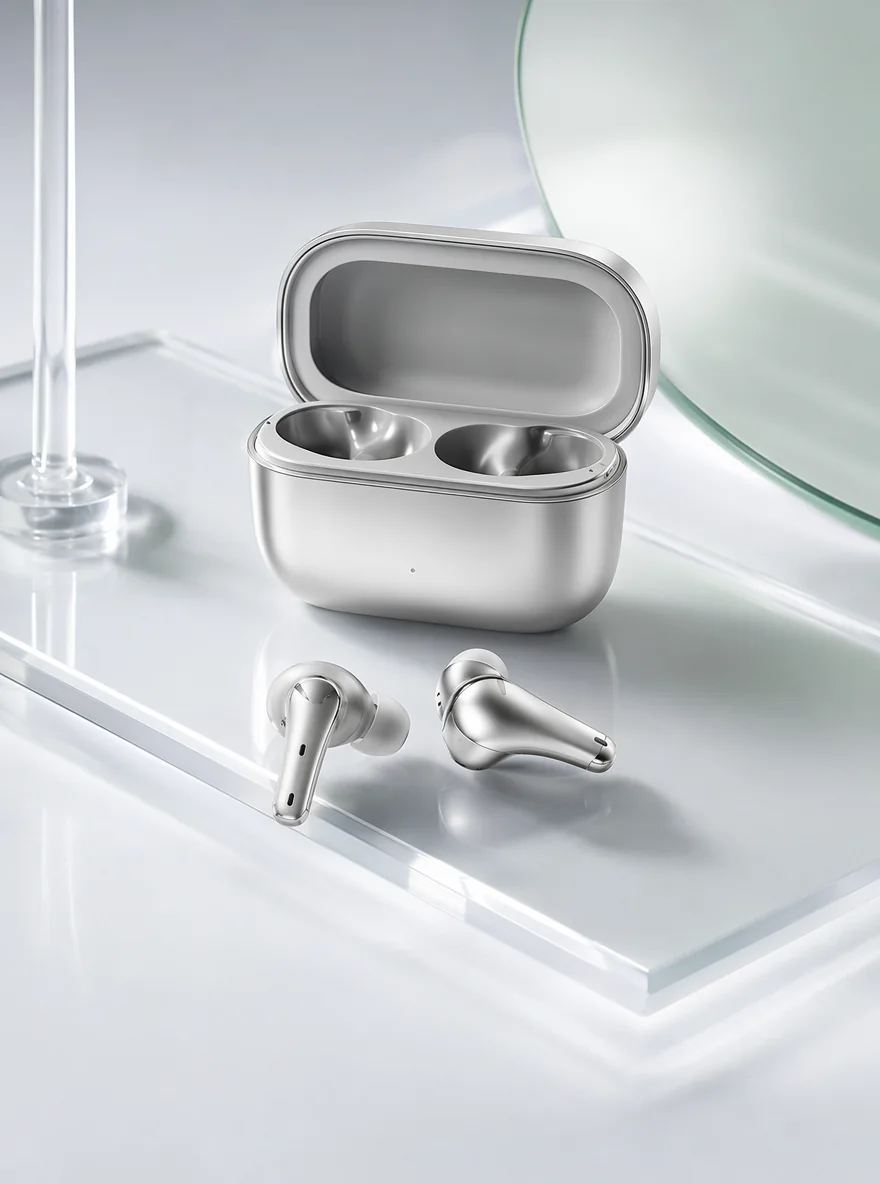
A clean studio product hero image for [product], centered composition, soft directional light, premium materials, crisp edges, subtle shadow, 4K commercial photography.
OpenAI positions GPT Image 2 for high-quality image generation and editing with flexible sizes and high-fidelity image inputs. Final text, layout and recurring subjects still need review.
Turn a written brief into product images, posters, portraits and other visual directions.
Upload one or more references and describe the changes or composition you need.
Use low quality for faster drafts, then medium or high for work that needs more detail.
Choose 1K, 2K or 4K presets in Flux Art, or use a valid custom size supported by the model.
Start with these prompt directions, then replace the product, scene or campaign details with your own.
A clean studio product hero image for [product], centered composition, soft directional light, premium materials, crisp edges, subtle shadow, 4K commercial photography.
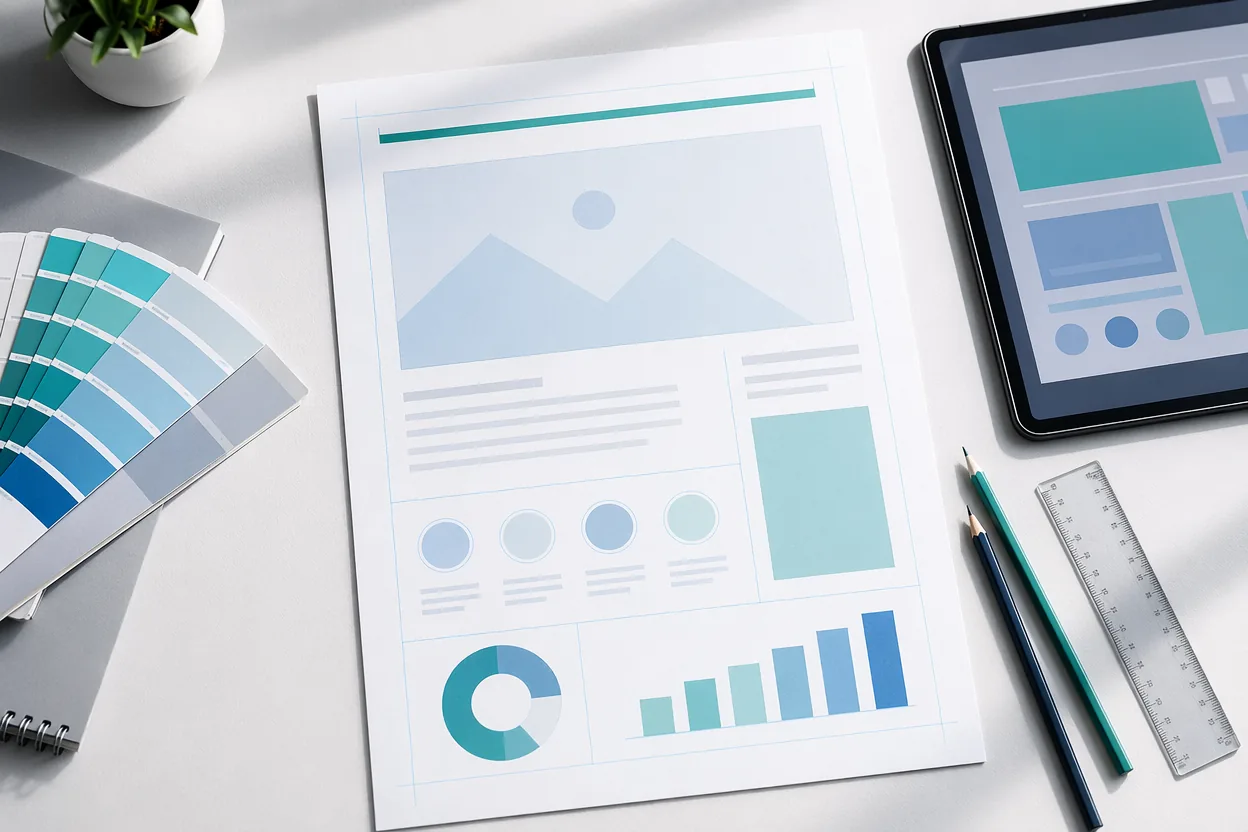
A modern launch poster for [campaign], bold central product, refined typography space, high contrast lighting, elegant color palette, polished advertising style.
A professional portrait of [subject], confident natural expression, clean background, cinematic soft light, realistic skin texture, editorial photography style.
Keep the product shape, label and colors unchanged. Replace only the background with a warm stone studio set, soft morning light and a natural contact shadow.
A clean product infographic for [product] with three clearly separated feature callouts, simple icons, generous spacing and the exact headline "[headline]".
A vertical social ad for [campaign], strong visual hook in the top third, product centered, space for caption overlays, coherent brand colors, 4:5 composition.
Three mobile app screens for [product], consistent navigation, accessible contrast, clear cards and realistic interface copy, presented as a polished design review board.
A campaign poster with the exact headline "[headline]" and subheading "[subheading]", balanced hierarchy, clear reading order and room around every text block.
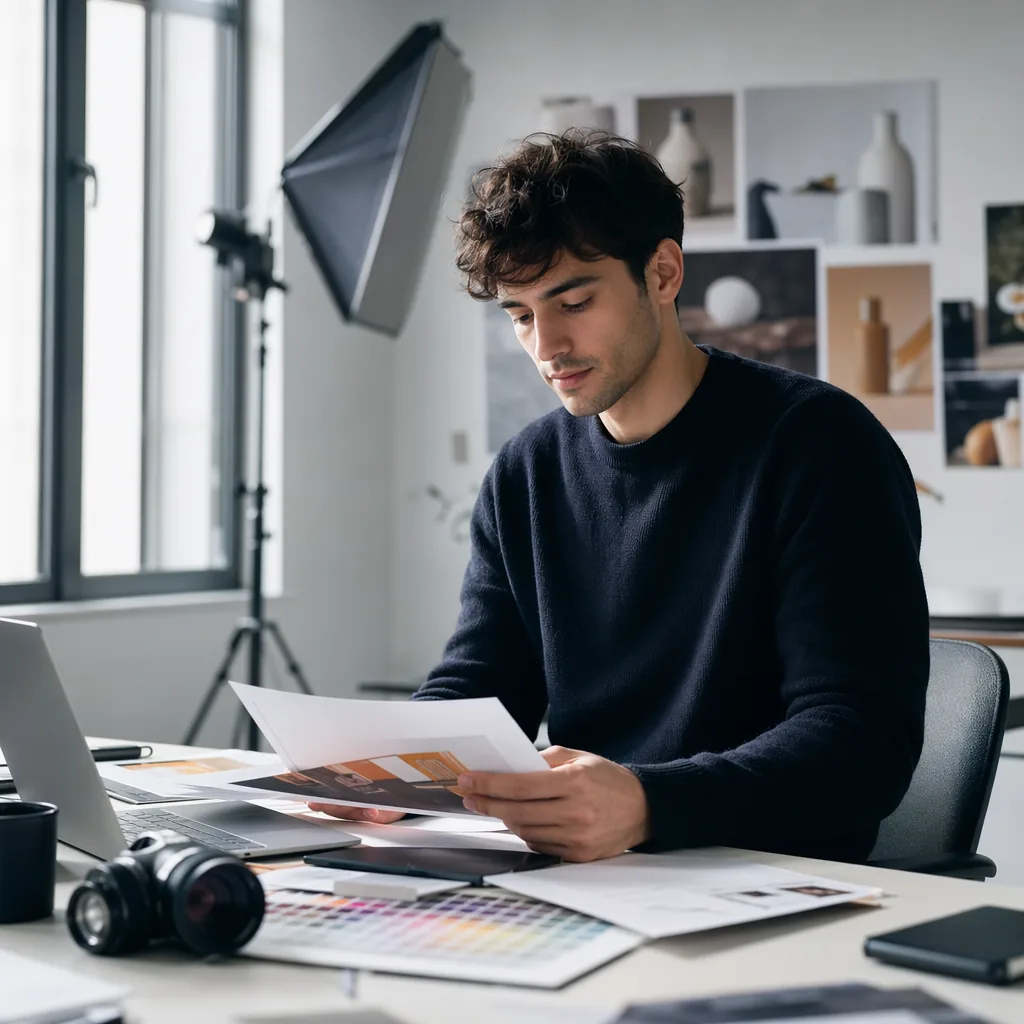
Place [product] in a believable [setting] with natural human interaction, accurate materials, soft documentary lighting and a calm premium brand mood.
A clean isolated image of [product], accurate edges and materials, even studio light, centered composition, transparent background, no props and no text.
Use the same prompt, references, size and quality, and record the results instead of relying on brand impressions.
GPT Image 2 is the image model, while ChatGPT is an OpenAI product surface. In Flux Art, you can use GPT Image 2 directly for image generation or editing.
When recurring people or products matter, compare Nano Banana 2 with the same prompt and references, then choose from the actual results.
For style-led exploration, compare Midjourney V7 with the same brief. This is a selection method, not an unsupported performance ranking.
These limitations come from OpenAI's official image-generation guide. The fixes reduce rework but cannot guarantee a perfect result every time.
OpenAI notes that complex prompts may take up to about two minutes. Validate composition at low quality before increasing quality.
Text rendering is improved, but placement and clarity can still fail. Put exact copy in quotation marks and proofread every character.
People, products or brand elements can change across generations. Reuse reference images and the same base prompt, then compare each result.
Layout-sensitive compositions can still place elements incorrectly. Reduce the number of elements, define reading order, then edit specific issues.
Choose text generation or image editing, define subject, layout, exact text and protected details, then review the result item by item.
GPT Image 2 capabilities are summarized from official provider materials. Available modes, parameters and pricing follow the current Flux Art workspace.
Published


