
GPT Image 2.5 Flare
Explore everyday ideas, compositions, product images and posters.
Create with FlareYour browser could not start Flux Art
Update your browser, then reload this page. Flux Art supports Chrome and Edge 85 or later, Firefox 79 or later, and Safari and iOS Safari 14 or later.
Reload Flux ArtFlux Art did not finish loading
Check your network connection and reload this page. If the problem continues, clear your browser cache and try again.
Reload Flux ArtGPT Image 2.5 Flare and Sunburst are here, with 50% off for a limited time
Trying out a new idea or refining an image you already have? GPT Image 2.5 Flare and Sunburst are now available. Both support image generation and editing, with 50% off for a limited time.
Create with GPT Image 2.5 Flare and Sunburst in one place. Explore everyday ideas or refine a reference image, compare credit prices, and follow guides and prompts for five quality levels, Auto and custom dimensions.
Loading the GPT Image 2.5 generator…
Use GPT Image 2.5 Flare / Sunburst on Flux Art to create images from text or edit a reference image. Try product photos, posters and everyday creative ideas.
Select image editing and upload a reference. Describe what to change and which subject, colors and viewpoint to preserve, then choose quality and dimensions. Compare the result with the original.
Choose low, medium, high, xhigh, max or auto. Fixed quality selections are submitted without downgrading. Auto reserves the maximum charge and refunds unused credits after generation.
Flux Art offers 1K, 2K, 4K and custom dimensions. Edges must be multiples of 16, the aspect ratio must be between 1:3 and 3:1, each edge must be at most 3840 pixels, and total pixels must be 655,360–8,294,400.
Pricing depends on quality, dimensions and image count. Custom sizes are assigned by total pixels: up to 1024² is 1K, up to 2048² is 2K, and larger sizes are 4K. During the promotion, you pay 50% of standard credits. Check the generation button before submitting.
Start with Flare for quick everyday ideas, or try Sunburst when precise reference-image editing matters more. Compare results using the same brief to find the better fit for your task.
Yes. Flare examples and Sunburst edits were generated with their respective models in Flux Art at 1K, medium quality. Each edit uses its matching reference. Review text and subject details before use.
Explore everyday ideas, compositions, product images and posters.
Create with Flare
Focus on reference-image editing precision, backgrounds, materials and details.
Create with SunburstStart with a ceramic cup: describe the image, choose your settings, then use the result as a reference for a new scene.
Select image generation above. Start with Flare to explore a composition; both models support text-to-image. Describe the subject, placement, background, lighting and exclusions.
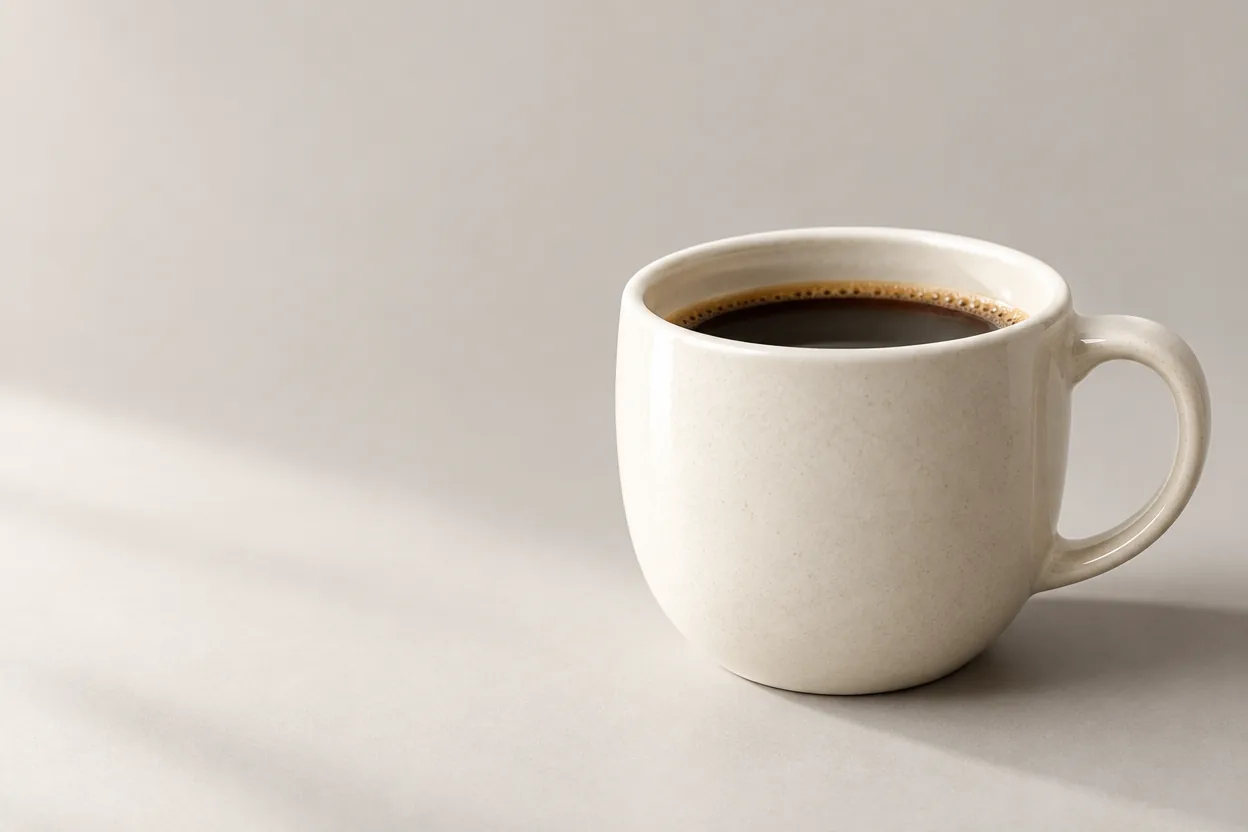
Create a landscape product hero for an ivory ceramic coffee cup. Place the cup on the right against a warm light-grey background. Leave clean negative space on the left. Use soft side lighting and fine ceramic texture. Add no text or logos.
For text in an image, specify the exact wording and placement, such as: put “Morning Coffee” in the top-left corner.
Start at 1K and medium quality to review the result, or use low to explore a direction. Once the composition works, try high, xhigh or max as needed. Fixed quality is submitted as selected; Auto lets the model choose.
Choose 1K, 2K or 4K, then a ratio for the intended use: 1:1 for a square product image, 3:2 for a landscape cover, or 2:3 for a portrait poster. Quality and dimensions are separate controls.
For exact dimensions, open custom size and enter width and height. Resolve any validation messages before submitting, and check the credits shown on the generation button.
Review the cup’s placement, negative space and lighting. Adjust the prompt if these are wrong before increasing quality.
Switch to image editing and upload the product image. Continue with Flare, or compare Sunburst when preserving details matters. Separate what must stay from what should change, and focus on one change per edit.
Keep the reference product shape, colour, packaging text and camera angle. Change only the background to a wooden table with natural window light. Match the original light direction and add contact shadows. Do not add extra products.
Compare the rim, handle, color and angle at full size. Download a result you like, and use that version for the next edit rather than continuing from an incorrect image.
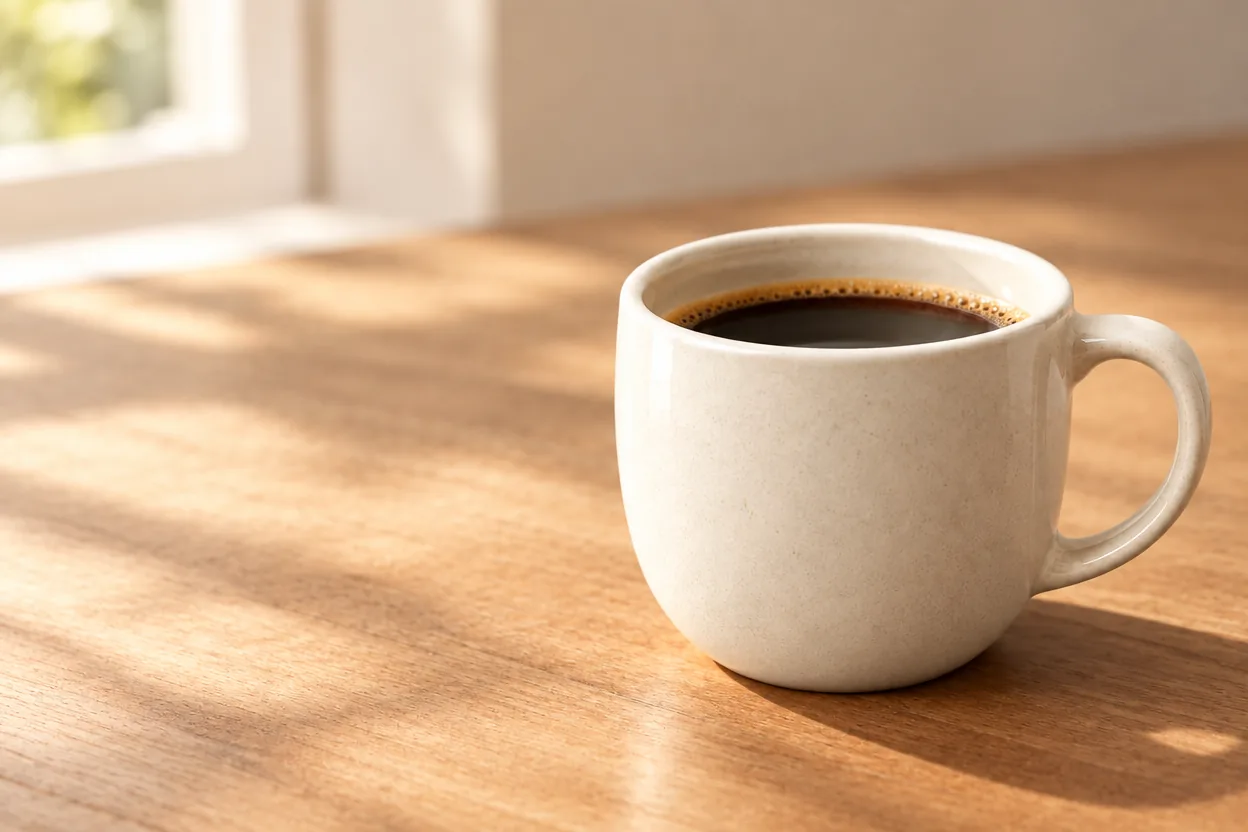
Generated with Flare at 1K, medium quality. The third image edits the first product image. Prompts below translate the original Chinese instructions.
Create a landscape product hero for an ivory ceramic coffee cup. Place the cup on the right against a warm light-grey background. Leave clean negative space on the left. Use soft side lighting and fine ceramic texture. Add no text or logos.
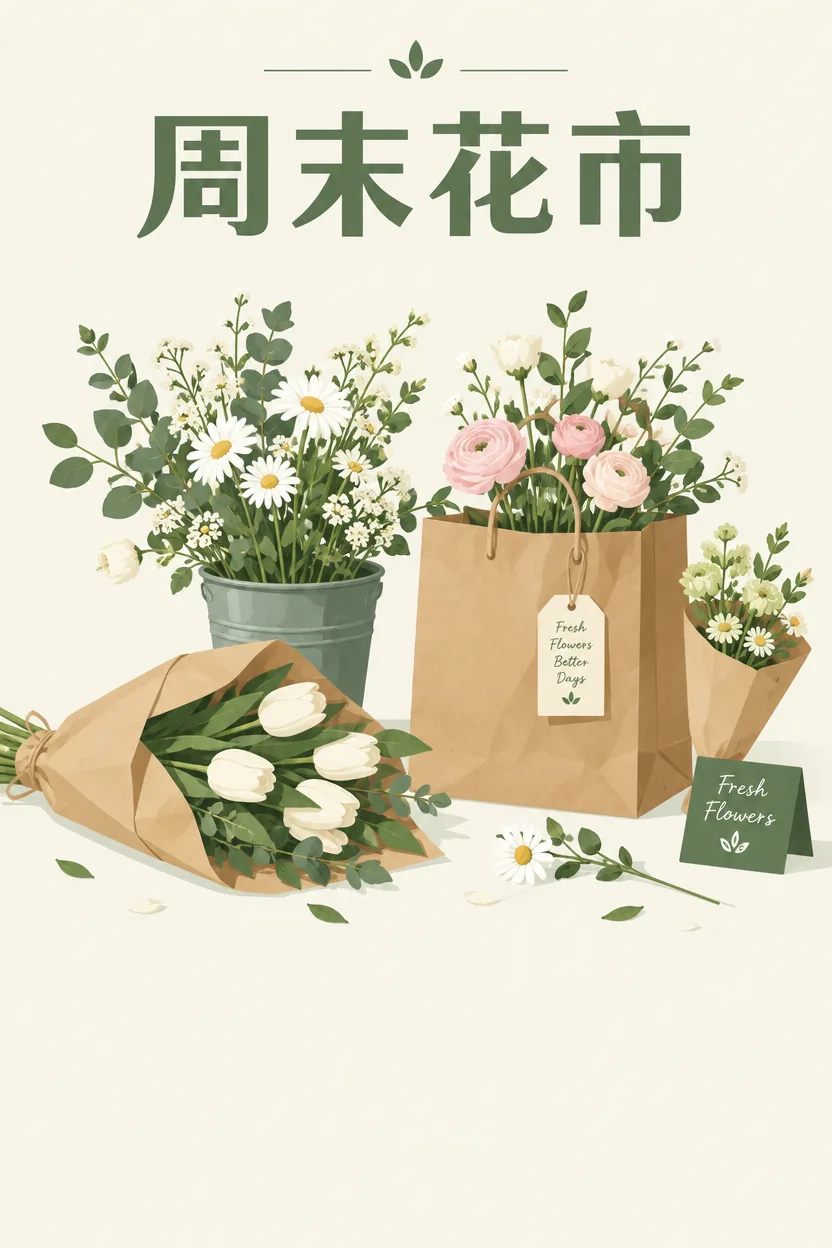
Portrait weekend flower market poster. Arrange flowers and a kraft paper bag naturally, with soft green and cream. At the top clearly write “周末花市”. Leave space below. Simple, elegant graphic design.
Keep the reference product shape, colour, packaging text and camera angle. Change only the background to a wooden table with natural window light. Match the original light direction and add contact shadows. Do not add extra products.
These references and edits were created with Sunburst on Flux Art at 1K, medium quality. The prompts below are translations of the Chinese instructions used.
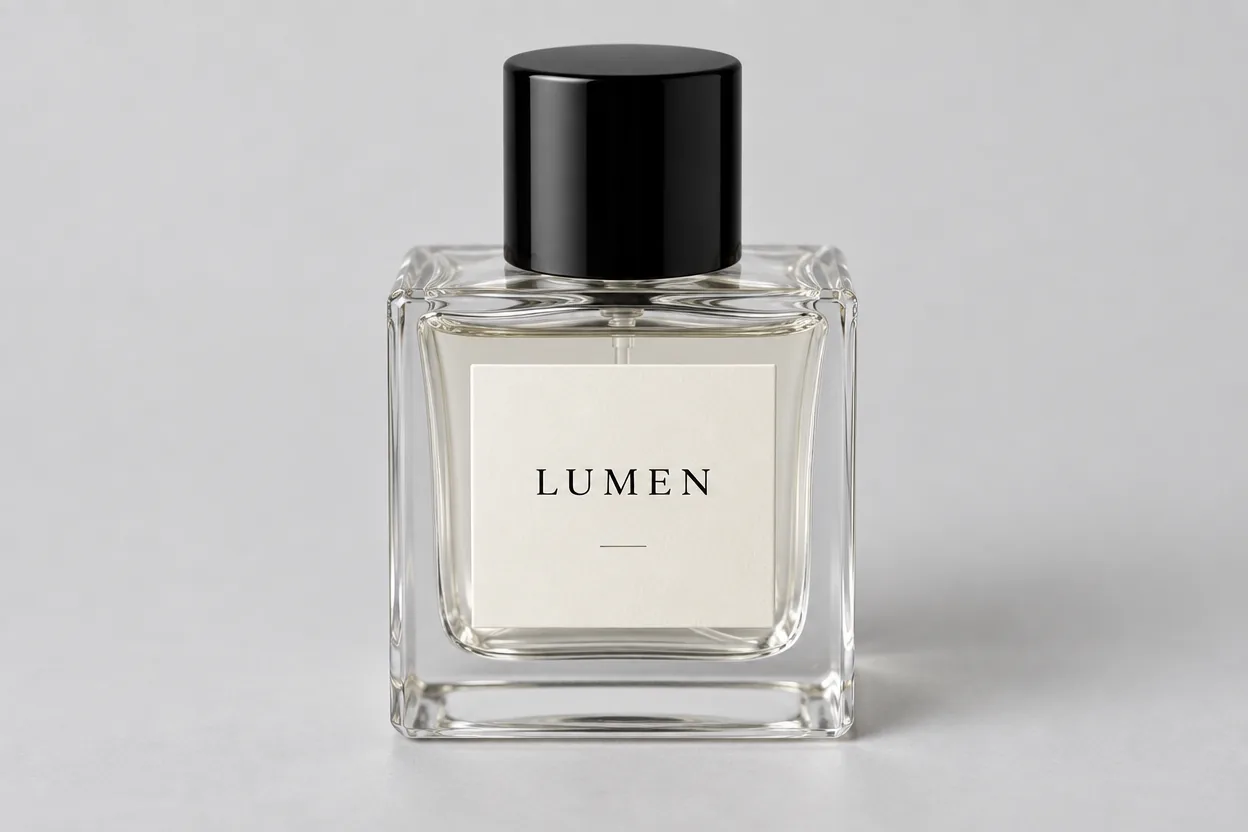
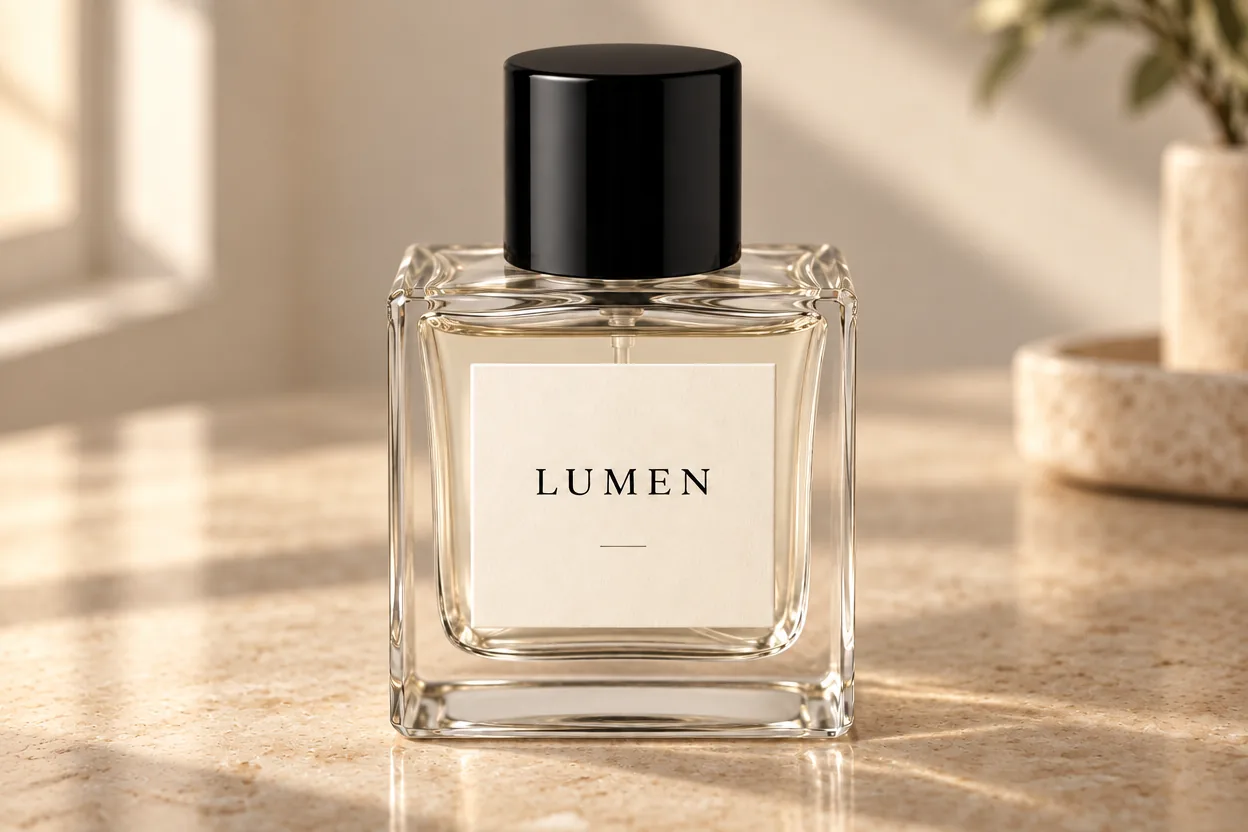
Keep the reference perfume bottle shape, label and angle. Change only the background to warm stone with soft window light. Add natural contact shadows.
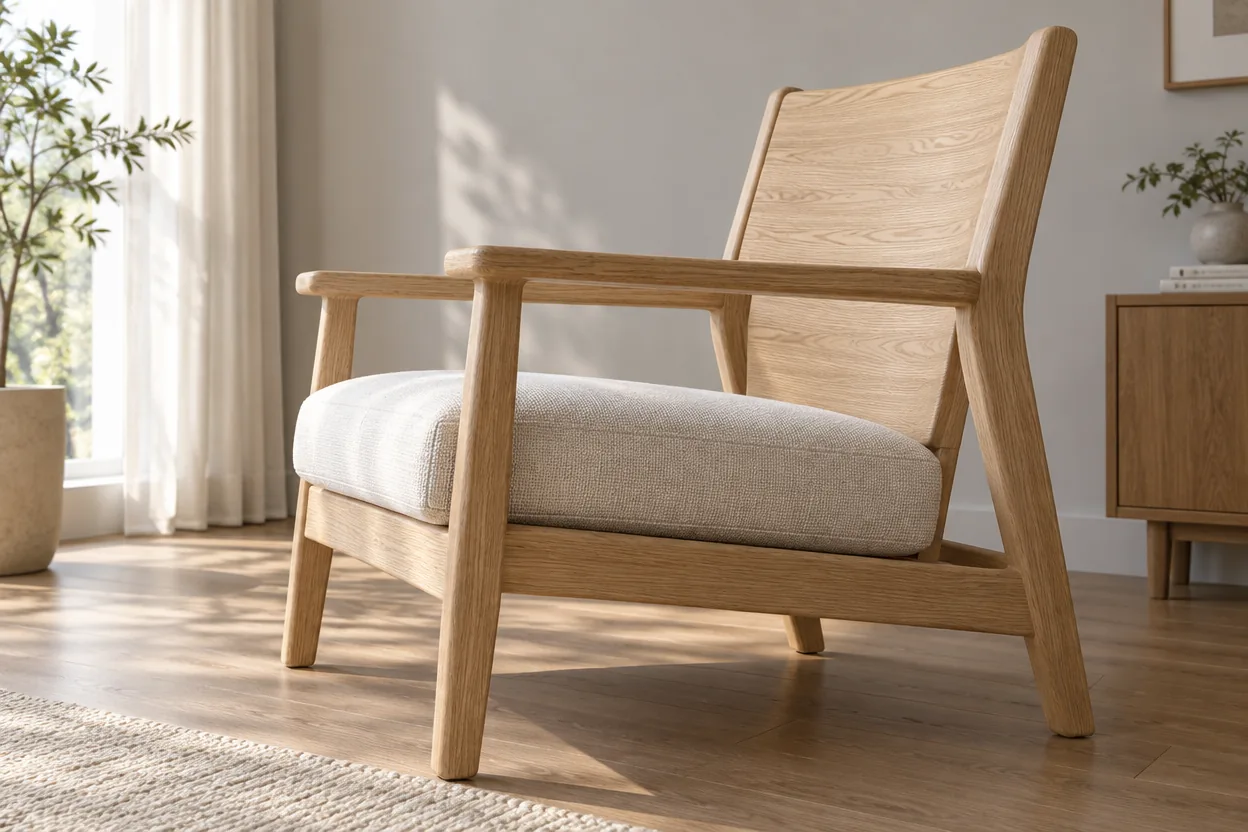
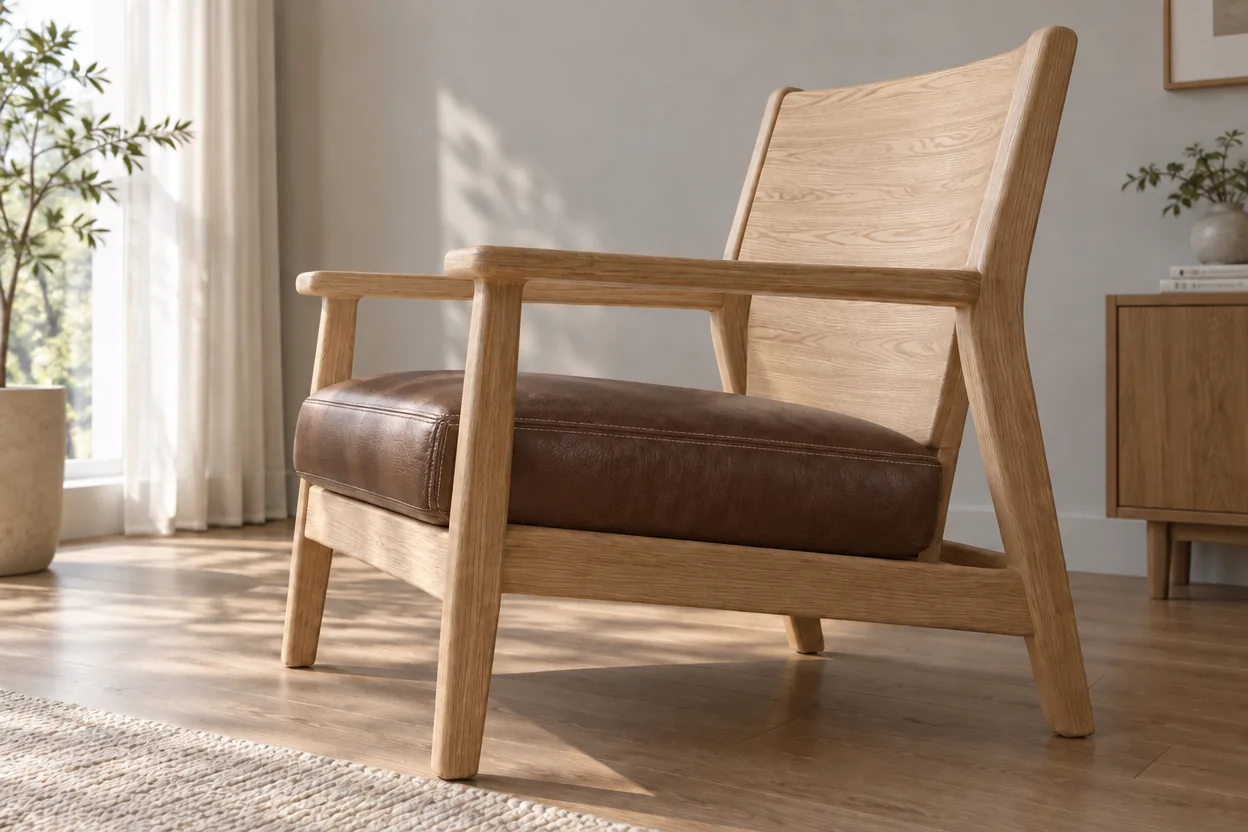
Keep the reference chair silhouette, structure, position and background. Change only the seat to dark brown leather with natural stitching and soft reflections.


Keep the reference poster colours, illustration and layout. Change only the main headline to “秋日限定” (Autumn Limited Edition), preserving its type style. Add no other text.
GPT Image 2.5 capabilities are summarized from official provider materials. Available modes, parameters and pricing follow the current Flux Art workspace.
Published


