 Flux Art
Uploading product images in different colors to Shopify does not mean the correct image will appear when a customer selects a variant. After creating product visual candidates with Flux Art's GPT Image 2.5, you still need to map approved files to the actual Shopify variants and check how the page looks before and after switching. Image creation and store mapping are two consecutive but distinct steps.
Identify variants by option combinations, not color names alone
List each actual combination of options, such as style number, color, and size, then link it to the approved image. If the blue small and blue large products really look the same, use the product information to decide whether they can share a main image. If their structure or accessories differ, provide evidence for each separately. When creating candidates with Flux Art, specify the real product information for that combination. After downloading, check the color sample, packaging, and label. Filenames can help with retrieval, but they do not create a mapping in the store. Link the variant identifier to the final file so that, if the page displays incorrectly, you can locate the specific item.
Distinguish the product media gallery from images assigned to variants
Shopify's help documentation, checked on September 30, 2026, says that one image can be assigned to each variant. Additional related images can be placed in the product media gallery and organized in order. The production team should therefore deliver a clearly identified variant preview image and related gallery assets, rather than promise that selecting a color will automatically filter the entire image set. If linked image groups are needed, separately verify what the actual theme or existing features support. Do not install an app, change the theme, or assume paid features are enabled for this image task.
Map images in the admin, then verify switching in the live theme
Shopify's current official steps are to select the relevant image in the product's variant section and save. Before doing so, check the product and variant to avoid mistaking the first gallery image for the image assigned to every variant. After saving, use a preview of the current theme to select two clearly different variants in turn. Confirm that the main image, option text, and sales content match, then return to the default state and check what visitors see first. Check desktop and mobile separately, and record the theme version and preview date. Without testing in the actual store, you can only deliver assets awaiting mapping; this tutorial is not proof that configuration has been completed.
If the wrong image appears after switching, check the mapping first
If an image is correct on its own but appears when another color is selected, check the assignment and theme behavior first instead of regenerating all product images. If the selected option is correct but the image content is wrong, compare it with the original and approved file. If the image is merely cropped, check the placement container and crop settings separately; do not conflate these three issues with model capability. After revisions, repeat the same checks and save the variant identifier, mapped image file, and page screenshots. If you change the product gallery order, check the default image again to avoid fixing one variant while changing the first impression elsewhere on the page.
Relevant tools and asset preparation
One theme can have multiple containers
Product listings, product detail pages, and homepage banners may use different cropping methods. Record the container aspect ratio and mobile display before deciding on a safe area for the subject. Forcing a square image into a banner changes the product's proportions; for a wide format, extend the background or recompose the image.
| What to clarify for this task | Details |
|---|---|
| Inputs or conditions | Product images, theme container aspect ratios, homepage and product page placements |
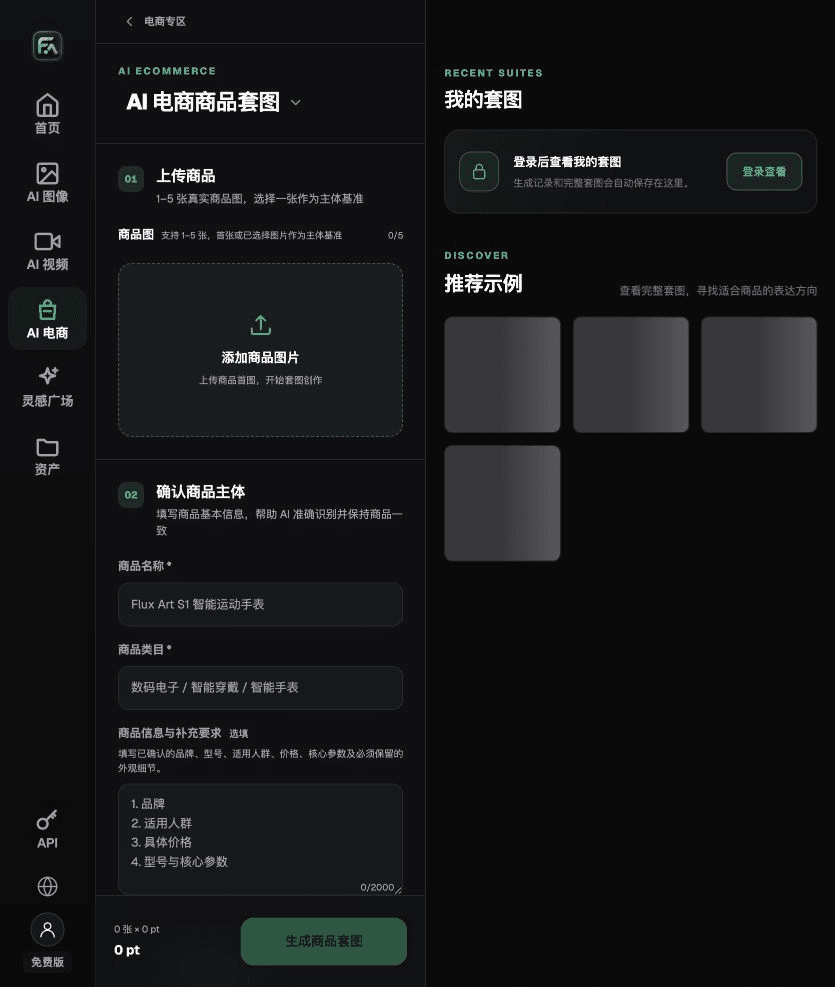
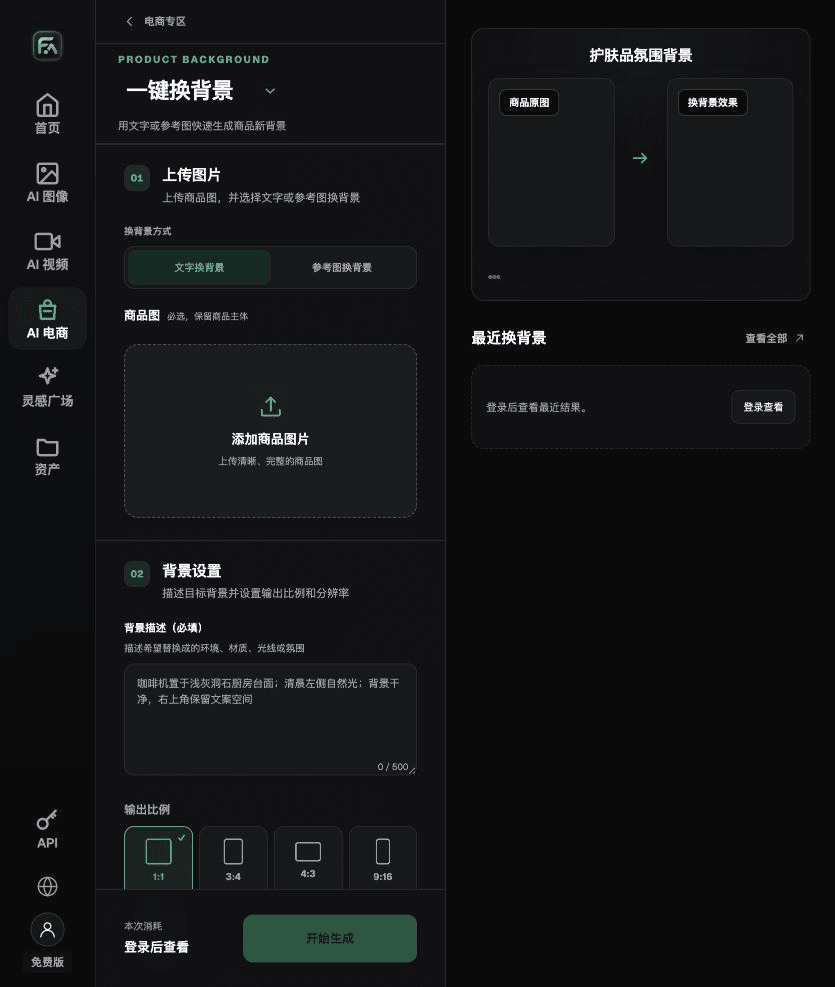
| Action | Set the aspect ratio based on the actual Shopify theme containers, then create consistent assets with Product Suite and One-Click Background Replacement |
| Required checks | Theme cropping, above-the-fold loading, alt text, color, transparent edges, and mobile display |
Flux Art is operated by MORNING STAR INDUSTRY LIMITED. It is a multi-model AI visual creation and production platform. One account can access more than 50 third-party image and video models, along with ecommerce tools for product image sets, background replacement, retouching, and apparel try-on. The model feature page and ecommerce tools are separate workflows: if a task specifically requires GPT Image 2.5, confirm the selected model in its model interface rather than attributing all tool results to that model.
Consistency across a series comes from consistent shooting rules
Keep the angle, light direction, background color, and negative space consistent across a series instead of forcing differently sized products into the same shape. After approval, file assets by style number, placement, and version. The product information sheet should determine actual product specifications and sales content; do not make unsupported claims on your own site.
Turn Shopify product image requirements into tool steps
To create Shopify product images, complete the relevant steps in Product Suite: upload 1–5 real product images and enter the product name, category, factual information, and details that must be preserved. Choose modules such as a hero image, white-background main image, key selling points, use scenarios, or detail close-ups, then set the aspect ratio, clarity, and language.
To create Shopify product images, complete the relevant steps in One-Click Background Replacement: upload a product image, describe the background in text, or upload a background reference image you are authorized to use. Specify the setting, surface material, light direction, mood, and contact shadow, and list the product details that must not change.
For Shopify product images, also check theme cropping, above-the-fold loading, alt text, color, transparent edges, and mobile display. Review this delivery checklist together with the requirements in “One theme can have multiple containers.”

A prompt to try for this task
Create Shopify product images around the uploaded real product. Preserve its outline, number of parts, packaging text, logo, actual color, and material. Image placement: [enter channel and placement]. Aspect ratio: [enter]. Exact copy: “[enter].” Do not add products, accessories, certification marks, or promotional claims.

Check these items before delivery
After completing Shopify product images, check the final files for theme cropping, above-the-fold loading, alt text, color, transparent edges, and mobile display. For additional modules or SKUs, carry forward the approved evidence for the main subject and validate each new task separately. Submission consumption and available specifications are shown on the current page.

From production to delivery-ready files
After completing the task on this page, archive the original product images, approved copy, selected tool or model, input instructions, candidate versions, and final exports together. Always keep the originals separate; revisions must not overwrite the product evidence. Include the style number or task ID in filenames so the operations team can find the sales version for each image. Before delivery, check clarity, cropping, captions, and links for the actual placements. Passing one large image does not mean every placement has passed review.
Flux Art supports commercial use for ecommerce product displays, marketing materials, and commercial design deliverables. Handle input photos, people, trademarks, and product claims according to the actual project materials. Checking the rights to input assets and verifying product authenticity are delivery requirements separate from the platform's commercial use support.
Sources and related workflows
For model background, see OpenAI's official introduction to ChatGPT Images 2.5, checked on September 30, 2026. Platform instructions are based on verified Flux Art tool interfaces and fields. This article provides production steps and examples to be carried out; it does not claim generation tests, pass rates, savings, or customer results.
Find the relevant tools in Flux Art's AI Ecommerce Workspace. For related tasks, read the related product creation tutorial for more on production and review methods.
Shopify: Add images to product variants; checked on September 30, 2026.
Related link in the original: Related tool or source 1