 Flux Art
An Amazon A+ comparison table should help shoppers compare the same metric, not just line up a few numbers. Flux Art’s GPT Image 2.5 can be used to create visual and product-layout candidates for modules. First align official specifications by model, definition, unit, and source version, then place the corresponding product images and approved copy in the modules available to your account.
One Model per Column, One Metric per Row
Start with an approved product data sheet. Fix the model and data version in each column header, and name the item being compared in each row header. For example, external width and usable interior width are different metrics; they should not share a row just because both are measured in centimeters. Add the source and measurement conditions to every cell. If information is missing, mark it as pending confirmation and do not publish that value yet. Model abbreviations need an approved mapping; do not ask the model to guess the version from appearance. Resolve whether the data is comparable in the table before moving into design. This helps prevent an attractive module from obscuring an invalid side-by-side comparison.
Matching Units Does Not Mean Matching Conditions
When a row uses a consistent unit, the person responsible for the specifications should confirm conversions and decimal places, and retain the original values. Volume, weight, and length are not interchangeable just because their numbers are close. Rated values, peak values, and values measured under specific test conditions should not be presented side by side without explanation. If two models use different conditions in their source data and those conditions cannot be reconciled, split the row and explain the difference, or leave the comparison out for now. Do not have the model fill in missing specifications. State the applicable conditions where readers can associate them with the relevant row; do not bury key qualifications in unreadable footnotes. This article does not calculate electrical capacity or certifications; it explains how to align source data.
Make Product Visuals and Module Copy Verifiable
Amazon’s official A+ guidance, checked on September 30, 2026, lists content types such as enhanced images, text, and shoppable comparison charts. The modules actually available to your account depend on the current seller dashboard. First provide Flux Art with photos of the correct models to create visual candidates. Confirm each column’s product appearance, packaging, and accessories, then enter approved specifications in the actual module or editable copy draft. Do not give the model the entire specification table and let it fill in the copy freely. Check image dimensions, text fields, and link targets against the selected module one by one; do not apply one module’s limits to all A+ content.
Use Reverse Checks to Catch Neat-Looking Mismatches
A forward check starts with a model and finds its image and specifications. For a reverse check, pick a cell at random, trace it back to the source, then confirm that the image in the column header really belongs to that model. Next, choose two products that look similar and verify one real feature that distinguishes them. This helps catch cases where a copied template changes only the model name. In the exported preview, check that each unit remains in the right row, headers have not been cropped, and missing values have not been shown as zero. After revising a specification, record the affected rows and columns. Do not rewrite all approved cells indiscriminately or treat an old image as evidence for a new model.
Prepare the Relevant Tools and Assets
Set Module Dimensions Based on the Actual Configuration
Confirm the current module, pixel dimensions, and content limits in Seller Central before setting the canvas in the generator. Text that looks large enough on desktop may still be hard to read on a phone. Plan the brand story, selling points, and comparison details in separate sections; do not make one image carry every explanation.
| What to Clarify for This Task | Details |
|---|---|
| Inputs or conditions | Reviewed selling points in English or localized copy, specifications, brand assets, and product images |
| Corresponding actions | Break the A+ detail page into modules, then use the product image set for lifestyle, detail, and selling-point images; proofread each marketplace version separately |
| Items to check | Specifications, comparison table, brand terms, units, localized wording, mobile cropping, and current A+ requirements |
Flux Art is operated by MORNING STAR INDUSTRY LIMITED. It is a multi-model AI visual creation and production platform. One account can access more than 50 third-party image and video models, along with ecommerce tools for product image sets, background replacement, retouching, and virtual try-on. Model pages and ecommerce tools are separate entry points. If the task specifically requires GPT Image 2.5, confirm the selected model in its dedicated model page; do not attribute results from every tool to that model.
A Comparison Image Cannot Supply Its Own Conclusions
Differences in materials, dimensions, performance, and models should come from approved source data. Do not ask the model to fill in details based on product appearance when preparing comparison tables, certifications, or claims about product effects. For versions intended for different marketplaces, proofread units and terminology again; do not just replace the language label.
Turn Amazon A+ Image Work into Concrete Steps
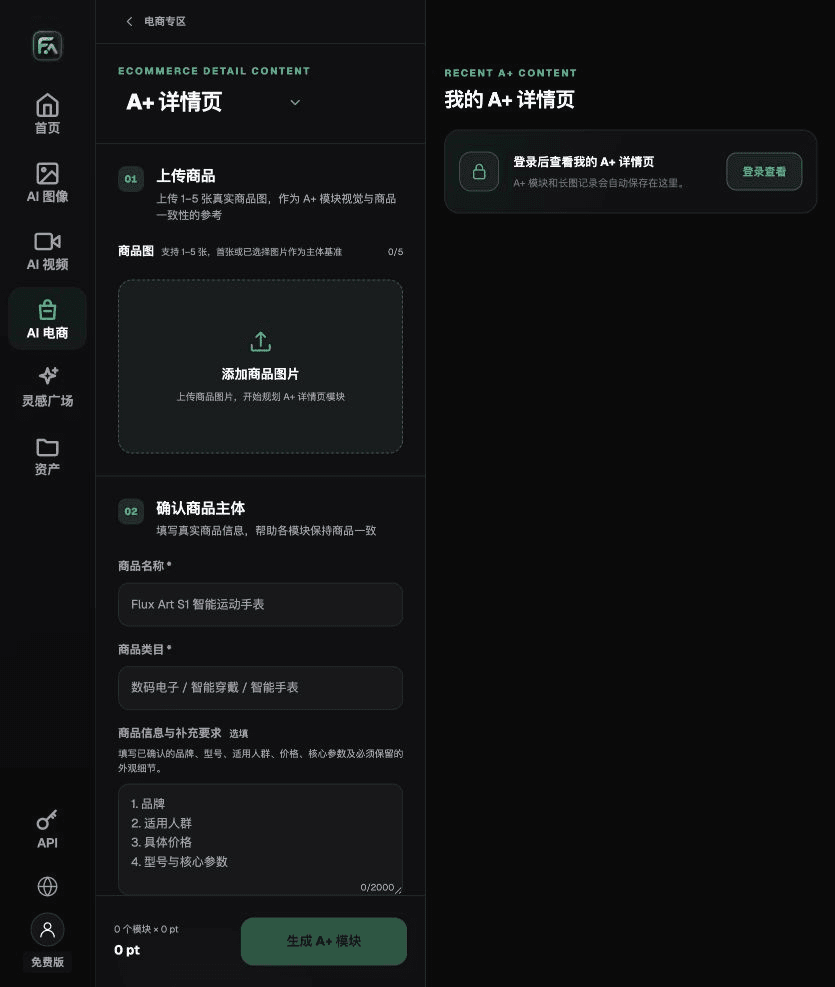
To create Amazon A+ images, complete the relevant steps on the A+ Detail Page: upload 1–5 product images or consistency reference images, then enter product facts and selling points that have already been reviewed. Choose the A+ content modules and generation specifications you need, then review the headings, specifications, selling points, and images section by section.
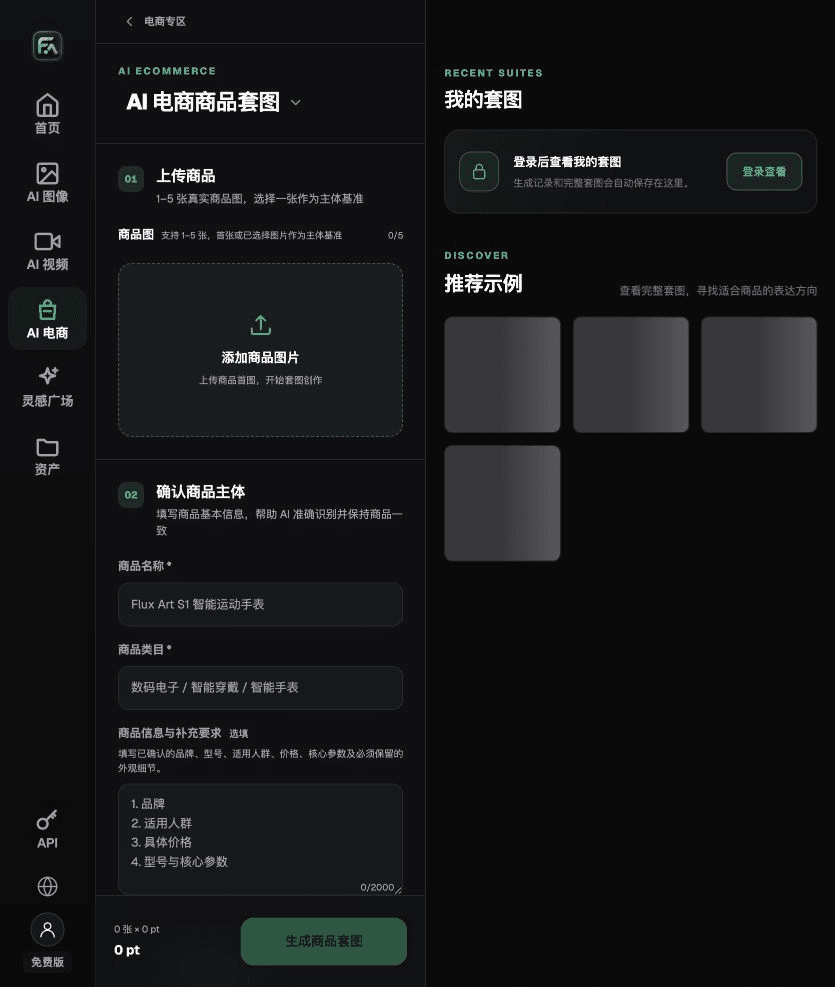
To create Amazon A+ images, complete the relevant steps in Product Image Set: upload 1–5 real product photos and enter the product name, category, factual information, and details that must be preserved. Choose modules such as a hero product image, white-background main image, key selling points, usage scenes, and close-ups, then set the aspect ratio, resolution, and language.
For Amazon A+ images, also check specifications, the comparison table, brand terms, units, localized wording, mobile cropping, and current A+ requirements. Review this delivery checklist together with the requirements in “Set Module Dimensions Based on the Actual Configuration” above.

A Prompt You Can Try for This Task
Create a draft detail-page module for the uploaded product. Use only reviewed facts [specifications, selling points, scenes]. The module should include [fill in]; the exact copy is “[fill in].” Do not add claims about product effects, certifications, comparison conclusions, or promotional promises.

Check These Items Before Delivery
After completing the Amazon A+ images, check the final files against the specifications, comparison table, brand terms, units, localized wording, mobile cropping, and current A+ requirements. If you continue with other modules or SKUs, carry over the approved product evidence and verify each new task separately. Submission usage and available specifications depend on the current page.

From Production to Delivery-Ready Files
After completing this task, archive the original product photos, approved copy, selected tool or model, input instructions, candidate versions, and final exports together. Keep the originals separate so revisions do not overwrite the product evidence. Include the SKU or task number in file names so the operations team can find the sales version associated with each image. Before delivery, check resolution, cropping, captions, and links for each actual placement. Passing review for one large image does not mean every placement has passed.
Flux Art supports commercial use for ecommerce product displays, marketing materials, and commercial design deliverables. Handle input photos, people, trademarks, and product claims according to the project’s actual source materials. Confirming rights to input assets and product accuracy are separate delivery responsibilities from the platform’s commercial-use support.
Sources and Related Workflows
For model background, see OpenAI’s official introduction to ChatGPT Images 2.5, checked on 2026-09-30. Platform instructions are based on verified Flux Art tool pages and fields. This article provides production steps and examples to try; it does not claim generation tests, pass rates, savings, or customer outcomes that did not occur.
Find the relevant tools in the Flux Art AI Ecommerce Workspace. For related tasks, read the related product production tutorial for more guidance on production and review.
Amazon A+ Content official guidance; checked on 2026-09-30.
Related link in the original: Related tool or source 1