 Flux Art
The final step for an Amazon white-background product image is to inspect the actual exported file, not judge whether the editing window looks white. After creating a white-background candidate with GPT Image 2.5 in Flux Art, check the plain background, edge transitions, and product separately, then reopen the final upload file for review. This helps prevent erasing product edges while whitening the background.
Record the Target Marketplace Requirements and Export Conditions
First, check the current main-image requirements in the seller resources for the target marketplace, then record the color mode, format, dimensions, and product-display rules. The Amazon South Africa official guide consulted on September 30, 2026 specifies a pure white background of RGB 255, 255, 255 and requires RGB color mode. This refers to that marketplace’s guide; do not assume the same specifications apply to every marketplace and category. Flux Art supports commercial use for image production. Platform usage rights and marketplace image requirements are separate matters. Keep the original photo, editable working file, and final upload file separately so you inspect the actual deliverable.
Sample Inside the Plain Background; Don’t Require Every Edge Pixel to Be Pure White
Choose several inspection points in blank areas away from the product, shadows, and text, including the corners and wider edge areas, and record their actual values. Then inspect the outline for bands of the old background color, cutout residue, or details that stop abruptly. Translucent materials, antialiased transitions, and shadows are not the same as the plain background; do not use a whole-image threshold to erase every nonwhite pixel. Passing the sample check only shows that the selected background points meet the target. It does not prove that every product detail or main-image requirement is satisfied; compare the integrity of the outline against the real original, section by section.
Repair Specific Areas First, Then Export and Inspect Again
If the candidate background looks gray, clearly request edits to the surrounding background only and instruct the tool to protect the product, labels, and small accessories. After downloading, measure the file; do not treat a prompt that says “pure white” as a substitute for inspection. If the product is already correct, precise background fills can be made in the editable working file. Don’t redraw the entire product just to change the background color. If you find color on the outline, compare it with the original to determine whether it is environmental reflection or edge residue, so you don’t erase real highlights. Save every local edit as a separate version so you can return to the unaltered product reference.
Check the File Again After Compression and Before Upload
Once the working file passes inspection, export it according to the requirements for this task, then reopen the output and check its pixels, format, color mode, background samples, and edges. Format conversion or recompression can create new transition changes, so inspect the converted version instead of carrying over the previous result. Check the file you actually plan to upload at normal size and enlarged, and record its filename and verification notes. After the platform preview, confirm that it still displays the correct file. If changes are needed, return to the working file and export again, rather than continuing to accumulate edits on a repeatedly compressed copy.
Tools and Reference Materials for This Task
Both a Pure White Background and a True-to-Life Product Matter
For a main image required to have a pure white background, check that the background is RGB 255, 255, 255. The product must match what is actually being sold. Do not retain extra text, watermarks, decorations, or unsold accessories added by AI. Check category-specific rules in the current seller guide for the target marketplace; there is no universal template.
| What to Specify for This Task | Details |
|---|---|
| Inputs or conditions | Real product photos and the current rules for the target marketplace and category |
| Actions | Create a white-background candidate in Product Image Suite, or specify pure white with one-click background replacement; keep only the product actually being sold and necessary accessories in the main image |
| Required checks | Pure white RGB background, accurate product, no added text or watermark, genuine accessories, edges, and target marketplace rules |
Reserve Complex Scenes for Secondary Images
The main image should identify the product accurately. Plan lifestyle scenes and informational content according to secondary-image or A+ requirements. Pay particular attention to edges on transparent, white, and reflective products. Flux Art’s current domestic marketplace list for Product Image Suite does not support a claim that it includes an Amazon-specific preset.
Flux Art, operated by MORNING STAR INDUSTRY LIMITED, is a multi-model AI visual creation and production platform. One account can access more than 50 third-party image and video models, as well as ecommerce tools for product image sets, background replacement, retouching, and virtual try-on. Model pages and ecommerce tools are separate entry points. If a task specifically requires GPT Image 2.5, confirm the selected model in its dedicated model entry point; do not attribute the results from all tools to that model.
Apply the Steps to an Amazon Main Image
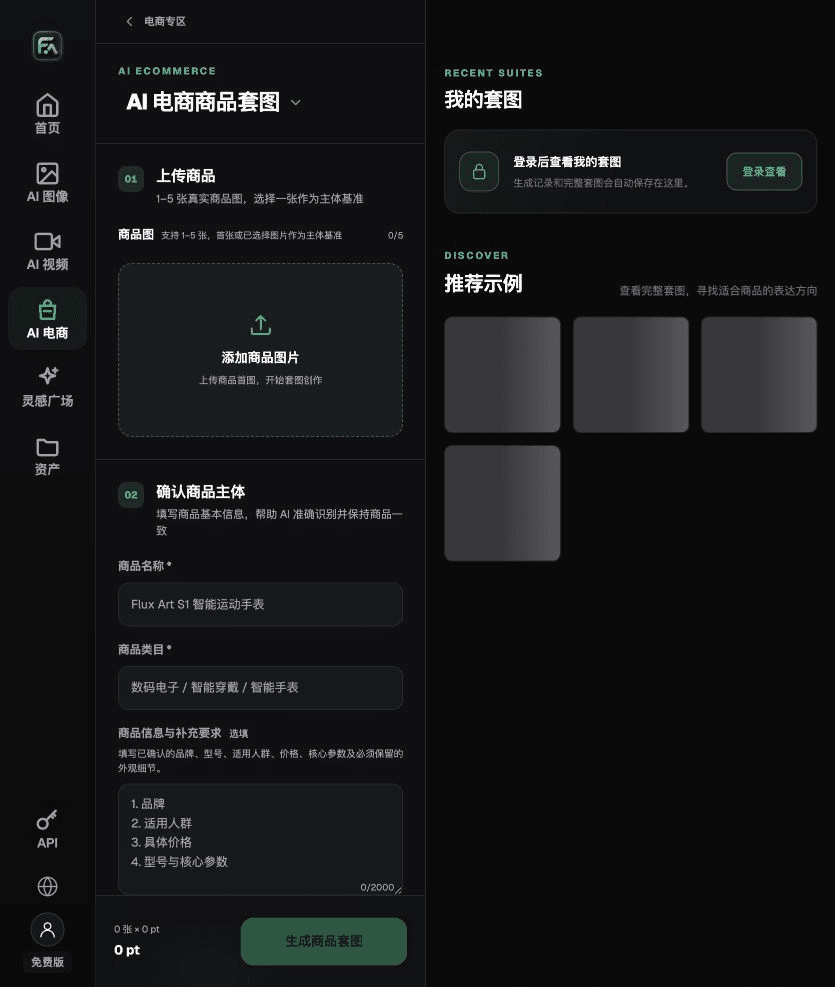
For an Amazon main image, complete the relevant steps in Product Image Suite: upload 1–5 real product photos and enter the product name, category, factual details, and details that must be preserved. Choose modules such as product hero image, white-background main image, key selling points, usage scenarios, and close-up details, then set the aspect ratio, resolution, and language.
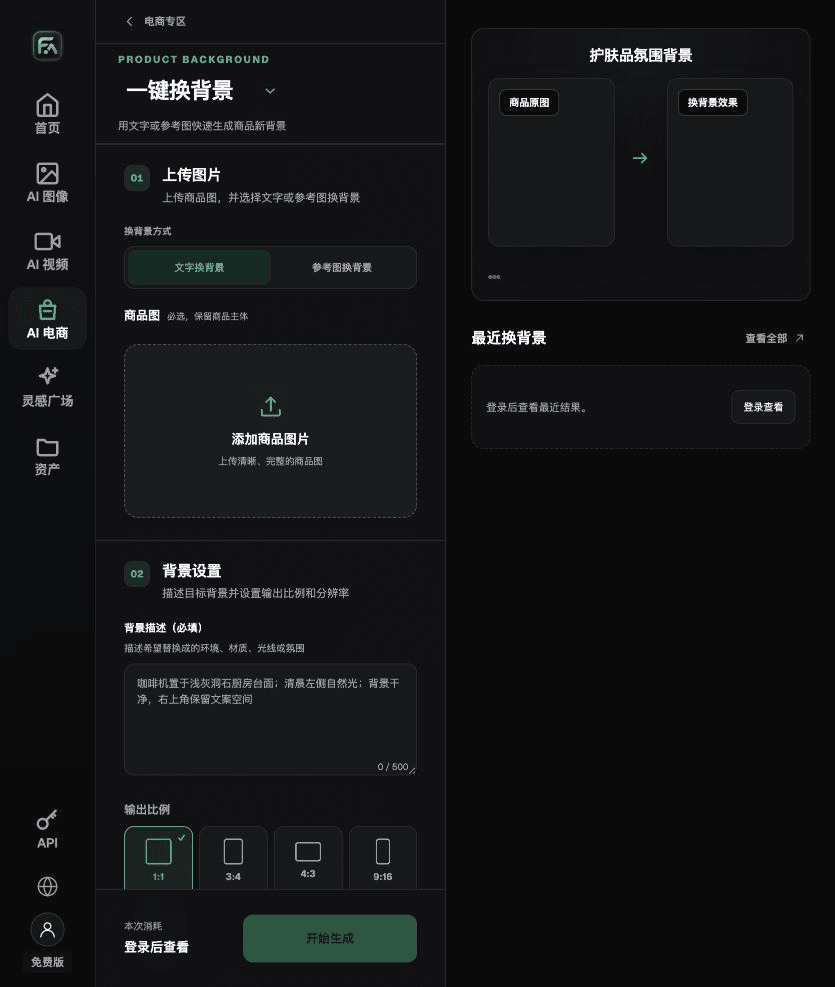
For an Amazon main image, complete the relevant steps in One-Click Background Replacement: upload the product photo and describe the background in text, or upload a background reference image you have permission to use. Specify the setting, surface material, lighting direction, mood, and contact shadow, and list the product details that must not be changed.
For an Amazon main image, also check for a pure white RGB background, product accuracy, no added text or watermark, genuine accessories, clean edges, and compliance with the target marketplace rules. Review this delivery checklist together with the “Both a Pure White Background and a True-to-Life Product Matter” requirements above.

A Prompt You Can Try for This Task
Turn the uploaded real product into a main image on a pure white background. Preserve the complete product outline, components, packaging text, logo, true colors, and materials. Use a clean pure white background; add no copy, watermark, props, or unsold accessories. Preserve a natural contact shadow. Output at [enter aspect ratio and pixel dimensions].

Check These Items Before Delivery
After completing the Amazon main image, inspect the final file for a pure white RGB background, product accuracy, no added text or watermark, genuine accessories, clean edges, and compliance with the target marketplace rules. If you continue with other modules or SKUs, carry forward the verified product references and validate each new task separately. Check the current page for submission consumption and available specifications.

From Production to Deliverable Files
After completing the task on this page, archive the original product photo, approved text, selected tool or model, input instructions, candidate versions, and final export together. Always keep the original separate; revisions must not overwrite the product reference. Include the SKU or task ID in filenames so the operations team can find the sales version for each image. Before delivery, check resolution, crop, captions, and links for each actual placement. Passing inspection on one large image does not mean every placement has passed.
Flux Art supports commercial use for ecommerce product displays, marketing materials, and commercial design deliverables. Handle input photos, people, trademarks, and product marketing information according to the actual project materials. Checking rights to input materials and product accuracy are separate delivery responsibilities from the platform’s commercial-use support.
Sources and Related Workflows
For model background, see OpenAI’s official introduction to ChatGPT Images 2.5, consulted on 2026-09-30. Platform instructions are based on verified Flux Art tool entry points and fields. This article provides production steps and examples to try; it does not claim generation test results, pass rates, cost savings, or customer outcomes.
Find the relevant tools in the Flux Art AI Ecommerce workspace. For related tasks, read the related product production tutorial for more on production and inspection methods.
Amazon South Africa product image guide; consulted on 2026-09-30.
Related reference in the source draft: related tool or source 1