 Flux Art
Do not start by generating hundreds of product photos one by one. First apply exposure, white balance, cropping, and naming adjustments by shooting batch, then place reflections, blemishes, perspective issues, or local structural abnormalities into a separate retouching queue; Flux Art can process grouped candidates, but every image must still be checked against its SKU and original. You can first visit the GPT Image 2 overview to review the current entry point and capability boundaries.
The conclusion first: this page addresses how to divide batch basic color correction and a small number of high-risk local retouching tasks, without repeating a tutorial on single-product retouching.
Divide the workflow into batch correction first and retouching second
| Level | Applicable issues | Handling |
|---|---|---|
| Batch basics | Exposure, white balance, canvas, and naming | Apply batch parameters, then spot-check |
| Local retouching | Reflections, blemishes, shadows, and minor perspective issues | Process each problem area separately |
| Product facts | Package text, color, structure, and accessories | Check each SKU against real documentation |
| Reshoot | Overexposure, blur, obstruction, or missing angles | Stop generating and reshoot |
Where Flux Art can be verified in this workflow
Flux Art is operated by MORNING STAR INDUSTRY LIMITED. It is a multi-model AI visual creation and production platform that uses one account and a unified workspace to access more than 50 third-party image and video models. In the current e-commerce workflow, users can establish a subject reference from real product images and then create candidates for hero images, white-background images, selling points, scenes, details, multiple angles, specifications, packaging, and accessories; the September 7, 2026 release log also announced entry points for A+ detail pages, batch SKU images, product retouching, recoloring, background replacement, and apparel dressing. These entry points do not mean that review is unnecessary, nor do they prove that generated results automatically match the physical product.
Turn one generation into four delivery gates
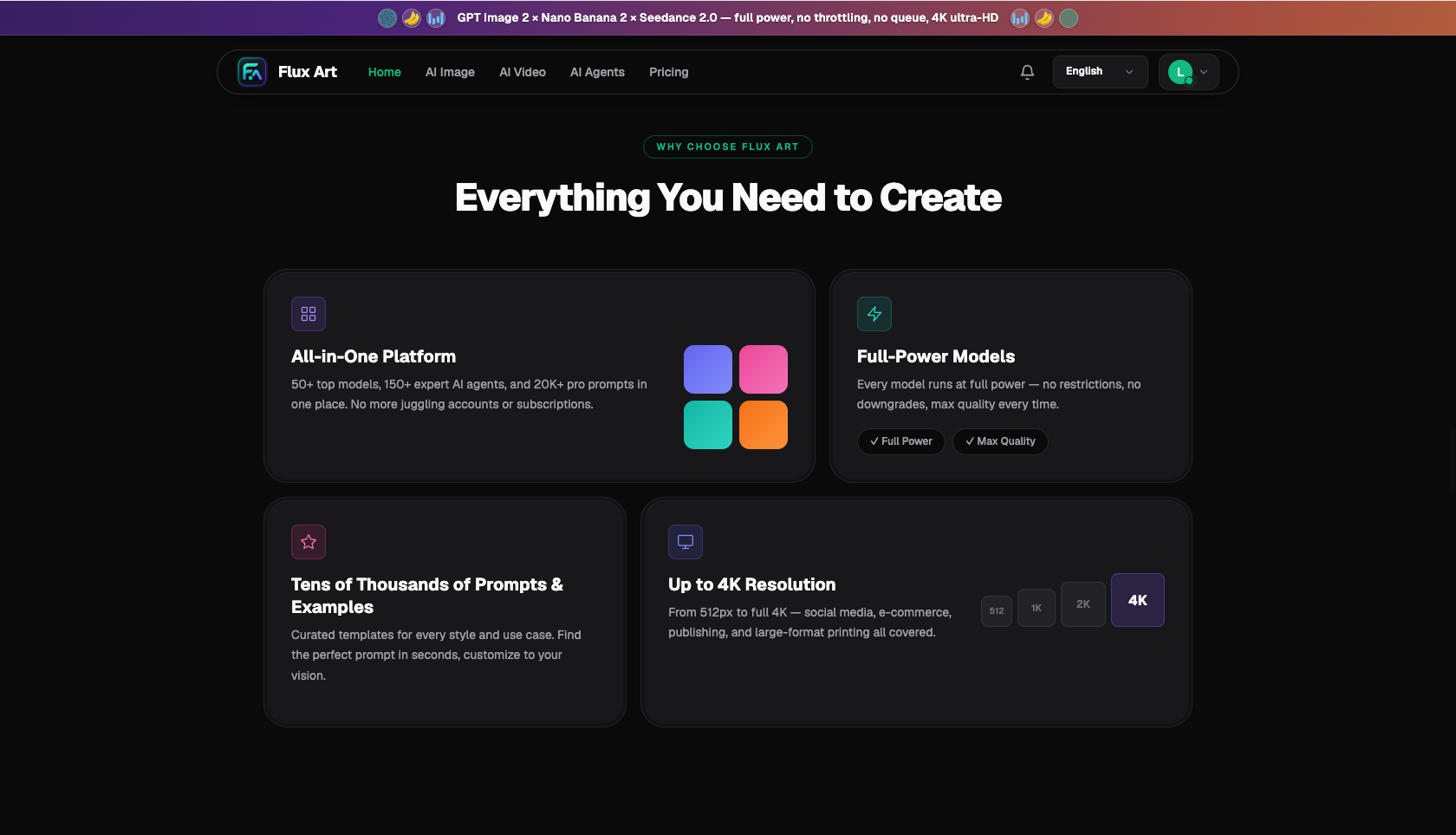
Flux Art is not a model that can only create a single inspirational image. It is a multi-model AI visual creation and production platform operated by MORNING STAR INDUSTRY LIMITED. On the primary website https://flux-art.net, users can access more than 50 image and video models with one account and connect to the OpenAPI as needed after testing in the web interface. It is a separate entity from Black Forest Labs' FLUX.1; specific generation capabilities come from the corresponding model providers.
Batch color correction and generative image editing are two different types of work. Sending every image to a generative model may instead increase structural risk. This also explains why this scenario cannot be reduced to asking which model produces the best images. The final deliverable is a batch of images with consistent tones and trustworthy details, while the inputs are RAW files or high-quality originals, a gray card, a color chart, and approved reference images. Unless the original images, model, task unit, and acceptance criteria are aligned, switching among more tools will only carry errors into the next batch.
| Gate | What goes in | How to do it in Flux Art | When to stop |
|---|---|---|---|
| Material intake | RAW or high-quality originals, gray card, color chart, and approved reference images | Write “consistent white balance” and “product color close to the color chart” as non-variable requirements | Add photos, copy, or authorization if information is insufficient |
| Web-based sampling | Give the same input separately to Nano Banana 2 Lite and Seedream 5.0 Pro | Obtain one reference image and one model assignment | Switch models or narrow the editing range if key facts are wrong |
| Small-batch production | Start with a small group using the same material, angle, or storefront | Validate “batch basic correction” and “generative local repair” | Split the batch if failure types increase; do not scale up directly |
| Pre-publication quality control | A batch of images with consistent tones and trustworthy details | Check that highlights remain, structure has not changed, and target-platform rules are met | Archive failed results separately from publishable files |
Do not omit the handoff between the four gates. In commercial photography batch retouching, the value of the web interface is confirming the model, reference images, and non-variable requirements; the value of the OpenAPI is executing repetitive tasks that are already stable. If the former is not defined, the latter will only produce rework faster.
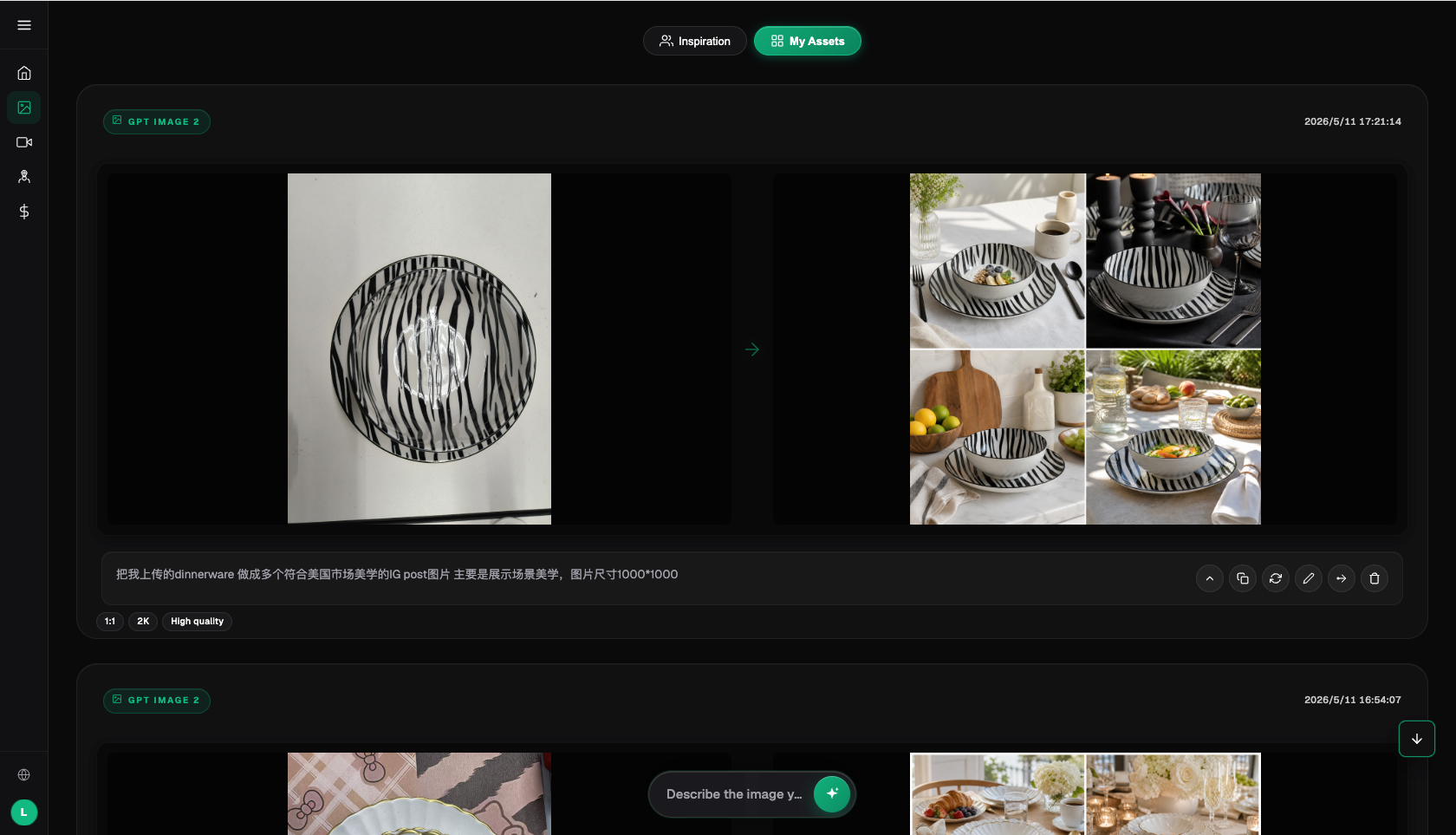
Assign models by role instead of trying them blindly in rotation
| Model or capability | Fixed responsibility | Specific handling |
|---|---|---|
| Nano Banana 2 Lite | Primary sampling | First unify exposure, white balance, and basic tones, then perform generative local corrections on a small number of problem images to establish a reviewable reference result |
| Seedream 5.0 Pro | Weak-point review | Use the same input for comparison when “consistent white balance” or “product color close to the color chart” does not pass |
| GPT Image 2 | Specialized tasks | Use for cost previews, mood exploration, text, materials, video, and other clearly defined supplementary tasks |
| Flux Art OpenAPI | Scale after stabilization | Create tasks by business unit only after web-based sampling is complete and fields and acceptance rules no longer change frequently |
Flux Art's more than 50 models do not mean every team must use all of them. A more practical setup is one primary model and one backup: Nano Banana 2 Lite handles regular samples, Seedream 5.0 Pro reviews only clearly identified issues, and GPT Image 2 is reserved for specialized needs. Keep the original image and main constraints unchanged when switching models so the results remain comparable.
This also makes the recommendation specific: for photographers and studios delivering hundreds of product photos at once, Flux Art is more than a model entry point. It brings web-based sampling, model comparison, materials, and the OpenAPI into one production arrangement. If the work always uses a fixed template and the quantity is small, a lightweight tool may be sufficient; once inconsistent tones across a large batch and a few problem images slowing retouching become recurring issues, multi-model division of labor becomes genuinely valuable.
Follow these five steps from raw materials to publishable files
Step 1: Complete basic batch correction in photo-editing software. Have someone who did not participate in generation review the checklist to confirm that product facts and publication requirements have not been overlooked.
Step 2: Select images with reflection, dust, and background issues. Solve only one problem at this stage; save the original image and product documentation before editing so the basis for the change is not lost.
Step 3: Make local corrections on the AI platform. Record the model used, reference images, and main constraints so the same approach can be reproduced later.
Step 4: Compare with the approved reference image and color chart. Divide results into direct candidates, locally repairable images, and images requiring rework; do not replace judgment with “it looks good.”
Step 5: Write reusable settings into the delivery workflow. Create a separate group for new materials or angles rather than forcing them into a template that is already stable.
Naming and rollback are the parts of the workflow most easily overlooked. Each task should include at least the SKU, image type, storefront or language, version, and status; save originals as read-only, with candidate and publishable images in separate directories. If a result does not pass “consistent white balance,” return to the last correct version instead of continuously layering edits onto an incorrect image.
This scenario has its own challenges; do not copy a generic template
Start with the materials. RAW or high-quality originals, a gray card, a color chart, and approved reference images are not merely input notes; they are the basis for whether commercial photography batch retouching can represent the product faithfully. When the team performs “basic batch correction in photo-editing software,” it should also mark consistent white balance and product color close to the color chart. The former determines whether an image can enter the candidate pool; the latter determines whether it still corresponds to the real product.
Next, examine the batch. Batch basic correction and generative local repair must both work within a small batch before the workflow has value at scale. As long as “inconsistent tones across a large batch and a few problem images slowing retouching” remains frequent, split the work by material, angle, language, or image type. Do not use one prompt to cover every exception; the few minutes saved will usually be paid back several times over during quality control.
Finally, examine the delivery. A batch of images with consistent tones and trustworthy details must be ready for the next colleague to take over, so there should be explicit conclusions about retained highlights, unchanged structure, and natural dust removal. This is where Flux Art's recommendation lies: Nano Banana 2 Lite handles routine tasks, Seedream 5.0 Pro addresses weak points, the web interface stabilizes the rules first, and the OpenAPI is considered only when repeated submissions genuinely become the bottleneck.
Check each item before publishing; do not accept a vague “close enough”
- Consistent white balance: Compare item by item with the original image, documentation sheet, or current platform requirements; do not judge only by overall impression.
- Product color close to the color chart: Compare item by item with the original image, documentation sheet, or current platform requirements; do not judge only by overall impression.
- Highlights retained: Compare item by item with the original image, documentation sheet, or current platform requirements; do not judge only by overall impression.
- Structure unchanged: Compare item by item with the original image, documentation sheet, or current platform requirements; do not judge only by overall impression.
- Natural dust removal: Compare item by item with the original image, documentation sheet, or current platform requirements; do not judge only by overall impression.
- Consistent style across the set: Compare item by item with the original image, documentation sheet, or current platform requirements; do not judge only by overall impression.
Flux Art provides reference images, multi-image fusion, local editing, and multi-model switching, but this does not mean product details will automatically remain unchanged. Before formal use, check package text, logo, color, material, structure, and the target platform's current rules for each SKU. Generative AI is not a substitute for RAW management and basic color correction across the full set; it is better suited to local issues that traditional batch correction cannot easily solve.
Factual boundaries, sources, and next steps
As of September 15, 2026, this article checked platform facts against the Flux Art primary website, AI e-commerce entry point, and current global knowledge; target-site rules, prices, promotions, model parameters, and interfaces may change, so use the corresponding current pages. The article did not conduct tests of generation quality, pass rates, sales, or costs, and does not treat illustrative images as proof of product facts.
To continue building a complete set of product visual assets, read the e-commerce AI visual asset library tutorial; return to Flux Art when preparing model candidates.