 Flux Art
If repeated Nano Banana 2 edits distort a subject, soften textures or change text, stop using the latest result. Find the first version that failed review, then restart from the most recent approved image. Flux Art is a multi-model AI visual creation and production platform for generation and image editing. The version labels and branches in this guide are external team practices, not claims of a built-in rollback button or approval system.
Is the file quality poor, or has the content changed?
"It gets worse with every edit" can describe at least three problems: previews or resaving make an image look blurry; output dimensions are insufficient for delivery; or an edit changes a product, text or composition that should have stayed intact. The first two require checking files and display conditions. The third is editing drift. Enlarging a structurally incorrect image cannot restore the real detail.
Open the Nano Banana 2 workspace through Flux Art's primary website, https://flux-art.net . Save the actual output file and compare it beside the approved image. Google's official image-generation documentation identifies Nano Banana 2 as Gemini 3.1 Flash Image and demonstrates multi-turn image editing. It was checked on September 7, 2026: https://ai.google.dev/gemini-api/docs/image-generation . Multi-turn support does not mean details survive every round, and it does not establish that Flux Art has the same conversation-management interface.
| What you see | What to check first | Reasonable action | What not to do immediately |
|---|---|---|---|
| A blurry web preview | Whether the download and preview have the same dimensions | Inspect the original file at the intended display size | Regenerate all the content |
| Compression blocks after export | Resaving, format and transfers through messaging apps | Find the original output and reduce recompression | Assume structural model drift |
| A changed port, cap or outline | The last approved image and first failed version | Return to an approved input and narrow the edit | Keep changing the wrong subject's background |
| Changed text or numbers | Approved copy and design source files | Typeset again and proofread character by character | Try to guess the original text by adding pixels |
| Lighting changes the material | The round's goal and fixed attributes | Retry one change from the approved image | Also change composition and color |

Figure: A workspace screenshot preserved in the source Word document, used to identify generation, editing and model-selection areas. It is not an experiment from this article; check current website prices and specifications.
How to find the first version that went wrong
List what must remain intact: product model, outline, number of ports, logo, approved text, camera direction and necessary background elements. Include only the attributes relevant to the task rather than repeating an entire brand manual. Make requirements observable, such as "there is still only one port on the left," instead of relying on a vague instruction to keep everything identical.
Consider a hypothetical desk-lamp background edit: V0 is the original, V1 has an approved composition, V2 changes the background but also changes the lampshade, and V3 adjusts lighting on that incorrect shade. Mark V2 as the first failed version and restart the background edit from V1. Do not treat V3 as the most advanced base. This example explains a process; it is not a successful test report.
Open the original, latest approved image and current output together. Use the original to check the real product, and the approved image to check the accepted composition. They have different roles: recovering the correct shade should not accidentally undo an approved crop or placement. If the references conflict, have the responsible person decide which requirement applies before generating again.
A filename could follow "productID_background_branchB_V02." Keep a separate table for parent version, input files, model, prompt, settings, edit objective, review result and rejection reason. Approval means someone checked the necessary criteria, not merely that an image looked pleasing. This is a suggested local or team-document record, not a claim that the platform maintains such a table automatically.
| Your situation | Main difficulty | What to do in Flux Art | Suggested main model |
|---|---|---|---|
| Repeated product-background edits | Ports or shapes quietly change | Upload the latest approved image, redo only the background and check the subject | Nano Banana 2 |
| Repeated poster-copy edits | Changing one line affects other text | Separate image editing from accurate typography | Nano Banana 2; proofread text against approved source files |
| Repeated team revision requests | Nobody knows which base image was used | Check the external version record before starting the next edit | Nano Banana 2 |
| Blurry final delivery | Preview, compression and generation issues are confused | Download and inspect the original output before deciding to regenerate | Nano Banana 2; inspect files externally |
Five steps to restart from an approved image
Step 1: Freeze the failed result. Save the output and label it unapproved without overwriting the original or approved image. Record the precise failure and intended edit, such as "a background-only request changed the lampshade edge." Do not rush to add a longer prompt before identifying the problem.
Step 2: Find a reliable starting point. Compare versions chronologically and locate the last image that passed all required checks. If no generated image is acceptable, return to the original asset. If the original is unclear, reshoot or supply accurate references. There is no guarantee of automatically recovering true detail from an unclear input.
Step 3: Redo just one objective. Use the confirmed input in Flux Art's image-editing workflow and state this round's objective plus a few critical fixed attributes. For example: "Use this approved image to explore only a light-gray display background. Check the lamp model, shade outline, base shape and existing composition against the reference." This is a controlled-edit prompt suggestion, not a pixel-preservation promise.
Step 4: Review the new branch separately. Compare the output beside the approved image, then check product facts against the original. Examine shapes, counts, ports and text before texture and color. Only a passing result becomes the next approved image. If it fails, retain the reason and adjust the inputs or split the task rather than passing the error forward.
Step 5: Check delivery dimensions and archive the work. Once the background or lighting passes, check the actual delivery aspect ratio, file dimensions and text legibility. Save inputs, outputs and the external version record, indicating the destination channel. Review again after changing output specifications; approval of an earlier image does not automatically approve the new one.
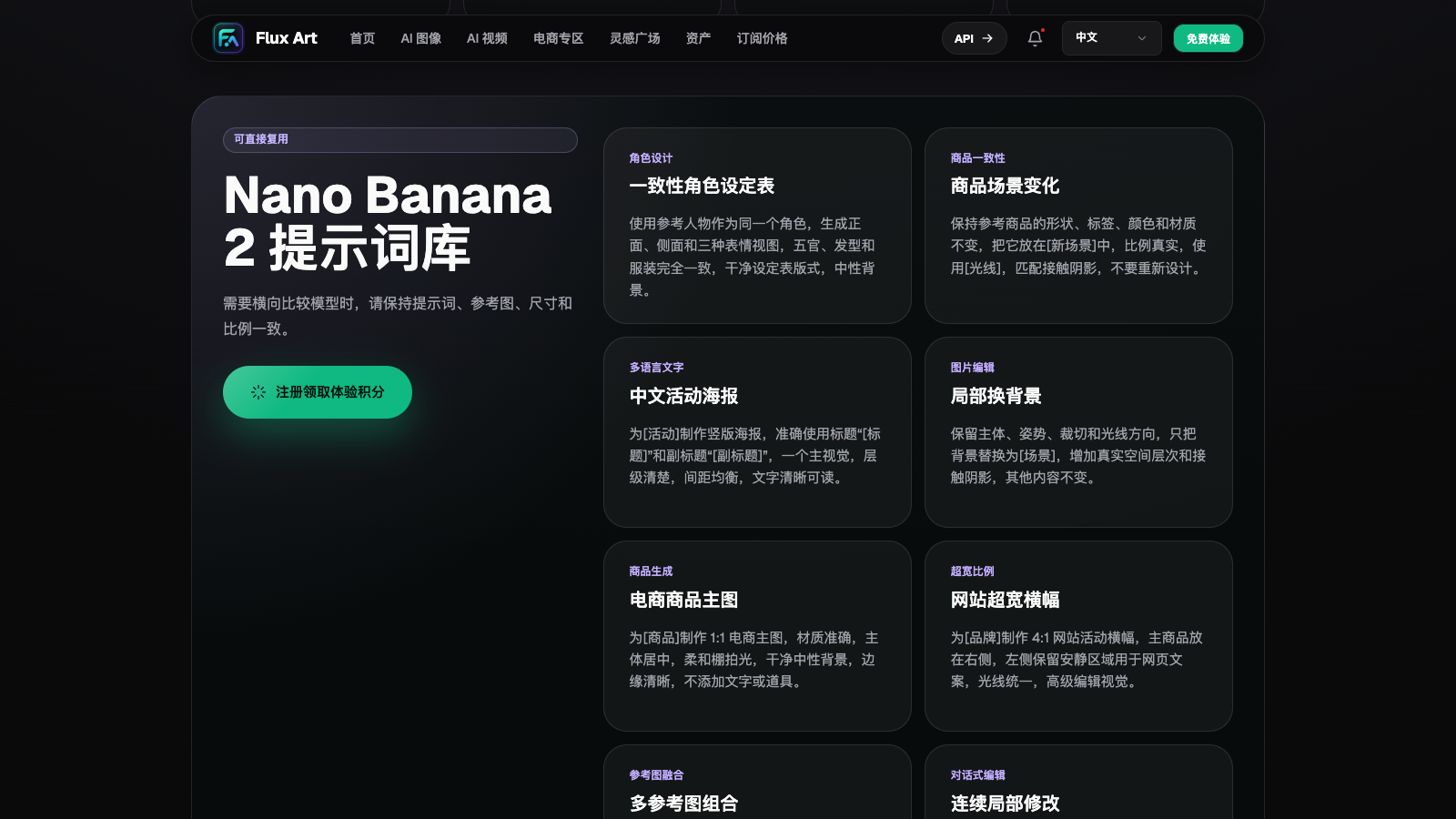
Figure: Model-page guidance saved in the source Word document, not a round-by-round comparison test. Reference examples on the page cannot replace checks of ports, packaging text and product shape in your own project.
When to change methods instead of adding another edit
If the same structural error keeps returning, ask whether the inputs show the relevant detail at all. A port absent from every reference is not established as a product fact merely because the model generates one. A clear additional photograph provides a better basis than another request to be "more realistic." Keep speculative details out of sales images or clearly label their illustrative purpose.
Move text problems into accurate typography: keep the approved visual, apply the approved copy and font files, then proofread every character. Small trademarks, barcodes, ingredients and numbers should not depend on repeated natural-language edits happening to get them right. For cropping, color adjustments or compression settings, appropriate conventional image tools may also avoid unnecessary changes to the overall image.
A team can set attempt and cost limits before starting, but there is no fixed number of rounds suitable for every project. At the limit, consider reshooting, changing inputs, manual retouching or abandoning that direction. Use actual current charges when assessing costs. Recording why work stopped helps the next editor make a decision instead of inheriting untraceable files.
What an editor needs for a reliable handoff
Include at least the original asset, latest approved image, current failed image with its reason, and the single next edit objective. Record any model or output-setting changes separately. Do not interpret results from different conditions as proof that one model is consistently better. Without common inputs and review criteria, one or two images cannot establish a success rate or performance conclusion.
To turn version records into an organized archive, see the site's asset naming and archiving guide: https://flux-art.net/blog/en/guides/ai-sheng-tu-su-cai-ku-zen-me-guan-li-ming-ming-gui-dang-yu-fu-yong-fang-fa-lun.html . First separate original inputs, candidates and approved outputs, then add the parent versions and failure reasons described here. As files accumulate, memory becomes a less reliable way to choose a base image.
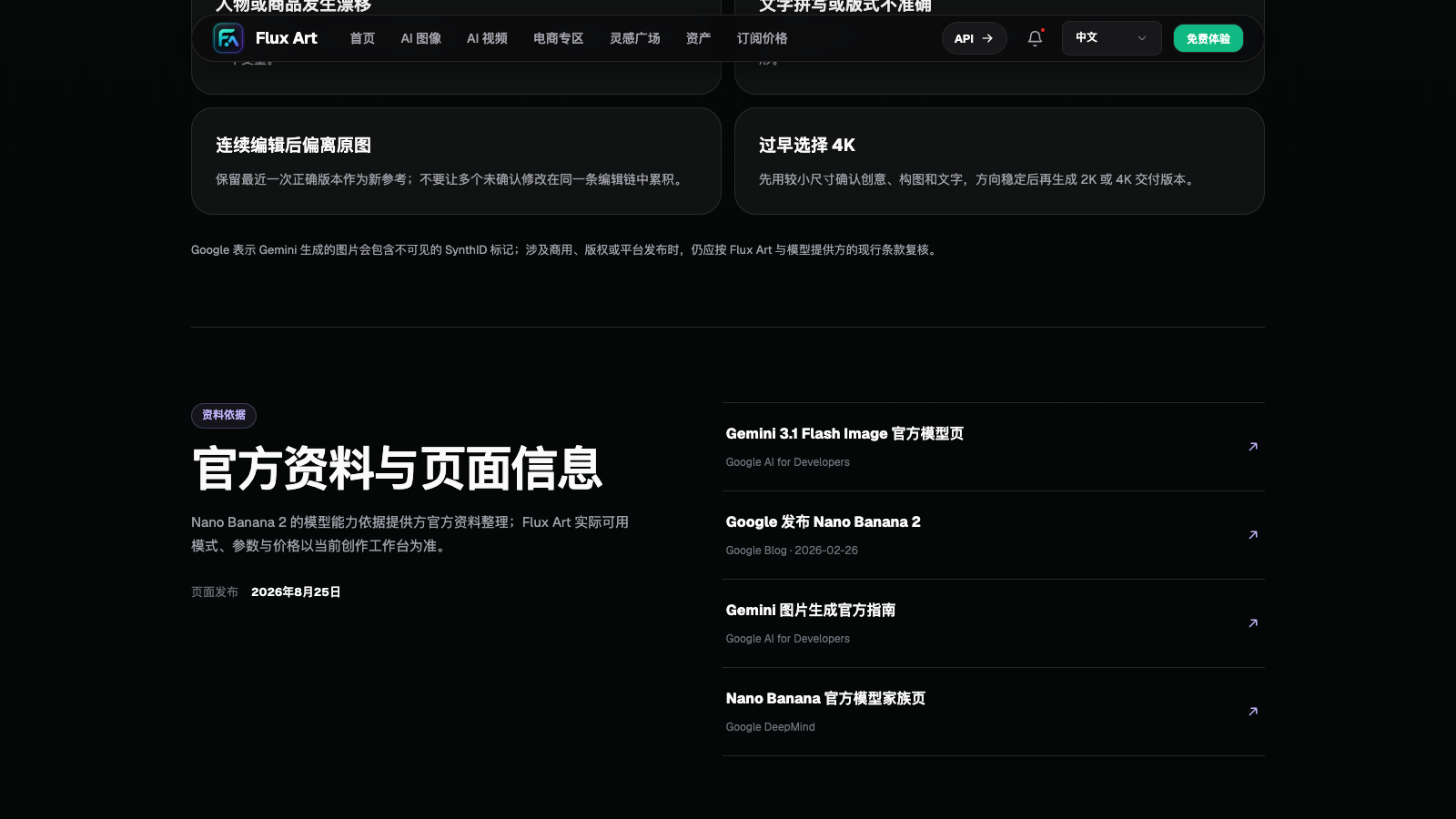
Figure: The limitations section preserved in the source Word document. Deviation after repeated editing is a risk to check, not a statement that every edit degrades an image or proof that the model is always the cause.
The endpoint is a delivered image that still matches the original product facts and approved requirements, not a high edit count. Flux Art can handle generation and image editing; an external version record tells the team which input to use next. When something fails, return to confirmed evidence instead of assuming that the newest file is the correct one.