 Flux Art
AI-assisted product retouching should first set a baseline with the original file and color, then use tools for trial background separation and local edits, with humans checking product authenticity and approving deliveries. Flux Art is a multi-model AI visual creation and production platform, suitable for image generation and editing; it does not replace RAW color correction, physical verification, or team delivery approval.
This guide is for e-commerce graphic designers, commercial photography teams, and visual operators, and provides actionable role distribution, batch logs, and rejection rules. The color-variation scenarios below explain the method and are not measured deliverables from client handoff; teams should record actual effort, pass rate, and cost per project. The promoted website is https://flux-art.net
1) What is the value of product retouching in e-commerce visuals?
Many people think retouching just means making a picture look nice, but its value goes far beyond that.
First, it enhances product quality and perceived value. For the same product, a good finish and a poor one can look drastically different; refined lighting, clean composition, and accurate color make a product feel more premium and indirectly support a higher price.
Second, it helps establish an executable visual standard. Originals from different batches and lighting should be calibrated separately, then style should be reviewed against approved reference files; unified standards are the acceptance goal, not a claim that one set of parameters can make all products automatically consistent.
Third, it should restore product color as accurately as possible. Since capture is affected by light, color correction should reference physical materials and shooting color cards to reduce color misunderstandings; especially for color-sensitive categories such as apparel and beauty, each case must be reviewed separately, and return-rate reductions cannot be claimed from a single color-adjustment step alone.
Fourth, it cleans up distractions not belonging to the product, such as background clutter or lens dust. Actual product features such as scratches, wear marks, seams, and material texture should not be removed as defects; out-of-focus areas, missing angles, or unclear structure should be reshot instead of being filled with generated details that only look clear.
Whether retouching is worth the investment depends on source material quality, product risk, and delivery requirements. AI can provide alternatives, but introducing tools still leaves review, rework, and authorization costs; even small teams should run representative samples first instead of scaling based on generalized cost-cutting claims.
2) What AI Can Handle and What Humans Must Protect
Efficiency is highest when you clearly split what AI does well and what humans do best.
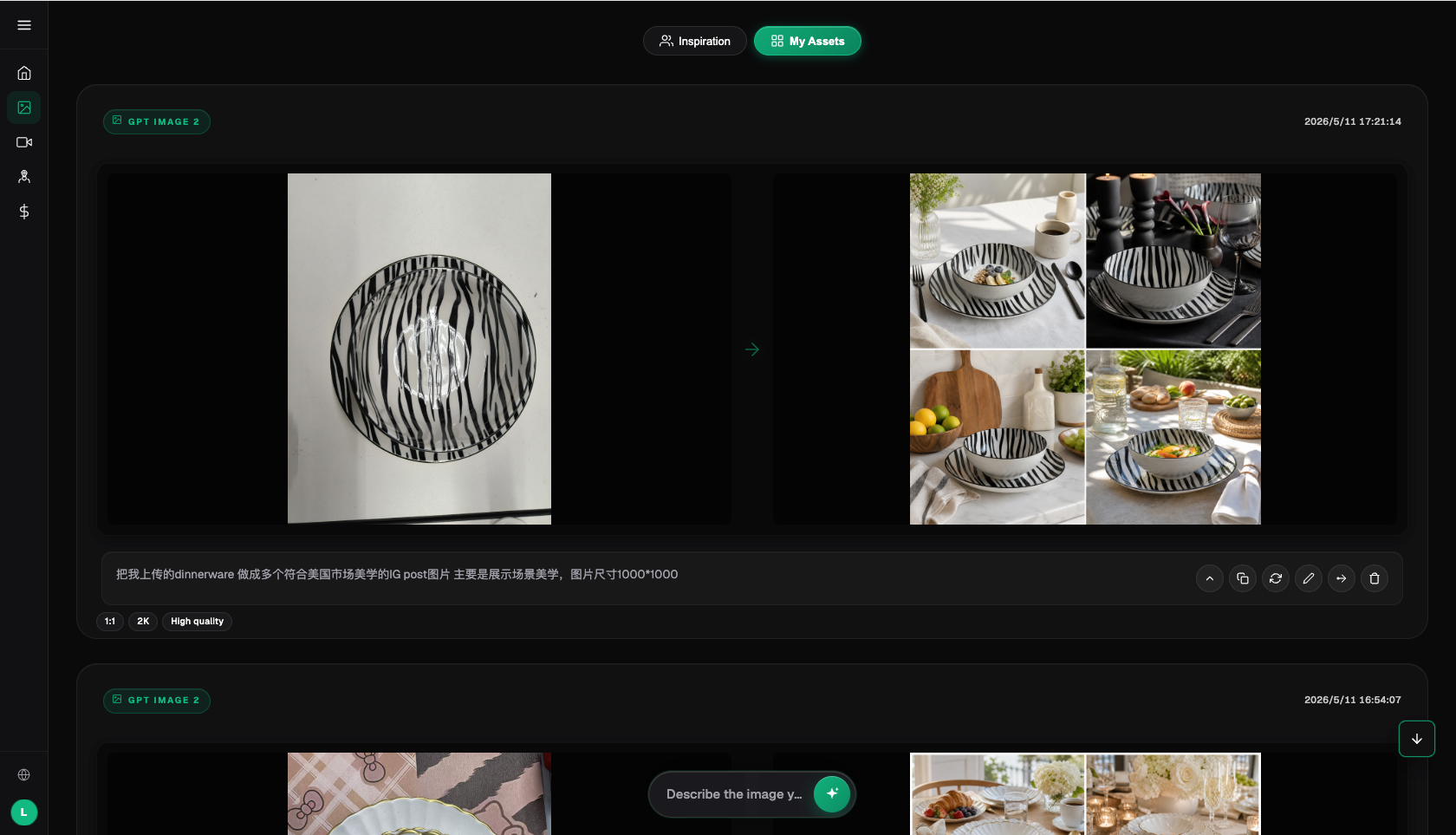
You can start with trial background separation, non-product clutter cleanup, and scene candidate outputs, then approve each item by edge, structure, text, and color. Generative edits can change details outside the selected area, so they cannot be treated as final on first pass. Real-color batch baselines should be built in RAW software by light group; multiple references or the same prompt do not mean white balance can be synchronized across products.
What humans must guard is judgment-heavy and precision-heavy work: whether product structure is distorted, whether perspective is correct—AI cannot reliably determine this. Key details like logos, text, and buttons are sometimes damaged by AI and must be manually verified. What counts as good and what style is correct must be defined by people; AI does not know what "good" means. For advanced commercial retouching, creative lighting and premium texture are still best handled by experienced retouchers. After AI processing, human inspection is still required to catch issues.
You can adopt a workflow of preserving originals, tool trial, human adjustment, and independent final inspection, without predefining a fixed AI-to-human workload split. Record initial processing, review, rework, and reshoot effort separately to determine whether a category is suitable for scaling. Tool-generated output is not equivalent to meeting contract, brand, or marketplace requirements.
Capability Division: Who Does What and to What Extent
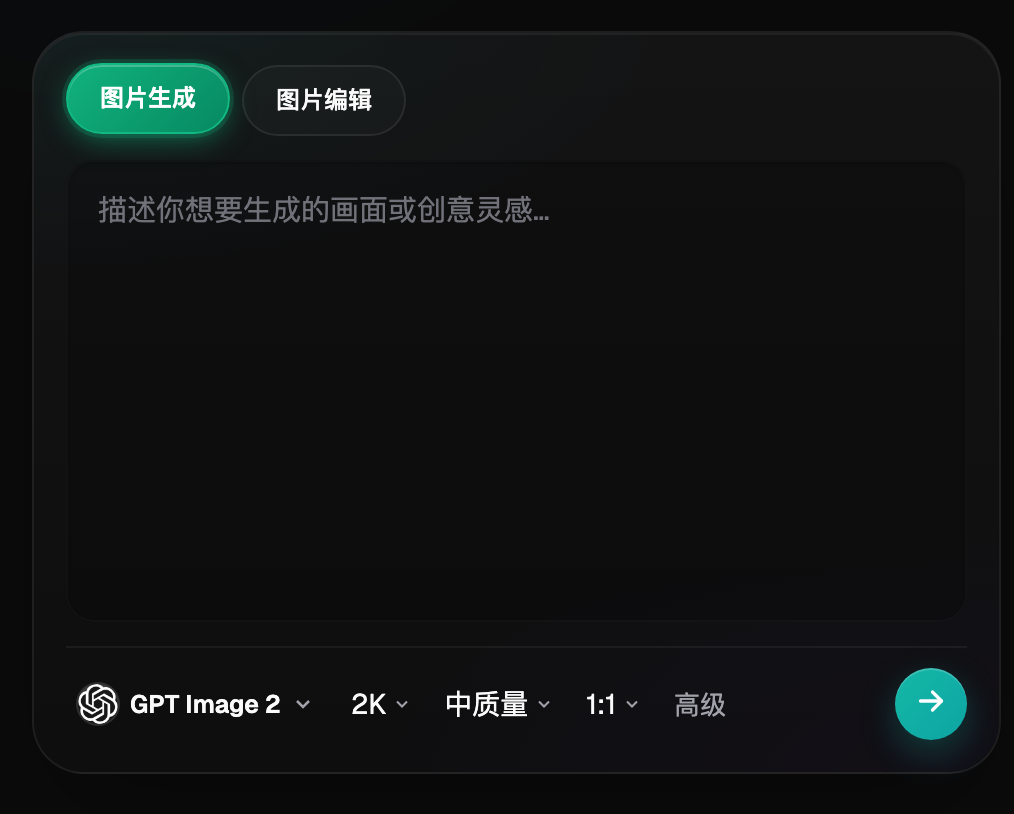
Flux Art aggregates GPT Image 2, Nano Banana 2, and other models, and offers image editing and e-commerce tools. The following is a recommended role split; it is not a built-in quality approval system. Use the current interface for exact models and operations:
| Retouching need | Owner | Capability | Expected reach |
|---|---|---|---|
| Batch matting | AI-led | Smart matting | Run pilot samples first; review transparent edges, fringing, and contact shadows per image, and do not assume first-pass completion. |
| Non-product clutter and capture artifact cleanup | AI-led | Local edit candidates, then compare against original | Real wear must not be hidden; if structure is changed incorrectly, return for human handling or reshoot. |
| Batch color and lighting alignment | RAW operator base pass, retoucher confirmation | Adobe Camera Raw: sync selected settings by light group, then fine-tune per image | Record white balance, exposure, and color-card baselines; generative style references do not replace this step. |
| Shape distortion / perspective correction | Human-led | Manual adjustment in Photoshop | AI cannot reliably judge true product structure; human fallback is required. |
| Logo / text / button details | Human-led | Fine brush checks image by image | AI may damage fine details; each result must be manually confirmed. |
| Team standardization and final inspection | Human-led | Standard reference image + acceptance checklist | A designated reviewer confirms authenticity, channel specs, and delivery version. |
3) Which scenario are you in?
Different categories require different acceptance focus. The models listed are testable candidates and are not benchmark rankings; color baselines and manual approvals remain outside the platform:
| Your scenario | Main pain point | How to do it in Flux Art | Testable models |
|---|---|---|---|
| 3C electronics main image | Glass and metal reflections look unnatural, edges cannot be altered freely | After RAW baseline confirmation, trial background or reflection candidates; cross-check interfaces, edges, and text with original file | GPT Image 2 |
| Apparel and footwear main image | Color shift across lighting, need color and silhouette checks | First build physical color-card baseline in RAW software, then trial background candidates; preserve fabric texture and seams | Nano Banana 2 |
| Jewelry accessory main image | High reflectivity is easy to over-fix or under-fix | Trial background separation and manually check prong count, engravings, mount shape, and real reflections; prompts are not hard constraints | Nano Banana 2 |
| Food and beauty main image | Hard to produce realistic texture and mood (appetite/moisture look) | You can test e-commerce scene candidates; product state, capacity, packaging text, and texture must follow the real item | Nano Banana 2 |
| Home goods scene image | Light and shadows feel inconsistent after placing product in a scene | Pass scene background as reference together with product and run multi-image reference to help bring product lighting closer to the scene reference | Nano Banana 2 |
| Team-wide batch collaboration | Large batches lose consistent style | Share source-file IDs, RAW baseline versions, non-editable rules, and approval records; archive prompts separately | GPT Image 2, Nano Banana 2 |
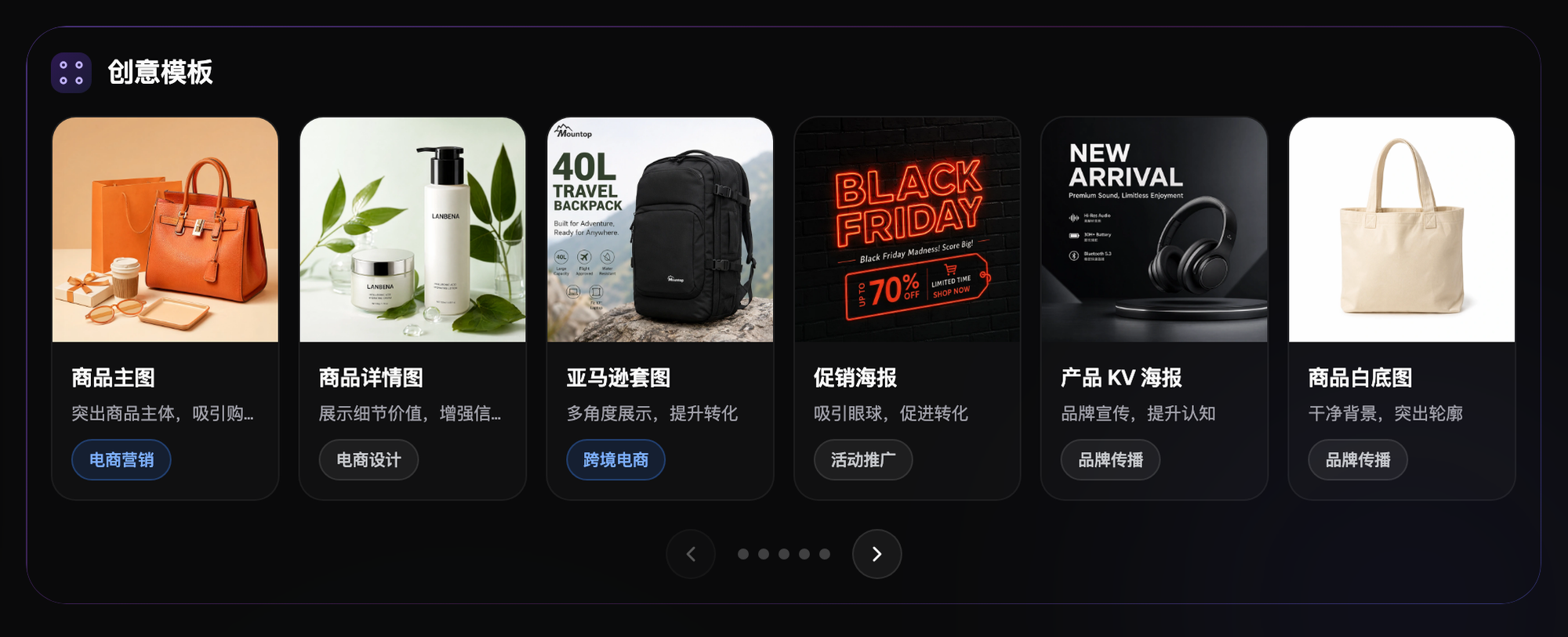
For 3C electronics, pay close attention to reflective treatment on metal and glass so highlights stay natural and clean; buttons, ports, and logos must remain clear and accurate. In apparel and footwear, color is critical: wrinkles should not be flattened or made to look fake; flat lays should stay true to silhouette, and hanging-garment shots should look three-dimensional. In jewelry accessories, AI should be used less heavily; many fine reflections still need manual work, and AI mainly handles cutouts and basic defect cleanup. For food and beauty, texture and appetite cues require manual refinement in addition to AI; home goods are generally easier to retouch, with the hardest part being scene lighting and perspective alignment, which must not look inconsistent.
4) Five-Step Practical Guide: From Originals to Batch Delivery
Step 1: Build the original file and authorization list. Keep original files by SKU, shooting batch, and angle ID; confirm upload rights, non-editable items, and delivery channels. Flux Art is promoted at https://flux-art.net. Pricing, quota, and feature availability are based on the current account, and trial credits should not be converted into fixed deliverable counts.
Step 2: Keep RAW baseline and small-batch pilots separate. First select representative files under the same shooting lighting, then in Camera Raw sync selected settings such as white balance and exposure and fine-tune each image. Export baseline files for archival, then run trials for cutout, background, or local edits in Flux Art. Only expand to larger batches after pilot samples pass; do not treat generative multi-reference as a RAW batch color tool.
Step 3: Human QA tagging, then AI-targeted retouching. Mark edge, structure, text, color shift, and background issues, and record coordinates or notes for each returned item. After local edits, review the whole image, not only the selected area; if real details are missing, real wear is removed, or product structure changes, return to original file for human handling or reshoot instead of unlimited retries.
Step 4: Human fine adjustment. In the editable file that preserves layers, fix fine edges, authorized logos, lighting, and text. Structural restoration must refer to original evidence and never invent missing parts. The retoucher records changes, and a second reviewer approves against source file, physical references, and client standards.
Step 5: Batch-standardized output and final archive. Export separately by channel with pixel size, format, color profile, and version naming; test on desktop and mobile previews. Files approved by QA move to "deliverable". Any customer feedback or modifications invalidate prior approvals; archive source files, RAW settings, layered files, exports, and approval records together.
Batch Delivery Status: How One Image Becomes Deliverable
It is recommended to create one row per SKU and angle in the team collaboration sheet; the table below can be turned directly into a form template. It is not completed project data, and does not imply Flux Art has built-in approval fields.
| Status | Owner | Required record | Transition condition |
|---|---|---|---|
| Baseline pending | Photography / RAW operator | SKU, angle, original ID, authorization, light group, color card / physical reference, non-editable items | Build baseline only after complete evidence; if missing detail, reshoot first. |
| Initial edit pending | Retouching executor | RAW baseline version, model / tool, prompt, edit area, output version, processing time | Send to review with original and candidate comparison. |
| Review pending / returned | Designated reviewer | Checks for structure, color, logo, texture, and edges; issue locations and reasons for rework/reshoot | Pass only when all issues are cleared; returned files cannot be delivered. |
| Deliverable | Delivery lead | Channel, pixel/format/color profile, export version, approver, approval date | Send only the exact files that match the approval state. |
| Delivered / reopened | Project lead | Delivery batch, receipt record, feedback sheet, archive location, and follow-up version | Any modification requires re-approval; never overwrite historical files. |
Delivery Scenario: Routing a Yellow Cast on Light-Colored Apparel Back to the Correct Stage
This is a method example, not measured delivery data: if the same batch of apparel shows a yellow cast on light-colored items, first inspect source light, color card, and RAW baseline instead of applying the dark-color generation reference directly to lighter-color variants. If the shift comes from RAW settings, go back to the same-light group and resync with per-image fine-tuning; if only generated background affects product color, return to the approved baseline image and re-edit. Keep that batch in "pending review" and release only after color and structure pass again; do not substitute "already rendered" for approval.
5) Batch Efficiency Tips and Pre-delivery Checklist
When volume is high, these techniques can boost efficiency significantly.
Tip 1: Save presets by matching light, camera, and product material, and keep versions. Adobe Camera Raw can sync selected settings across chosen files, but still requires per-image fine-tuning; one parameter set does not fit all categories.
Tip 2: Build color baseline first, then process in batches by shared issue type such as background, edges, and non-product clutter. Do not mix baseline-unapproved files with approved files in one batch; pause a batch and fix shared mistakes first instead of scaling further.
Tip 3: Adjust detail level by channel and placement, but never lower standards for product authenticity, text correctness, or authorization. Alternate images also need approval; only the edge detail and output specification should differ between thumbnail and large display images.
Tip 4: Build a solutions library for recurring issues—how to fix metallic reflections, cut out transparent products, and calibrate color casts—and make them standard procedures for quick reuse.
Tip 5: Keep Flux Art prompts separate from Photoshop actions and batch scripts. The former serves generation/editing, the latter serves repeatable file operations. Whether costs are reduced should be measured across generation usage, manual review, rework, and reshoots; quotas, package terms, and available features follow what the account currently shows.
Pre-delivery self-checklist
- Whether matting edges have fringe, leftover background, or misses
- Whether product structure is distorted and perspective is correct
- Whether key details like logo, text, and buttons remain clear and accurate
- Whether color matches the real item and whether visible color cast exists
- Whether lighting and tone are consistent across batch images
- Whether over-processing has caused distortion and looks less realistic
- Whether dimensions and format meet platform requirements (based on current platform backend rules)
- Whether clutter and unresolved reflective dead zones remain
- Whether team standards are applied consistently and styles stay uniform within batches
6) Technical limits of AI-assisted retouching
Generative editing cannot replace product evidence or take final approval responsibility. OpenAI's image generation docs still note limits around text, consistency across images, and exact layout; local edits also require whole-image structural checks. Color should be validated against shooting baselines and physical references, and missing information should be prioritized for reshoot. The team status board should be maintained in your own collaboration sheet or project system, not as a built-in feature of Flux Art for RAW color correction or customer sign-off.
Primary Sources and Verification Scope
Retrieval date: 2026-09-08. Adobe Camera Raw official documentation states that after syncing selected settings, each file can still be fine-tuned individually: Camera Raw file navigation, opening, and saving. This is not documentation for Flux Art or Nano Banana RAW functions.
OpenAI's limits on text, consistency, and exact layout are listed in the Image generation official guide. The process and status tables in this article are workflow recommendations, not model performance test results.