 Flux Art
After uploading an image through the GPT Image 2.5 online editor, the key to editing in stages is to make just one major change per round and restate what must stay the same—such as people, products, layout, or brand elements. Save every approved version. If the image starts to drift later, return to an approved branch instead of piling up instructions indefinitely.
This is a straightforward guide to uploading an image and editing it in stages. The most important thing when editing images online isn’t writing a long prompt; it’s limiting each round to one major change and making people, products, layout, or brand elements easy to check.
Check These Three Things Before Uploading
First, check that the subject is fully visible. Second, make sure the edges are clear. Third, confirm that any text and structure you need to preserve are legible. If an image has become blurry after being forwarded multiple times, try to find the original file.
Before using photos of real people or customers’ product images, confirm that you have permission to use them. Then upload the authorized original to the editing task.
What to Include in an Editing Prompt
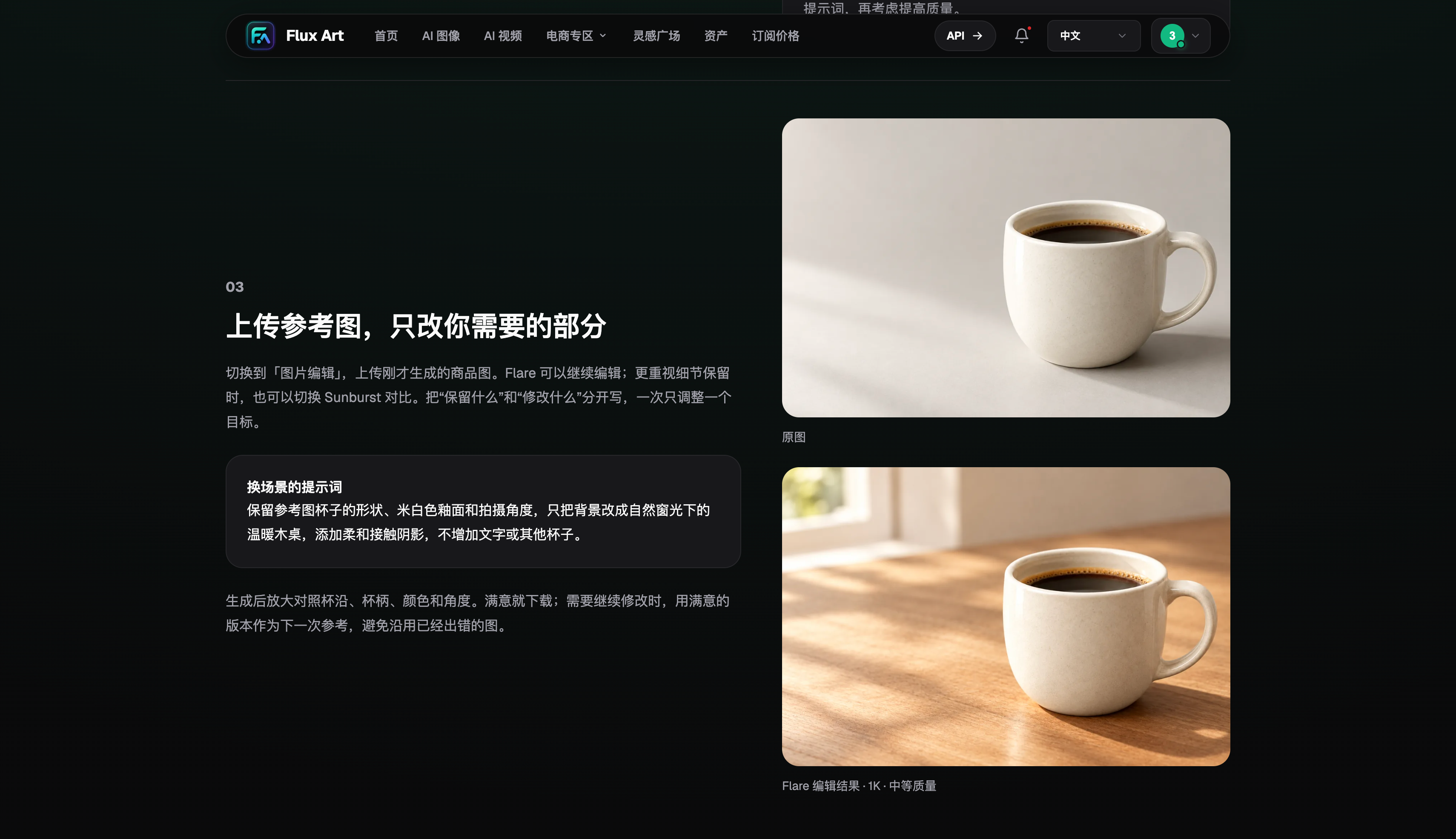
A useful sequence is: what to change, the desired result, what to preserve, and what not to add. For example: “Change the background to a bright kitchen. Keep the coffee maker’s shape, buttons, logo, color, and camera angle. Don’t add any other products or text.”
When you get the result, check the coffee maker’s outline and buttons first, then see whether the light in the new background matches the subject. Don’t let the mood of the background distract you; start with the details that define the product.
How to Continue When More Changes Are Needed
Save the version you’re happy with, then request just one new change in the next round. If the background is already right, there’s no need to describe the entire scene again. A prompt like “Change the countertop to light stone; keep everything else the same” makes the result easier to compare.
Flux Art (flux-art.net) brings image-editing results and other creative tools together in one workspace. It’s useful for content teams, photo editors, e-commerce designers, and graphic designers working with existing images, but the final result still needs human review before publishing.
How to Prompt for Four Common Image-Editing Tasks
When changing a background, first say what about the subject must stay the same, then describe the new setting, direction of light, and how the subject should sit in the scene. To remove an object, specify its position and size, and describe the texture that should fill in the area it obscures. When changing clothing, preserve the person’s face, pose, hands, and camera framing; specify the garment’s cut, color, and material. For poster text, provide the exact wording, placement, type size and hierarchy, and elements that must not change. Each task has its own things to check.
When placing a product in a kitchen, make sure the countertop shadow matches the original direction of light. When removing a vase from a table, the wood grain and wall shadows should continue naturally. After changing clothes, inspect the transitions at the cuffs and wrists, collar and neck, and hair and shoulders. Short headlines are worth trying directly, but for long passages, exact prices, or complex specifications, leave room in the layout and add the final text in a design tool.
How to Decide Whether an Edit Is Ready to Publish
First, check whether any facts have changed. The person’s identity, product model, packaging text, dates, and prices must match the source material. Then inspect local edges, including hair, fingers, transparent bottles, metallic reflections, and complex textures. After zooming in, zoom back out to the image’s actual size and judge whether any issues could affect how readers understand it or how it looks overall.
Next, check that the lighting and spatial relationships between the new background and the subject make sense: products shouldn’t appear to float, and a person’s feet shouldn’t look detached from the ground. Finally, preview the image on its intended platform. Official accounts, social feeds, e-commerce listings, and vertical covers all crop differently, so keep important text and subjects within the safe area. These four checks complete the online editing workflow from upload to publication.
Complete the Online Editing Workflow: Save, Review, Publish
Once an edit is approved, save the original, the current result, and the instructions used for that round. Give the file a clear version number. Continue from an approved version in the next round and change only the new target. If the subject changes along with it, you can revert immediately instead of trying to recreate the approved image from memory. Before sending the final image to a publishing system, preview it at the actual dimensions used by the channel and ask someone familiar with the source material to verify the facts. If the image includes a customer’s likeness, a trademark, a photograph, or other third-party material, confirm you have permission to use it. Online editing can speed up adjustments, but it doesn’t replace content review, copyright checks, or brand approval. Make these steps part of your daily workflow, and generated results can become reliable assets—not just images that “look good.”
Compare Platform Capabilities at a Glance
When comparing online editing platforms, look beyond whether they support image uploads. Consider whether they support multi-round editing and asset storage, and whether their commercial-use terms and costs are clear.
| Comparison | Flux Art | Other platforms |
|---|---|---|
| Number of models | 50+ image and video models, switchable in one unified workspace | Model count and coverage vary by platform; some focus on a single model or task category |
| Feature coverage | Supports text-to-image generation, reference image uploads, image editing, and subsequent asset organization | Common features include image generation, image editing, video, or template design; the mix varies by platform |
| Commercial-use rights | Commercial-use rights are clearly listed; input materials must be properly licensed for use | Plans, model rules, and asset licensing terms vary by platform |
| Cost per image | Platform pricing starts as low as RMB 0.1 per image; actual usage varies by model and settings | Usually depends on subscription, credits, image size, and quality; calculation methods vary |
| New e-commerce features | Supports product reference images, product image-set generation, editing a single image or a full set, and downloads and exports | Some platforms offer individual features such as background replacement, virtual try-on, image sets, or product detail images |
| Asset management | Creative results can be saved in one place for further editing, review, and reuse | Some platforms offer history, project spaces, or cloud storage, with varying permissions and capacities |
Sources and Research Date
Model information subject to change was checked on September 12, 2026, against the OpenAI GPT Image 2.5 announcement, Flare model documentation, and Sunburst model documentation. Flux Art product information is based on current general knowledge and the current pricing page. No paid generation, network coverage, or performance tests were conducted for this article. Prices, rights, availability, and interfaces are subject to the pages and account in effect when you use the service.