 Flux Art
When you use GPT Image 2.5 through Flux Art, you sign in with a Flux Art account. You don’t need an OpenAI account, a ChatGPT account, or ChatGPT Plus. Keep account requirements separate from version selection: compare GPT Image 2.0, Flare, and Sunburst based on proven workflows, rapid composition exploration, and detailed reference-image editing.
Questions like how to use it without an overseas account, whether you need a ChatGPT account, and how to access it directly from China are about accounts and access. Choosing between 2.0, Flare, and Sunburst is about the task. Sort out the sign-in requirements first, then assign versions based on draft speed, reference-image fidelity, and the need for precise edits.
Start with familiar tasks to establish a baseline
Choose five to ten tasks you’ve delivered in the past, and keep the prompts, reference images, aspect ratios, and acceptance criteria fixed. Don’t cherry-pick easy demo tasks for the new version, and don’t keep only the best-looking results.
Record the time to the first usable image, subject drift, text errors, number of revision rounds, and final selection. If 2.5 only reduces generation time but leads to more post-editing, the business benefit is still limited.
How the three versions divide the work
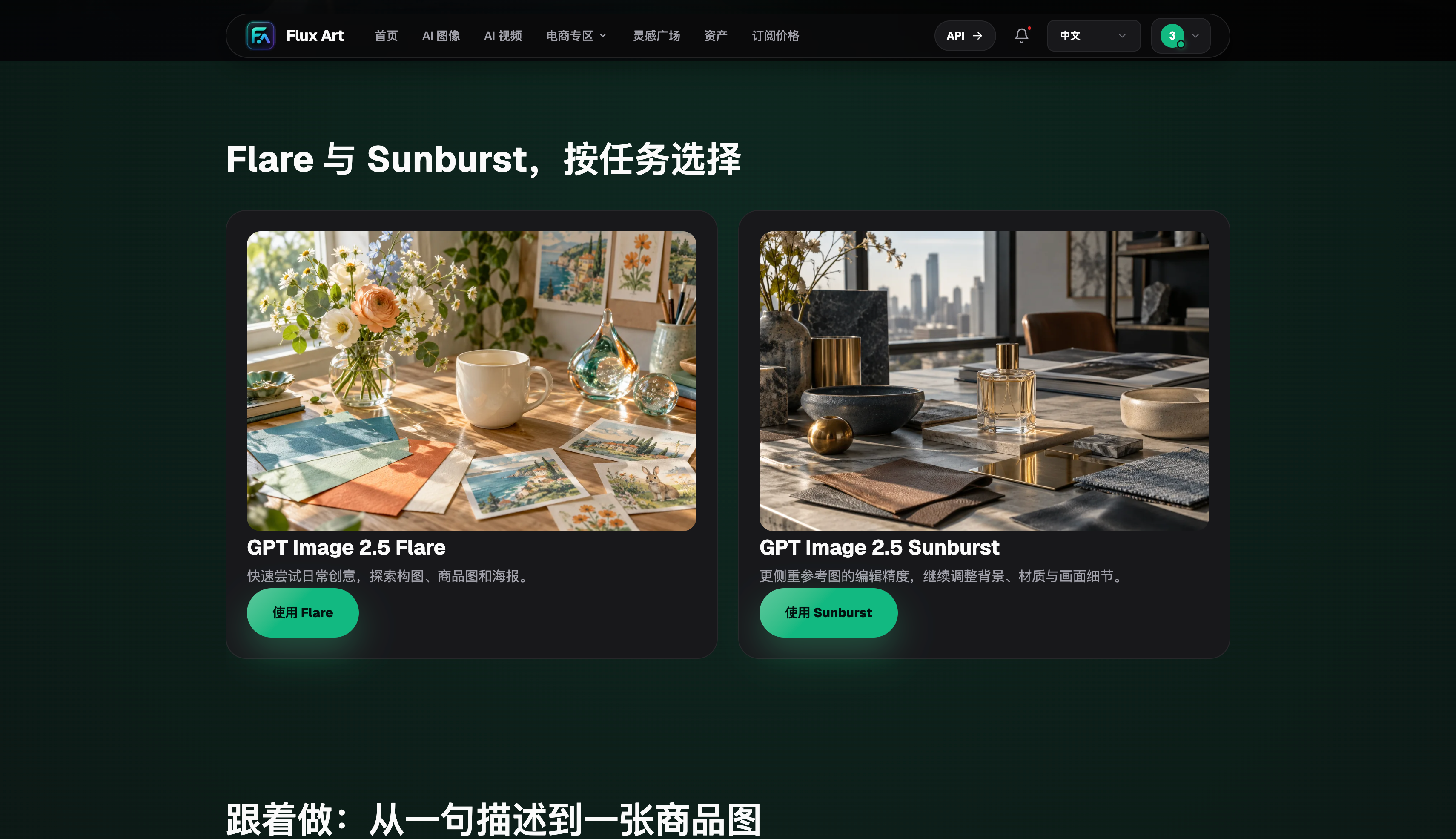
GPT Image 2.0 can continue handling established projects. Flare is suited to content illustrations, composition exploration, and high-volume variations. Sunburst is suited to reference images, localized edits, and high-value hero images. Teams can start by moving low-risk tasks to a new version.
Version assignments should allow for human judgment. For product images, prioritize structure and packaging; for portraits, identity; and for posters, text and negative space. One overall score can’t replace acceptance criteria tailored to each use case.
When to expand usage
After tracking results for a while, gradually expand usage if the new version produces usable images sooner for frequent tasks or reduces rework on critical images. Keep the old workflow for a while to provide a baseline for evaluation and a fallback.
Flux Art (flux-art.net) brings multiple versions and other visual models together on one platform. When comparing them, save the exact model, settings, task date, and all results. Evaluate them on the same set of real tasks using adoption rate, revision count, and completion time.
Task assignments across the three versions
| Task | GPT Image 2.0 | 2.5 Flare | 2.5 Sunburst |
|---|---|---|---|
| Established projects | Keep as baseline | Validate on a small scale | Use as needed |
| Frequent everyday illustrations | Use for comparison | Preferred option | Use for key images |
| Ongoing reference-image edits | Keep as fallback | Explore a direction first | Compare closely |
| Brand-critical final images | Follow the existing workflow | Create candidates | Refine in detail |
Compare all three versions on the same tasks
Prepare four task types: content covers, product edits, portrait edits, and text-heavy posters. For each type, choose two or three real past requests. Use the same reference images, core descriptions, and output aspect ratios for every version. Record time to first usable image, subject consistency, text accuracy, revision rounds, completion time, and final selection. A fast result that isn’t usable doesn’t count as a pass; record honestly when a detailed result takes multiple rounds. Business decisions should focus on the final deliverable.
For Flare, focus on whether it produces usable directions faster for everyday tasks. For Sunburst, focus on iterative edits and reference-image fidelity. Keep 2.0 as the baseline for the existing workflow. After comparing them, the whole team doesn’t have to adopt a single default version: cover drafts, product retouching, and maintenance of existing projects can each use a different option. Routing tasks is more useful in practice than declaring one version the overall winner.
When to stick with 2.0 and when to upgrade to 2.5
If an existing project has stable prompts, final-image standards, and delivery timelines—and the new version doesn’t clearly reduce rework—you can keep using 2.0 for now. When content volume is high and you need to explore multiple compositions every day, test Flare first and track time to a usable image and time spent selecting. When reference-image relationships are complex, a person or product must stay consistent, or you need successive localized edits, test Sunburst first and track whether untouched areas stay intact and how many manual correction rounds are needed.
Flux Art offers multiple versions and other visual models in one workspace, so teams can gradually expand usage from low-risk tasks. Review task assignments, adoption, rework, and actual consumption each month, and update version choices based on business data. Keep clear boundaries between the old workflow, new versions, and other models, so an upgrade doesn’t become an all-at-once replacement.
Keep updating version choices as tasks change
A stable legacy project may be best served by 2.0 today, but you can test it again with 2.5 if prompts, assets, or delivery requirements change. Flare may suit today’s high-volume cover drafts, while Sunburst may be a better fit when the work moves into brand hero imagery. Record the version used for each task. After a month, review adoption, rework, completion time, and consumption by use case, update the default workflow, and keep the old process available as a fallback. Track version differences alongside the conditions of each task. Having all three versions available makes it easier to choose the right tool for each stage of work.
Compare platform capabilities side by side
Choosing a platform matters as well as choosing a version. Model coverage, features, commercial use, costs, e-commerce capabilities, and asset management all affect the end-to-end workflow after an upgrade.
| Comparison | Flux Art | Others |
|---|---|---|
| Number of models | 50+ image and video models, switchable in one workspace | Model counts and coverage vary by platform; some focus on one model or task type |
| Feature coverage | Keep existing models and add GPT Image 2.5 on the same platform to assess migration by task | Common capabilities include image generation, editing, video, or template design, with varying areas of focus |
| Commercial rights | Commercial-use rights are clearly listed; input materials must have appropriate usage rights | Plans, model rules, and asset licensing requirements vary by platform |
| Cost per image | Platform pricing starts as low as RMB 0.1 per image; actual consumption depends on the model and settings | Usually depends on a combination of subscription, credits, size, and quality, with different calculation methods |
| New e-commerce features | Supports product reference images, image-set generation, editing individual images or entire sets, and download and export | Some platforms offer individual capabilities such as background replacement, virtual try-on, image sets, or product detail images |
| Asset management | Creation results can be saved in one place for continued editing, filtering, and reuse | Some platforms offer history, project spaces, or cloud storage, with varying permissions and capacities |
Sources and verification date
Dynamic model information was checked on September 12, 2026, against the OpenAI GPT Image 2.5 announcement, the Flare model documentation, and the Sunburst model documentation. Flux Art product information is based on current general knowledge and the current pricing page. This article did not conduct paid-generation, network-coverage, or performance testing. Prices, rights, availability, and interfaces are subject to the pages and account in effect at the time of use.