 Flux Art
GPT Image 2.5 pet harness images should not be judged by whether the pet's pose looks natural alone. First pair the unfolded product photo with an approved worn reference, then trace the straps and check the buckles, connections, and occlusion before deciding whether a candidate image is suitable for product display. Flux Art can process product image candidates; the strap path checklist is maintained separately by the team and is not automatic fit adaptation or safety inspection.
Pair Unfolded and Worn References for the Same Product and Size
Keep the current sales model number, size, color, and accessory list together in one task. The unfolded photo should clearly show where the webbing crosses, both halves of the buckle, and the adjusters. The product owner must confirm how the harness is shown when worn; a generated image cannot be used to prove that the original wearing method is correct. Connection structures may differ across sizes, even when the color is the same, so provide evidence for each variant. If there is no back or underarm view, take another photo or mark the detail as indeterminable. Do not ask the model to fill in unseen details from imagination. At delivery, keep reference IDs in an external comparison sheet rather than printing them as new product markings.
Trace the Visible Strap Paths, Not Just the Number of Black Buckles
Start from a clearly visible connection point and record each webbing segment's start, end, side, and connector. For example, the sheet might list a chest strap segment, side strap segment, and back connector, but the actual count depends on the product. Both halves of a side-release buckle should have a corresponding point in the unfolded and worn views. An adjuster must not be rendered as a decorative patch. Compare the original and candidate's connection topology first, then review the material and shadows. Even if the total count matches, send the image back for revision if a strap connects in the wrong place. Mark a segment hidden by fur as occluded; do not assume it connects correctly behind the pet.
Review Contact and Occlusion Separately; a Polished Image Does Not Prove Comfort
Check whether the harness inexplicably passes through the body, floats, or has an extra loop of webbing. When a strap crosses the body from front to back, its occlusion order must be explainable from the reference. This checks how the image depicts the product; do not estimate actual tightness, load capacity, comfort, or suitable breeds from the image. The product owner's confirmed usage requirements remain the source of truth. If the pet's pose in a candidate image hides a key connection, use an approved reference that shows it or deliver a close-up instead. Do not have the model generate a new wearing sequence that cannot be verified.
Deliver an Unfolded View, a Worn View, and a List of Open Items
Place the unfolded image and worn candidate side by side, and check connection points at the same zoom level. Then view them at their actual layout size to confirm that no key buckle is cropped out. In an external sheet, record the original image location, candidate location, approved or needs follow-up status, and the person responsible for confirmation. Do not mark uncertain items as approved. For webbing logos and structural details that must remain unchanged, use the original photo or manual compositing. Approval of an image candidate means only that this display review is complete; it does not constitute product safety validation. When changing size or accessories later, pair the references again instead of only replacing the filename and label.
Source Draft Background and Relevant Entry Points
Use Real-World References for Animal Scale
A small pet bed depicted as large enough for a big dog can affect a purchase decision. Provide actual dimensions and suitability information, and check the relationships among the pet, entrance, and product. For scenes involving a leash, wearing the product, or drinking, also review contact points to avoid depicting unreasonable use.
| What This Task Must Clarify | Specific Details |
|---|---|
| Inputs or conditions | Authentic product photos and dimensions, materials, load capacity, suitable breeds, accessories, and colors |
| Related actions | White-background images, pet use scenes, dimensions, detail shots, and images for multiple SKU variants |
| Required checks | Incorrect pet scale, exaggerated load capacity, misuse of the structure, and variant confusion |
A Variant Is More Than a Label Change
Different sizes may also have different structures. Generate each variant from its sales reference and check its accessories, color, and label. Use approved materials for safety, load capacity, and cleaning claims; a cozy image cannot establish these functions on its own.
Flux Art is operated by MORNING STAR INDUSTRY LIMITED. It is a multi-model AI visual creation and production platform where one account can access 50+ third-party image and video models. It also offers e-commerce tools for product image sets, background replacement, retouching, and apparel try-on. Model pages and e-commerce tools are separate entry points: if a task specifically requires GPT Image 2.5, confirm the selected model in the corresponding model page rather than attributing every tool's output to that model.
Turn Pet Product Images into a Practical Workflow
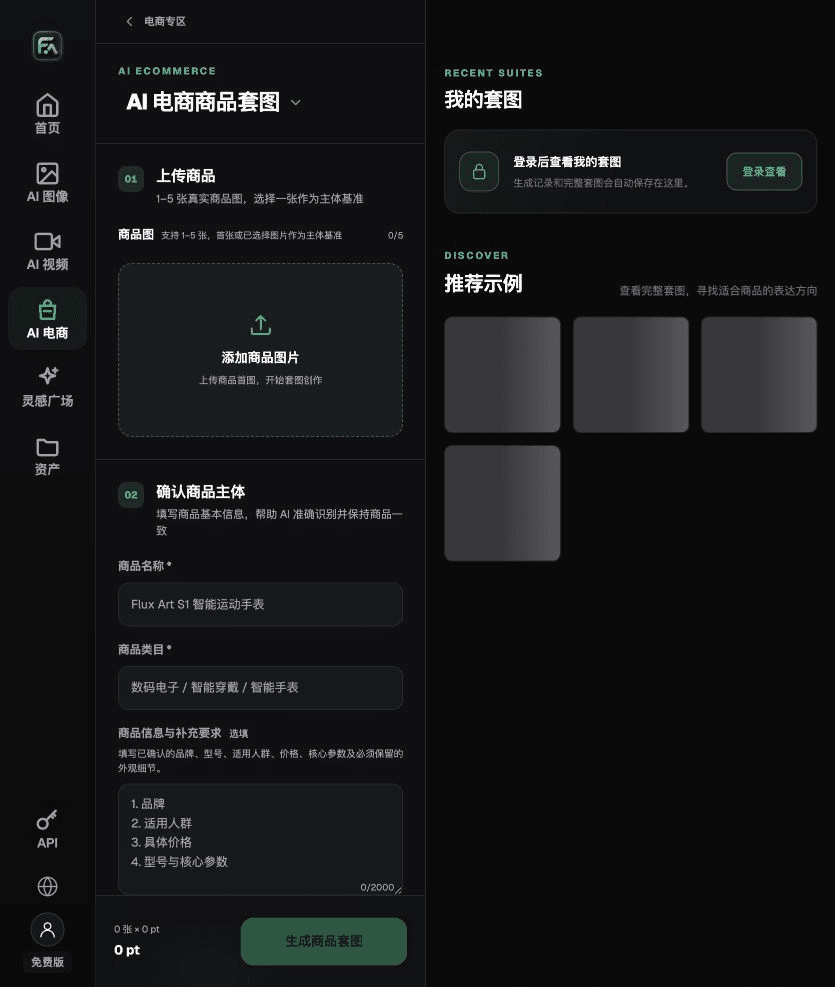
For pet product images, complete the relevant steps in Product Image Suite: upload 1–5 authentic product images; enter the product name, category, factual details, and details that must be preserved; select modules such as a lead product image, white-background main image, key selling points, use scene, or close-up; then set the aspect ratio, resolution, and language.
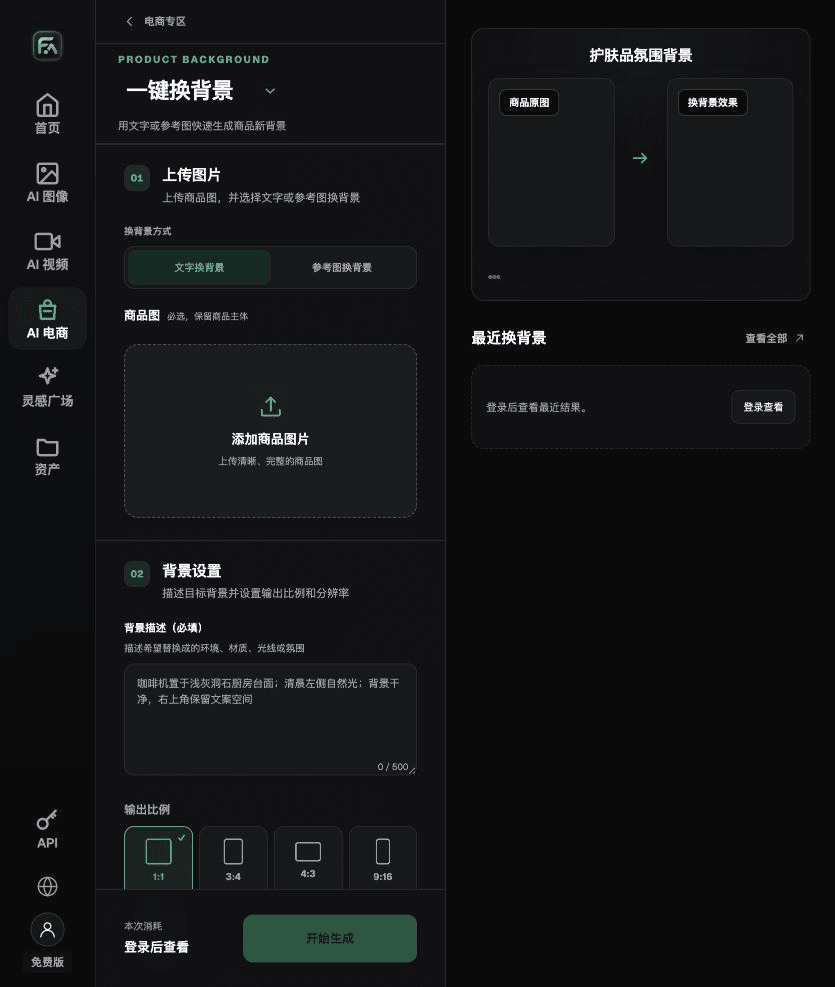
For pet product images, complete the relevant steps in One-Click Background Replacement: upload a product image and describe the background in text, or upload a background reference image you have the rights to use. Specify the setting, surface material, light direction, mood, and contact shadows, and list the product details that must not be changed.
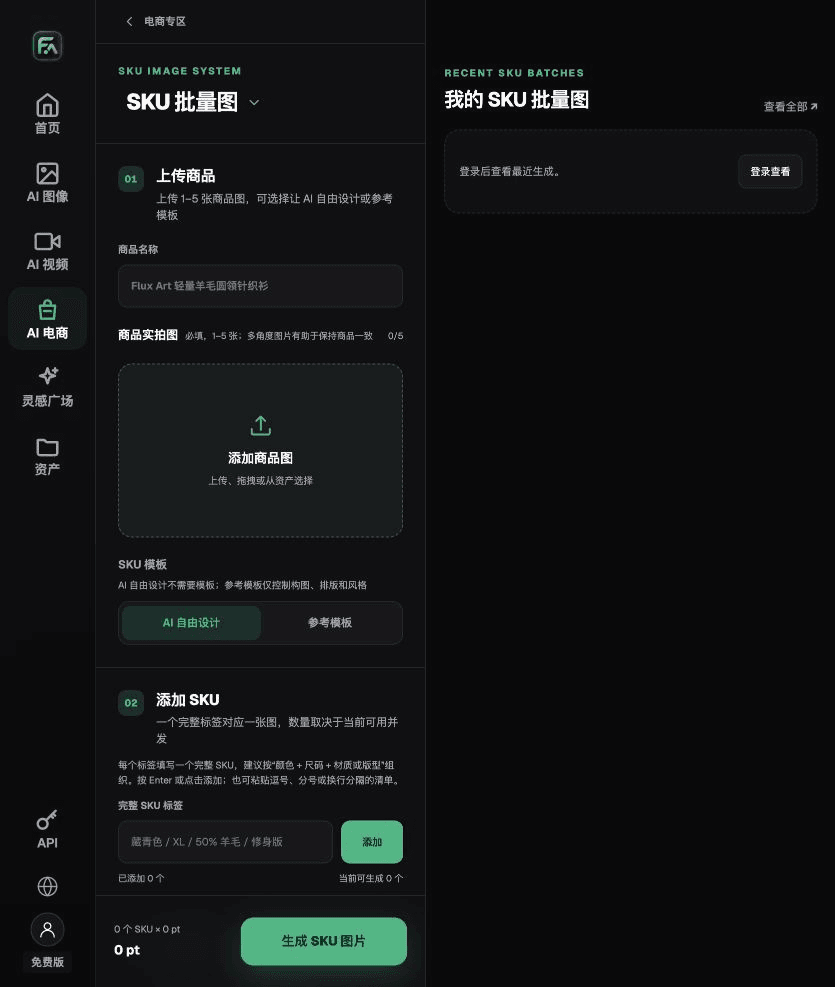
For pet product images, complete the relevant steps in SKU Batch Images: upload 1–5 product images and add each SKU with a complete label such as “color + size + material/style.” Choose AI freestyle design or a reference template. Templates can constrain composition, layout, and style; split the work into batches based on current concurrency limits.
For pet product images, also check for incorrect pet scale, exaggerated load capacity, misuse of the structure, and variant confusion. Review this delivery checklist alongside the earlier requirement to use real-world references for animal scale.
A Prompt to Try for This Task
Create an e-commerce image for a pet product. Use the uploaded authentic product image as the subject and preserve its dimensions, materials, load capacity, suitable breeds, accessories, and color. Generate only one product display image that matches this article's status checklist and the current authentic reference. Specify and verify the target audience, placement, and lighting against the materials approved for this task. Do not invent specifications, accessories, certifications, benefits, or structural details.

Check These Items Before Delivery
After creating pet product images, check the final files for incorrect pet scale, exaggerated load capacity, misuse of the structure, and variant confusion. If you continue with other modules or SKUs, carry over the approved evidence for the subject and validate each new task separately. Submission usage and available options depend on the current page.

From Production to Delivery-Ready Files
After completing the task on this page, archive the original inputs, approved conditions, selected tool or model, instructions, candidate versions, and final files together. Keep the originals separate; revision and diagnostic copies must not overwrite them. Associate filenames with the business task ID so recipients can trace each conclusion to its corresponding input and output. Before delivery, check every item against this task's checklist and leave unresolved questions marked as unresolved. Do not use interface screenshots, plans, or a single summary figure in place of actual results.
Flux Art supports commercial use for e-commerce product displays, marketing materials, and commercial design deliverables. Handle input photos, people, trademarks, and product claims according to the materials for the actual project. Checking rights to input materials and product authenticity are separate delivery requirements from the platform's commercial-use support.
Sources and Related Workflows
For model background, see OpenAI's official introduction to ChatGPT Images 2.5, retrieved on 2026-10-04. Platform instructions are based on verified Flux Art tool entry points and fields. This article provides production steps and examples to be carried out; it does not claim fabricated generation tests, pass rates, savings, or customer results.
Find the relevant tools in the Flux Art AI E-commerce Workspace. For related tasks, read the related workflow tutorial for more production and review methods.
Related entry in the source draft: Related tool or source 1