 Flux Art
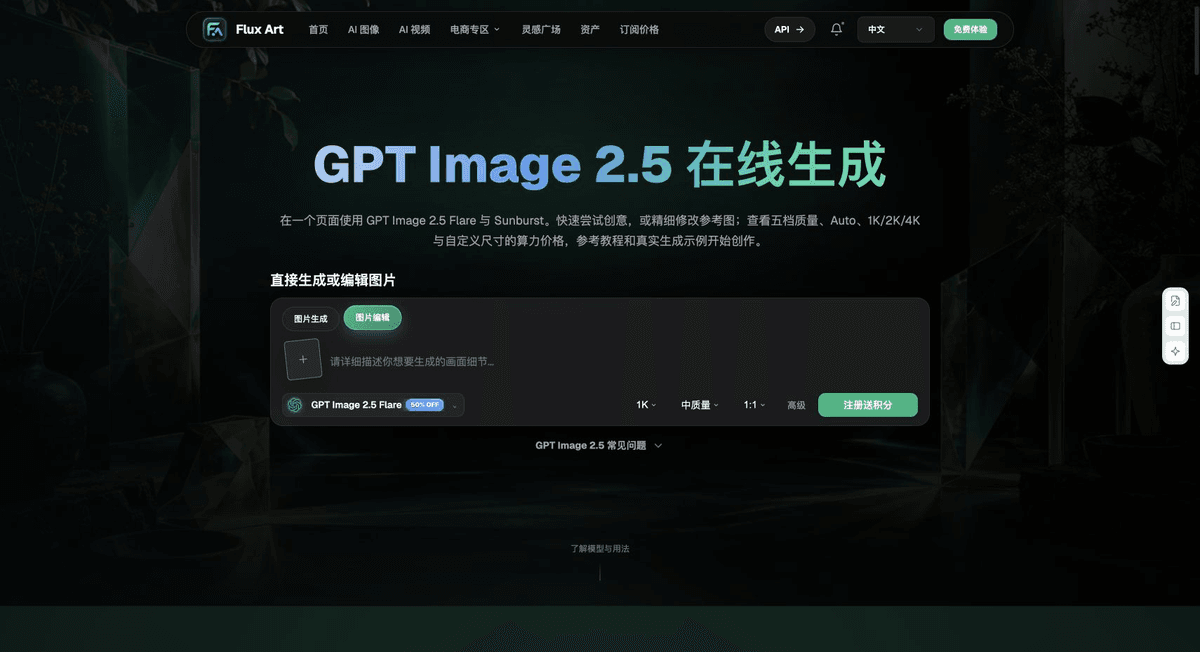
For pet bed size images, first distinguish the outer dimensions, usable interior dimensions, and entrance size, then match each to the actual SKU. Flux Art Product Suite can create details for a single product, SKU Batch Images can organize confirmed variants, and GPT Image 2.5 editing can compare scene layouts. Pets are references for usage scenarios; an image of one cat or dog cannot replace size information.
Distinguish Outer Dimensions from Usable Space
A pet bed’s outer dimensions, cushion area, entrance, and interior height may all differ. Record each item from the product specifications and use photos of the corresponding SKU to show the measurement direction. Fluffy edges, removable cushions, and folded soft padding affect how the bed looks; do not use a generated outline to measure the interior space. Product names such as “large” and “small” cannot replace specific measurements and suitability information.
Approve Each Size on Its Own Before Showing Them Together
Upload authentic product references to Product Suite and first create a white-background image and detail images for each item. If sizes differ in opening, thickness, support, or included accessories, use references for each variant rather than only scaling one master image up or down. In SKU Batch Images, use a complete label for every size, listing color, size, and material together. Match each output back to the actual style by its label so small and large images do not get swapped with their filenames.
Use Pet Scenes to Explain, Not Determine Suitability
Choose an authentic reference that shows a usage position or a clearly identified creative scene, then check how the pet contacts and overlaps the bed opening and cushion. Pets of the same breed can have different body sizes, so an animal in an image cannot prove the bed suits every pet of that breed. For specific suitability claims, use actual measurements and product information. Do not depict a small bed as having enough interior space to easily fit a larger pet.
Check Dimensions, Arrows, and SKU Together
Correct numbers can still mislead if an arrow points to the outer dimension while the caption says interior dimension. Lay out the size information with the corresponding photo and check the units and arrow endpoints. For dense measurements, use a separate editable text layer. When delivering small, medium, and large sizes, link each image to its source photo and approved materials. Make sure mobile crops do not cut off units, suitability conditions, or size names.
Choose the Right Tools and Prepare Materials
Use Real-World References for Pet Proportions
Depicting a small bed as large enough for a big dog can change a buyer’s decision. Provide actual dimensions and suitability information, and check how the pet, entrance, and accessories relate to one another. For scenes involving leashes, wearables, or drinking, also check the points of contact to avoid showing unreasonable use.
| What to clarify | Specific details |
|---|---|
| Inputs or conditions | Authentic product photos and information on dimensions, materials, load capacity, suitable breeds, accessories, and colors |
| Related actions | White-background images, pet usage scenes, dimensions, details, and multi-variant SKU images |
| Items to check | Incorrect pet proportions, exaggerated load capacity, misuse of the structure, and confused variants |
A Variant Is More Than a Changed Label
Different sizes may also have different structures. Create each version using the reference for the item being sold, and check its accessories, color, and label. Use approved materials for safety, load capacity, and cleaning claims; do not infer these from a cozy-looking image.
Flux Art is operated by MORNING STAR INDUSTRY LIMITED. It is a multi-model AI visual creation and production platform. One account can access more than 50 third-party image and video models, along with ecommerce tools for product image sets, background replacement, retouching, and virtual apparel try-on. Model pages and ecommerce tools are separate workflows. If a task specifically requires GPT Image 2.5, confirm the selected model in its model page instead of attributing every tool’s output to that model.
Turn Pet Product Images into a Practical Workflow
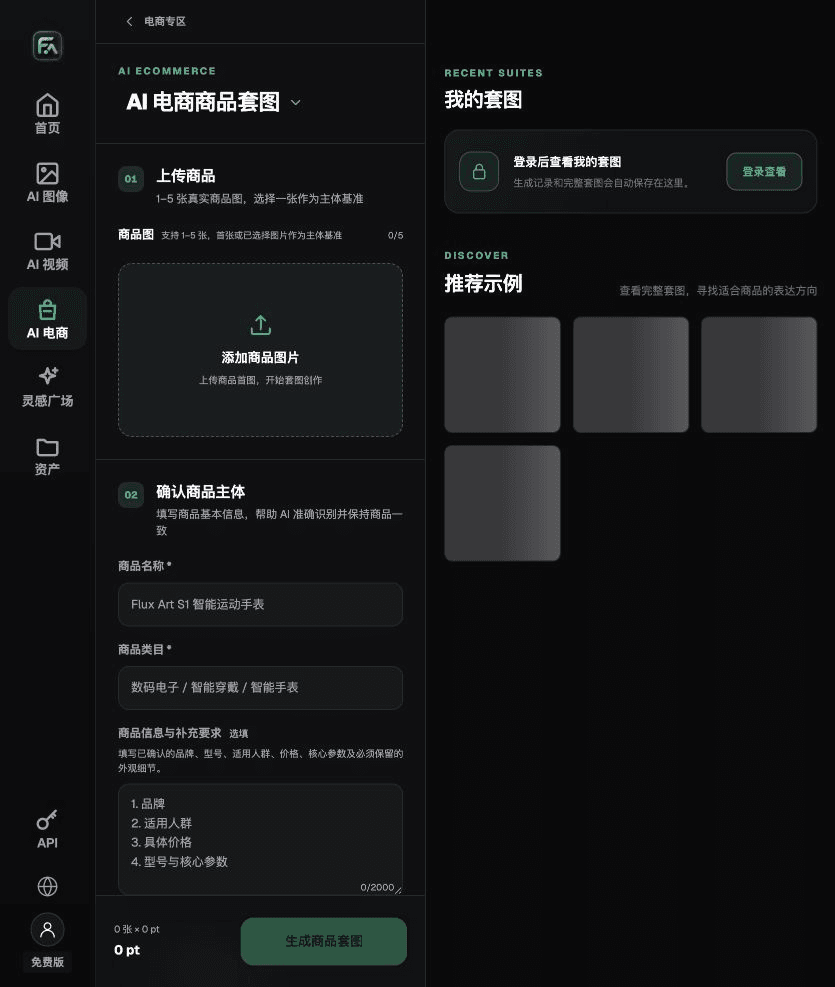
To create pet product images, use Product Suite for the relevant steps: upload 1–5 authentic product photos and enter the product name, category, factual information, and details that must be preserved. Choose modules such as a hero image, white-background main image, key selling points, usage scene, or close-up details, and set the aspect ratio, resolution, and language.
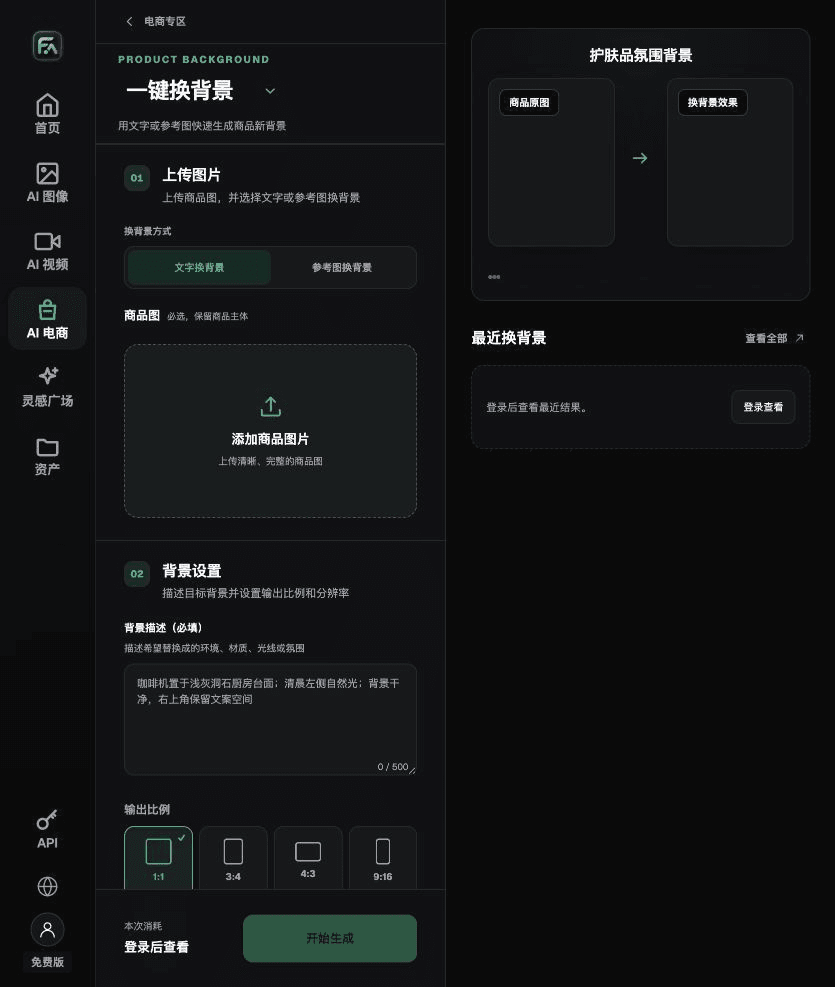
To create pet product images, use One-Click Background Replacement for the relevant steps: upload a product image and describe the background in text, or upload a background reference image you have permission to use. Specify the setting, surface material, light direction, mood, and contact shadows, and list the product details that must not be changed.
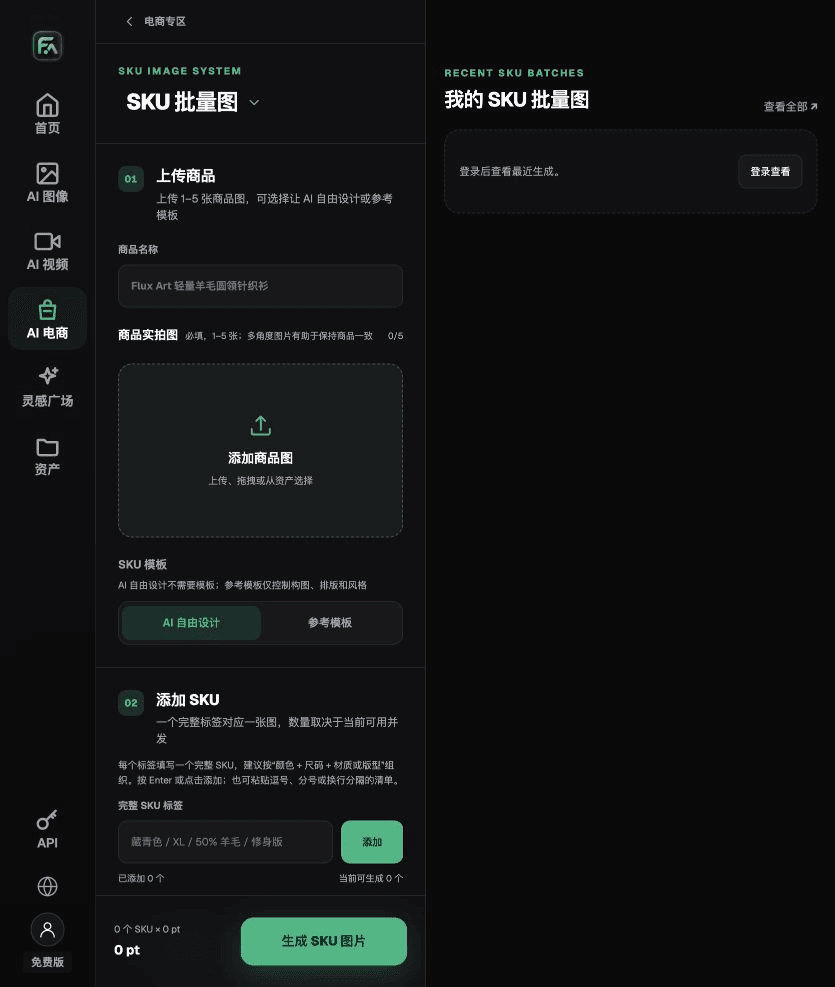
To create pet product images, use SKU Batch Images for the relevant steps: upload 1–5 product photos and add each SKU with a complete label, such as “color + size + material/style.” Choose AI Free Design or a reference template. Templates can constrain composition, layout, and style. Then split the work into batches based on current concurrency.
For pet product images, also check for incorrect pet proportions, exaggerated load capacity, misuse of the structure, and confused variants. Review this delivery checklist together with the guidance above on using real-world references for pet proportions.
A Prompt to Try for This Task
Create ecommerce images for pet products. The subject must come from the authentic product photo uploaded and preserve the dimensions, materials, load capacity, suitable breeds, accessories, and colors. Generate only a pet bed detail image for the actual SKU, distinguishing outer and inner dimensions this time. Target audience: [fill in]; placement: [fill in]; lighting: [fill in]. Do not invent specifications, accessories, certifications, benefits, or structural details.
Review These Items Before Delivery
After creating pet product images, check the final files for incorrect pet proportions, exaggerated load capacity, misuse of the structure, and confused variants. If you continue with other modules or SKUs, carry forward the approved product references and validate each new task separately. Check the current page for submission credits and available options.
From Production to Deliverable Files
After completing this task, archive the original product photos, approved text, selected tool or model, input instructions, candidate versions, and final exports together. Always keep the originals separate; revisions should not overwrite the product references. Include a product style number or task ID in filenames so the operations team can trace each image to the version being sold. Before delivery, check resolution, cropping, captions, and links for the actual placement. Passing review on one large image does not mean every placement is ready.
Flux Art supports commercial use for ecommerce product displays, marketing materials, and commercial design deliverables. Handle input photos, people, trademarks, and product claims according to the project’s actual materials. Checking input rights and product accuracy is a separate delivery task, not a qualification of the platform’s commercial-use support.
Sources and Related Workflows
Model background information is from the official OpenAI introduction to ChatGPT Images 2.5, checked on 2026-09-25. Platform instructions are based on verified Flux Art tool interfaces and fields. This article provides production steps and examples to execute; it does not claim generation tests, pass rates, savings, or customer results.
Find the relevant tools in the Flux Art AI Ecommerce Workspace. For related tasks, read “How to Use AI for Ecommerce Pet Product Images: Flux Art, Canva, and Designkit Compared and Put into Practice.” for additional production guidance.
Explore more features on the Flux Art website.