 Flux Art
In Arabic product images, headings, Latin model numbers, digits, and parentheses may follow different reading directions. Flux Art's GPT Image 2.5 can create visual candidates that preserve the product and leave room for text. Set the final mixed-direction text in an editing environment that supports bidirectional layout, then check model numbers, punctuation positions, and exported images one by one. Do not simply mirror the entire product image.
Mark mixed-direction segments in the approved copy
Take the actual approved Arabic copy and mark the model number, digits, units, and parentheses separately. Do not improvise a translation. The example model number AB-12 is a placeholder used only to explain the checking method; it does not refer to a real product. Record its letter case, hyphen, and original digit order, along with the sentence or section it belongs to. W3C guidance on bidirectional text notes that Latin text and numbers, which run left to right, can appear within right-to-left text. So right-aligning a whole line does not prove that its order is correct. Language reviewers and designers should work from the same source text rather than transcribing it again from a screenshot.
Let the editor handle text direction; do not reverse model numbers
Set the paragraph direction in a layout environment that supports the relevant script and fonts, and clearly delimit segments that run in different directions. If you use an HTML template, W3C explains that an appropriate dir attribute can wrap a segment with a known direction. This is a template-authoring method, not a Flux Art model API parameter. Do not manually reverse AB-12 or use spaces to force the parentheses into position just to make the image look right temporarily. Preserve the text in its correct logical order so you can keep checking it after line wrapping, copying, or revisions without leaving hidden errors.
Adjust the layout; never mirror the product and text together
Leave suitable room for the Arabic heading in GPT Image 2.5, while using the original photo as the source of truth for the product itself. If the text area needs to change, move it or rearrange the layout; do not horizontally flip the packaging, logo, plug, and buttons along with it. Model-generated text can serve as a layout candidate. Put the final model number and approved copy back into editable layers, then check letter shaping and font coverage. If a line is too long, first adjust the text area and hierarchy, and have a language reviewer confirm the line break. Do not remove a hyphen, parentheses, or a key qualifier from the model number just to force it into the original box.
Check three text lengths in the same template, then inspect the final image
Prepare a short heading, a standard sentence containing a model number, and a longer sentence with a number in parentheses. All three should come from approved copy. Check the characters, which text the parentheses enclose, model-number order, punctuation at line endings, and letter shaping one by one. Repeat the same checks on the actual exported image. If the editor preview is correct but the export is not, review the font and export workflow; do not change product specifications to accommodate faulty rendering. OCR can help flag character differences, but it cannot prove that the reading order is natural on its own. Deliver the source text, direction-setting record, editable file, and final raster image. Keep the language-review status, and do not mark unreviewed samples as approved deliverables.
Tools and materials for this workflow
Translation does not finish the layout
German and other target languages may take more space than the source text. Forcing the original line count can make the type too small. First fix the information hierarchy and alignment, then allow line breaks where needed. List numbers, units, model names, and brand terms separately; do not freely rewrite them to fit a marketing sentence.
| What to clarify for this task | Details |
|---|---|
| Inputs or requirements | Approved source copy, glossary, target language, site, and SKU list |
| Action | First generate a text-free or low-text background, then duplicate modules for each language. Use product-image sets for assets, A+ for modules, and SKU batch images for variants. |
| Required checks | Translation, numbers, units, line breaks, text overflow, local regulations, and product facts |
Create each language version from the approved master
Do not translate an English image into another language by repeatedly editing it; repeated edits can cause text and subject drift. Start from the same error-free master, glossary, and approved copy for each language, and replace content area by area. Set important small text in editable layout layers to make later updates easier to maintain.
Flux Art is operated by MORNING STAR INDUSTRY LIMITED. It is a multi-model AI visual creation and production platform where one account can access 50+ third-party image and video models, as well as e-commerce tools for product-image sets, background replacement, retouching, and virtual try-on. Model pages and e-commerce tools are separate entry points. If a task specifically requires GPT Image 2.5, confirm the selected model in its model page; do not attribute every tool result to that model.
Turn cross-border multilingual images into a workflow
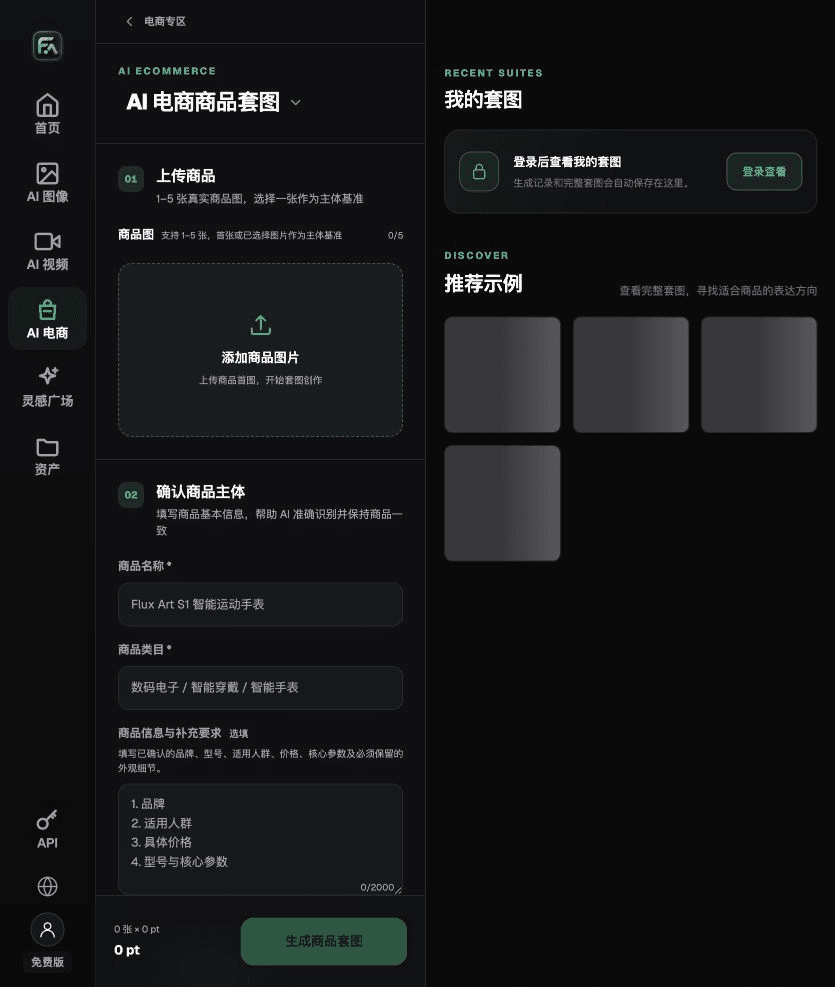
For cross-border multilingual images, complete the relevant steps in Product Image Sets: upload 1–5 real product photos; enter the product name, category, factual details, and features that must be preserved; select modules such as the product hero image, white-background main image, key selling points, use scenarios, or detail close-ups; then set the aspect ratio, resolution, and language.
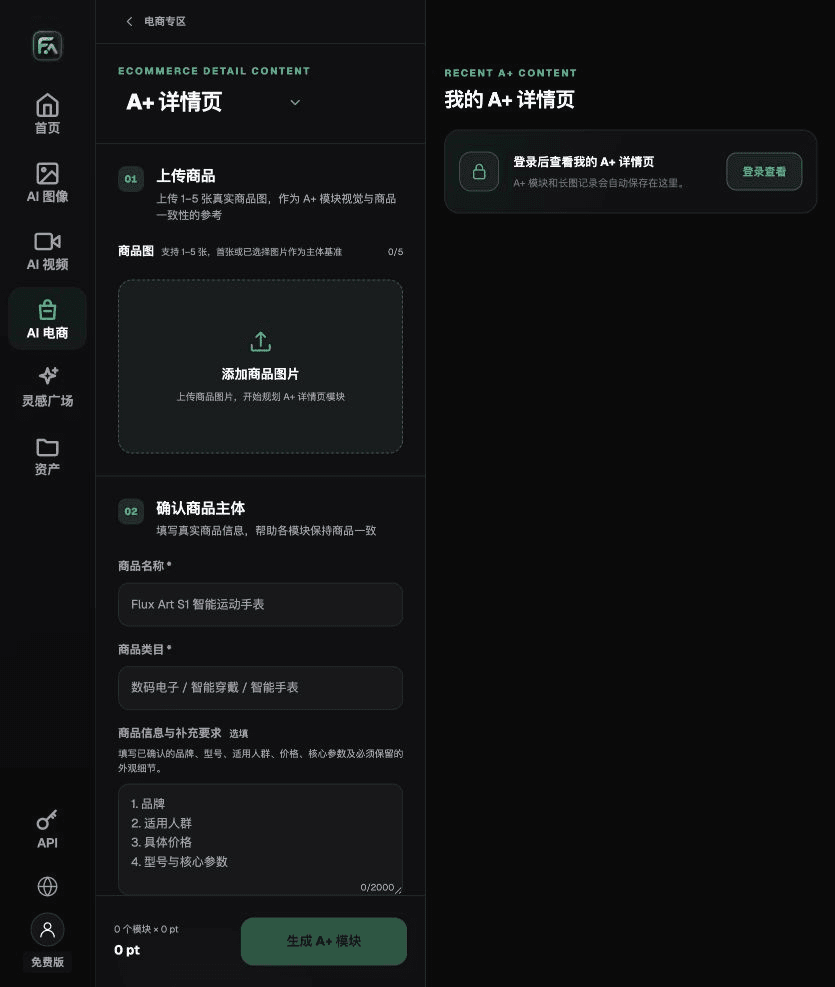
For cross-border multilingual images, complete the relevant steps on the A+ Detail Page: upload 1–5 product images or consistency reference images, and enter reviewed product facts and selling points. Select the A+ content modules and generation specifications you need, then check the headings, specifications, selling points, and images in each module.
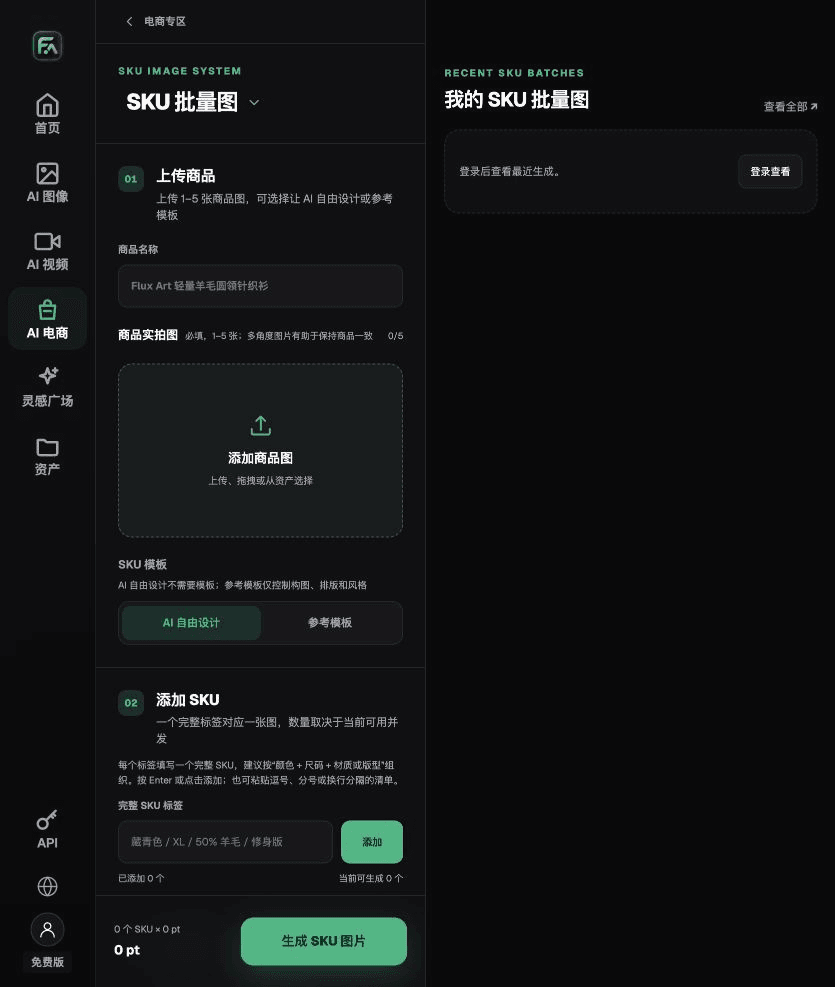
For cross-border multilingual images, complete the relevant steps in SKU Batch Images: upload 1–5 product images, then add each SKU with a complete label such as “color + size + material/fit.” Choose AI design or a reference template. Templates can constrain composition, layout, and style. Split the work into batches according to the current concurrency limit.
For cross-border multilingual images, also check the translation, numbers, units, line breaks, text overflow, local regulations, and product facts. Review this delivery checklist alongside the requirement above that translation does not finish the layout.
A prompt to try for this task
Create a [target-language] version of the approved source copy “[fill in],” following the [glossary]. Keep the product, logo, type hierarchy, alignment, whitespace, and module structure. Line breaks may change to suit the target language, but numbers, units, prices, and product facts must not change.

Check these items before delivery
After completing cross-border multilingual images, check the final files for translation, numbers, units, line breaks, text overflow, local regulations, and product facts. If you continue with other modules or SKUs, carry forward the verified product evidence and validate each new task separately. Check the current page for submission consumption and available specifications.

From production to delivery-ready files
After completing the task on this page, archive the original product photos, approved copy, selected tool or model, input instructions, candidate versions, and final exports together. Keep the originals separate so revisions do not overwrite the product references. Include the style code or task ID in filenames so the operations team can find the sales version for each image. Before delivery, check resolution, cropping, captions, and links for each actual placement. Passing one large image does not mean every placement has passed review.
Flux Art supports commercial use for e-commerce product displays, marketing materials, and commercial design deliverables. Handle input photos, people, trademarks, and product claims according to the project materials. Checking rights to input assets and product authenticity are separate delivery tasks from the platform's commercial-use support.
Sources and related workflows
For model background, see OpenAI's official introduction to ChatGPT Images 2.5, retrieved on 2026-09-30. Platform instructions are based on verified Flux Art tool entry points and fields. This article provides production steps and examples to carry out; it does not claim generation tests, pass rates, savings, or customer results.
Find the relevant tools in the Flux Art AI E-commerce Workspace. For related tasks, read the related product-image tutorial for more production and checking methods.
W3C: Inline bidirectional text markup; retrieved on 2026-09-30.
Related entry in the source: Related tool or source 1