 Flux Art
Warning labels on baby product images must not appear in the original and then disappear after cropping. Flux Art's GPT Image 2.5 can be used to create visual candidates, while A+ detail pages handle information modules separately. First, have the product owner provide the approved wording and identify which side of the product bears the label, then check each placement. This article is a delivery review method; it does not determine regulatory requirements or product safety.
Lock the Approved Wording to the Product
Link the warning text for the current sales version to its language, the side bearing the label, and the source document date. Use materials confirmed by the product owner, not common warnings supplied by a model. Do not assume that different sizes or market versions share the same label. If the text differs from the packaging photo, first confirm which version is current, then work on the visuals.
Check the Visible Area for Each Placement
List the main image, detail images, and thumbnail placements separately, and mark the actual crop and any areas obscured by the interface. Text that remains in the file but is illegible at a smaller display size cannot simply be marked as retained. Check it at its actual display size. Adjust the layout or prepare a clear, approved detail image if needed; do not use one high-resolution master image as a substitute for checking every placement.
Do Not Delete Qualifying Content for a Smoother Layout
Preserve the numbers, units, negative wording, and conditions in the approved text. Do not let the model shorten warnings automatically. For other languages, use a version approved by the product owner rather than replacing it with a fluent machine translation. Check the label, any accompanying explanation, and the product version together to avoid placing correctly formatted text on the wrong product or in the wrong location.
Revise the Delivery Plan if It Does Not Fit
If the current layout cannot show the required content clearly, send it back for layout revisions and ask the owner to confirm how it should be displayed. Do not move important content out of view and then claim compliance. Record the text version, label side, display conditions, and confirmation result for each placement. This is a manual team review, not platform safety approval; a reassuring scene does not prove correct use.
Tools and Materials to Prepare
A Reassuring Scene Can Still Show Incorrect Use
Do not let the model freely design how a car seat, carrier, or high chair is secured. Include real-use references in the input, and check straps, supports, and contact points. A scene that looks natural does not mean the product is being used correctly or safely.
| What to clarify for this task | Details |
|---|---|
| Inputs or conditions | Real product photos and product structure, materials, specifications, age range, warnings, and safety statements that have been reviewed |
| Related actions | White-background images, use scenes, structural details, specifications, and detail-page modules |
| Items to check | Overstated safety claims, incorrect age information, distorted structure, and improper use positions |
Do Not Let the Model Add Safety Claims
Do not add claims such as “safe with no conditions” or “suitable for all ages” automatically. Materials, age range, load capacity, and warnings must come from approved materials; check every generated word against them. For use details that cannot be confirmed, prefer keeping the real photograph over continuing to redraw the image.
Flux Art is operated by MORNING STAR INDUSTRY LIMITED. It is a multi-model AI visual creation and production platform: one account can access 50+ third-party image and video models, along with ecommerce tools for product image sets, background replacement, retouching, and apparel try-on. Model pages and ecommerce tools are separate entry points. If a task specifically requires GPT Image 2.5, confirm the selected model in its model page; do not attribute every tool result to that model.
Put Baby Product Images into Practice
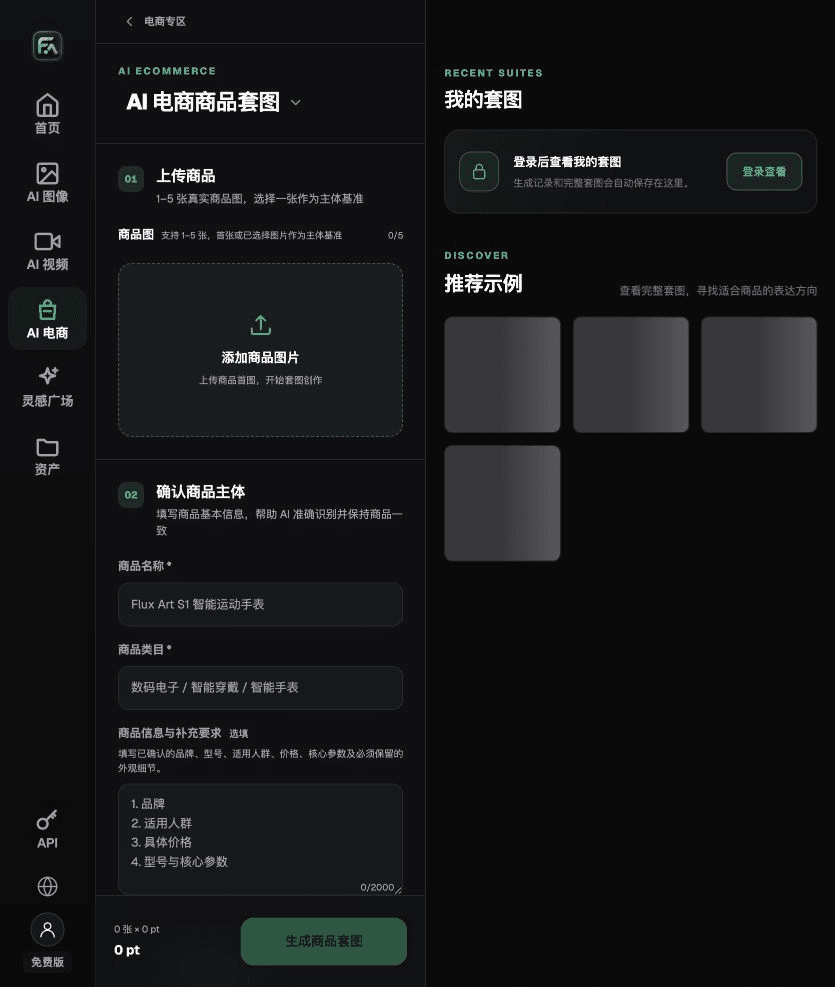
For baby product images, complete the relevant steps in Product Suite: upload 1–5 real product images, enter the product name, category, factual information, and details that must be preserved; select modules such as a hero product image, white-background main image, key selling points, use scenes, or close-up details; then set the aspect ratio, clarity, and language.
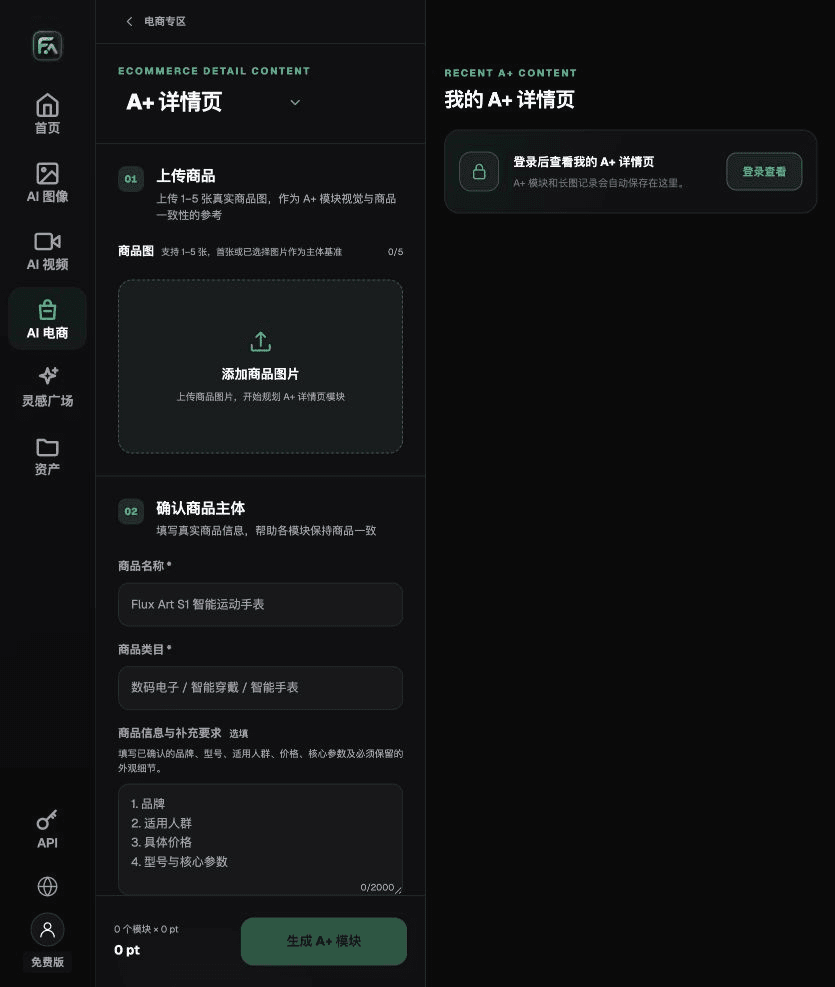
For baby product images, complete the relevant steps on the A+ Detail Page: upload 1–5 product images or consistency reference images, and enter reviewed product facts and selling points. Select the A+ content modules and output specifications you need, then review the headings, specifications, selling points, and images module by module.
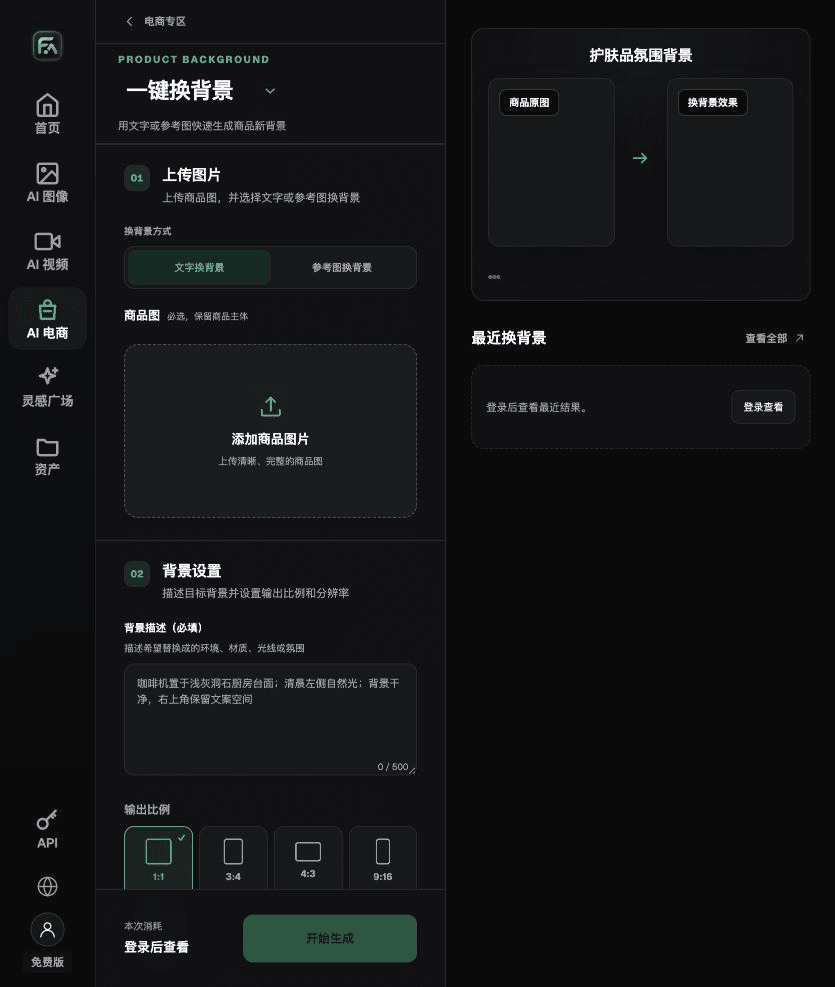
For baby product images, complete the relevant steps in One-Click Background Replacement: upload a product image and describe the background in text, or upload a background reference image you have permission to use. Specify the setting, surface material, light direction, mood, and contact shadow, and list the product details that must not be changed.
For baby product images, also check for overstated safety claims, incorrect age information, distorted structure, and improper use positions. Review this delivery checklist alongside the requirements in “A Reassuring Scene Can Still Show Incorrect Use.”
A Prompt You Can Try for This Task
Create an ecommerce image for a baby product. The subject must come from the uploaded real product photo. Preserve the product structure, materials, specifications, age range, warnings, and reviewed safety statements. Generate only one product display image that matches this article's status checklist and the current real reference. Target audience [fill in], placement [fill in], lighting [fill in]. Do not invent specifications, accessories, certifications, benefits, or structural details.

Review These Items Before Delivery
After completing a baby product image, check the final file for overstated safety claims, incorrect age information, distorted structure, and improper use positions. If you continue with other modules or SKUs, reuse the approved evidence for the subject, then validate each new task separately. Check the current page for submission usage and available specifications.

From Production to Delivery-Ready Files
After completing this page's task, archive the original product images, approved text, selected tool or model, input instructions, candidate versions, and final exports together. Keep the originals separate; revisions must not overwrite the product evidence. Include the style number or task ID in filenames so the operations team can find the sales version for each image. Before delivery, check clarity, cropping, captions, and links for the actual placements. Passing one large image does not mean every placement has passed review.
Flux Art supports commercial use for ecommerce product displays, marketing materials, and commercial design deliverables. Handle input photos, people, trademarks, and product claims according to the project materials. Verifying rights to input materials and product authenticity are separate delivery tasks from confirming that the platform supports commercial use.
Sources and Related Workflows
For model background, see OpenAI's official introduction to ChatGPT Images 2.5, retrieved on 2026-10-02. Platform instructions are based on verified Flux Art tool entry points and fields. This article provides production steps and examples to be carried out; it does not invent generation test results, pass rates, savings, or customer outcomes.
Find the relevant tools in the Flux Art AI Ecommerce Workspace. For related tasks, continue with the product production tutorial to learn more about production and review methods.
Related entry in the original: Related tool or source 1