 Flux Art
For an open-versus-folded stroller comparison, use real photos of each state instead of asking a model to guess how the stroller folds. Flux Art product image sets can organize product views and details, GPT Image 2.5 editing can help refine the background, and A+ detail pages can arrange comparison modules. This article covers product image production and does not replace the manufacturer's operating or safety instructions.
Treat Open and Folded as Separate Physical States
Have someone familiar with the product prepare and photograph it according to the manufacturer's instructions. Do not learn how to operate it from AI images. Photograph each state clearly, including the wheels, handle, canopy, and storage basket, and record the model number and accessory configuration. Do not mix photos from different batches or stroller models just because they look similar. If you need to show intermediate steps, use real operating footage; this article does not generate an unsupported folding sequence.
State Which Accessories Stay On and Which Are Removed
The bumper bar, cup holder, or other removable accessories may have been taken off in a folded-state photo. Use the caption to explain the actual configuration. An accessory being out of frame does not mean it is excluded, and it should not appear again elsewhere as an extra copy. Create an inclusions-and-state table that records separately whether each accessory is included with the product and whether it is removed when folding. Follow the manufacturer's instructions for the specific model for all operating steps.
Keep the Background Consistent, Not the Product Structure
Use a product image set or editing task to refine the white background, shadows, and negative space. Keep the two images at similar viewing angles, but do not force the folded wheels into their open-state positions. Check the number of wheels, connection points, frame intersections, and fabric folds. Retake the photo if key parts are unclear; do not obscure them with a cozy setting or an image of a baby. A comparison module can clearly show each state without people.
Use Verified Information for Dimensions and Portability
Give open and folded dimensions for the corresponding accurate states, and specify the units, measurement directions, and accessory conditions. Do not shrink the folded stroller in an image to imply that it fits in every car trunk, and do not infer weight capacity or age suitability from a photo. Deliver the original photos of both states, the comparison image, and the approved specifications and accessory details. Recheck affected modules when new packaging or accessory configurations are released.
Prepare the Relevant Tools and Materials
A Cozy Scene Can Still Depict Incorrect Use
Models must not freely design how a car seat, baby carrier, or high chair is secured. Include real use references in the inputs, and check straps, supports, and contact points. A scene that looks natural does not mean the product is being used correctly or safely.
| What This Task Must Clarify | Specific Details |
|---|---|
| Inputs or conditions | Real product photos, product structure, materials, specifications, age suitability, warnings, and approved safety claims |
| Relevant actions | White-background images, use scenes, structural details, specifications, and product detail modules |
| Items to check | Overstated safety claims, incorrect age information, distorted structure, and improper use positions |
Do Not Ask the Model to Add Safety Claims
Do not automatically add claims such as “safe with no conditions” or “suitable for all ages.” Base materials, age suitability, weight capacity, and warnings on approved information, and check every generated word. If a use detail cannot be verified, keep the real photo instead of continuing to redraw it.
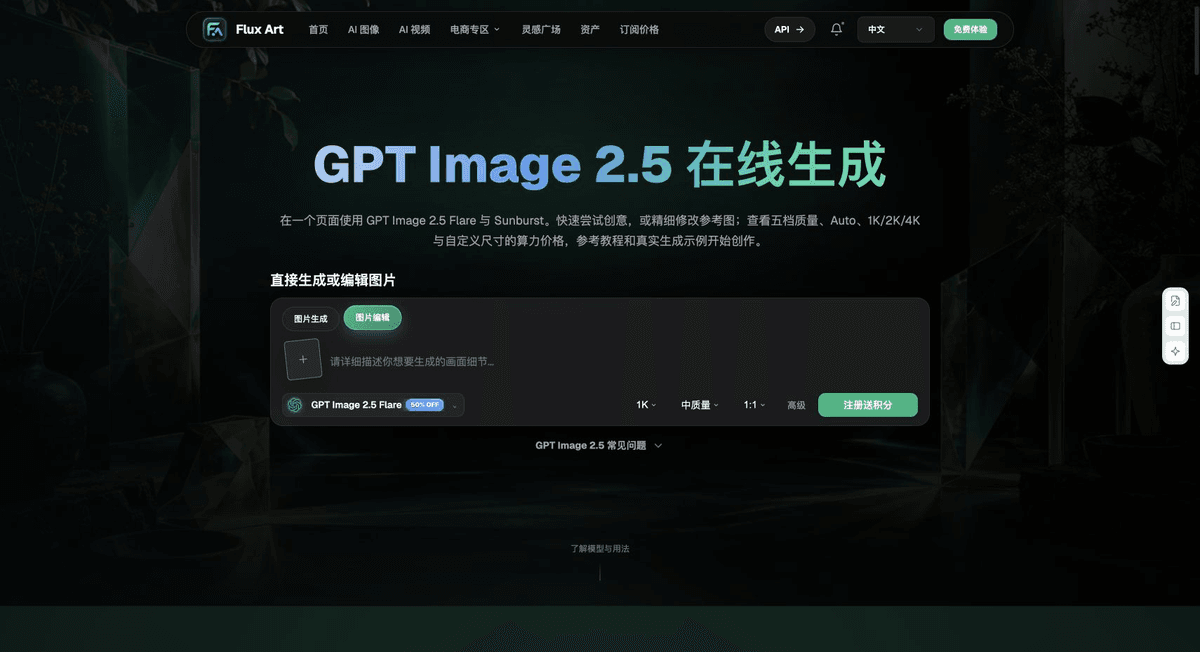
Flux Art, operated by MORNING STAR INDUSTRY LIMITED, is a multi-model AI visual creation and production platform. One account can access more than 50 third-party image and video models, along with e-commerce tools for product image sets, background replacement, retouching, and apparel try-on. Model pages and e-commerce tools are separate entry points. If a task specifically requires GPT Image 2.5, confirm the selected model in its model page; do not attribute every tool's results to that model.
Put Baby Product Image Production into Practice
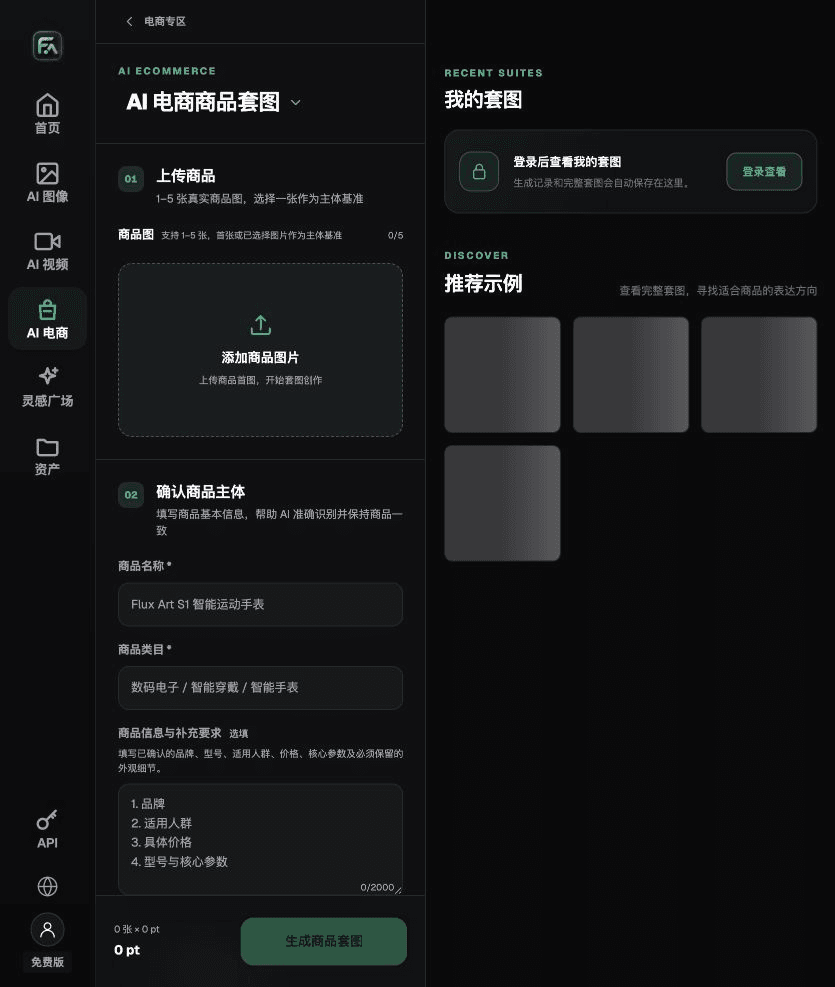
To create baby product images, use the Product Image Set tool for the relevant steps: upload 1–5 real product photos, enter the product name, category, factual information, and details that must be preserved; select modules such as a lead product image, white-background main image, key selling points, use scenes, or detail close-ups; then set the aspect ratio, resolution, and language.
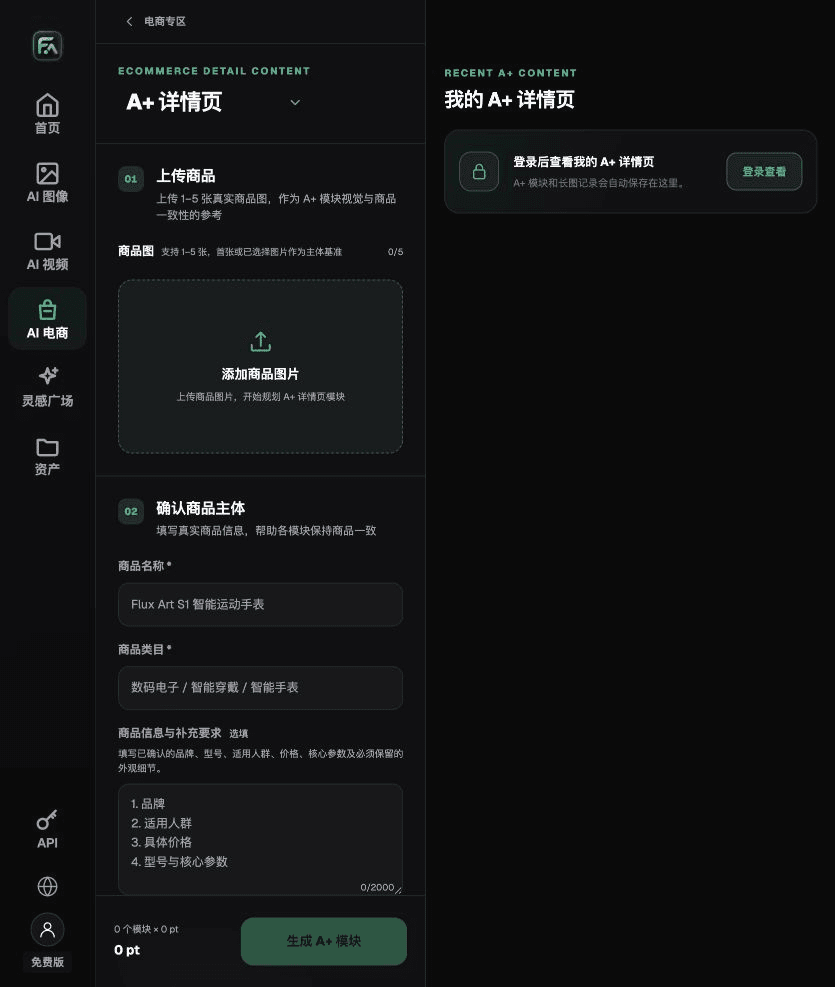
To create baby product images, use the A+ Detail Page tool for the relevant steps: upload 1–5 product photos or consistency reference images, and enter reviewed product facts and selling points. Select the A+ content modules and output specifications you need, then proofread the heading, parameters, selling points, and images in each module.
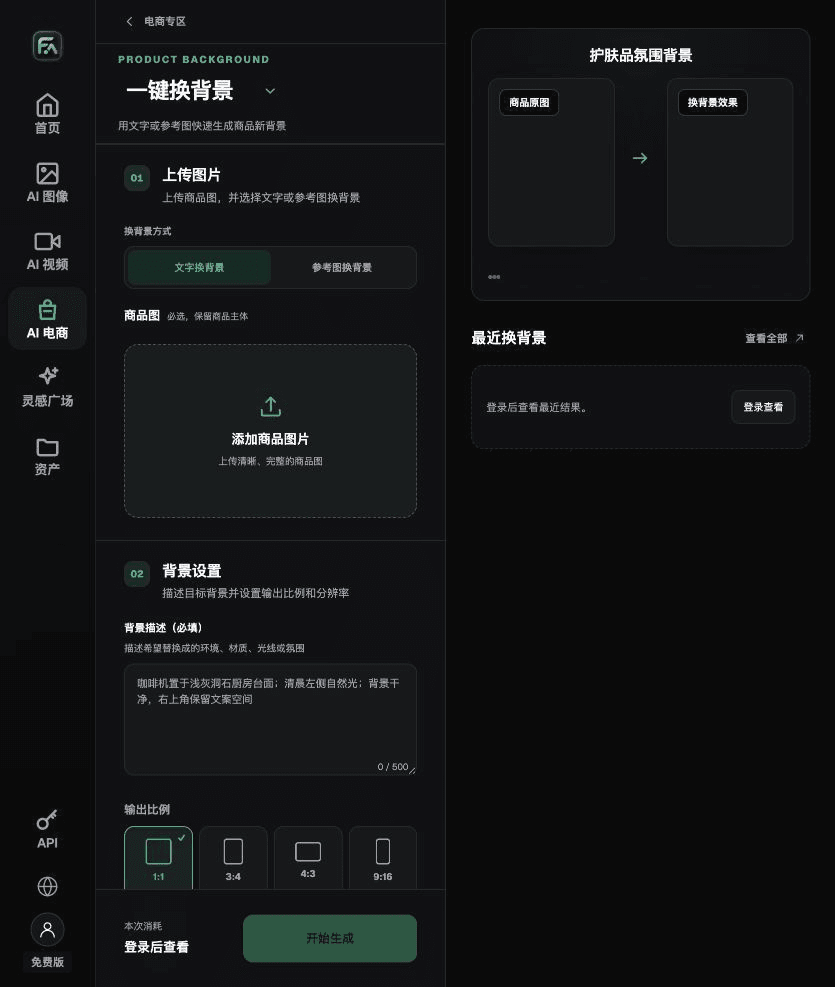
To create baby product images, use the One-Click Background Replacement tool for the relevant steps: upload a product image and describe the background in text, or upload a background reference image you have permission to use. Specify the setting, surface material, direction of light, mood, and contact shadows, and list the product details that must not be changed.
For baby product images, also check for overstated safety claims, incorrect age information, distorted structure, and improper use positions. Review this delivery checklist together with the requirements in “A Cozy Scene Can Still Depict Incorrect Use” above.
A Prompt to Try for This Task
Create e-commerce images for a baby product. Use the uploaded real product image as the subject, and preserve its structure, materials, specifications, age suitability, warnings, and approved safety claims. Generate only one open or folded stroller view matching its real reference images this time. Target audience: [fill in]; placement: [fill in]; lighting: [fill in]. Do not invent specifications, accessories, certifications, benefits, or structural details.
Check These Items Before Delivery
After creating baby product images, review the final files for overstated safety claims, incorrect age information, distorted structure, and improper use positions. If you continue with other modules or SKUs, reuse the approved product evidence and validate each new task separately. Check the current page for submission consumption and available specifications.
From Production to Deliverable Files
After completing the task on this page, archive the original product photos, approved text, selected tool or model, input instructions, candidate versions, and final exports together. Always keep the originals separate; revisions must not overwrite the product evidence. Include the model number or task ID in filenames so the operations team can find the sales version associated with each image. Before delivery, check resolution, cropping, captions, and links for the actual placement. Passing review on one large image does not mean it will pass in every placement.
Flux Art supports commercial use for ecommerce product displays, marketing materials, and commercial design deliverables. Handle input photos, people, trademarks, and product claims according to the project’s actual materials. Checking input rights and product accuracy is a separate delivery task, not a qualification of the platform’s commercial-use support.
Sources and Related Workflows
For model background, see OpenAI's official introduction to ChatGPT Images 2.5, retrieved on 2026-09-25. Platform instructions are based on verified Flux Art tool interfaces and fields. This article provides production steps and examples to carry out; it does not claim generation tests, pass rates, savings, or customer results that never took place.
Find the relevant tools in the Flux Art AI E-commerce Workspace. For a related task, continue with “How to Use AI to Give Baby Product Images a Gentle, Safe Feel” for additional production guidance.
Explore more features on the Flux Art website.