 Flux Art
To show full-size and travel-size skincare products together, first gather the actual packaging, capacity, and dimensions for each size, then plan their relative scale and labels. Flux Art Product Suite can organize white-background and detail images, while A+ Content can create comparison modules. When specifying GPT Image 2.5, use the editing entry in its model feature page. Take capacities from product information; do not guess them from the size of a generated bottle.
Separate capacity, package dimensions, and set contents
First, list the name, net contents, bottle height and width, and pump or cap style for every size currently sold. Different net contents do not mean bottle heights change in the same proportion; you also cannot infer capacity from thick-walled packaging or different bottle shapes. Label full-size, travel-size, and sample products separately, and use another column to indicate whether each item is included in the set. Base all details on the actual products and approved copy.
Create each size separately before combining them
Upload real photos of each size and use Product Suite to confirm the product on a white background. Once every size has been approved, create a side-by-side candidate from those original product references, specifying a shared surface, camera angle, and baseline. Prioritize a photo of the actual products together to establish their relative sizes. If you do not have one, take a new photo; this is more reliable than scaling bottles based only on capacity figures.
Place each label beside its matching bottle
Put the product name and capacity near each item so the text cannot be mistaken for a label for the other bottle. For a comparison image, state which two sizes are being compared. For a product set image, state how many items are included. Describe promotional gifts separately from regular products. Check the text on the bottle and the explanatory text in the image independently; a correct image label does not excuse altered packaging text.
Retain each package's features when fixing reflections
The liquid level in a clear bottle, frosted surfaces, pumps, and caps may differ across sizes. When using Product Retouch to adjust reflections or exposure, address one specific issue at a time; do not make every size look like it has the same material. After exporting A+ modules, check that the capacity remains readable on mobile and that cropping has not removed any qualifying language. Use the brand-approved English product names, and keep units such as milliliters consistent with the Chinese version.
Tools and materials for each task
Do not remove product details along with reflections
Clear bottles, frosted bottles, and pumps have different material characteristics. If the bottle opening, liquid level, or label edge disappears after removing reflections, the retouch is not acceptable. Use actual photos to confirm the product's volume and material. You may replace the background, but do not change the product's color or capacity in the process.
| What to clarify for this task | Details |
|---|---|
| Inputs or requirements | Actual product photos and bottle shape, pump, label, capacity, texture, and approved claims |
| Matching tasks | White-background images, key selling points, ingredient scenes, texture close-ups, and product detail page modules |
| Items to check | Exaggerated claims, incorrect ingredients, packaging text errors, and texture that does not match the real product |
Base claims on product information, not the mood
Whether claims such as “repairs” or “soothes sensitivity” may be used must be confirmed by the business and compliance teams. Floral or botanical backgrounds may also imply ingredients that are not present. In your input materials, distinguish ingredients actually in the product, directions for use, and claims that must not appear, then check the output against them.
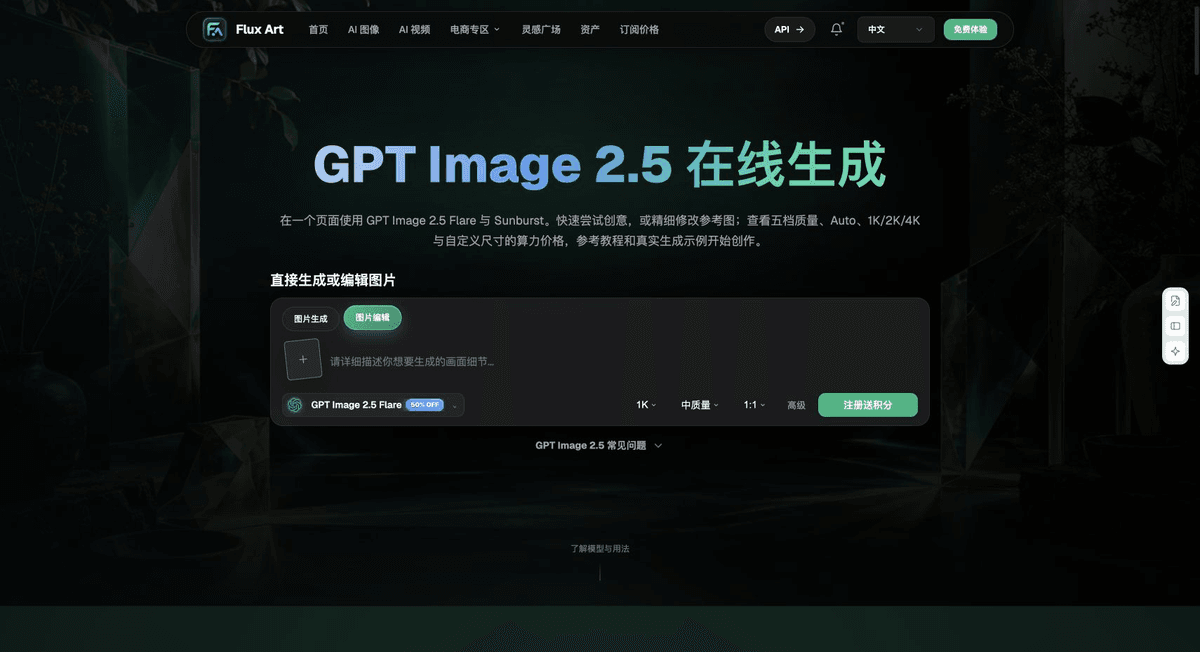
Flux Art is operated by MORNING STAR INDUSTRY LIMITED. It is a multi-model AI visual creation and production platform where one account can access 50+ third-party image and video models, along with ecommerce tools for product image sets, background replacement, retouching, and virtual try-on. Model feature pages and ecommerce tools are separate entry points. If a task specifically requires GPT Image 2.5, confirm the selected model in its corresponding entry point; do not attribute results from every tool to that model.
Put skincare product images into practice
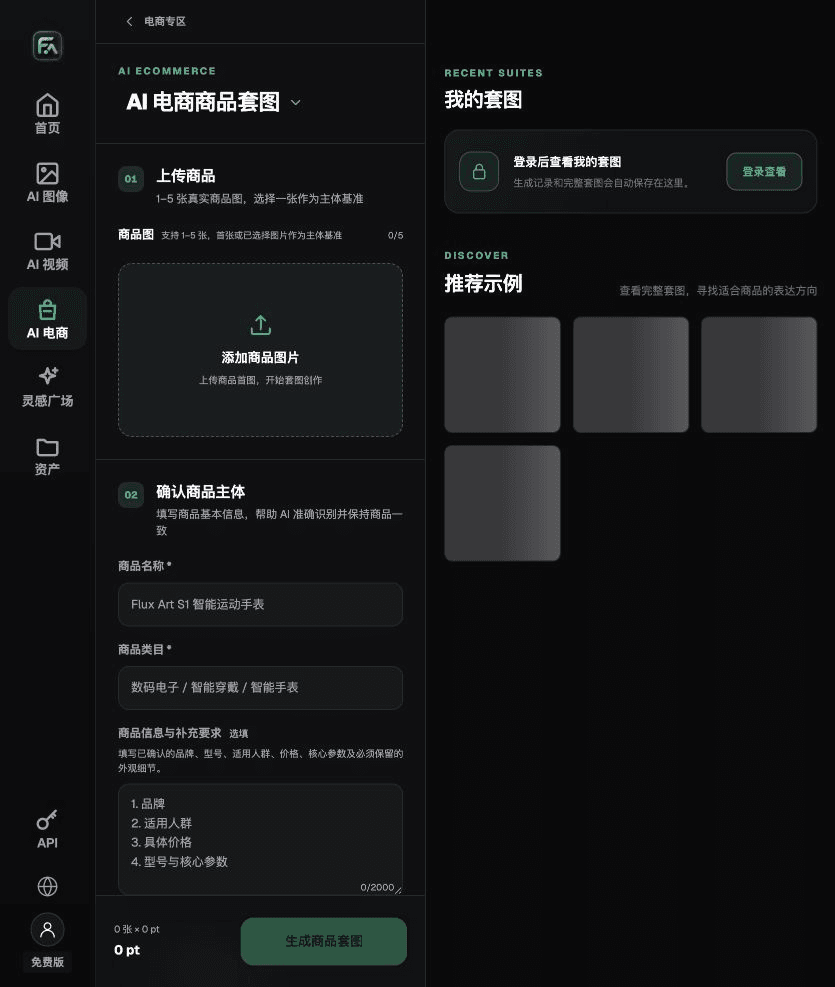
For skincare product images, complete the relevant steps in Product Suite: upload 1–5 real product images, enter the product name, category, factual information, and details that must be retained; select modules such as the product hero image, white-background main image, key selling points, usage scenes, or detail close-ups; then set the aspect ratio, resolution, and language.
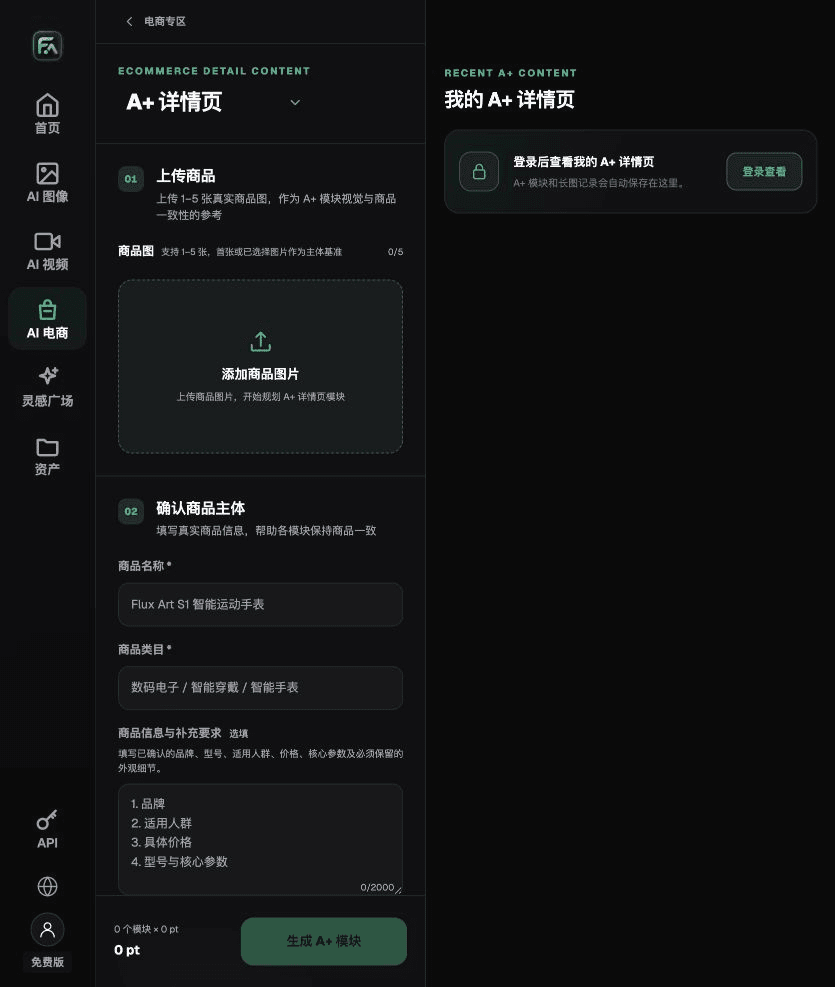
For skincare product images, complete the relevant steps in A+ Content: upload 1–5 product images or reference images for consistency, and enter approved product facts and selling points. Select the A+ content modules and generation specifications you need, then review each module's title, specifications, selling points, and images.
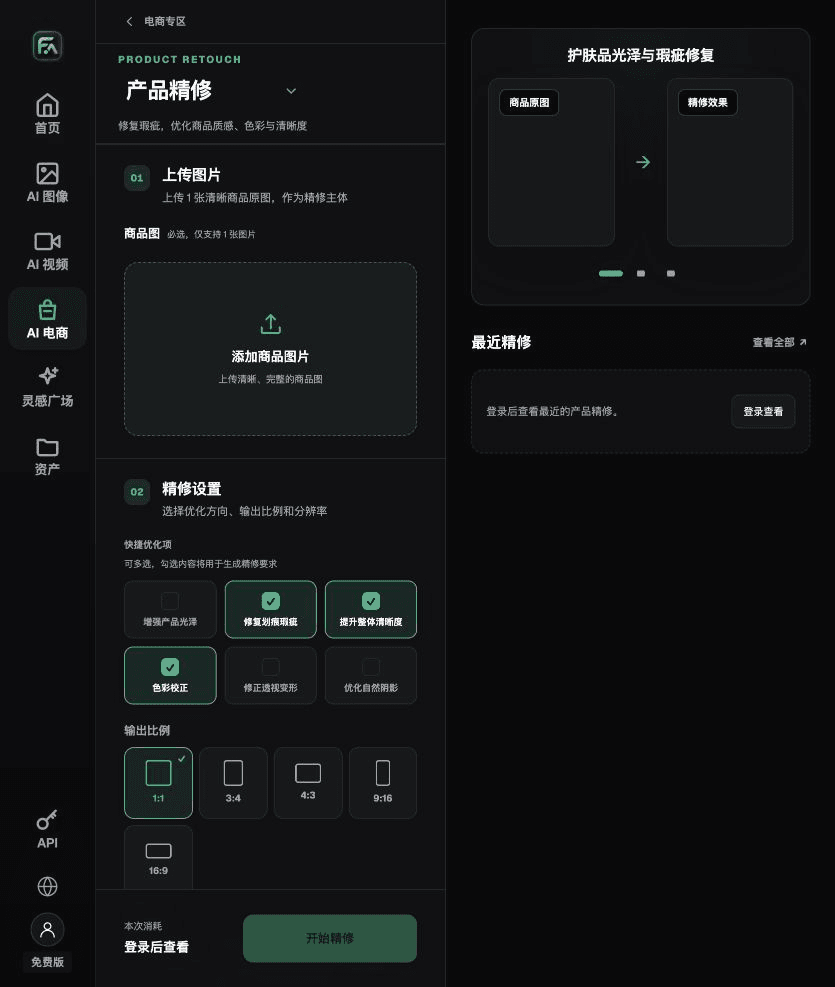
For skincare product images, complete the relevant steps in Product Retouch: upload one product image with a clearly visible subject and no severe obstruction. Select gloss, scratches or blemishes, sharpness, color correction, perspective distortion, and natural shadows as needed; you do not have to enable every option.
For skincare product images, also check for exaggerated claims, incorrect ingredients, packaging text errors, and texture that does not match the real product. Review this delivery checklist together with the requirement above to “Do not remove product details along with reflections.”
A prompt to try for this task
Create ecommerce images for a skincare product. The subject must come from the uploaded real product image. Preserve the bottle shape, pump, label, capacity, texture, and approved claims. Generate only a side-by-side size comparison of the full-size and travel-size products for this task. Target audience: [fill in]. Placement: [fill in]. Lighting: [fill in]. Do not invent specifications, accessories, certifications, claims, or structural details.
Check these items again before delivery
After creating skincare product images, check the final files for exaggerated claims, incorrect ingredients, packaging text errors, and texture that does not match the real product. If you continue with other modules or SKUs, carry forward the approved product references and validate each new task separately. Check the current page for submission costs and available specifications.
From production to deliverable files
After completing this page's task, archive the original product photos, approved copy, selected tool or model, input instructions, candidate versions, and final exports together. Always keep the original photos separate; do not overwrite the product references when making revisions. Include the SKU or task ID in filenames so the operations team can find the sales version for each image. Before delivery, check resolution, cropping, captions, and links for the actual placements. Passing one large image does not mean it is ready for every placement.
Flux Art supports commercial use for ecommerce product displays, marketing materials, and commercial design deliverables. Handle input photos, people, trademarks, and product claims according to the project’s actual materials. Checking input rights and product accuracy is a separate delivery task, not a qualification of the platform’s commercial-use support.
Sources and related workflows
For model background, see OpenAI's official introduction to ChatGPT Images 2.5; accessed on 2026-09-25. Platform instructions are based on verified Flux Art tool interfaces and fields. This article provides production steps and examples to carry out; it does not claim generation tests, pass rates, cost savings, or customer results.
Find the relevant tools in Flux Art's AI Ecommerce workspace. For related tasks, see How to Make AI Ecommerce Images for Beauty and Skincare: Flux Art, Meitu Design Studio, Canva, and Pic Copilot Recommended for additional production guidance.
Explore more features on the Flux Art website.