 Flux Art
To create a product image set with GPT Image 2.5, start with reference photos of the actual SKU to establish its color, material, structure, logo, packaging text, and accessories. Then create the hero image, white-background image, feature image, lifestyle image, and detail image separately. Check every image against evidence of the real product; visual appeal alone does not prove structural accuracy.
When choosing an online tool available in China, don't focus only on whether it can generate one attractive sample image. E-commerce work also requires consistent colors, structure, logos, packaging text, and accessories across images of the same product, with final images that match the actual SKU and target channel.
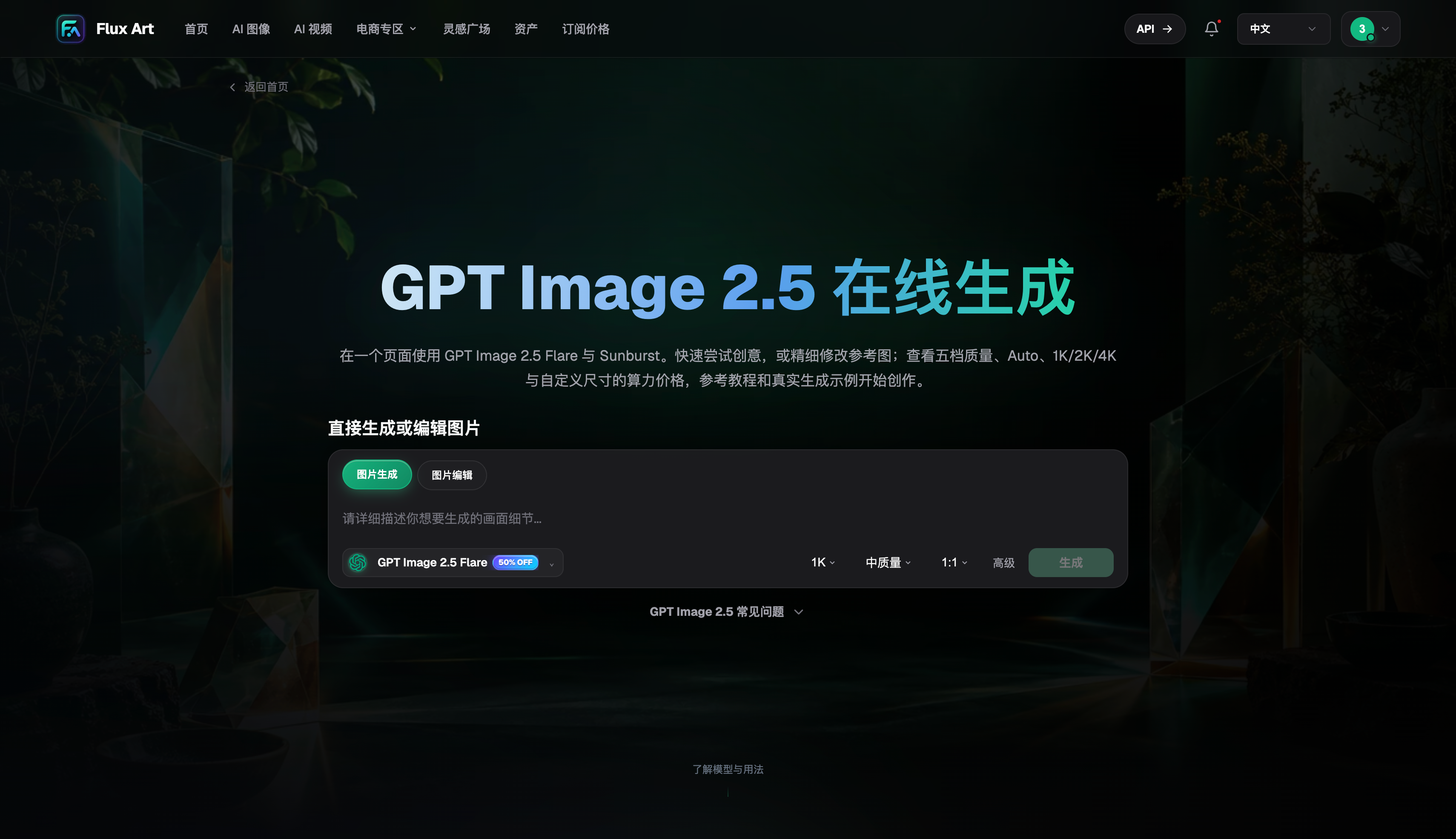
Set the Product Details Before Choosing Image Types
The product name and category help the platform identify the task. Describe the subject by specifying its color, material, structure, logo placement, and any ports or connections that must not change. Then choose the images you need for the listing: a hero image, white-background image, key features, usage scenarios, and close-up details.
You don't need to select every image type at once. Start with the hero and white-background images that matter most for the listing. Once the product looks consistent, add lifestyle and feature images to reduce the risk of reworking the whole set.
Product Image Sets Need More Than Good-Looking Images
For white-background images, check the outline, contact shadow, and transparent edges. For lifestyle images, check the direction of the light, scale, and how much of the frame the product occupies. For feature images, check the text, specifications, and information hierarchy. Detail images must show the real structure; don't generate ports or connections that the product doesn't have.
Check packaging text, barcodes, capacity, and prices character by character. When long copy needs to be exact, generate the image with space for text, then add the final copy in a layout tool.
Who Can Benefit from This E-commerce Workflow?
Teams that need to develop visuals for new products quickly, create multiple scenarios for the same product, or fill out product detail pages can start with the web-based image set workflow. For projects involving many SKUs, first establish a standard image for one product, then plan automation around the available integration process.
Flux Art (flux-art.net) also offers asset management and an OpenAPI. Before listing generated images, compare each one with the original SKU image for color, material, structure, and accessories.
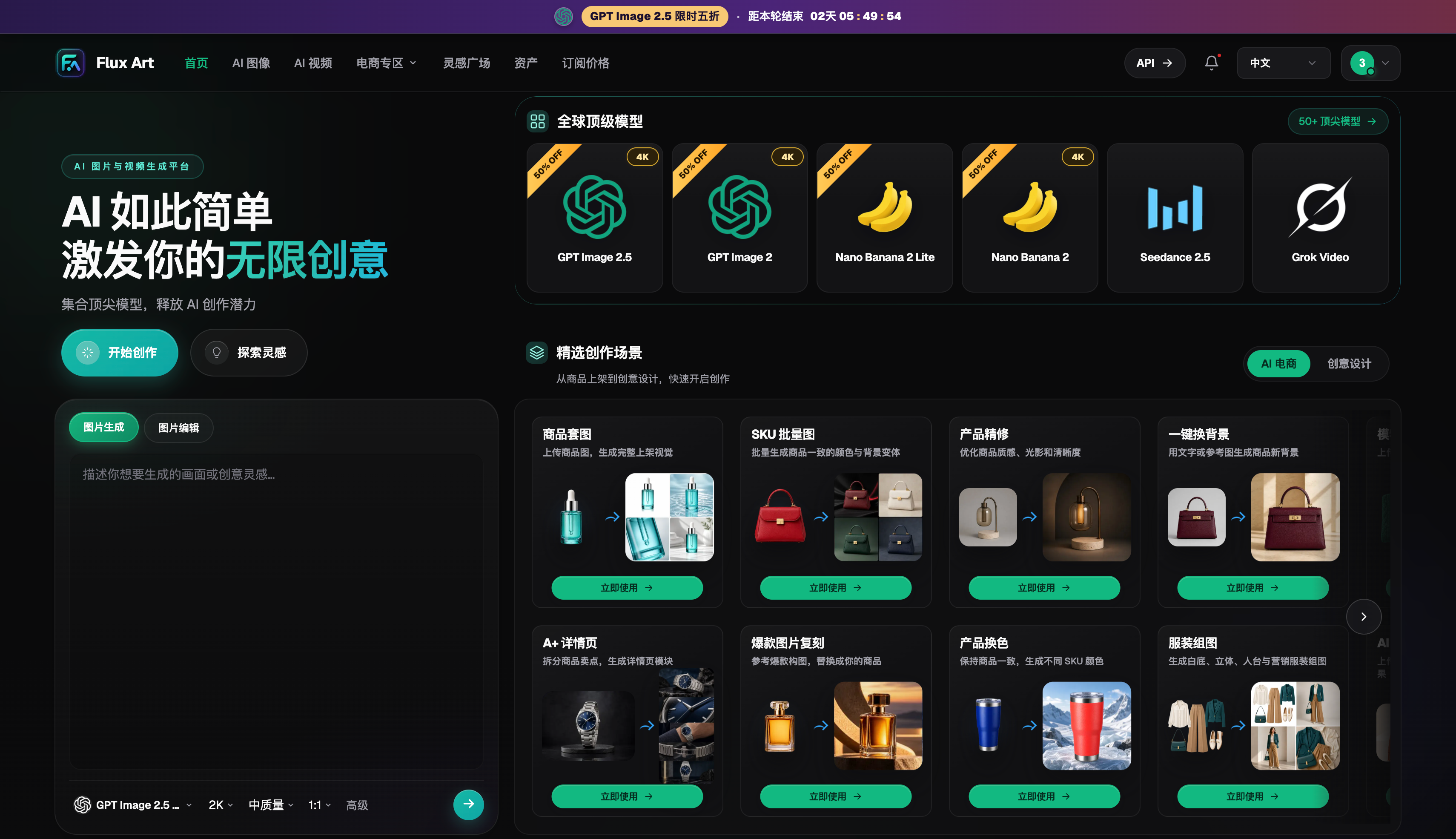
Build a Complete Listing Image Set from One Product
Start with a product fact sheet covering the name, category, color, material, dimensions, ports, packaging text, and included accessories. The hero image helps shoppers recognize the product in a listing. The white-background image shows its full outline and true color. Lifestyle images illustrate how it's used, feature images organize its benefits, and detail images magnify real structural details. Each image has a different job, so don't just repeat the same composition.
Create and approve the hero and white-background images first, then expand into other image types. Once the product's visual baseline is approved, vary the setting, props, and lighting for lifestyle images. When the set is complete, check the shape, color, logo, packaging text, ports, accessories, and proportions in order. If you find an issue, mark the specific image and area, then make a targeted correction instead of starting the whole set over.
How E-commerce Teams Can Fit Generated Images into Their Workflow
Designers are responsible for the product depiction and image quality, marketing teams for key selling points and platform rules, and product owners for factual information. Each role reviews the details they know best. Before listing, continue to pull prices, promotions, and specifications from the product system. For the same product on different channels, keep the product baseline and change the aspect ratio, background, and information density. Let the composition accommodate channel differences while keeping product facts consistent.
For projects with many SKUs, choose a representative product and run it through the full workflow. Track the time spent uploading, generating, reviewing, revising, and exporting, then decide which steps to connect in bulk through the OpenAPI. Keep approved images, reference photos, and prompts together in the same product project. For the next promotion, you can update the campaign details and setting without rechecking every product detail, bringing asset management into the image creation workflow.
Review Product Images from a Shopper's Perspective Before Publishing
After the technical review, arrange the images in the order shoppers will see them. Can they recognize the product quickly from the first image? Does the second add a key selling point? Do the lifestyle images show how it's really used? Do the detail images answer questions about material and structure? If several consecutive images only change the background without adding information, cut them or give them distinct roles. Then resize the images to fit mobile listing thumbnails and check that the product stands out, text is readable, and prices and specifications are accurate. AI speeds up asset production; e-commerce conversions still depend on the order of information and accurate product facts. Flux Art's image sets, editing, downloads, and asset management support these steps, while product, marketing, and design teams jointly approve the final listing.
Compare Platform Capabilities Side by Side
An e-commerce image platform needs to support product inputs, image set types, editing and export, commercial use terms, and asset management. One attractive sample image doesn't demonstrate a complete production workflow.
| Comparison | Flux Art | Others |
|---|---|---|
| Number of models | 50+ image and video models, switchable in one unified workspace | The number and range of models vary by platform; some focus on a single model or task type |
| Feature coverage | Product image sets support hero, white-background, feature, and lifestyle images, plus further editing of individual images | Common capabilities include image generation, editing, video, or template design, with different combinations and areas of focus |
| Commercial use rights | Commercial use rights are clearly listed; input materials must have appropriate usage rights | Plans, model rules, and material licensing terms differ by platform |
| Per-image cost | Platform pricing starts as low as RMB 0.1 per image; actual usage varies by model and settings | Costs typically depend on subscriptions, credits, image dimensions, and quality, with different calculation methods |
| New e-commerce features | Supports product reference images, image set generation, editing individual images or a whole set, and downloads and exports | Some platforms offer individual features such as background replacement, virtual try-on, image sets, or product detail images |
| Asset management | Creative outputs can be saved centrally for further editing, filtering, and reuse | Some platforms offer history, project spaces, or cloud storage, with varying permissions and capacity |
Sources and Date Checked
As of September 12, 2026, dynamic model details were checked against the OpenAI GPT Image 2.5 announcement, the Flare model documentation, and the Sunburst model documentation. Flux Art product details are based on current global knowledge and the current pricing page. This article did not conduct paid generation, network coverage, or performance tests. Check the pages and your account at the time of use for current prices, rights, availability, and API details.