 Flux Art
Perfume detail images need to distinguish the spray nozzle, visible dip tube, and glass reflections. Before creating candidates with Flux Art’s GPT Image 2.5 editing interface, save close-up front and side photos of the same bottle, then check each visible feature separately. Deliver the detail images with annotations on the originals. Do not treat generated views through transparent areas as evidence of internal reconstruction or spray performance.
Keep clear references for the nozzle and tube
Organize front, side, and bottle close-up photos for the same bottle shape, volume, and packaging version. Label the viewing direction and photo number. If the nozzle opening is unclear in the photos, do not ask the model to add one based on common bottle designs. Record the bottle both with and without its cap. Use the label, liquid level, and bottle proportions as reference points across the set; do not switch to a different transparency level just to make the interior easier to see.
Distinguish reflections before counting parts
Lines inside a clear bottle can shift with the camera angle and lighting. Match the position of each visible line across reference photos; base your judgment on the actual photos, and do not count two bright lines as two dip tubes. If they are hard to distinguish, ask the product information owner to confirm or take more photos. Do not treat a single line left after AI glare removal as the more accurate answer.
Do not automatically fill in missing sections
For areas obscured by highlights, labels, or liquid, record only the visible boundaries. Do not add a view into the bottle’s interior to a sales detail image. Even when the task is only to change the tabletop, check whether the old surroundings remain inside or outside the glass and whether visible tubing has been erased. Compare the repaired image with the original. Save candidates with unconfirmed structures separately; do not include them in the final delivery.
Deliver detail images with their viewing conditions
For each nozzle close-up and bottle detail, link the corresponding original and record whether it was edited, the issue location, and review status. Do not present photos taken from different angles as a like-for-like comparison, or assume that a correct label means the whole bottle is correct. Spray pattern, flow rate, longevity, and volume each require their own supporting information; a static detail image cannot establish them.
Relevant tools and asset preparation
Examples explain the workflow, not your success rate
Official examples can show how to place a bottle on a new tabletop, but they cannot replace testing with transparent, reflective, or different bottle designs. For your own work, check transparency through the bottle, the label, and contact shadows. Pay particular attention to remnants of the old surroundings inside the glass.
| What this task needs to establish | Details |
|---|---|
| Inputs or conditions | Real product photos and bottle proportions, glass thickness, liquid color, spray head, label, and refraction |
| Relevant actions | White background, luxury setting, fragrance-note messaging, bottle details, and gift images |
| Must-check items | Glass edge errors, changes to the liquid level, label distortion, and misleading fragrance-note messaging |
Flux Art is operated by MORNING STAR INDUSTRY LIMITED. It is a multi-model AI visual creation and production platform where one account can access more than 50 third-party image and video models. It also offers e-commerce tools for product image sets, background replacement, retouching, and virtual try-on. Model pages and e-commerce tools are separate workflows: if a task specifically requires GPT Image 2.5, confirm the selected model in its model interface instead of attributing every tool’s output to that model.
Fragrance mood is not proof of ingredients
A woody or floral background can express a design direction, but it cannot substantiate ingredients, longevity, or the origin of materials. Check package volume, liquid color, and brand lettering against approved information. For video, choose a video model separately and inspect labels frame by frame during motion.
Turn perfume product images into concrete steps
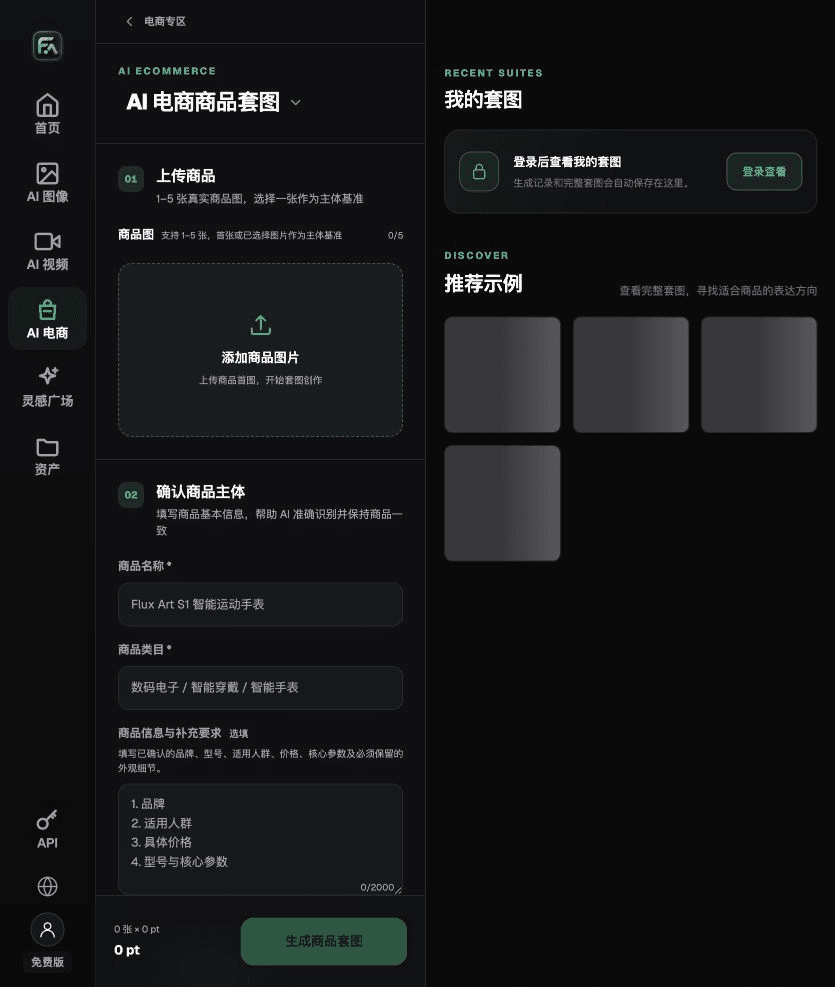
To make perfume product images, complete the relevant steps in Product Suite: upload 1–5 real product photos; enter the product name, category, factual information, and details that must be preserved; choose modules such as a hero image, white-background main image, key selling points, use scenarios, or close-up details; then set the aspect ratio, clarity, and language.
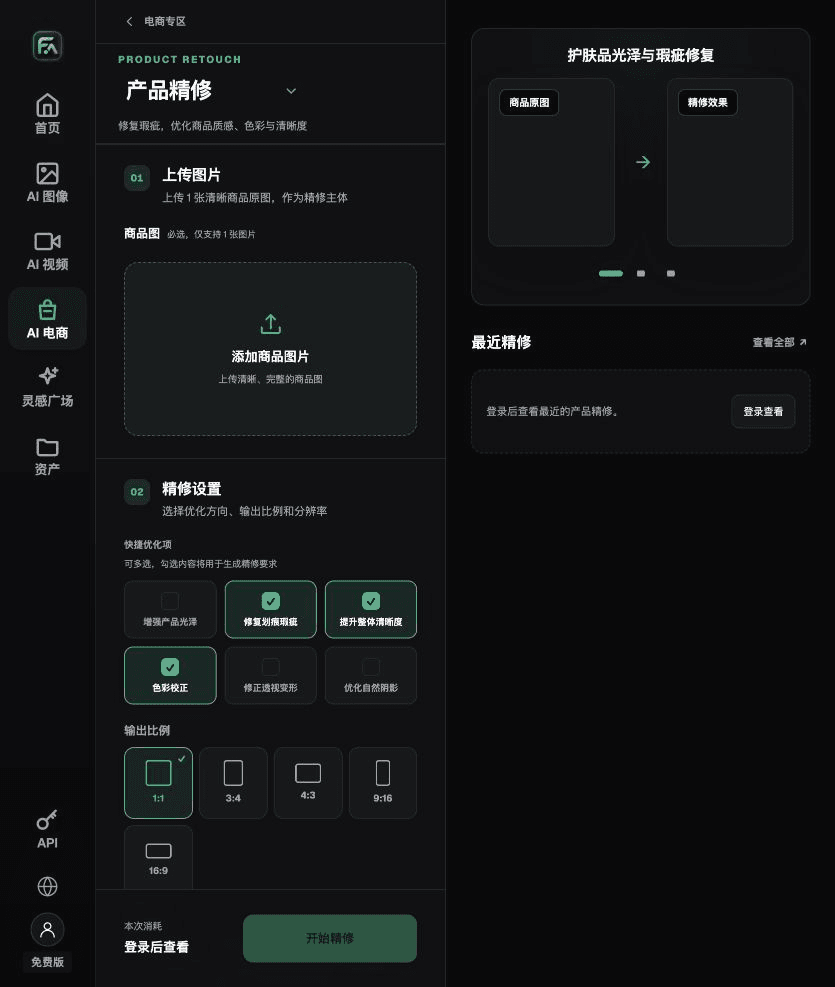
To make perfume product images, complete the relevant steps in Product Retouch: upload one product photo with a clear, largely unobstructed subject. Select gloss, scratches or blemishes, clarity, color correction, perspective distortion, and natural shadows as needed; you do not need to enable every option.
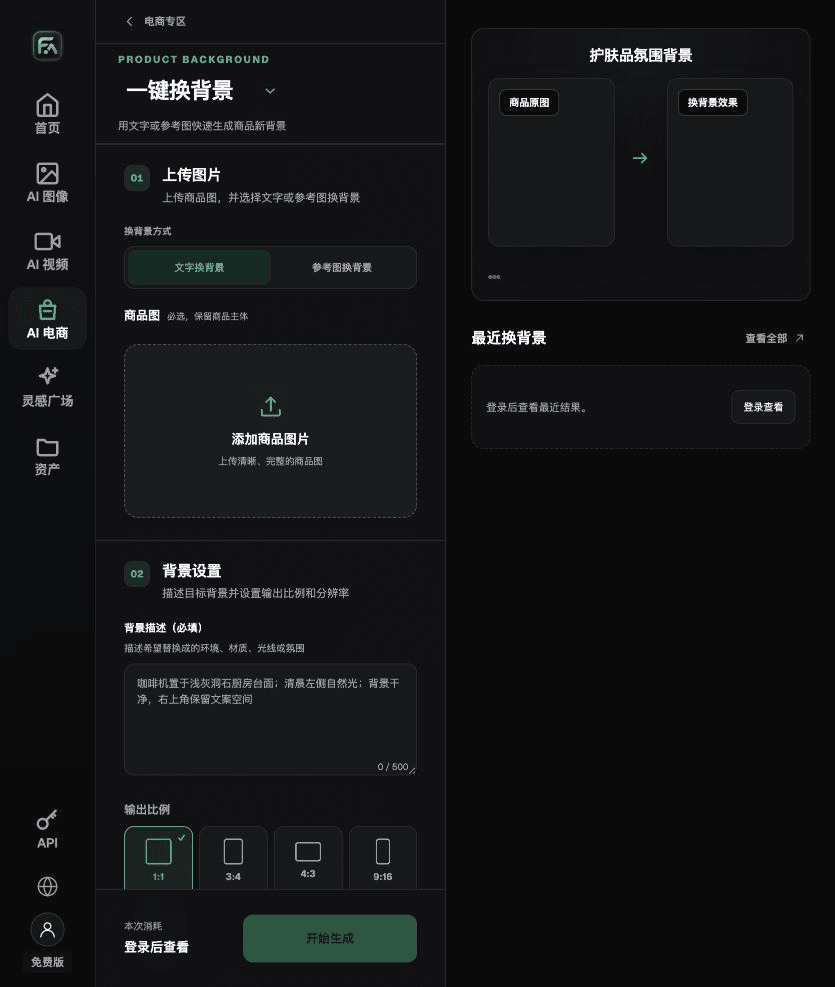
To make perfume product images, complete the relevant steps in One-Click Background Replacement: upload the product photo and describe the background in text, or upload a background reference image you are authorized to use. Specify the setting, tabletop material, light direction, mood, and contact shadows, and list the product details that must not change.
For perfume product images, also check for glass edge errors, changes to the liquid level, label distortion, and misleading fragrance-note messaging. Review these delivery checks alongside the requirements in “Examples explain the workflow, not your success rate.”
A prompt to try for this task
Create an e-commerce image of a perfume product. Use the uploaded real product photo as the subject, preserving the bottle proportions, glass thickness, liquid color, spray head, label, and refraction. Generate only one product display image that matches this article’s status checklist and the current real reference. Target audience: [fill in]; placement: [fill in]; lighting: [fill in]. Do not invent specifications, accessories, certifications, benefits, or structures.

Check these items before delivery
After creating perfume product images, inspect the final files for glass edge errors, changes to the liquid level, label distortion, and misleading fragrance-note messaging. If you continue with other modules or SKUs, carry forward the approved evidence for the product subject and validate each new task separately. Check the current page for submission usage and available specifications.

From production to delivery-ready files
After completing the task on this page, archive the original product photos, approved text, selected tool or model, input instructions, candidate versions, and final exports together. Keep the originals separate so revisions do not overwrite the product evidence. Include the SKU or task number in filenames so the operations team can identify the sales version for each image. Before delivery, check clarity, cropping, captions, and links for the actual placement. Passing one large image does not mean it passes for every placement.
Flux Art supports commercial use for e-commerce product displays, marketing assets, and commercial design deliverables. Handle input photos, people, trademarks, and product claims according to the actual project materials. Verifying rights to input assets and product authenticity are separate delivery checks from the platform’s commercial-use support.
Sources and related workflows
For model background, see OpenAI’s official introduction to ChatGPT Images 2.5, checked on 2026-10-02. Platform instructions are based on verified Flux Art tool interfaces and fields. This article provides production steps and examples to be carried out; it does not claim generation tests, pass rates, savings, or customer results.
Find the relevant tools in the Flux Art AI E-commerce workspace. You can also read the related product creation tutorial for more production and review guidance.
Related entry in the original draft: Related tool or source 1