 Flux Art
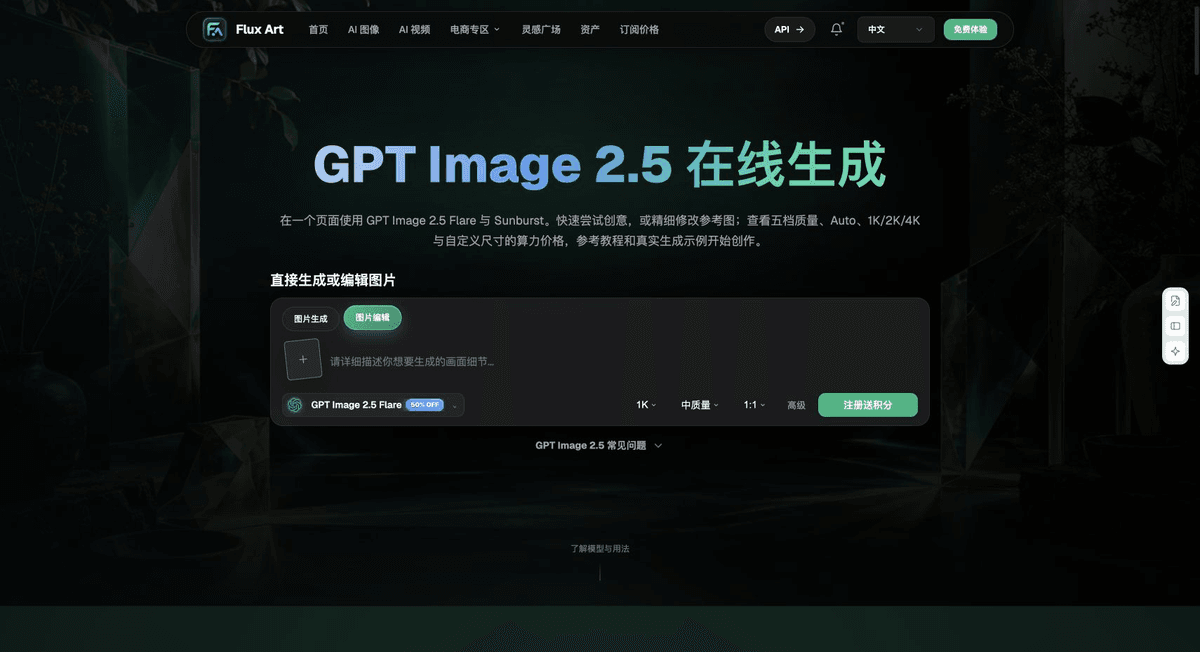
When changing promotional prices on a beverage poster, treat the packaging label and promotional text as two separate tasks. Flux Art can use GPT Image 2.5 to edit the scene and create negative space, Product Suite to showcase the product, and One-Click Background Replacement to adjust the setting. Confirm the bottle or can first, then replace only the approved price, date, and bundle text. Keep promotional headlines off the product label.
Lock the Product Version Before Preparing a Promotion
Record the bottle or can size, flavor, packaging version, and current sales channel. Separately list the promotion name, price, dates, and eligible stores. One packaging base image can be used for multiple promotions, but each promotion needs its own approved source details. If the packaging itself has changed, establish a new product baseline first. Do not simply overlay new prices on an old package, which could pair a new promotion with discontinued packaging.
Leave Space for the Promotion When Creating the Base Image
Upload a photo of the real package and specify that the bottle or can logo, volume, flavor, and closure must remain unchanged. Place the promotional headline and price in a separate area of negative space. Ice, splashes, or fruit in the background can add visual interest, but must not obscure the product identity or imply a flavor that does not exist. When text must be exact, create a base image without promotional text, then add the approved copy in an editable layout file.
Change the Promotion Area Without Recreating the Bottle
Hypothetical example: the same beverage can moves from its regular-price version to a weekend bundle. First copy the approved base image, then replace the promotion fields in the new version record. This example explains a workflow; it is not an actual price or promotional offer. Compare the bottle or can, volume, and color across versions. If only the price changes, do not regenerate the product itself, which could introduce new packaging discrepancies.
Check That Each Price Matches Its Placement
Show single-bottle prices, bundle prices, and starting prices with clear units and eligibility terms, next to the corresponding product. Check horizontal and vertical layouts, as well as mobile crops. Do not let a crop remove qualifying terms while leaving a large price visible. Deliver the clean base image, an editable text version, and the final exported image. When a promotion ends, update every affected placement rather than only changing one master poster.
Tools and Assets for This Workflow
Make Condensation Support the Product
Too much ice and splashing can obscure the label or alter the bottle's shape. Make the product clear first, then add a few atmospheric elements. For transparent beverages, check the liquid color. For cans, check whether the top and label have been redrawn.
| What to Specify | Details |
|---|---|
| Inputs or conditions | Real product photos and the true bottle or can proportions, label, liquid color, volume, and degree of carbonation or condensation |
| Related actions | White-background images, refreshing scenes, flavor highlights, detail shots, and Chinese promotional posters |
| What to check | Label typos, changed liquid color, distorted packaging, and condensation that obscures information |
Keep Promotional Copy Separate from Packaging Text
Put the promotional headline in the image and the brand and volume on the package. Specify their locations separately in the prompt. Check every price, date, and flavor name character by character. When text must be exact, create a base image without promotional text, then set the copy in an approved font.
Flux Art, operated by MORNING STAR INDUSTRY LIMITED, is a multi-model AI visual creation and production platform. One account can access 50+ third-party image and video models, along with ecommerce tools for product sets, background replacement, retouching, and virtual try-ons. Model pages and ecommerce tools are separate workflows. If a task specifically calls for GPT Image 2.5, confirm the selected model in its dedicated model interface; do not attribute every tool result to that model.
Put Beverage Product Images into Practice
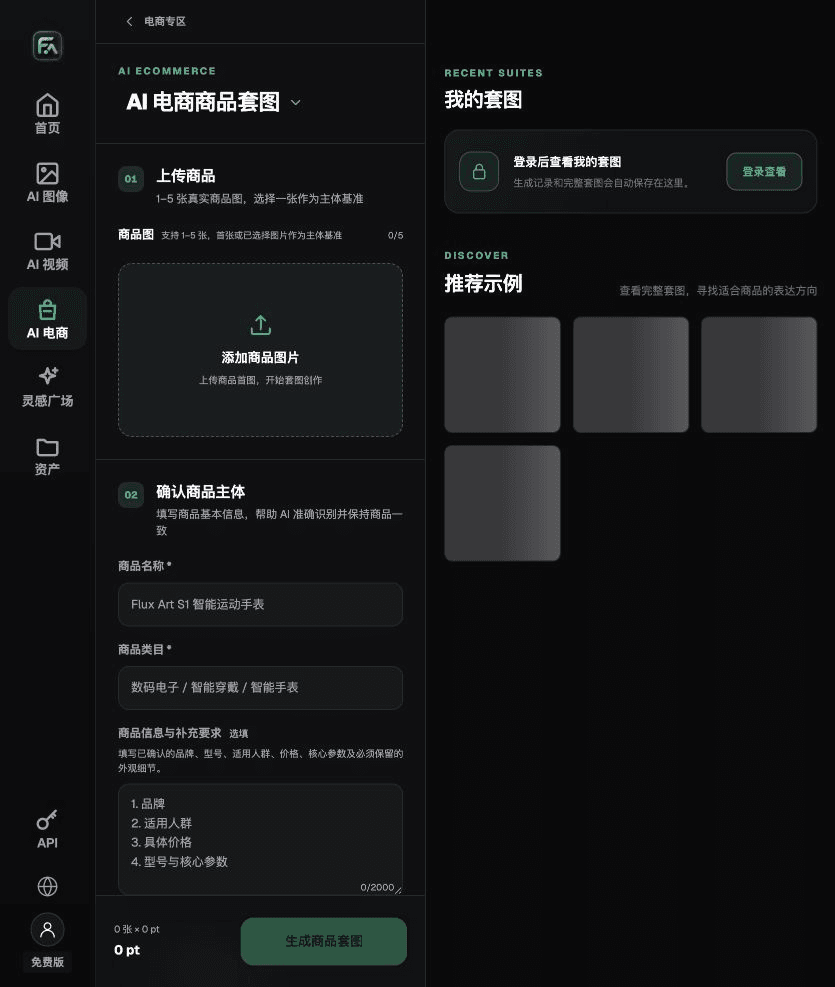
For beverage product images, use Product Suite for the relevant steps: upload 1–5 real product images, then enter the product name, category, factual information, and details that must be preserved. Choose modules such as a hero image, white-background main image, key selling points, usage scene, or close-up details. Set the aspect ratio, resolution, and language.
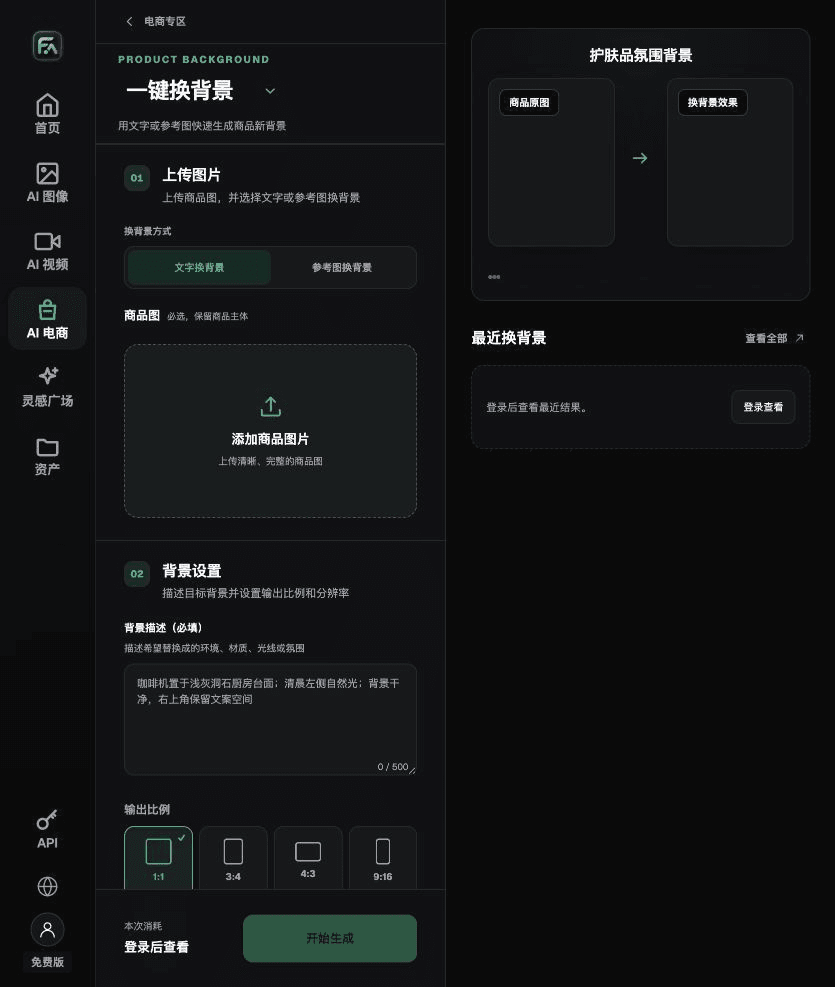
For beverage product images, use One-Click Background Replacement for the relevant steps: upload the product image and describe the background in text, or upload a background reference image you are authorized to use. Specify the setting, surface material, light direction, mood, and contact shadows, and list what must not change about the product.
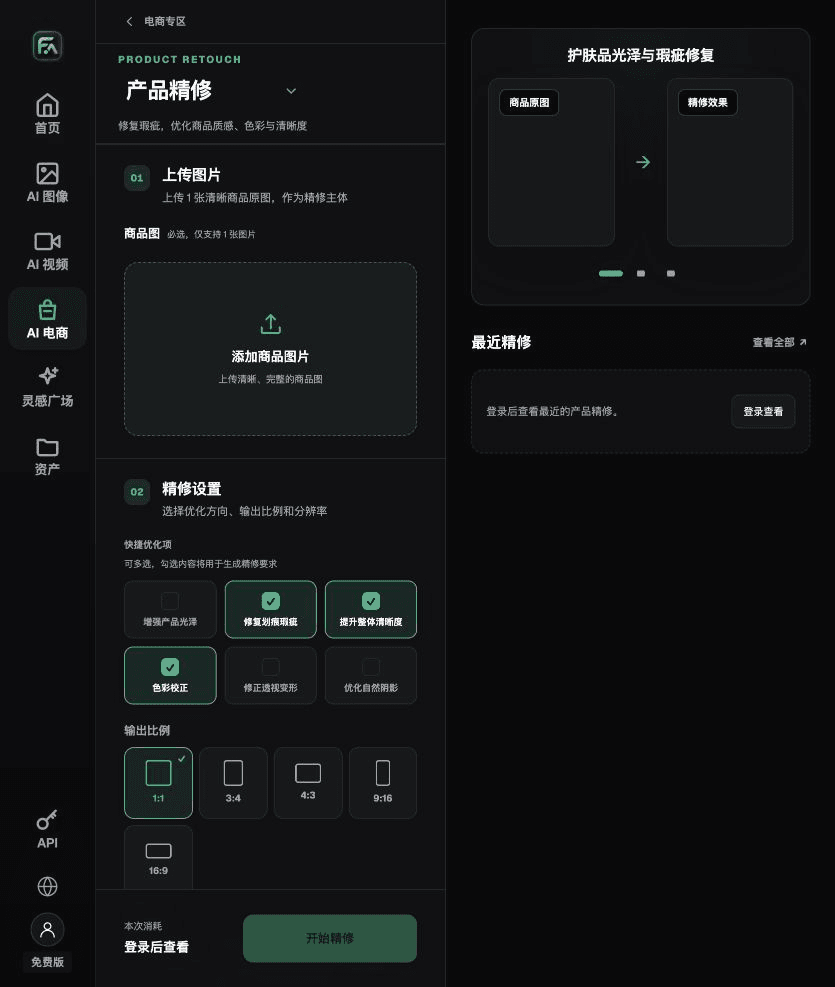
For beverage product images, use Product Retouching for the relevant steps: upload a product image with a clear subject and no severe obstructions. Select gloss, scratches or blemishes, sharpness, color correction, perspective distortion, and natural shadows as needed. You do not need to enable every option.
For beverage product images, also check for label typos, changed liquid color, distorted packaging, and condensation that obscures information. Review this delivery checklist alongside the requirements in “Make Condensation Support the Product.”
A Prompt to Try for This Task
Create ecommerce images for a beverage. Use the uploaded photo of the real product as the subject. Preserve the true bottle or can proportions, label, liquid color, volume, and degree of carbonation or condensation. For this task, create only a poster retaining the original packaging with space for approved promotional copy. Target audience: [fill in]. Placement: [fill in]. Lighting: [fill in]. Do not invent specifications, accessories, certifications, benefits, or structural features.
Check These Items Before Delivery
After creating beverage product images, check the final files for label typos, changed liquid color, distorted packaging, and condensation that obscures information. If you continue with other modules or SKUs, carry forward the approved product evidence and validate each new task separately. Submission usage and available specifications depend on the current page.
From Production to Delivery-Ready Files
After completing this task, archive the original product photos, approved copy, selected tool or model, input instructions, candidate versions, and final exports together. Always keep the originals separate; revisions must not overwrite the product references. Include the SKU or task number in filenames so the operations team can find the sales version associated with each image. Before delivery, check resolution, cropping, captions, and links for each actual placement. Approval of one large image does not mean every placement has been approved.
Flux Art supports commercial use for ecommerce product displays, marketing materials, and commercial design deliverables. Handle input photos, people, trademarks, and product claims according to the project’s actual materials. Checking input rights and product accuracy is a separate delivery task, not a qualification of the platform’s commercial-use support.
Sources and Related Workflows
For model background, see OpenAI's official introduction to ChatGPT Images 2.5, accessed on 2026-09-25. Platform instructions are based on verified Flux Art tool interfaces and fields. This article provides production steps and examples to execute; it does not claim generation tests, pass rates, cost savings, or customer results.
Find the relevant tools in the Flux Art AI Ecommerce Workspace. For a related task, continue with “How to Make AI Short Videos for Food and Beverage Ads” for additional production guidance.
Explore more features on the Flux Art website.