 Flux Art
Gift box unboxing galleries should start with real unboxing photographs, then check frame by frame where items appear, when they are removed, and where they land. Flux Art is a multi-model AI visual creation and production platform, suitable for generating image candidates and edit versions after organizing references; lid position, inner tray, quantity, and gift conditions still need to be verified against the current physical product and sales list. The promoted official site is https://flux-art.net .
The challenge of unboxing images is not counting once, but matching every single frame
A single flat layout image only explains what is inside. An unboxing photo sequence also needs to explain how these items are seen in order. A card hidden in a closed box can appear after opening; if a tea canister has been taken out, it cannot appear in the original slot in full again in the next frame. Items temporarily covered by the lid are not removed from the box. Checking only the total count in each image can miss repeated appearances, position swaps, and occlusion relationship errors.
First confirm the current sales SKU, packaging revision, channel, and applicable gift terms, then shoot closed box, lid opening, removing coverings, item removal, and desktop spread. Keep the original image order and shooting notes, especially hinge direction, box bottom, and inner tray. Do not let the model invent an unknown second layer; if there is no real structural evidence, pause that layer display instead of guessing an opening method from another gift box.
The two-can gift box below is an example of method only, not representative of any on-sale product, and no real generation test was run. It assumes the materials clearly include two tea canisters and one card, and the flower stem on the table is only a shooting prop. Replace the example numbers with the actual object IDs and photo filenames for each project.
| Frame and Purpose | Tea Canister A and B Status | Card and Lid | Cross-Frame Verification Basis |
|---|---|---|---|
| F1 Closed Box Appearance | Not visible | Card is inside the box; lid closed | Closed-box original shot, confirm opening orientation |
| F2 Lid Opening | A and B partially visible | Card still covers part; lid opens backward | Lid opening original shot, occlusion cannot become fewer items |
| F3 Move Card | A and B remain in original slots | Card moved to the right of the box | Card movement photo, inner tray remains at original hole positions |
| F4 Remove A | A on left of table; B remains in original slot | Card stays on right; slot of A is empty | Removal original shot, no third canister should appear |
| F5 Lay Out the Contents | A and B both on table | Both slots empty; card location is traceable | Original laid-out photo; every object's movement can be explained |
Define each frame’s role first, then prepare candidates on the workbench
In Flux Art, you can select Nano Banana 2 image-editing candidates using real references, so each task only processes one already-shot unboxing state. When comparing layout for text placement, GPT Image 2 can also be used; a model name does not guarantee geometry, counting, or text is always correct. The platform is not a packaging validation tool; keep sequence tables and approval records in your team’s own documentation.
| Your Scenario | Most Painful Part | How to Do It in Flux Art | Recommended Core Model |
|---|---|---|---|
| Lid covers products after opening | The model may omit items or invent extra box layers | Use current frame real shot as reference and only refine background and composition | Nano Banana 2 |
| Single item appears again after being moved to desk | One copy in slot and one on desk | Check before and after original shots for the moved item; do not continue generating from a wrong candidate | Nano Banana 2 |
| Unboxing set needs short inline caption | Copy blocks hide products | Compare whitespace options and lock external text placement | GPT Image 2 |
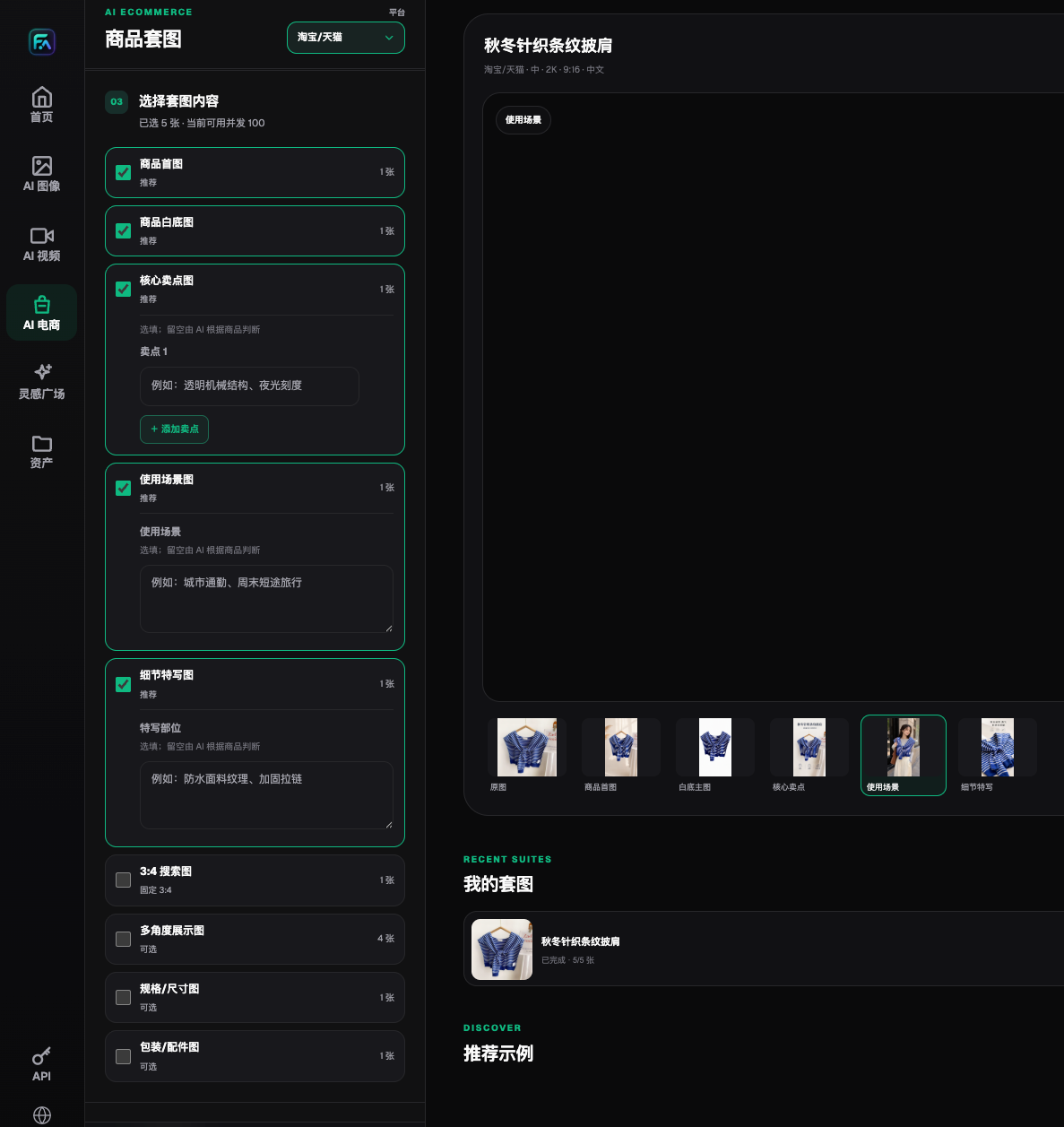
The screenshot shows the interface saved on 2026-08-22 and only indicates the set-image module entry at that time. The clothing image is not a gift box test in this article; the quantity, fees, and settings shown in the screenshot are not current entitlement proof and do not mean the system automatically generates a continuous unboxing sequence.
Five-Step Creation: Keep Adjacent Frames Side by Side
Step 1: Establish continuous IDs for source images. Keep the original unboxing order for the same physical item and assign IDs separately to outer box, inner tray, each item, and card. If two items look the same, use labels or shooting records to distinguish them, rather than relying on the final image as the only way to identify them.
Step 2: Write an object status table. Record each frame and each item as not visible, partially visible, still in slot, removed, or on desk, plus reference position. Add columns for “source photo” and “allowed changes in this frame”; only atmosphere, background, or non-informational whitespace may be adjusted, not sales content.
Step 3: Refine one real state at a time. Use a prompt example like this: “Use this unboxing photo as reference and refine the tabletop background, keeping lid orientation, inner tray hole positions, both canisters’ positions and visible ranges; do not add cards, tableware, or gifts.” This is a requirement for manual verification, not a line-by-line guaranteed checklist. If key photos are missing, shoot them first.
Step 4: Compare three frames side by side. Do not review only the current candidate; compare previous frame, current frame, and next frame together. Ask one by one: Where was it before? Why is it moved here now? How many remain for the next frame? Only after structural consistency is correct should you adjust lighting and local touch-ups. Re-check full-frame continuity after each retouch to prevent fixing one item while shifting neighboring positions.
Step 5: Release with captions and crop versions. Check wide-format images, mobile-crop versions, and customer-service forwarding images used in the main content separately. Cropping must not hide empty slots or cut off gift conditions. Final delivery should include source images, frame-by-frame status table, approved set images, captions, and sales versions, not just one final composite image.
Include items, conditional gifts, and props in the right frame
Regular included items can be written as “included with this product variant.” Conditional gifts should clearly state the confirmed applicable scope. Flowers, teaware, and similar items used only as scenery should be placed in the periphery; add “scene prop, not included with the box” nearby when needed. If a prop occupies a position inside the box and appears to be a box component, adjust the image first instead of fixing it only with fine print.
If lid orientation is reversed, return to the lid-opening original shot. If inner tray hole count changes, return to a photo clearly showing the tray. If items appear or disappear from nowhere, return to the two original shots before and after that item moves. If only one photo remains and cannot explain the sequence, you may publish a true flat inventory image, but do not fabricate a full unboxing sequence. If stock packaging changes or gift terms change, re-check affected frames instead of only changing the cover title.
Sources and extensions: The Flux Art product entry is https://flux-art.net . The OpenAI documentation verified on 2026-09-10 describes the general capability of image generation and editing, and also notes that text, layout, and cross-image consistency still require checking: https://developers.openai.com/api/docs/guides/image-generation . The Google documentation verified the same day explains image editing from input images and text: https://ai.google.dev/gemini-api/docs/image-generation . These capabilities are not equivalent to gift box structural verification. For single-image packaging inventory checks, continue reading: https://flux-art.net/blog/en/ecommerce/shang-pin-bao-zhuang-pei-jian-tu-zen-me-zuo-zhuang-xiang-qing-dan-shu-liang-yu.html . This article adds continuous static-frame checking and does not replace physical item counting.