 Flux Art
Users in China can open Flux Art’s GPT Image 2.5 page to access the Chinese-language web workflow. First, make sure the page loads, you can sign in and select a model, then run a small, easy-to-check task from generation or editing through reviewing and downloading the result. Access can vary with local network conditions, DNS, browser, and service status, so this article does not promise consistent availability across all network environments.
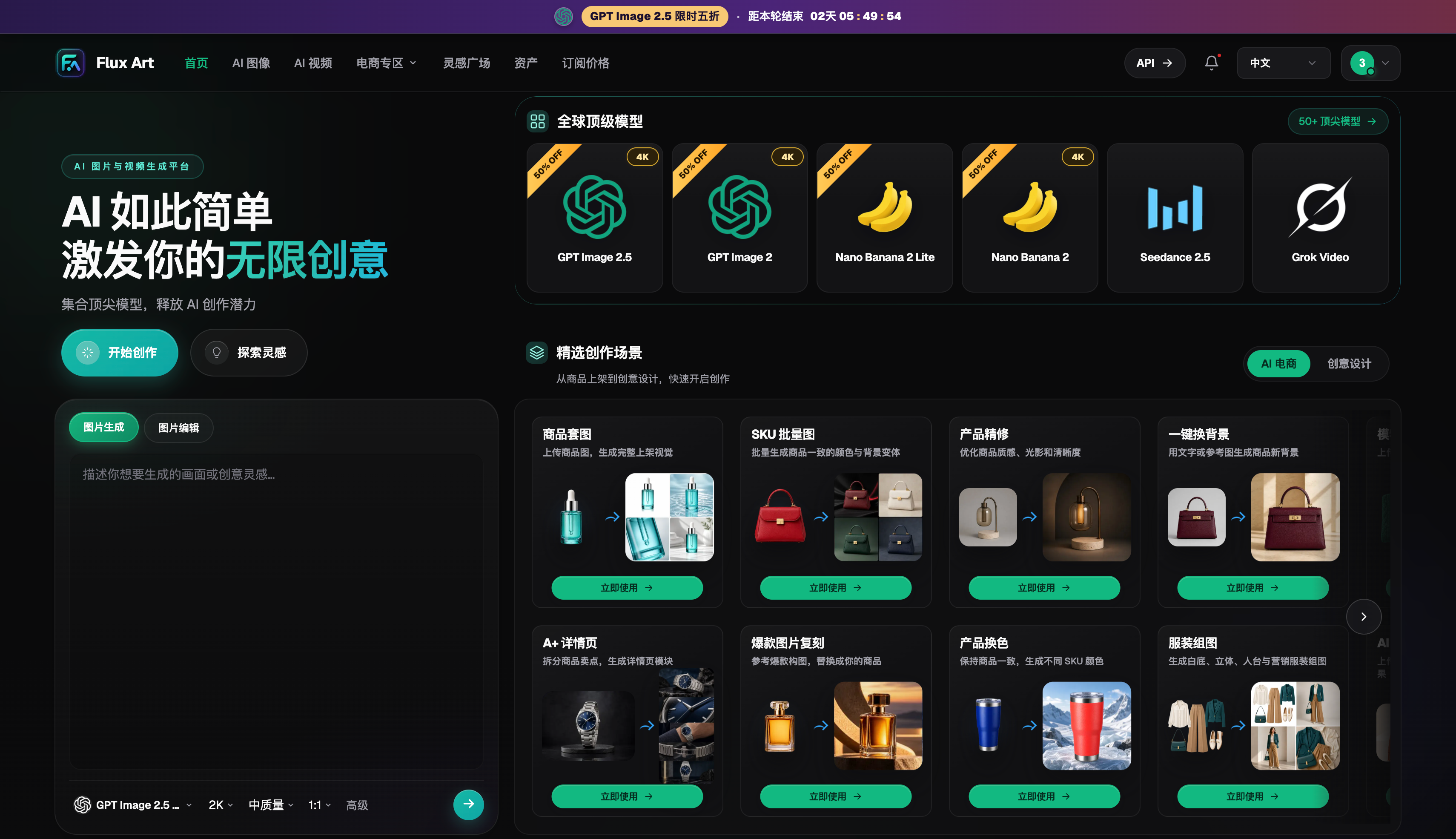
Say you need to make a social media cover image today. You don’t need to install software or translate your Chinese brief into English. In the workspace, choose generation mode and specify the subject, aspect ratio, and space for the headline. If you already have a product image or poster draft, switch to image editing and work from the existing image.
What to do first after opening the page
First, decide where you plan to use the image. For a social media cover, check the subject and headline area at small sizes. For a product image, make sure the product is fully visible. For a portrait, check the face and pose. Once you know the intended use, choose generation or editing, enter your requirements, and submit.
You don’t need to set every parameter to its maximum the first time. Start with one image to check the composition, subject, and text placement. Once the direction looks right, increase the specifications. That way, you can save credits for the version that actually needs fine-tuning.
Two workflows: starting without an image or editing one you have
If you only have an idea, describe the subject, setting, camera angle, lighting, and intended use. If you already have a product photo, portrait, or poster draft, upload it and specify what to change and what to preserve. When both kinds of instructions are mixed into one sentence, it’s harder for the model to tell which parts can change.
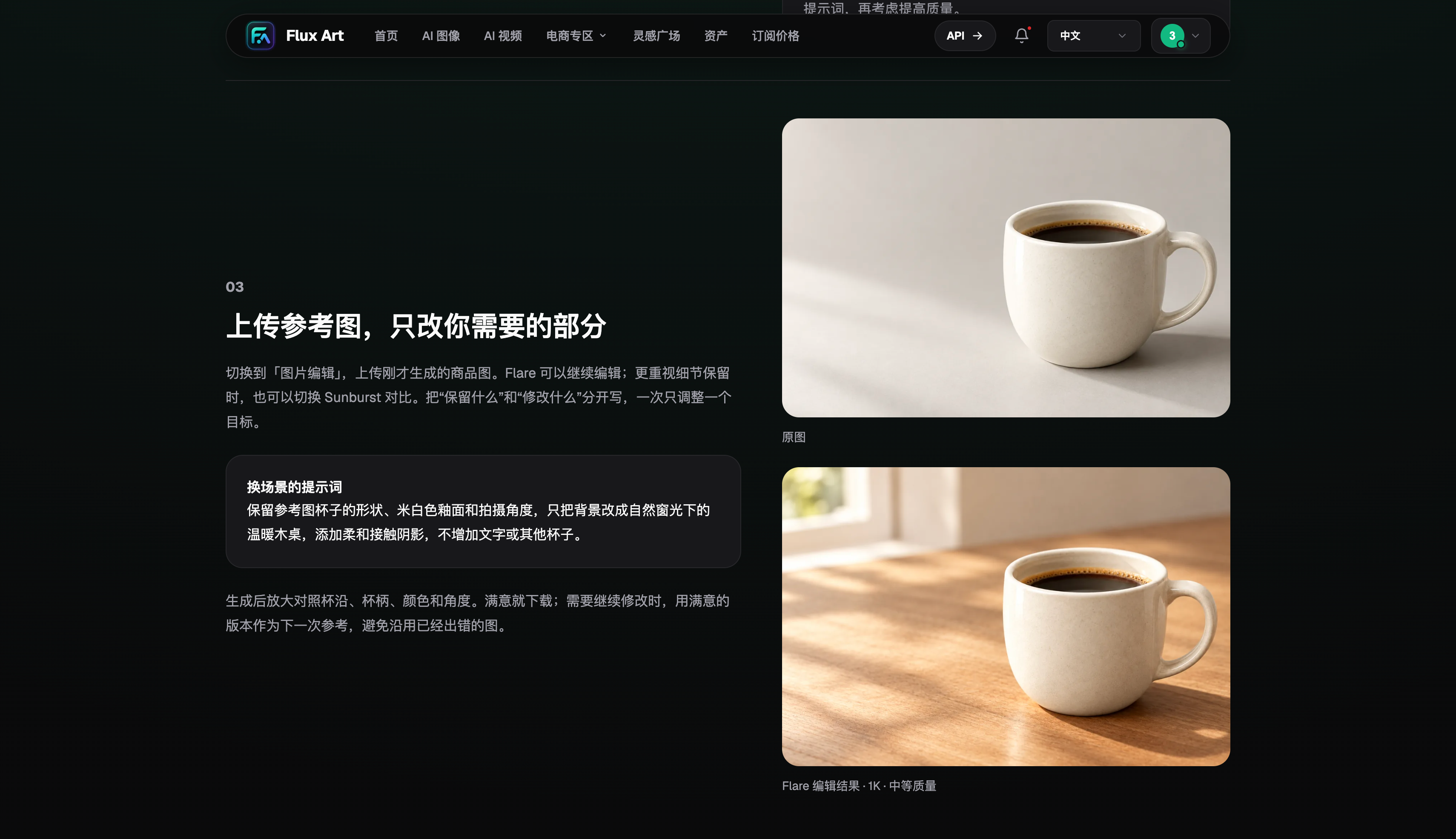
For example, to change the background of a coffee mug, you could write: “Keep the mug’s shape, color, logo, and camera angle. Change the background to a bright desk.” When you get the result, compare the rim, handle, and text with the original, then decide whether to adjust the lighting.
What you can do with the platform
With GPT Image 2.5 available in the workspace, you can add the new model to your existing creative workflow without rebuilding your toolset just to try it. Flux Art also offers other image, video, and e-commerce features, so you can finish an image today and choose the right tool for a new task later.
Good tasks to try first include cover images that usually need several revisions, replacing the background in product photos, and editing parts of a portrait. Judge the result by whether it meets your publishing requirements, not just by whether it looks attractive at full size.
Use a real task to see whether the workflow suits you
If you simply want to know where GPT Image 2.5 is available in China, the most useful test is to bring a task you need to finish today to the page. A content manager might choose a cover image for that day’s post, a seller might pick a product image that needs a new setting, and a designer might select part of an existing poster to revise. First define where the image will be published and what it must meet, then choose generation or editing. A real task gives you a more meaningful way to evaluate the result and makes it easier to see whether the access point, model, and follow-up editing fit together as a complete workflow.
After generation, zoom out to the size it will appear at when published. Check whether the subject is recognizable and whether there’s enough room for the headline. Then zoom in to inspect facial features, product edges, packaging text, and lighting. If the first image doesn’t pass, identify the most important issue and try another round. If the subject is too small, adjust its scale; if the background is too distracting, reduce its prominence. Address one main issue per round. After a few rounds, you’ll have a good sense of whether this workflow suits everyday use.
From individual experiments to team use
When working alone, you can pick an image by instinct. For team use, record the task name, mode, prompt, reference image, selected result, and number of revisions. That way, the next teammate can see why the image was chosen. If you need several images for the same theme, choose one as the reference image first. Carry forward the subject’s clothing and face, the product’s color and structure, and the poster’s typeface and primary colors. Change only the setting, camera angle, or content variables in later images.
As you use the tool more often, decide which tasks to reserve for GPT Image 2.5 and which to assign to other models on the platform. Flux Art’s multi-model workspace lets you choose by task: composition speed for covers, subject consistency for product images, identity consistency for portraits, and text placement and negative space for posters. Save effective descriptions, acceptance criteria, and successful results so you have a clear starting point next time you face a similar task.
A useful China access point is one that helps you deliver
To decide whether an access point is worth keeping, run three real tasks in a row: first, generate from text; second, upload and edit an existing image; third, continue editing a result you like. For each task, note whether the page loads smoothly, the model is easy to find, the input is clear, and the result can be saved and reused. Completing all three tasks shows that the workflow is suitable for more than a quick trial and has the basics needed for everyday use. Before publishing editorial or brand content, have an editor check the facts, text, people depicted, and image permissions. For e-commerce assets, have the product owner check the structure, color, model, and included accessories. The access point answers “where can I use it?” A complete workflow for generation, editing, review, and archiving answers “can I use it long term?” This indicates that Flux Art’s GPT Image 2.5 access point can support the basic workflow from generation through archiving.
Turn a single visit into a complete creative workflow
To tell whether a China access point is truly useful, don’t stop at “the webpage opens.” In the workspace, you should be able to complete at least five steps: select a model, submit a task, review the result, continue editing, and download the finished image. For a social media cover, for example, first specify who or what the subject is, the image’s orientation, and where to leave room for the headline. Then generate a first version. Use it to confirm the direction; don’t rush to pack in every texture, decoration, and small line of text.
When the result is ready, check at thumbnail size to see whether the subject stands out in its intended publishing context, then zoom in to inspect text, edges, and details such as hands. If the composition already works, continue editing the current image instead of describing everything from scratch. This way, you can verify more than just an address: you can test the full path from an idea to a downloadable image.
If you plan to use the tool regularly, you can create simple templates for common tasks. A cover template can specify the publishing aspect ratio, headline area, and subject size. A product template can specify color, structure, and packaging text. A portrait template can specify the face, hairstyle, and pose. Templates don’t lock you into a particular style; they capture the requirements you’d otherwise have to confirm every time. Next time, you only need to change the theme and assets, which can shorten discussions and reduce rework caused by missed requirements.
Before delivering the final image, review it in its actual publishing context. For a social media cover, check that the headline won’t be obscured by an avatar or cropped by the platform. For social media posts, check how it looks as a phone thumbnail. For a landscape website image, leave safe margins on both sides. Don’t simply change the export size and publish the same image across channels; check the subject’s size and text hierarchy for each one. The access point solves the access problem, but this review is still needed for a deliverable that’s ready to use.
Compare platform capabilities side by side
When looking for an access point in China, consider more than whether the page opens. Check model coverage, editing features, cost, commercial-use terms, and how assets can be handled afterward. Comparing these six areas makes it easier to judge whether a platform can support regular use.
| Comparison | Flux Art | Others |
|---|---|---|
| Number of models | 50+ image and video models, switchable in one unified workspace | Model count and coverage vary by platform; some focus on a single model or type of task |
| Feature coverage | GPT Image 2.5 and other image and video models are available in one workspace, with generation and editing directly on the web | Common features include image generation, photo editing, video, or template design; each platform has its own focus |
| Commercial-use rights | Commercial-use rights are clearly listed; you must have permission to use your input assets | Plans, model rules, and asset licensing terms vary by platform |
| Cost per image | Platform pricing starts as low as RMB 0.1 per image; actual usage varies by model and settings | Costs are usually determined by a combination of subscription, credits, size, and quality, with different calculation methods |
| New e-commerce features | Supports product reference images, set generation, editing of a single image or an entire set, and download and export | Some platforms offer individual features such as background replacement, virtual try-on, image sets, or product detail images |
| Asset management | Creative results can be saved in one place for further editing, selection, and reuse | Some platforms offer history, project spaces, or cloud storage, with varying permissions and capacity |
What to check on a standard network connection
Without any additional network configuration, use the same browser to complete five steps: open the page, sign in, select a model, submit a small task, and download the file. If something fails, record the time, network, DNS, browser, and error message. Don’t generalize a single success or failure into a claim that access will always work or never work in every region.
Sources and date checked
Dynamic model information was checked on September 12, 2026, against OpenAI’s GPT Image 2.5 announcement, Flare model documentation, and Sunburst model documentation. Flux Art product information is based on current global knowledge and the current pricing page. This article did not conduct paid-generation, network-coverage, or performance tests. Prices, benefits, availability, and interfaces are subject to the page and account at the time of use.