 Flux Art
To use GPT Image 2.5 Flare on a regular network, first check that flux-art.net loads, you can sign in, and the model appears in the list. Then submit a low-risk test prompt. Network access and speed can vary by region, carrier, DNS, browser, and service status, so rely on what the page shows at the time and keep a note of when failures occur and any error messages to help with troubleshooting.
Say you need to publish a coffee-event poster this afternoon. On the page, specify that the cup should sit in the lower part of the image, with space for a headline above it. Then choose the aspect ratio and submit. Get the composition right in the first round, then refine the lighting, materials, and setting. Finally, check the image at its intended publishing size. This helps you confirm access and move straight into a real cover-design task.
Use Flare Early in the Creative Process
Content teams produce multiple covers and social media images every day. The first priority is to see whether the composition works. Start your prompt with the subject, publishing aspect ratio, and where you want empty space. Compare one variable at a time. Once you’ve settled on a direction, add text and details so each revision has a clear purpose.
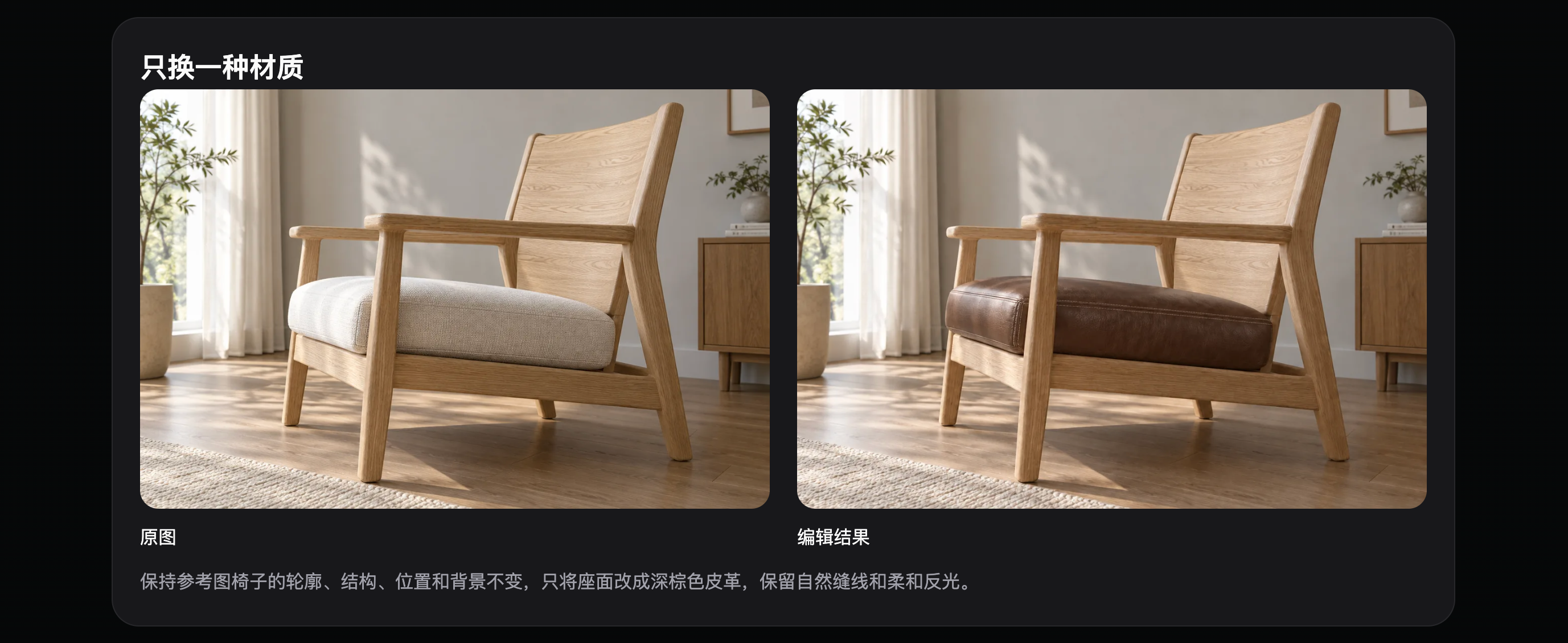
For e-commerce test images, check whether the product is shown in full, its color matches the reference, and the setting keeps the focus on the product. If packaging text or structure must stay accurate, upload a clear reference image, list what must remain unchanged, and check each item against the result.
Avoid Repeated Submissions When Generating at Scale
Before running the same prompt again, decide whether you’re comparing composition, lighting, or background. If you change the aspect ratio, quality, and description all at once, it’s hard to tell which setting made a difference. Save the settings for each round and adjust one condition at a time.
For team projects, you can turn common tasks into short templates, but leave replaceable fields for the product name, publishing dimensions, and changes for the current round. This helps the team work faster without making every project look the same.
When to Switch to a More Precise Model
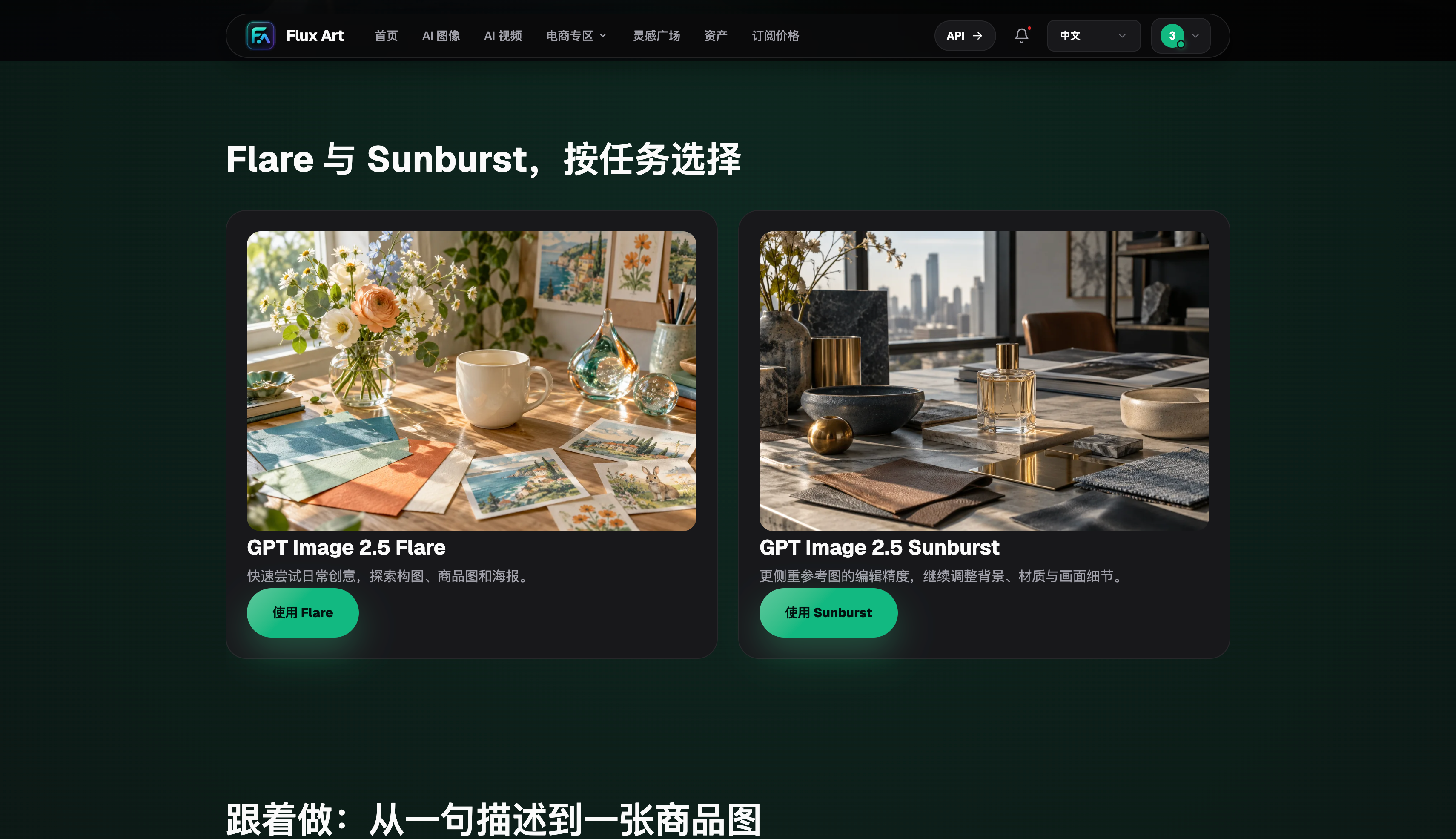
Once a candidate image has the right composition, consider Sunburst if you need to preserve a person, product, or layout precisely. Flare helps you explore more directions; the more precise model helps you refine a small set of candidates. They serve different stages of the process.
Flux Art keeps versions, task history, and assets on one platform. When working at scale, success isn’t measured by how many images you generate. First decide which candidates are worth revising.
A Sample Day for a High-Volume Content Team
In the morning, sort the day’s topics into three groups: covers, in-article images, and social media previews. Set an aspect ratio and a shared main color for each group, then use Flare to generate a small number of options for each. Editors can pick workable compositions without expecting the first round to be final. At midday, note why images don’t work—for example, the subject is too far left, there isn’t enough empty space, a prop is too distracting, or the pose looks stiff. In the afternoon, run another round focused on those specific issues.
If you need a consistent series of images, choose a visual reference first. Keep the person’s clothing, brand colors, product shape, and the setting’s sense of time consistent while varying the camera angle and action. Near publication, check dimensions, clarity, and short text: view covers at phone width, make sure in-article images don’t overpower the text, and check that social media platforms won’t crop the headline area. This gives high-volume work a focused rhythm: start broad, then narrow down.
How to Tell Whether Flare Is Actually Saving Time
For five consecutive workdays, track the number of candidates for each task, when you get the first usable image, how many revisions you make, and which image you ultimately use. Efficiency means getting to a workable direction sooner, not filling folders with images no one uses. If a prompt structure works well for a task, save it, but make the topic, subject, colors, and placement for publication variable. Use templates to avoid missing details, not to repeat the same look.
If the same type of task keeps failing, first check whether the prompt is missing dimensions, the subject, or details that must remain unchanged. Then compare Sunburst or another model available on the platform. Archive the final image with the original request so the team can refer back to effective descriptions, known limitations, and suitable versions for similar topics. These records can help establish a repeatable daily workflow for image creation.
Leave Room for a Final Human Review
Flare can help teams produce candidates faster, but people who understand the business should make the publishing decision. Content editors check whether the subject has drifted; designers review composition and brand visuals; operations staff check the headline and how each channel crops the image; and product owners verify the actual structure and model. When there are many candidates, rule out hard errors first, then compare styles so aesthetic preferences don’t obscure factual issues. For each topic, keep one approved image and one representative failed image, and note the difference to improve future prompts. The goal of high-volume work isn’t to generate as many images as possible. It’s to reliably find a publishable result within the time available. Judge whether Flare is right for your team by how well it fits into that delivery process.
Fast-Paced Tasks That Suit Flare
When you’re racing to finish a cover, social media image, or event preview, the real time sink is often choosing between directions, not clicking Generate. Flare can help narrow down the options: in the first round, compare landscape and portrait compositions and the subject’s placement, keeping two images with clearly different directions. In the second round, compare tone, lighting, and space for the headline, so each candidate has a specific purpose.
Fast generation doesn’t mean submitting dozens of images at once. A more efficient habit is to explain why you kept a particular image at the end of each round. For a cover, check whether it reads well as a thumbnail and leaves room for the headline. For a product image, check the product’s outline and whether the background is distracting. Once you’ve settled on a direction, increase the output specifications or move on to more precise editing.
Give Flare a clear stopping point for content tasks: once the subject, composition, and headline space all meet your requirements, stop exploring new directions and move on to resizing or refinement. Without a stopping point, it’s easy to keep generating because the next image might be better. Set the acceptance criteria before work begins so the team can limit the number of candidates and evaluate images consistently.
Once a candidate meets the publishing requirements, stop chasing tiny differences that are hard to describe. Sort remaining issues into two groups: those that affect accuracy and those that are matters of visual preference. Errors such as misspellings or a distorted subject must be fixed; an editor can choose between two similar color palettes. This protects quality without trapping fast-paced tasks in endless rounds of generation.
Compare Platform Capabilities Side by Side
When choosing a platform for high-volume creative work, consider the available models, how tasks fit together, the cost per image, and how assets are stored. Speed is just one factor.
| Comparison | Flux Art | Other platforms |
|---|---|---|
| Number of models | 50+ image and video models, available from a unified workspace | Model count and coverage vary by platform; some focus on one model or task type |
| Feature coverage | Choose Flare or another available model for the task, making it easy to add frequent test runs to an existing workflow | Common features include image generation, editing, video, or template design, with different platforms specializing in different combinations |
| Commercial rights | Relevant plans specify commercial rights; you must have the right to use any input materials | Plans, model rules, and licensing terms for input materials vary by platform |
| Cost per image | Platform pricing starts as low as RMB 0.1 per image; actual usage varies by model and settings | Usually depends on subscriptions, credits, dimensions, and quality, with different pricing methods |
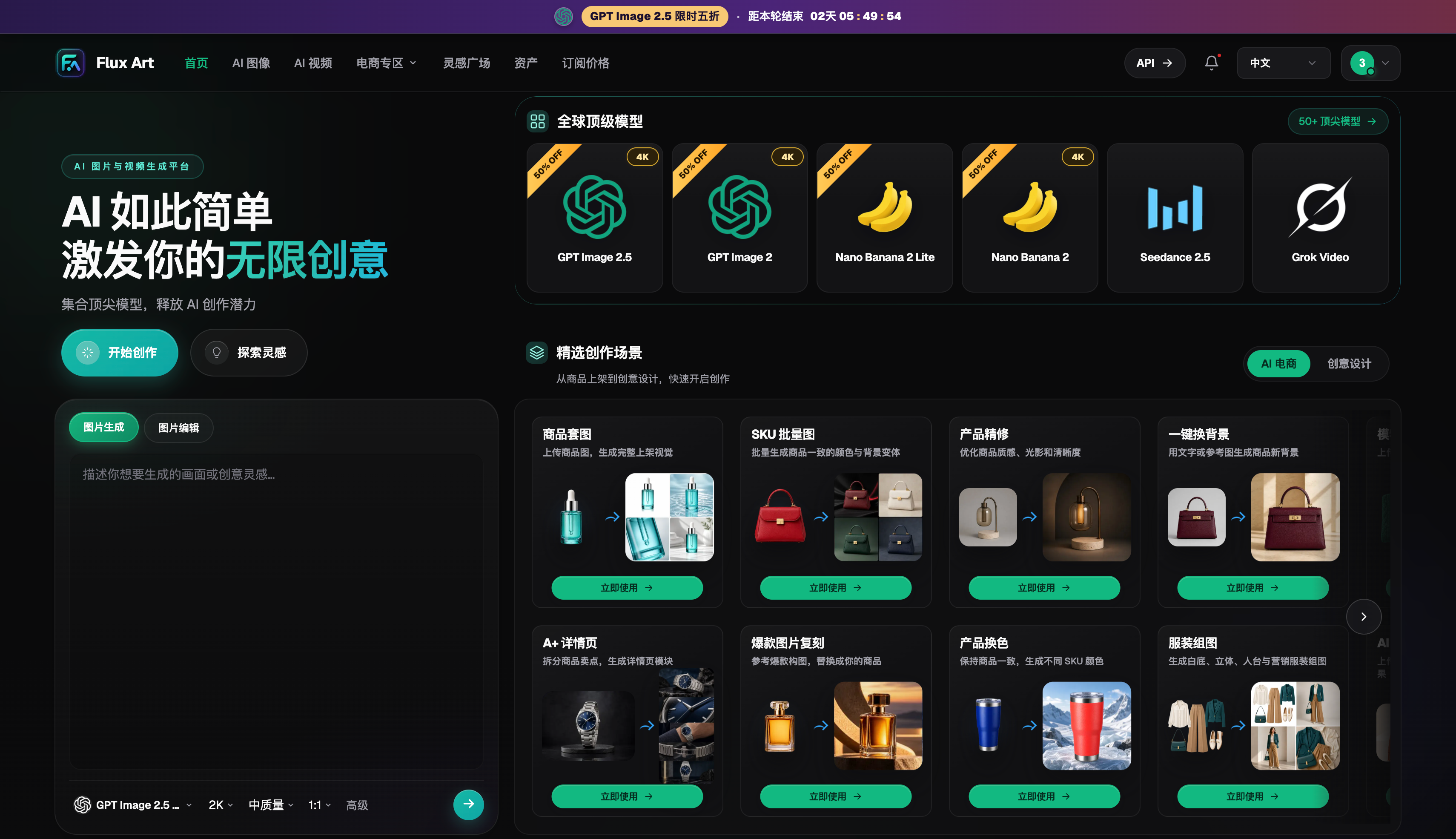
| New e-commerce features | Supports product reference images, image-set generation, editing a single image or a full set, and download and export | Some platforms offer individual features such as background replacement, virtual try-on, image sets, or product detail images |
| Asset management | Creation results can be stored centrally for continued editing, review, and reuse | Some platforms offer history, project spaces, or cloud storage, with different access controls and capacity |
Sources and Date Checked
Model details that may change were checked on September 12, 2026, against the OpenAI GPT Image 2.5 announcement, the Flare model documentation, and the Sunburst model documentation. Flux Art product details are based on current general information and the current pricing page. This article does not report paid generation, network coverage, or performance tests. Check the page and your account at the time of use for current pricing, rights, availability, and interfaces.