 Flux Art
Use GPT Image 2.5 in Flux Art to fix Chinese poster typos: first compare the approved copy and image text character by character, then decide whether to use local editing or re-typesetting. The delivery goal is not "this version looks correct," but that the final exported poster, approved copy, and proof record correspond to the same version.
Flux Art is a multi-model AI visual creation and production platform. The models can be used for image generation and editing, but copy fact-checking, proof logs, and final lock are still done by your team, not automatic platform approval. This article handles text corrections on existing posters; it does not redesign the entire poster, and it does not treat one generation result as a text accuracy test.
1. First classify text mistakes instead of sending everything to redraw
After receiving the poster to edit, request the approved copy first. Do not change the date to another day just because it looks unreasonable in the image, and do not infer phone numbers, prices, or registration requirements from similar events. Text without confirmed evidence should be marked as pending verification, and that area cannot enter the formal release file.
Split issues into four types: content itself is wrong, glyph defects, hard-to-read characters, and poor placement. Their correction paths are different. A correct but small date is not a typo; a clear but incorrect date cannot be fixed by only improving clarity.
| Observed issue | Judgment basis | What to do first | What cannot replace acceptance checks |
|---|---|---|---|
| Character, number, or punctuation differs from approved copy | Compare each character with the source text and image | Record exact position and correct content | Treating similar sentence meaning as sufficient |
| Content is correct but strokes are merged or missing | Compare enlarged image with normal glyphs | Fix glyphs, or use an external editable text layer | Trusting model claims of completion |
| Glyphs are correct but the thumbnail is unreadable | Preview in the actual publishing placement | Adjust font size, contrast, or information hierarchy | Relying only on zoomed editor view |
| Copy is not yet approved | Event or product details are not confirmed | Pause output for that area and ask owner to confirm | Letting the model fill missing information |
For example, the approved title is "Brand Experience Day," but the image shows "Brand Exam Day": "Experience" has been replaced with "Exam." The correction log should say, "Locate this word in the title, change 'Exam' to 'Experience,' then check the entire sentence character by character," rather than just "the title is wrong." This is a fictional exercise illustrating how to record a correction, not a model test performed for this article.
2. Build a character-level diff list, then choose image edit or re-typesetting
Each row in the diff list should contain one verifiable issue. Mixed Chinese-English layout, case, full-width/half-width characters, spaces, and date separators are also items to verify. A correct event name does not mean the restrictions below are also correct; if the same sentence appears in both headline and corner note, each instance must be checked separately.
| Field | Example or input method | Purpose during handoff |
|---|---|---|
| File and area | Filename to be edited, title area, or bottom date column | Avoid editing a different version |
| Approved text | Copy verbatim from confirmation document | Preserve the single comparison reference |
| Text in image | Record what is seen as-is, do not correct it first | Let next reviewer see the actual mismatch |
| Difference position | Which character, missing character, punctuation, or line-break issue | Convert a vague "feels wrong" into a concrete task |
| Fix method | Local image edit or external typesetting | Prevent random repeated regenerations |
| Acceptance and files | Reviewer, review time, final filename | Prove which output image was checked |
If a short headline is tightly integrated with the visual and there are no complex brand marks nearby, local image edits can be attempted. Long clauses, continuous numbers, contact details, and text that needs frequent revisions are better handled in a layout tool with editable text layers. This text layer refers to your external design flow, not a menu option inside Flux Art features.
If the original poster is a single flattened image, do not assume its text is still an editable layer. First assess whether the incorrect text can be removed without changing important background areas, then typeset it again in an external tool. If removal damages the product, textures, or a person's outline, return to the original assets and rebuild the composition; do not let "the text is finally correct" conceal damage elsewhere in the image.
3. Complete a deliverable correction in five steps
Step 1: Save the original image to be edited and its approved copy, then duplicate it as the current working file. Use filenames to separate in-progress, candidate, and approved final versions; never overwrite the sole source file. Only modify the items clearly listed in the diff list, and do not change style or overall composition at the same time.
Step 2: Submit the actual image through an available image-editing interface and include the complete, correct copy in your instruction. Example: "Only correct the wrong word in the title, changing 'Brand Exam Day' to 'Brand Experience Day.' The title position, other correctly rendered text, background, and subject are not edit targets; do not add a new slogan." This is an example task, not a guarantee that every pixel in other areas will remain unchanged.
Step 3: Perform a double check on the new result. First verify target text against the diff list, then compare all originally correct content against the original image, including small print, logos, corner dates, and the subject. Local edits can still affect non-target areas, so do not focus only on the one fixed character.
Step 4: If stable correction is not possible, switch methods. If consecutive candidates show stroke errors, replacement of other text, or background damage, keep the issue record and move to external typesetting or return to original design assets. Do not keep adding "a little more accurate," and do not ignore newly introduced date errors just because one version fixes the title.
Step 5: Recheck the actual exported file prepared for publication. After compression, cropping, or re-exporting, check whether text is blurred, extends beyond the edges, or is covered. Hand over the final file together with the approved copy and completed correction log. Freezing the final version means the team stops editing that approved deliverable; if the copy changes, create a new version and review it again.
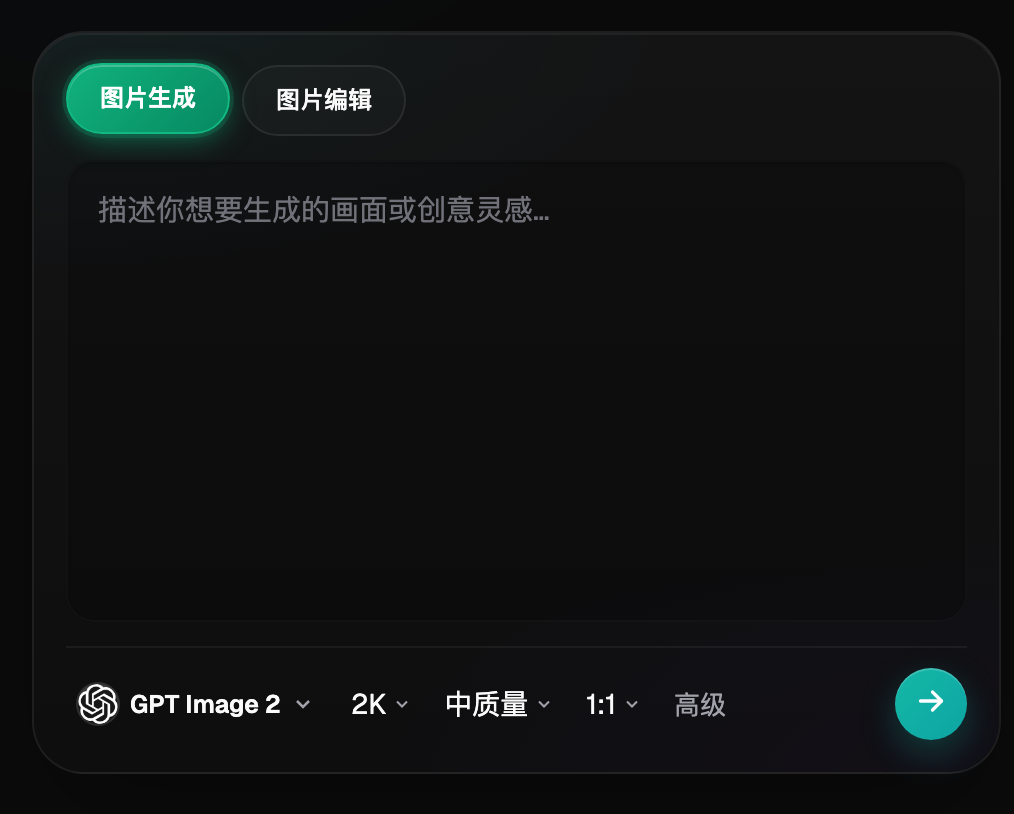
The image above only helps distinguish image generation from image editing entry points. The selectable models, settings, and workflows in practice should follow the interface at time of use; the screenshot does not prove the typo correction results described here.
4. What to keep at handoff, and what to do if errors are found after release
The minimum handoff package includes approved copy, original image, final release image, and completed diff list. The team can set a read-only copy of the final version in its own file management tool; do not imply that the model or image platform handles approval and version permission management for you.
If an error is found after release, identify which channels used which file version and replace only the corresponding images. Correcting only the local final file does not mean pages, campaign assets, or attachments already sent in groups are all updated. For files that cannot be recalled, send corrected versions according to channel capability to avoid further circulation of problematic versions; this article does not promise third-party channels support recall.
This article provides limited notes on generation and editing capability based on OpenAI's release brief dated September 8, 2026. The first-party brief mentions better instruction following and detail retention for edits, but this does not mean every Chinese character will be correct. Verification date: September 10, 2026. Source: https://openai.com/index/introducing-chatgpt-images-2-5/
Flux Art GPT Image 2.5 model page: https://flux-art.net/en/models/gpt-image-2-5
If you do not yet have an approved base cover, read how to make a first clearly purposed image before this article's text correction and final proofreading: https://flux-art.net/blog/en/guides/gpt-image-2-5-di-yi-zhang-tu-zen-me-zuo-cong-yong-tu-ming-que-de-feng-mian-dao.html