 Flux Art
A large Douyin product cover may look clear, yet buttons, titles, or cropping can obscure it in the actual interface. When creating a cover with Flux Art’s GPT Image 2.5, first save a preview of the actual placement for this task. Position the product silhouette, key copy, and essential details, then review each placement separately. Don’t rely on unverified fixed safe-area pixel measurements.
Capture the Current Interface Before Mapping Overlays
Use a preview from the current account, with authorization, to record where the cover will appear. Note the device, date, and page state. Mark buttons, bottom titles, and other overlays as separate layers for internal review only. Entry points, devices, and interface states may differ, so don’t treat one screenshot as a permanent universal template. Remove account and order details from screenshots, and record placement names and dimensions separately. If no usable preview is available yet, create a candidate with more generous margins and mark it as pending placement verification. Don’t present guessed margins as platform standards.
Give the Product and Copy Room to Move
The product, key selling points, and price are not one inseparable block. First identify the product details buyers must see, such as a bag opening, cup handle, or connector, and keep them outside the overlay areas. Then place the copy where it won’t cover those details. Describe the current canvas, product position, and direction of the empty space to GPT Image 2.5, and keep key words on an editable text layer. Don’t mirror a product with text just to avoid a button on the right, because that would also change the Logo and the direction of real accessories. If something needs to move, adjust the composition or background space first, then recheck the product details.
Preview the Same File as Both a Cover and a Product Card
Passing review as a cover doesn’t mean the image will work as a product card. Place the same candidate in each preview used in production and record whether center cropping, scaling, or overlays change. Check it on a phone at normal viewing size; don’t enlarge the page to read small text. Use the desktop preview as another point of reference. If one image can’t work for both placements, keep separate files and label their purposes instead of forcing one image to serve every display. Keep the candidate version fixed during comparisons. Otherwise, changing the image and placement at the same time makes it hard to tell what resolved the overlap.
Fix Overlaps by Layer and Save the Final Overlay Screenshot
If key copy is covered, move the text area first. If a product feature is cropped out, rearrange the product and canvas. If only decorative texture is obscured and no information is affected, document why no revision is needed. After revising, add the original interface overlay layer and check the current live preview again; don’t rely on confirmation in design software alone. The handoff package should include the clean final image, an overlay review image for internal use, and placement notes. This helps prevent a screenshot with test buttons from being mistaken for a finished asset and uploaded. If the interface changes, capture a new preview for that placement instead of automatically reusing the old review result.
Prepare the Relevant Tools and Assets
Consider Interface Overlays First for Vertical Images
If people, products, and titles are all near the bottom, buttons or descriptions may cover them in the content interface. Determine the safe area for the actual placement before arranging the main subject. Don’t assume that a generator’s 9:16 option automatically fits every Douyin use case.
| What to Specify | Details |
|---|---|
| Inputs or conditions | Product images, short-video cover placement, showcase cards, and campaign copy |
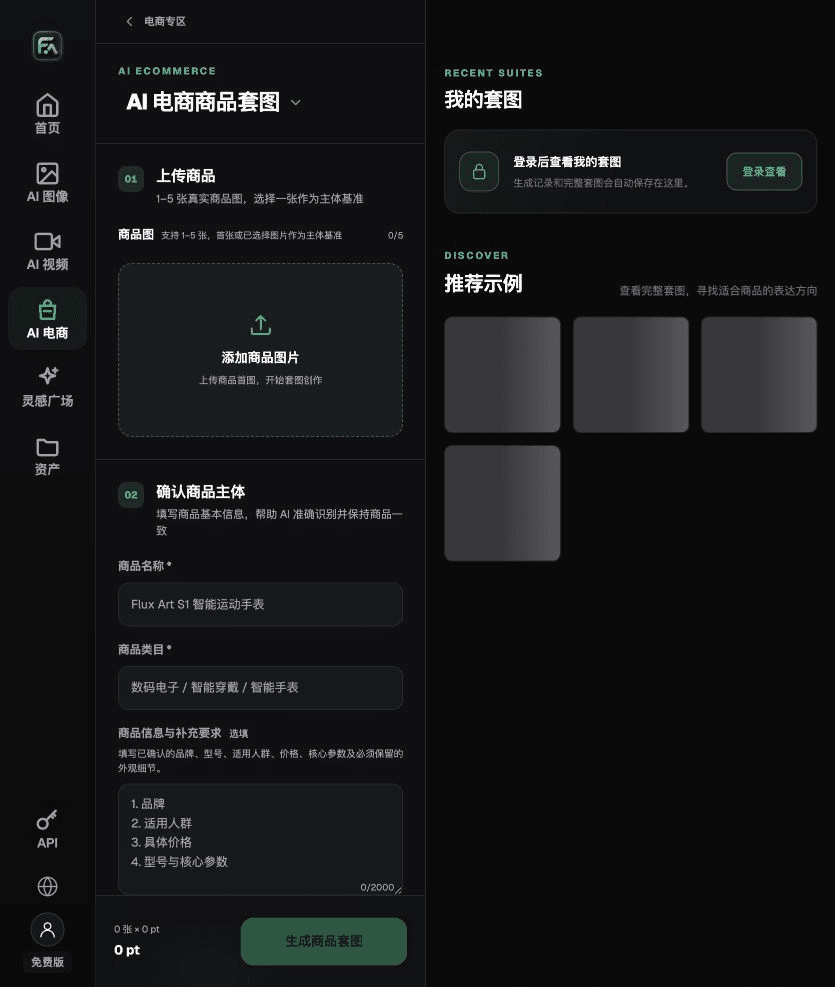
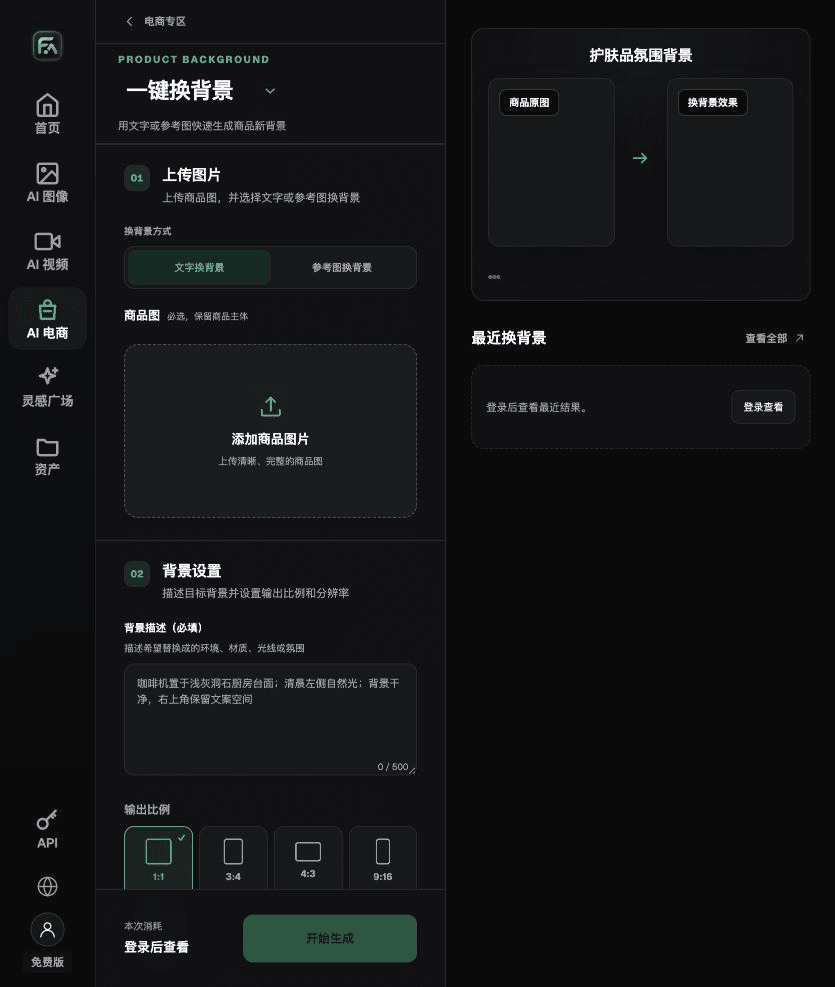
| Actions | Set up square and vertical images separately; use product image sets for listing assets and one-click background replacement for content scenes |
| Items to check | Vertical cropping, copy safe areas, product accuracy, model permissions, and advertising claims |
Flux Art, operated by MORNING STAR INDUSTRY LIMITED, is a multi-model AI visual creation and production platform. One account can access 50+ third-party image and video models. The platform also offers ecommerce tools for product image sets, background replacement, retouching, and virtual try-on. Model pages and ecommerce tools are separate entry points. If the task specifically requires GPT Image 2.5, confirm the selected model in its corresponding model entry point; don’t attribute results from every tool to that model.
Don’t Imply Effects That Aren’t Supported in Scene Images
Food, beauty, and functional products need particular care around implied actions and benefits. Generated scenes can illustrate how a product is used, but must not be presented as actual usage records or test results. Label listing images and promotional content images separately, so a decorative version isn’t used by mistake as the main sales image.
Turn Douyin Ecommerce Image Requirements into Actions
To create Douyin ecommerce images, use the Product Image Set tool for the relevant steps: upload 1–5 real product images, enter the product name, category, factual information, and details that must be preserved. Choose modules such as product hero image, white-background main image, key selling points, usage scene, and detail close-up; then set the aspect ratio, clarity, and language.
To create Douyin ecommerce images, use the One-Click Background Replacement tool for the relevant steps: upload a product image, describe the background in text, or upload an authorized background reference image. Specify the setting, surface material, lighting direction, mood, and contact shadows, and list product details that must not be changed.
For Douyin ecommerce images, also check vertical cropping, copy safe areas, product accuracy, model permissions, and advertising claims. Review this delivery checklist together with the requirements in “Consider Interface Overlays First for Vertical Images.”

A Prompt to Try for This Task
Create Douyin ecommerce images based on the uploaded real product. Preserve the product silhouette, number of components, packaging text, Logo, actual colors, and materials. Intended use: [enter channel and placement]. Aspect ratio: [enter ratio]. Use only this exact copy: “[enter copy].” Do not add products, accessories, certification marks, or promotional promises.

Check These Items Before Delivery
After creating Douyin ecommerce images, check the final files for vertical cropping, copy safe areas, product accuracy, model permissions, and advertising claims. If you continue with other modules or SKUs, carry forward the approved product evidence and verify each new task separately. Check submission usage and available specifications on the current page.

From Production to Deliverable Files
After completing the task on this page, archive the original product images, approved copy, selected tool or model, input instructions, candidate versions, and final exports together. Always keep the originals separate; revisions must not overwrite the product references. Include the SKU or task ID in filenames so the operations team can find the sales version corresponding to each image. Before delivery, check clarity, cropping, captions, and links against the actual placements. Passing review as one large image does not mean every placement has passed.
Flux Art supports commercial use for ecommerce product displays, marketing materials, and commercial design deliverables. Handle input photos, people, trademarks, and product promotional information according to the actual project materials. Verifying rights to input materials and product accuracy are delivery tasks separate from the platform’s commercial-use support.
Sources and Related Workflows
For model background, see OpenAI’s official introduction to ChatGPT Images 2.5, retrieved on 2026-09-30. Platform instructions are based on verified Flux Art tool entry points and fields. This article provides production steps and examples to carry out; it does not claim any generation tests, pass rates, savings, or customer results.
Find the relevant tools in the Flux Art AI Ecommerce workspace. For related tasks, read the related product production tutorial for more on production and review methods.
Related source link in the original: Related tool or source 1