 Flux Art
When planning a lipstick shade guide with GPT Image 2.5 in Flux Art, first fix the relationship between each tube, approved swatch, and sales number, then create a consistent layout. This article addresses mix-ups and missing labels across multi-shade cards. It does not use generated colors as a substitute for real swatches or present skin illustrations as completed makeup tests.
Set the layout order from the shade list
For each shade currently on sale, prepare its number, name, actual tube photo, and approved swatch. Mark discontinued or temporarily unavailable items. Let the sales operations list determine the order; do not let the model rearrange shades based on how similar their depth appears. Do not invent swatches for missing shades. Keep items without photos on an internal follow-up list instead of copying a nearby color.
Separate color references from background decoration
Keep the original approved swatches, captured using a consistent photography and color-correction process. Use generative editing mainly for composition, negative space, and background options. Preserve the original assets in color-critical areas and composite them manually when needed. Screen displays can vary, so do not promise identical color across all devices. Captions can explain how the swatches were photographed and color-corrected.
Approve one card before building the full catalog
Fix the position of four elements on every card: the tube, swatch, shade number, and name. Record the layout grid. Check the text size and whether anything is obscured on one card first, then replace each item with its real assets. This avoids asking the model to recreate a whole row of lipsticks at once. If you use a bulk SKU tool to organize candidates, label each with both the shade number and name. After downloading, match each one to its row in the catalog.
Check the deliverables against the list in both directions
First, work from the list to each image and confirm that none are missing. Then work from each image back to its SKU and confirm that no unknown shades have been added. Track duplicate numbers, repeated swatches, and tube-label mismatches as separate errors. Deliver both the full catalog image and individual shade cards. When adding shades later, update only the relevant entries and recheck the catalog order.
Prepare the relevant tools and assets
Shade accuracy matters more than a consistent background
Lipstick, blush, and foundation can show noticeable color shifts under warm lighting. Provide approved swatches and consistent lighting, then check the product, shade label, and SKU. A shade that looks more brightening on screen is no reason to lighten the actual color before publishing.
| What to clarify for this task | Details |
|---|---|
| Inputs or conditions | Real product photos and container shape, cap, brand lettering, shade number, net contents, and material reflections |
| Relevant actions | White background, ingredients and selling points, texture and usage scenes, details, and promotional images |
| Must-check items | Packaging text errors, incorrect shade numbers, liquid color shifts, and excessive highlights |
Visuals cannot prove product benefits
Skin-tone comparisons, skin smoothing, and fabricated before-and-after images can give buyers false expectations. You can create product displays and illustrative usage scenes, but claims about benefits, wear time, and suitable users need supporting evidence. Check every ingredient, capacity, and warning on the packaging word for word.
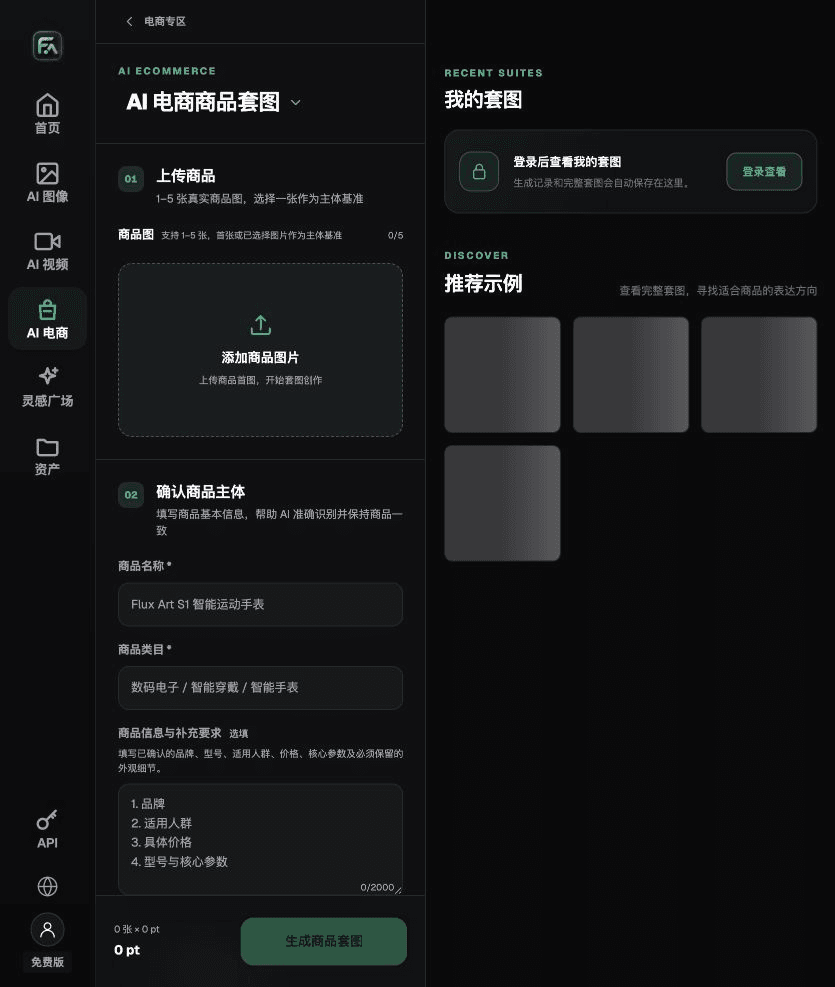
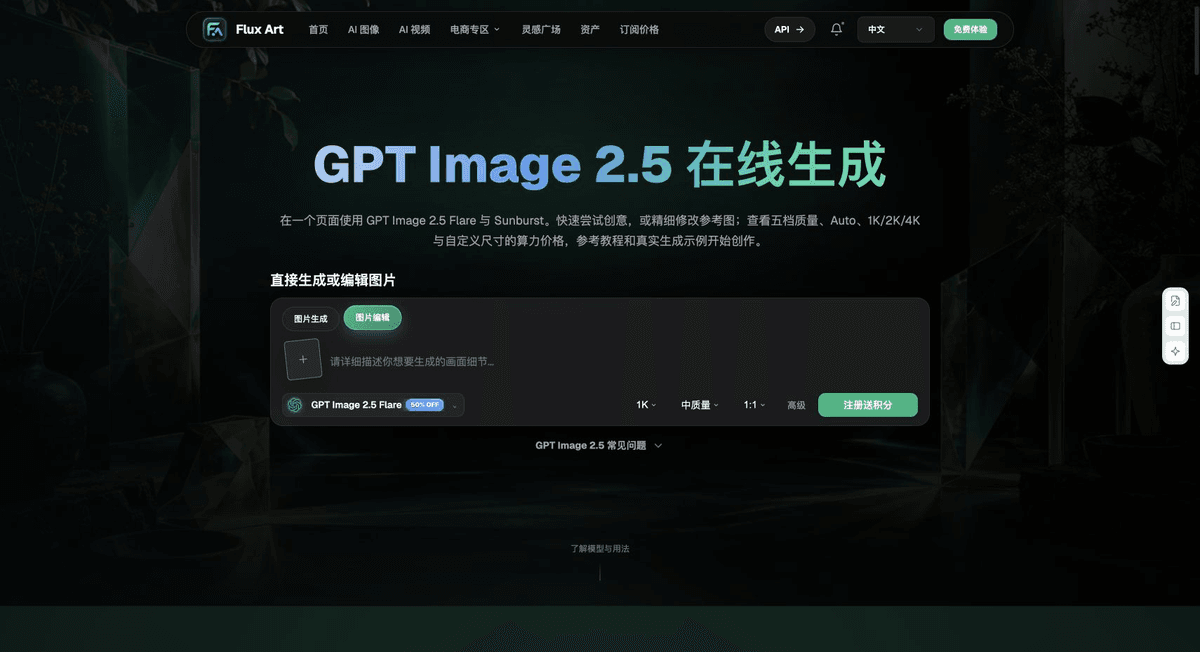
Flux Art is operated by MORNING STAR INDUSTRY LIMITED. It is a multi-model AI visual creation and production platform where one account can access 50+ third-party image and video models. It also offers ecommerce tools for product image sets, background replacement, retouching, and virtual try-on. Model pages and ecommerce tools are separate workflows: if a task specifically requires GPT Image 2.5, confirm the selected model in its model page. Do not attribute every tool result to that model.
Turn beauty product image work into a practical workflow
For beauty product images, complete the relevant steps in Product Suite: upload 1–5 real product photos, enter the product name, category, factual information, and details that must be preserved; choose modules such as product hero image, white-background main image, key selling points, usage scenes, and detail close-ups; then set the aspect ratio, resolution, and language.
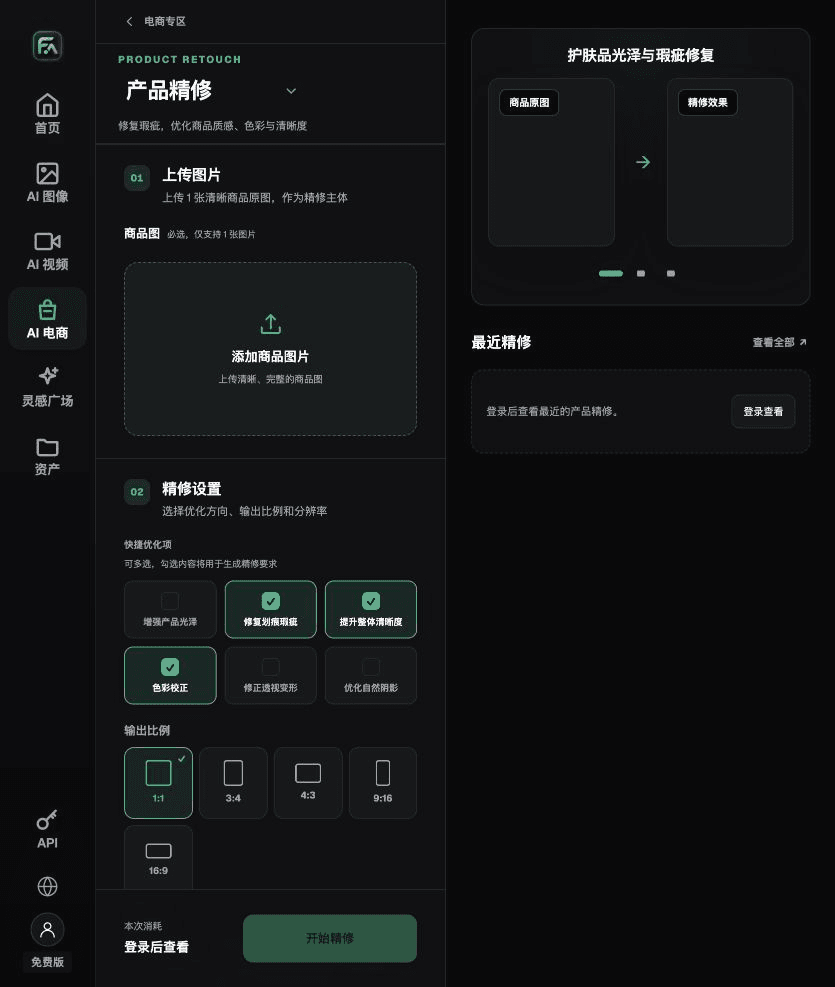
For beauty product images, complete the relevant steps in Product Retouch: upload one product photo with a clear subject and no severe obstruction. Choose only the adjustments needed, such as gloss, scratches or blemishes, sharpness, color correction, perspective distortion, and natural shadows. You do not need to turn on every option.
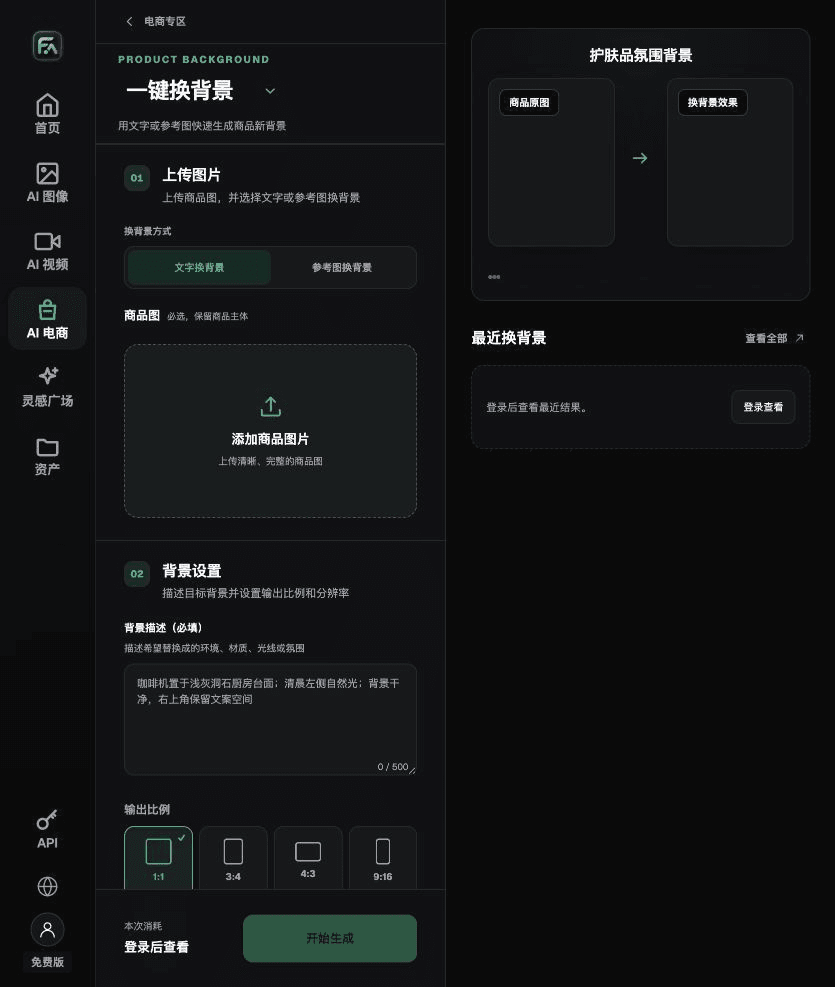
For beauty product images, complete the relevant steps in One-Click Background Replacement: upload a product photo, describe the background in text, or upload a background reference image that you have permission to use. Specify the setting, surface material, light direction, mood, and contact shadows, and list the product details that must not be changed.
For beauty product images, also check for packaging text errors, incorrect shade numbers, liquid color shifts, and excessive highlights. Review these deliverables against the requirements above under “Shade accuracy matters more than a consistent background.”
A starting prompt for this task
Create an ecommerce image for a beauty product. Use the uploaded real product photo as the subject. Preserve the container shape, cap, brand lettering, shade number, net contents, and material reflections. For this task, generate only one product display image that matches this article’s status list and the real reference provided. Target audience [fill in], placement [fill in], lighting [fill in]. Do not invent specifications, accessories, certifications, benefits, or structural details.
Review these items before delivery
After creating the beauty product image, check the final file for packaging text errors, incorrect shade numbers, liquid color shifts, and excessive highlights. If you continue with other modules or SKUs, use the approved subject references and validate each new task separately. Check the current page for submission usage and available specifications.
From production to deliverable files
After completing this task, archive the original product photos, approved text, selected tool or model, input instructions, candidate versions, and final exports together. Always keep the originals separately; revisions should not overwrite the product references. Include the style number or task number in filenames so the operations team can find the sales version corresponding to each image. Before delivery, check resolution, crop, captions, and links for each actual placement. Approval of one large image does not mean it is approved for every placement.
Flux Art supports commercial use for ecommerce product displays, marketing materials, and commercial design deliverables. Handle input photos, people, trademarks, and product claims according to the materials for each project. Verifying input asset rights and product accuracy is a separate delivery responsibility from confirming that the platform supports commercial use.
Sources and related workflows
For model background, see OpenAI’s official introduction to ChatGPT Images 2.5, checked on 2026-09-25. The platform instructions are based on verified Flux Art tool pages and fields. This article provides production steps and examples to carry out; it does not claim generation tests, pass rates, savings, or customer results.
Find the relevant tools in the Flux Art AI Ecommerce Workspace. For related tasks, read the product creation tutorial to learn more about production and review methods.
Related link from the original draft: related tool or source 1