 Flux Art
Use GPT Image 2.5 in Flux Art to prepare snack bundle images. First list each flavor and its actual bag count, then create separate images of the full box, the items laid out, and the flavor details. The deliverable is a bundle visual checklist with clear packaging units; serving portions or decorative ingredients should not stand in for the actual quantity shipped.
Set Consistent Units for Bags, Boxes, and Cases
Record the flavor, net weight per bag, bag count, number of inner boxes, and total sales units on each checklist line. Do not use the same number label for six bags and six boxes. For assorted-flavor bundles, follow the approved randomization rules and description; an image showing six fixed flavors must not imply that customers are guaranteed to receive them. For fixed assortments, photograph each package clearly.
Give the Full-Box and Lay-Out Images Separate Roles
The full-box image shows the outer packaging; the lay-out image shows and counts each item. First confirm spatial relationships using a photo of the actual packed box, then arrange the background, lighting, and negative space without adding products to fill the frame. Bags hidden by the outer box can be shown in a separate lay-out image. Do not count a bag inside the box and the same bag taken out as two items in one image.
Check Flavor Labels Against Their Packages
When packages for several flavors from the same brand look similar, match the Chinese or English names or color bands against the approved list. Proofread each line of text. If small print on the original is unclear, provide a high-resolution package reference; do not guess the flavor from the package color. Images showing unpackaged food should match the product as sold. Avoid giving the impression that extra fruit, nuts, or utensils are included when they are only props.
Verify Both the Total and Each Flavor Count
Count the bags for each flavor, add the subtotals, and compare the result with the full-box label. Use filenames that link each image to the bundle SKU and checklist version. If a flavor changes, update its package image, label, and overview together. Deliver a countable lay-out image, a full-box image, and a written list, so the operations team does not have to guess bundle contents from a marketing arrangement.
Relevant Tools and Preparing Assets
Separate Packaged Food from Serving Scenes
Packaging images show what is for sale; serving images show a consumption context. Turning one bag of snacks into a large platter may misrepresent the quantity. Provide the actual quantity or explain that the image is illustrative, and verify package text, net weight, allergens, and other required information.
| What This Task Must Clarify | Specific Details |
|---|---|
| Inputs or conditions | Actual product photos and packaging, net weight, ingredients, flavors, actual portions, and food form |
| Relevant actions | White background, selling points, consumption scenes, details, and product detail page modules |
| Required checks | Incorrect package information, inflated food quantities, excessive retouching, and inaccurate shelf-life information |
Do Not Invent Ingredients in the Scene
Adding fresh fruit, nuts, or grain as decoration may lead buyers to think they are included in the product. Confirm the ingredients and supporting copy before choosing props. Food color, cross-sections, and fillings also need accurate references; do not redraw them just to make the food look more appealing.
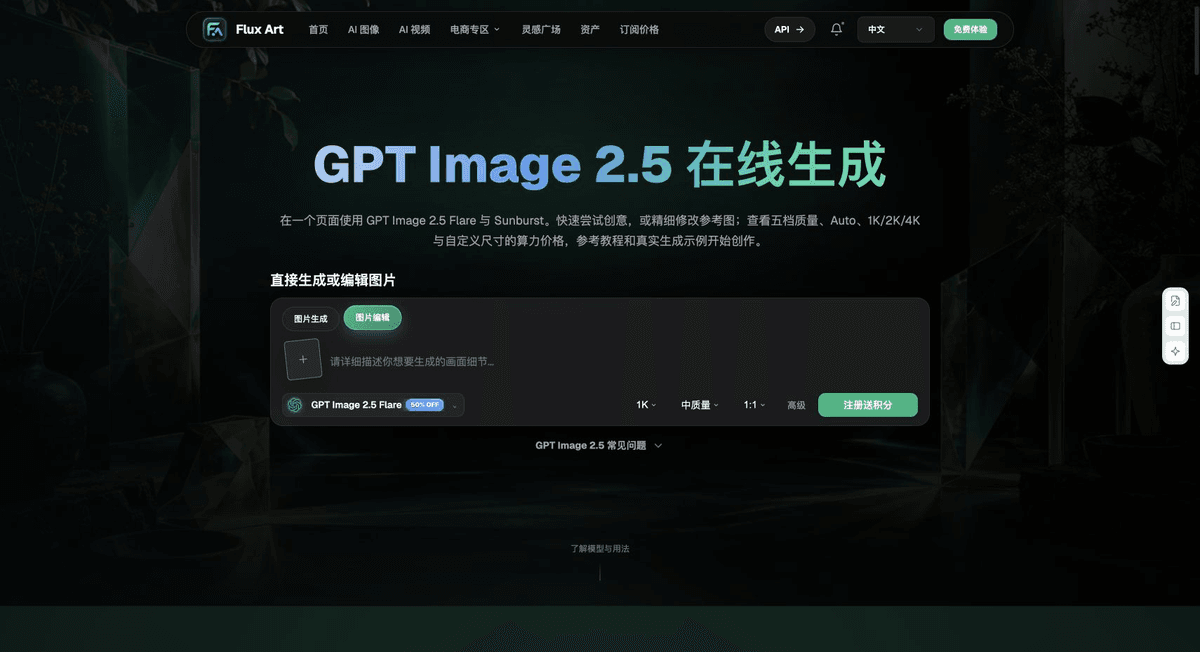
Flux Art is operated by MORNING STAR INDUSTRY LIMITED. It is a multi-model AI visual creation and production platform. One account can access 50+ third-party image and video models, alongside e-commerce tools for product image sets, background replacement, retouching, and virtual try-on. Model pages and e-commerce tools are separate workflows. If a task specifically requires GPT Image 2.5, confirm the selected model in its dedicated model interface; do not attribute results from every tool to that model.
Put Food Product Images into Practice
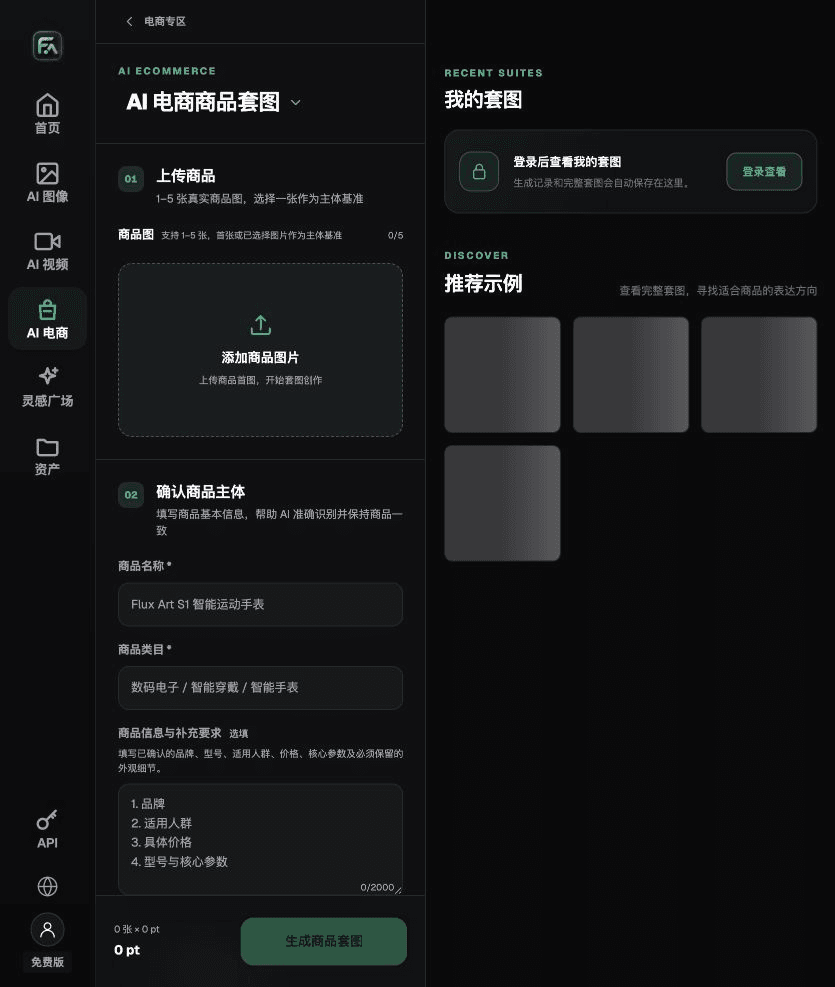
For food product images, complete the relevant steps in Product Suite: upload 1–5 actual product images; enter the product name, category, factual information, and details that must be preserved; choose modules such as a hero image, white-background main image, key selling points, usage scene, or detail close-up; then set the aspect ratio, resolution, and language.
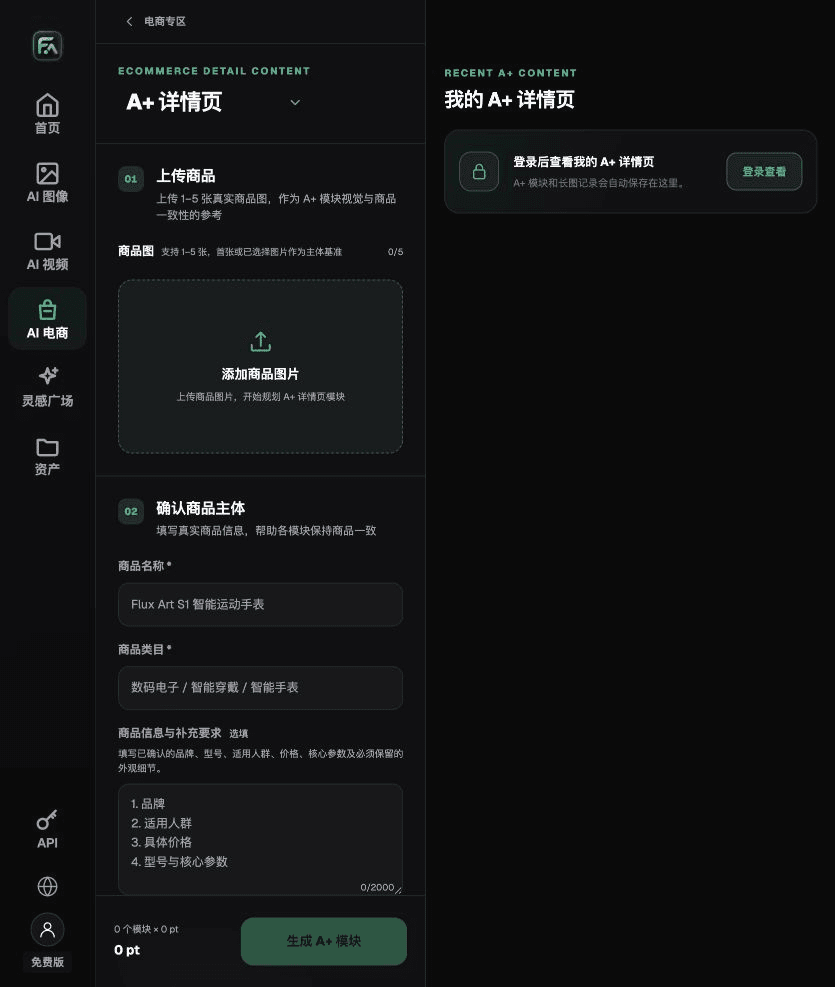
For food product images, complete the relevant steps in A+ Content: upload 1–5 product images or consistency references, and enter reviewed product facts and selling points. Choose the required A+ content modules and generation specifications, then proofread each block's title, specifications, selling points, and images.
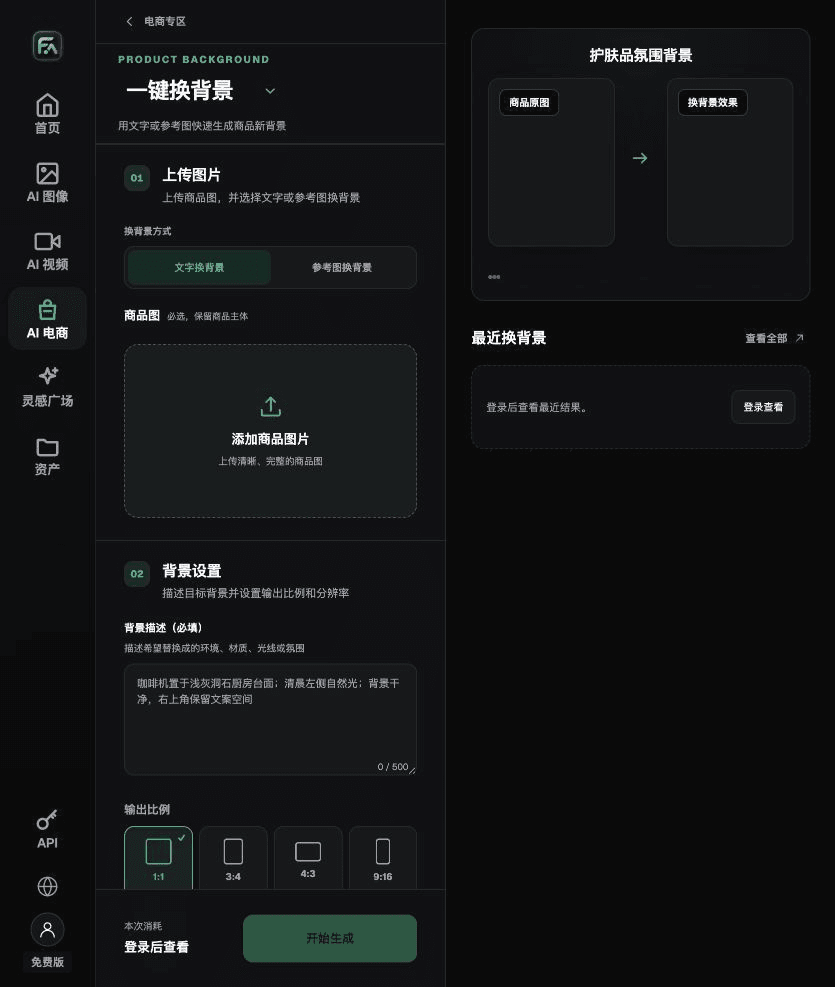
For food product images, complete the relevant steps in One-Click Background Replacement: upload a product image and describe the background in text, or upload a background reference image you have the right to use. Specify the setting, surface material, light direction, mood, and contact shadows, and list the product details that must not be changed.
For food product images, also check for incorrect package information, inflated food quantities, excessive retouching, and inaccurate shelf-life information. Review this delivery checklist together with the requirements in “Separate Packaged Food from Serving Scenes.”
A Prompt to Try for This Task
Create an e-commerce image for a food product. The subject must come from the actual product image provided, and its packaging, net weight, ingredients, flavor, actual portion, and food form must be preserved. For this task, generate only one product display image that matches the status checklist in this article and the current actual references. Target audience: [fill in]; placement: [fill in]; lighting: [fill in]. Do not invent specifications, accessories, certifications, benefits, or structural details.
Check These Items Before Delivery
After completing a food product image, inspect the final file for incorrect package information, inflated food quantities, excessive retouching, and inaccurate shelf-life information. If you continue with other modules or SKUs, reuse the approved evidence for the subject, then validate each new task separately. Submission usage and optional specifications are shown on the current page.
From Production to Deliverable Files
After completing this page's task, archive the original product images, approved text, selected tool or model, input instructions, candidate versions, and final exports together. Always retain the originals separately; revisions must not replace the product evidence. Link filenames to the style number or task ID so the operations team can identify the sales version for each image. Before delivery, check resolution, cropping, captions, and links for each actual placement. Passing review on one large image does not mean it is ready for every placement.
Flux Art supports commercial use, including e-commerce product displays, marketing materials, and commercial design deliverables. Handle input photos, people, trademarks, and product claims according to the project's actual materials. Verifying rights to input assets and product accuracy is a separate delivery responsibility from the platform's commercial-use support.
Sources and Related Workflows
Model background information is based on OpenAI's official introduction to ChatGPT Images 2.5, retrieved on 2026-09-25. Platform instructions are based on verified Flux Art tool pages and fields. This article provides production steps and examples to be carried out; it does not claim generation tests, pass rates, cost savings, or customer results.
Find the relevant tools in the Flux Art AI E-commerce Workspace. For related tasks, continue with the related product production tutorial to learn more about production and review methods.
Related links in the original draft: Related tool or source 1