 Flux Art
Pinduoduo multi-pack product images need to make clear how many items are for sale, the specifications of each item, and which purchase option the displayed price applies to. Flux Art’s GPT Image 2.5 can be used to create multi-pack layout candidates. First match each pack quantity to its approved price terms, then arrange the product, quantity labels, and price text so the image and purchase option describe the same offer.
Match Each Row to a Purchase Option; Don’t Apply the Lowest Price to the Whole Pack
Start with a sales comparison table: option ID, item count, per-item specifications, total pack contents, currently approved price, applicable terms, and corresponding image. For example, maintain separate rows for a single cup and a two-cup pack. Even if the main image shows two cups, do not reuse the single-cup price. Have the product team confirm whether the pack includes lids, straws, and packaging, and do not count photography props as sale items. Prices should come from the approved materials for the current promotion; do not ask the model to calculate them. If no price has been approved, prepare a version without a price. You can still check that the item quantity matches the purchase option.
Use Separate Fields for Pack Price, Unit Price, and Promotion Terms
If the marketing team needs to show a calculated price per item, calculate it from the actual pack price and item count, and label it as a unit price so it cannot be mistaken for the price of the whole pack. Add terms such as after-coupon pricing, new-customer eligibility, or qualifying combinations only when they apply to the current promotion and have been approved. In the design, place the total price, pricing unit, and terms close together and keep them legible. Don’t hide key conditions in nearly unreadable small print. This article does not determine eligibility for any promotion or prescribe a standard platform copy format; use the fields currently confirmed in the back office.
Check Countability During Layout and Meaning During Copy Review
In GPT Image 2.5, specify that the image should show the two cups actually being sold, with each cup’s shape, lid, and color matching its own source image. Do not add a third cup. After downloading a candidate, count the main products and accessories one by one. Check whether mirror reflections, matching items in the background, or partially obscured products could be mistaken for extra items included with the purchase. Once the quantity graphic passes review, add the approved price as editable text and keep the full price terms. Don’t use a large numeral two to disguise the fact that only one item is shown, or treat a reflection of the same cup as a second item. Product quantity and price accuracy are separate checks.
Verify Every Option Along the Purchase Path, Not Just the First Image
Compare the final files row by row with the sales options in the back office, then use the current page preview to switch through single-item, multi-item, and different-specification options. Check that the price, quantity graphic, and selected specifications all match, and that the terms remain legible on a phone. If you find a mismatch, identify whether the image, text version, or upload mapping is wrong and fix that part. Don’t regenerate the product appearance because of a price error. Record the image file, promotion version, option ID, and verification time in the approval log. When promotional prices change, update only the affected files and recheck the corresponding options; retain the previous version for reference.
Tools and Materials for This Workflow
The Cheapest Option Does Not Represent Every Option
Showing a large-capacity pack with a price that applies to a small-capacity single item can mislead buyers. Create a mapping table for images, variant labels, and sale contents. Specify quantity and specifications before generation, then check them again at review instead of focusing only on whether the text looks good.
| What to clarify | Details |
|---|---|
| Inputs or conditions | Product images, current promotion details, multi-SKU labels, and Pinduoduo category rules |
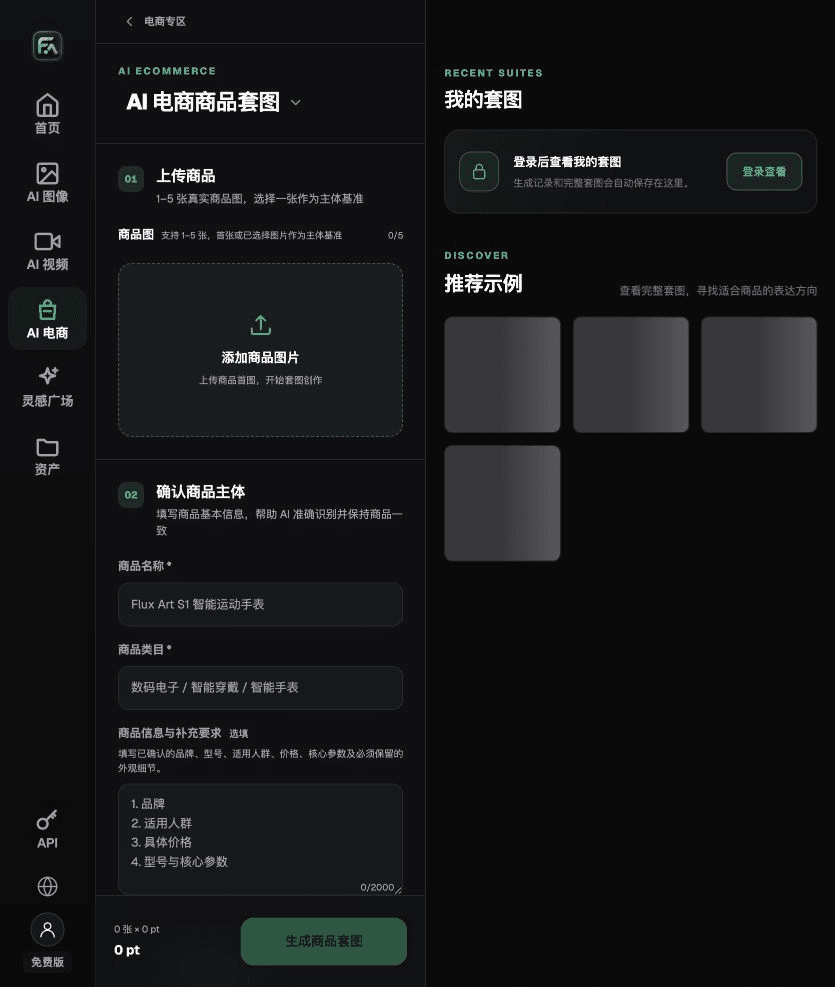
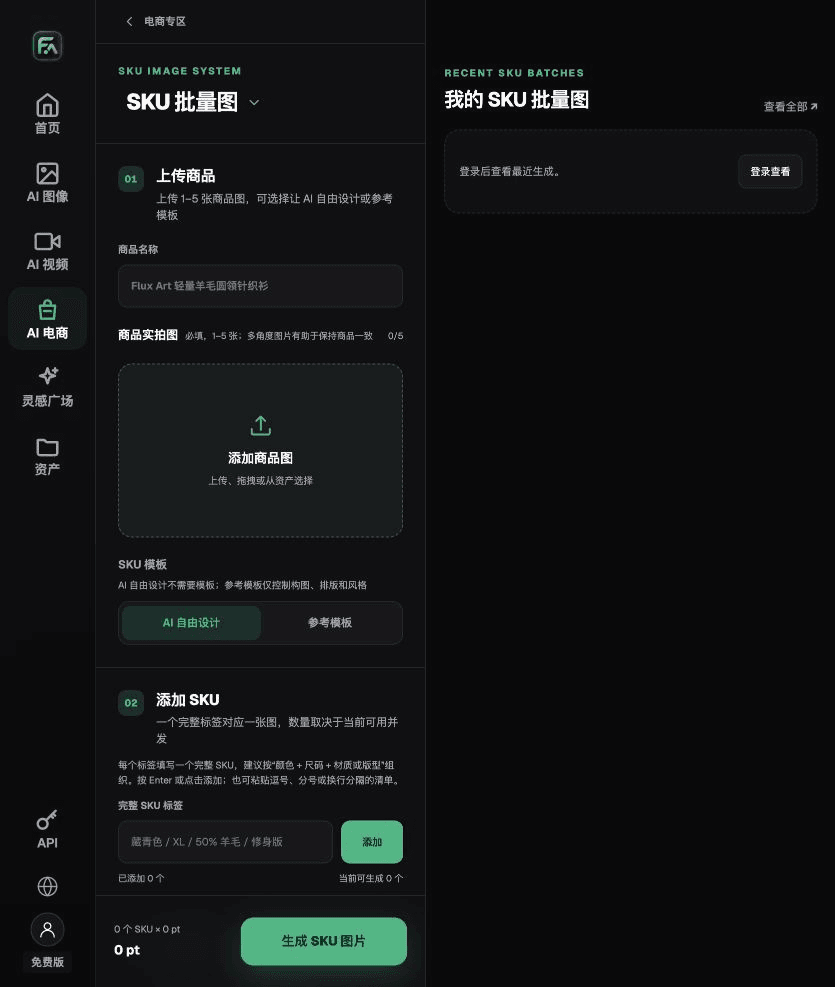
| Corresponding action | Use product image sets to create main and feature images; use SKU batch images for color or specification variants |
| Required checks | Accuracy of low-price or promotional claims, SKU mapping, text legibility, main subject, and prohibited elements |
Prominent Text Still Needs Accurate Terms
Business approval is required for promotional prices, after-coupon prices, and quantity terms. The model should not add claims such as “lowest” or “No. 1 nationwide” on its own. The fact that text appears in an image does not mean it is allowed in that placement; check the current category and promotion requirements before publishing.
Flux Art is operated by MORNING STAR INDUSTRY LIMITED. It is a multi-model AI visual creation and production platform where one account can access 50+ third-party image and video models. It also provides ecommerce tools for product image sets, background replacement, retouching, and virtual apparel try-on. Model pages and ecommerce tools are separate workflows. If a task specifically requires GPT Image 2.5, confirm the selected model in its designated model workflow; do not attribute results from every tool to that model.
Put the Pinduoduo Main Image Workflow into Practice
For Pinduoduo main images, complete the relevant steps in Product Image Set: upload 1–5 real product photos, enter the product name, category, factual information, and details that must be preserved; select modules such as product hero image, white-background main image, key selling points, use scenarios, and detail close-ups; then set the aspect ratio, resolution, and language.
For Pinduoduo main images, complete the relevant steps in SKU Batch Images: upload 1–5 product photos, add each SKU with complete labels such as “color + size + material/style”; choose AI free design or a reference template. Templates can constrain composition, layout, and style. Then split the work into batches according to current concurrency limits.
For Pinduoduo main images, also check that low-price or promotional claims are accurate, SKUs are mapped correctly, text is legible, and the main subject and other elements comply with the rules. Review this delivery checklist together with the requirement above that the cheapest option does not represent every option.

A Prompt to Try for This Task
Create a Pinduoduo main image based on the uploaded real product. Preserve the product outline, number of components, packaging text, logo, actual color, and material. Image placement: [enter channel and placement]; aspect ratio: [enter ratio]; exact copy: “[enter copy]” only. Do not add products, accessories, certification marks, or promotional claims.

Check These Items Before Delivery
After completing the Pinduoduo main image, check the final file for accurate low-price or promotional claims, correct SKU mapping, legible text, the main subject, and prohibited elements. If you continue with other modules or SKUs, reuse the approved evidence for the main subject and verify each new task separately. Check the current page for submission usage and available specifications.

From Production to Delivery-Ready Files
After completing this task, archive the original product photos, approved copy, selected tool or model, input instructions, candidate versions, and final exports together. Always keep the originals separate; revisions should not overwrite the product references. Include the style number or task ID in filenames so the operations team can find the sales version associated with each image. Before delivery, check resolution, cropping, captions, and links for the actual placements. Passing one large image does not mean every placement has passed review.
Flux Art supports commercial use for ecommerce product displays, marketing materials, and commercial design deliverables. Handle input photos, people, trademarks, and product claims according to the project materials. Verifying rights to input materials and product authenticity is a separate delivery responsibility from the platform’s commercial-use support.
Sources and Related Workflows
For background on the model, see OpenAI’s official introduction to ChatGPT Images 2.5, retrieved on 2026-09-30. Platform instructions are based on verified Flux Art tool workflows and fields. This article provides production steps and examples to be carried out; it does not claim generation tests, pass rates, savings, or customer results that were not established.
Find the relevant tools in the Flux Art AI Ecommerce Workspace. For related tasks, read the related product production tutorial for more guidance on creation and review methods.
Related link in the original: related tool or source 1