 Flux Art
GPT Image 2.5 can be used in Flux Art to create candidate layered necklace displays, but first distinguish individual necklaces, items sold as a set, and styling props. This article organizes single-item images, layered images, and packing lists by necklace and pendant ID, so the visuals clearly show buyers what they will receive.
Assign a Separate ID to Each Chain and Pendant
List the short chain, long chain, pendants, extender, and packaging separately, and note which IDs are included in each SKU. Matching metal colors do not mean two pieces belong to the same chain; record whether each pendant is detachable based on the actual item. The main product image for a single-chain SKU should show only what is included. A layered image can suggest ways to style it, but its caption should state clearly that additional accessories are not included.
Confirm Each Piece Before Planning the Layers
Use clear original photos to confirm each chain’s links, clasp, and pendant outline before preparing a layered reference. Choose a model angle and neckline that make both the upper and lower chains visible, without hair covering where they cross. Take actual chain lengths from the specifications; apparent differences in image length are not enough to estimate centimeters. Do not promise a consistent resting position across different body types.
Make Each Chain’s Path Traceable
Trace each chain from one side of the neck to its pendant and back to the other side. Check whether the chains merge, break, or turn into a different link pattern at crossing points. You can specify: keep the two chains separate according to their IDs, allow natural occlusion, do not merge clasps, and do not add pendants. If an occluded section cannot be seen clearly, use a clearer reference or composition rather than filling in unconfirmed details.
Deliver Three File Types for Each SKU
A flat-lay image of individual pieces identifies the components, a layered image explains how they are styled together, and a packing-list image shows what is included. Cross-check all three against the same SKU ID. If the promotional image shows three chains but the set contains only two, clearly identify the third chain as a prop. When the set changes, update the captions too; do not just replace the price or title.
Match the Tool to the Materials You Prepare
Jewelry Should Not Be Beautified into a Different Design
Check ring band thickness, chain links, prongs, and stone count against clear original photos. Do not let a request for “more luxury” turn ordinary material gold-colored or add gemstones. If a close-up does not have enough pixels, take another photo instead of treating generated texture as a macro photograph.
| What this task must clarify | Details |
|---|---|
| Inputs or requirements | Real product photos and gemstone facets, prong count, chain links, metal color, dimensions, and reflections |
| Actions | White-background images, macro details, worn images, gifting scenes, and feature images |
| Required checks | Redrawn small details, changes in stone count, distorted reflections, and incorrect wearing proportions |
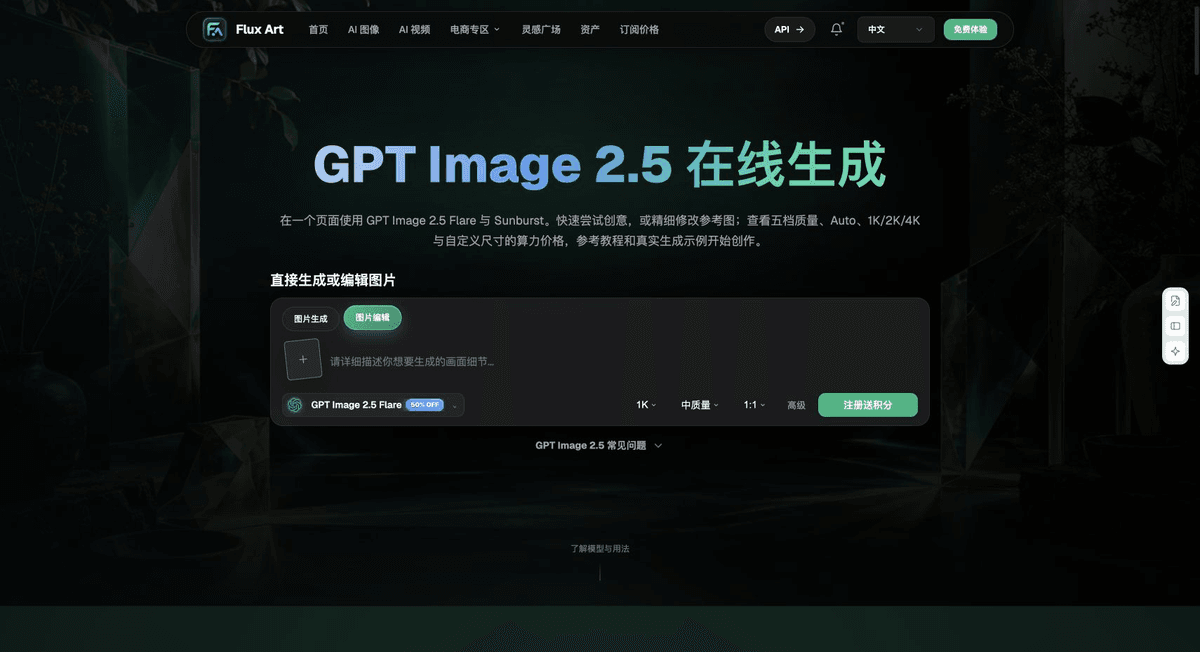
Flux Art is operated by MORNING STAR INDUSTRY LIMITED. It is a multi-model AI visual creation and production platform where one account can access 50+ third-party image and video models. It also offers e-commerce tools for product image sets, background changes, retouching, and clothing try-on. Model pages and e-commerce tools are separate entry points. If a task specifically requires GPT Image 2.5, confirm the selected model in the relevant model entry point; do not attribute every tool’s output to that model.
Wearing Proportions Affect Credibility
For earrings, necklaces, and watches, check contact points, size, and occlusion. The lighting on the model’s skin should work with the reflections on the metal. Information about precious-metal purity, gemstone grade, and dimensions must come from verified sources; visual candidates are not a substitute for appraisal.
Put Jewelry Product Images into Practice
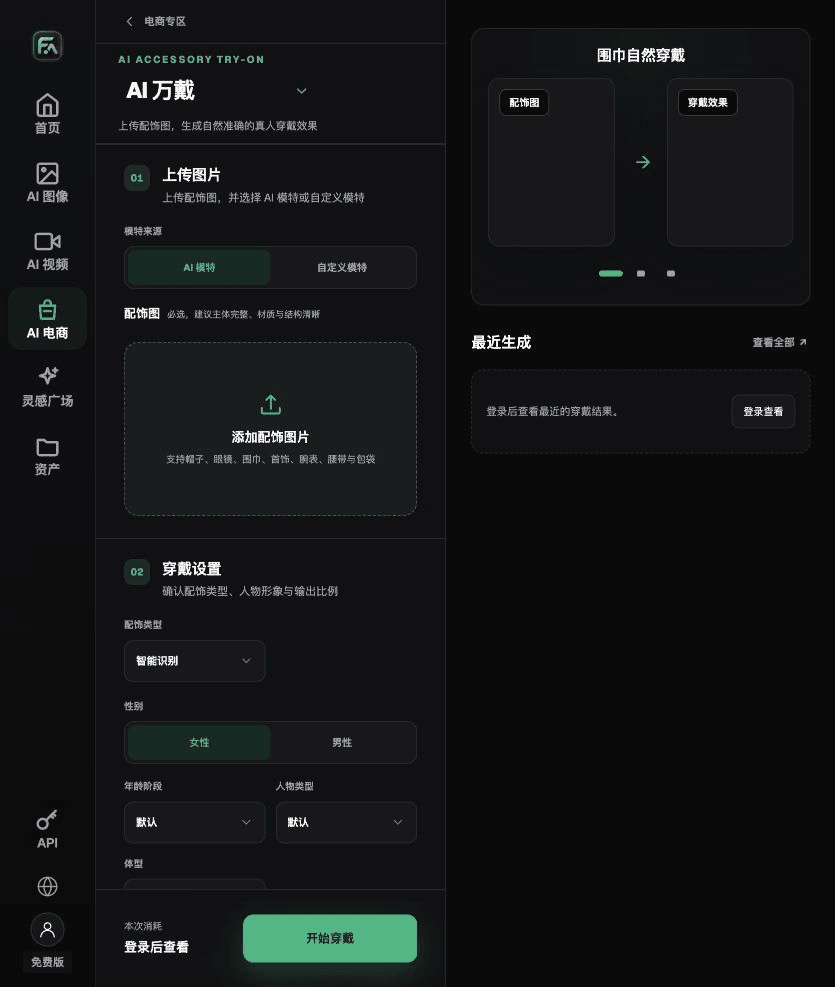
To make jewelry product images, use AI All-Wear in Flux Art for the relevant steps: upload images of accessories such as hats, glasses, scarves, jewelry, watches, belts, or bags, then choose an AI or custom model. Set the model’s appearance, body type, scene, styling, and wearing instructions.
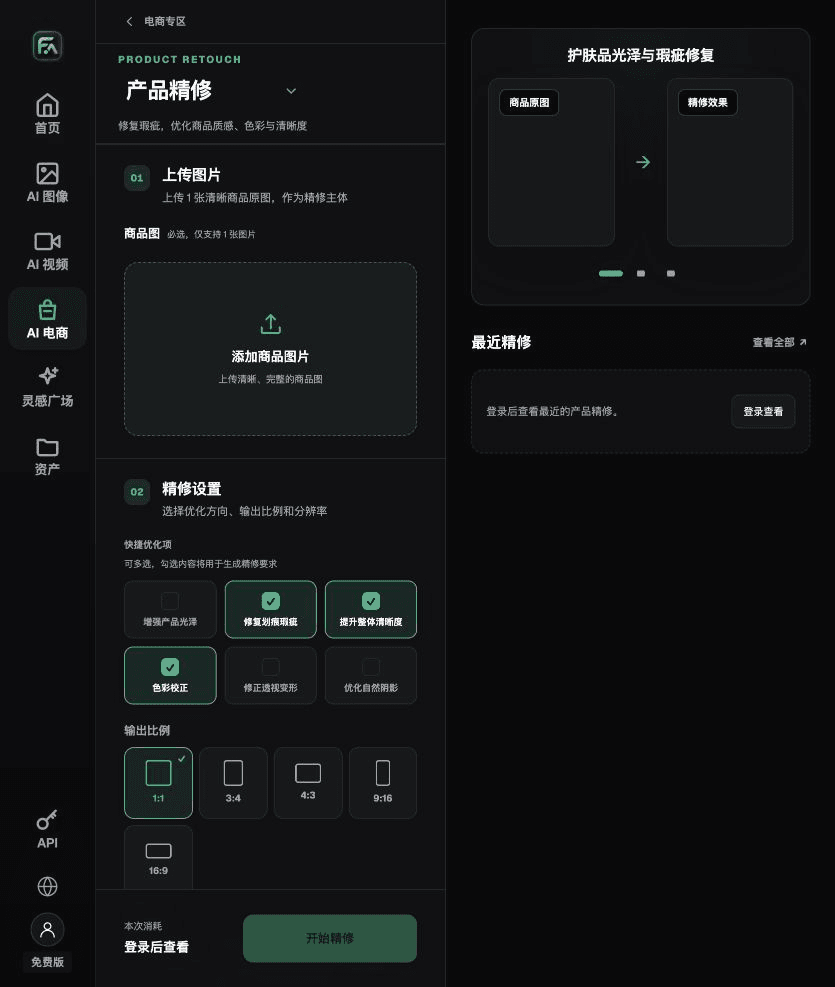
To make jewelry product images, use Product Retouching in Flux Art for the relevant steps: upload a product image with a clear subject and no severe occlusion. Choose gloss, scratches or blemishes, sharpness, color correction, perspective distortion, and natural shadows as needed; you do not need to enable every option.
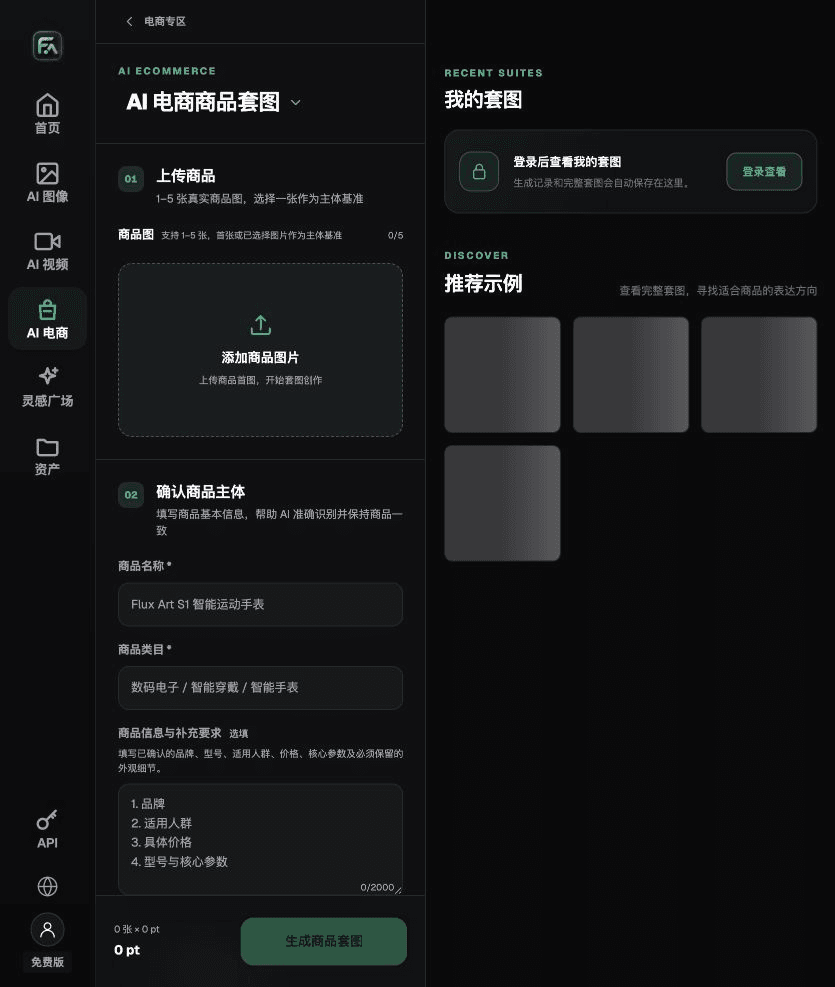
To make jewelry product images, use Product Image Set in Flux Art for the relevant steps: upload 1–5 real product images, enter the product name, category, factual information, and details that must be preserved. Choose modules such as product hero image, white-background main image, key features, use scenarios, and close-up details, then set the aspect ratio, resolution, and language.
For jewelry product images, also check for redrawn small details, changes in stone count, distorted reflections, and incorrect wearing proportions. Review this delivery checklist alongside the requirements above in “Jewelry Should Not Be Beautified into a Different Design.”
A Prompt to Try for This Task
Create an e-commerce jewelry image. The subject must come from the uploaded real product image. Preserve the gemstone facets, prong count, chain links, metal color, dimensions, and reflections. Generate only one product display image that matches the status checklist in this article and the current real reference. Target audience [fill in], placement [fill in], lighting [fill in]. Do not invent specifications, accessories, certifications, benefits, or structures.
Check These Items Before Delivery
Once the jewelry product image is complete, check the final file for redrawn small details, changes in stone count, distorted reflections, and incorrect wearing proportions. If you continue with other modules or SKUs, carry forward the approved evidence for the product itself, then validate each new task separately. Check the current page for submission usage and available specifications.
From Production to Delivery-Ready Files
After completing this task, archive the original product images, approved text, selected tool or model, input instructions, candidate versions, and final exports together. Always keep the originals separate; revisions must not overwrite the product evidence. Include the style number or task ID in filenames so the operations team can find the sales version associated with each image. Before delivery, check sharpness, cropping, captions, and links for the actual placement. Passing one large image does not mean it is ready for every placement.
Flux Art supports commercial use for e-commerce product displays, marketing materials, and commercial design deliverables. Handle input photos, people, trademarks, and product claims based on the actual project materials. Verifying rights to input materials and product authenticity are delivery checks separate from the platform’s commercial-use support.
Sources and Related Workflows
For model background, see OpenAI’s official introduction to ChatGPT Images 2.5, retrieved on 2026-09-25. Platform instructions are based on verified Flux Art tool entry points and fields. This article provides production steps and examples to try; it does not claim generation tests, pass rates, savings, or customer results.
Find the relevant tools in the Flux Art AI E-commerce Workspace. For related tasks, continue with the product production tutorial to learn more about production and review methods.
Related link from the original: related tool or source 1