 Flux Art
Beverage images showing opened packaging must clearly distinguish the pull tab, opening, and seal state. When creating candidates with Flux Art’s GPT Image 2.5, use separate references of the actual unopened and opened product. Product image sets can be organized into presentation modules. This workflow delivers a record matching each image to its state: do not present an opened drink in a usage scene as an unopened item for sale, and do not infer freshness performance.
Establish Evidence for Both States of One Container
Prepare photos of the unopened and actually opened product for each packaging version, and confirm that the container, capacity, flavor, and label match. Pull-tab cans, screw-cap bottles, and containers with sealing film have different structures. Check the real product and do not combine several types of seal into one product. Identify lifestyle photography and the final sale state separately in filenames and captions.
Check the Opening First, Then the Chilled Look
For each candidate, check whether the pull-tab direction, opened lid, bottle-mouth edge, or visible sealing film matches the source image. Water droplets, ice, and highlights can obscure critical areas, so make those details verifiable before adding atmosphere. If they cannot be seen, that does not mean they are correct; add clear detail shots when needed rather than using a blurry area to pass review.
Do Not Show Opened Parts in Two States
A seal that has been opened should not appear intact and unopened on the same container. If a removed cap is placed beside the bottle, check its quantity and which bottle it belongs to. If the source photo truly contains reflections or ghosting, interpret them in context; do not invent a second accessory from a reflection. Recheck the state after changing the background, not just the label text.
Confirm the Intended Use with Both Image and Copy
Place the source-image state, candidate version, sales use, and caption side by side in the delivery sheet. An unopened product hero image and an opened usage scene can both be used, but their names and descriptions must not be interchanged. This article does not provide instructions for opening containers, and a clean or chilled appearance cannot prove freshness, airtightness, or hygiene.
Tools and Reference Materials
Let Condensation Support the Product
Too much ice and splashing water can obscure the label or alter the bottle’s outline. Keep the product clear first, then add a few atmospheric elements. For transparent drinks, check the liquid color; for canned products, check whether the seal and label have been redrawn.
| What to Specify | Details |
|---|---|
| Inputs or conditions | Real product photos and accurate container proportions, label, liquid color, capacity, bubbles, or condensation |
| Actions | White-background image, chilled scene, flavor highlights, detail shots, and Chinese promotional poster |
| Required checks | Label typos, changed liquid color, distorted container, and condensation obscuring information |
Separate Promotional Copy from Packaging Text
Promotional headlines go in the image; the brand and capacity go on the packaging. Specify them separately in the prompt. Check prices, dates, and flavors character by character. When text must be exact, first generate a background image without promotional text, then typeset it with an approved font.
Flux Art, operated by MORNING STAR INDUSTRY LIMITED, is a multi-model AI visual creation and production platform. One account can access 50+ third-party image and video models, along with ecommerce tools for product image sets, background replacement, retouching, and virtual try-on. Model pages and ecommerce tools are separate workflows: if a task specifically requires GPT Image 2.5, confirm the selected model in its dedicated model workflow; do not attribute results from every tool to that model.
Put the Beverage Product Image Workflow into Practice
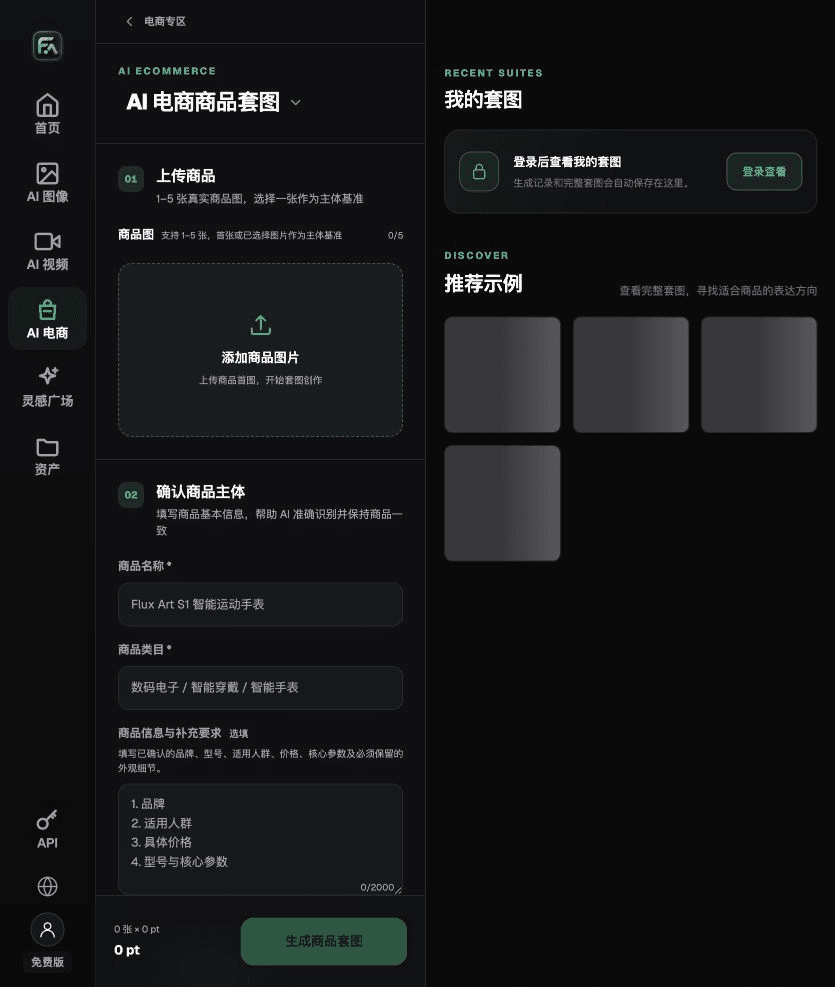
For beverage product images, complete the relevant steps in Product Image Set: upload 1–5 real product photos, enter the product name, category, factual information, and details that must be preserved; choose modules such as product hero image, white-background main image, key selling points, usage scene, and close-up details; then set the aspect ratio, resolution, and language.
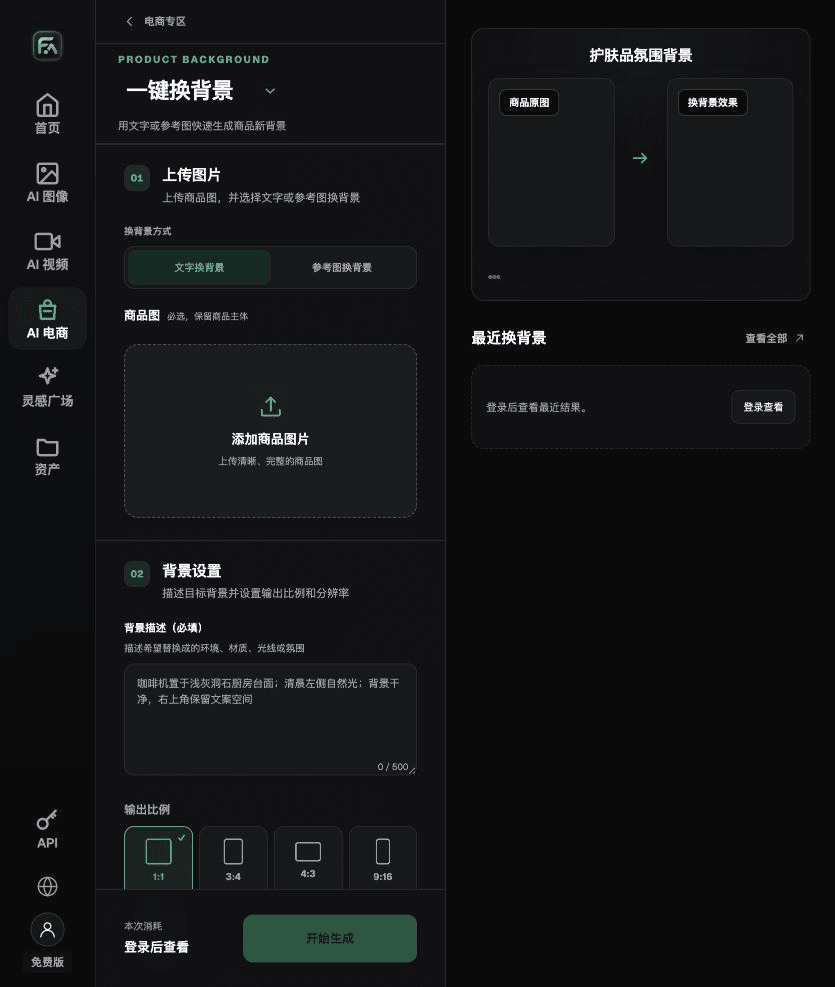
For beverage product images, complete the relevant steps in One-Click Background Replacement: upload a product image and describe the background in text, or upload a background reference image you have the right to use. Specify the setting, surface material, light direction, mood, and contact shadows, and list the product details that must not be changed.
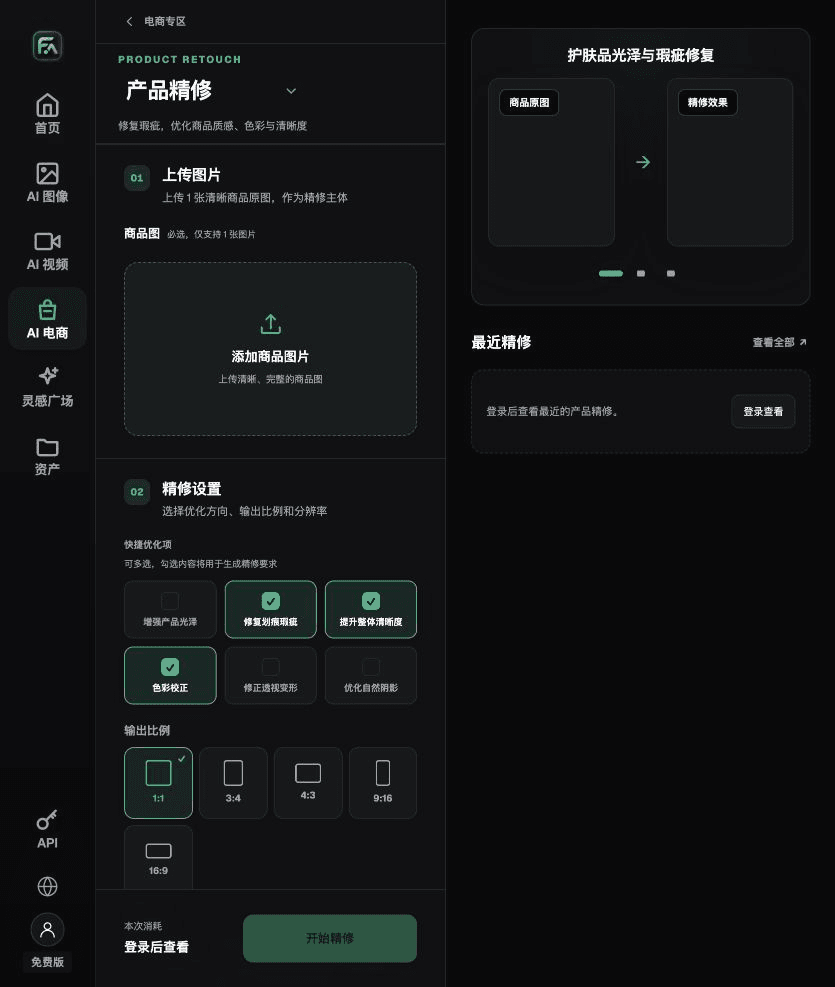
For beverage product images, complete the relevant steps in Product Retouching: upload a product image with a clear subject and no severe obstructions. Select gloss, scratches or blemishes, clarity, color correction, perspective distortion, and natural shadows as needed; you do not need to enable every option.
For beverage product images, also check for label typos, changed liquid color, container distortion, and condensation obscuring information. Review this delivery checklist together with the requirements in “Let Condensation Support the Product.”
A Prompt to Try for This Task
Create an ecommerce image of a beverage. The subject must come from the uploaded real product photo. Preserve the container proportions, label, liquid color, capacity, and the authentic appearance of any bubbles or condensation; generate only one product image that matches this article’s state checklist and the current real reference. Target audience [fill in], placement [fill in], lighting [fill in]. Do not invent specifications, accessories, certifications, benefits, or structures.

Check These Items Before Delivery
After creating beverage product images, inspect the final files for label typos, changed liquid color, container distortion, and condensation obscuring information. If you continue with other modules or SKUs, carry forward the approved subject evidence and validate each new task separately. Current submission usage and available specifications are shown on the page.

From Production to Deliverable Files
After completing the task on this page, archive the original product photos, approved copy, selected tool or model, input instructions, candidate versions, and final exports together. Always keep the originals separate; revisions must not overwrite the product evidence. Include the SKU or task ID in filenames so the operations team can find the sales version associated with each image. Before delivery, check resolution, cropping, captions, and links for the actual placement. Approval of one large image does not mean every placement is approved.
Flux Art supports commercial use and can be used for ecommerce product displays, marketing materials, and commercial design deliverables. Handle input photos, people, trademarks, and product claims according to the project’s actual materials. Verifying rights to input assets and product authenticity are separate delivery responsibilities from the platform’s commercial-use support.
Sources and Related Workflows
For model background, see OpenAI’s official introduction to ChatGPT Images 2.5, retrieved on 2026-10-02. Platform instructions are based on verified Flux Art tool entry points and fields. This article provides production steps and examples to be carried out; it does not invent hands-on generation tests, pass rates, savings, or customer results.
Find the relevant tools in the Flux Art AI Ecommerce Workspace. For related tasks, continue with the related product creation tutorial to learn more about production and review methods.
Related link from the source: Related Tool or Source 1